1. Rhagymadrodd
This manual provides detailed instructions for the setup, operation, maintenance, and troubleshooting of your Phomemo D520BT Bluetooth Thermal Label Printer. Please read this manual thoroughly before using the device to ensure proper functionality and to extend the product's lifespan.

Figure 1: Phomemo D520BT printer in purple, printing a shipping label, with a smartphone displaying a label design connected via Bluetooth. This image illustrates the printer's compact design and wireless printing capability.
2. Cynnwys Pecyn
Gwiriwch fod yr holl eitemau a restrir isod wedi'u cynnwys yn eich pecyn. Os oes unrhyw eitemau ar goll neu wedi'u difrodi, cysylltwch â chymorth cwsmeriaid.
- Phomemo D520BT Thermal Printer
- Roll Label (sample)
- Canllaw Cychwyn Cyflym
- Canllaw Defnyddiwr (y ddogfen hon)
- Cord Pŵer
- Cebl USB
- Addasydd Math-C
- Addasydd Pŵer

Figure 2: All components included in the Phomemo D520BT product package.
3. Canllaw Gosod
3.1 Dadbacio
- Tynnwch yr argraffydd a'r holl ategolion o'r pecynnu yn ofalus.
- Remove any protective films or packing materials from the printer.
3.2 Llwytho Labeli
The Phomemo D520BT supports both roll paper and folding paper labels.
- Open the printer cover by gently lifting it.
- For Roll Paper: Place the label roll into the internal paper holder, ensuring the labels feed from the bottom and the printing side faces upwards. Guide the first label through the output slot until it is slightly visible.
- For Folding Paper: Place the stack of folding labels behind the printer, ensuring the labels feed smoothly into the rear input slot and the printing side faces upwards. Guide the first label through the output slot until it is slightly visible.
- Caewch glawr yr argraffydd yn ddiogel.

Figure 3: The Phomemo D520BT printer supports both folding paper and roll paper labels.
3.3 Cysylltu'r Argraffydd
The D520BT offers both USB and Bluetooth connectivity.
3.3.1 USB Connection (Windows, Mac, Chrome OS, Linux)
- Connect one end of the USB cable to the printer and the other end to your computer.
- Cysylltwch yr addasydd pŵer â'r argraffydd a'i blygio i mewn i allfa bŵer.
- Trowch yr argraffydd ymlaen.
- Install the necessary printer drivers for your operating system. Drivers can typically be found on the official Phomemo websafle.
3.3.2 Bluetooth Connection (Android, iOS, iPad)
- Cysylltwch yr addasydd pŵer â'r argraffydd a'i blygio i mewn i allfa bŵer.
- Trowch yr argraffydd ymlaen.
- Lawrlwythwch a gosodwch y “Labelife” ap o siop apiau eich dyfais.
- Open the Labelife app and follow the in-app instructions to pair your device with the D520BT printer via Bluetooth.

Figure 4: The Phomemo D520BT supports both Bluetooth and USB connectivity for various devices and operating systems.
4. Cyfarwyddiadau Gweithredu
4.1 Pŵer Ymlaen/Diffodd
- Pŵer Ymlaen: Press the power button located on the printer. The indicator light will illuminate.
- Pwer i ffwrdd: Pwyswch a daliwch y botwm pŵer nes bod y golau dangosydd yn diffodd.
4.2 Printing a Label
- Ensure the printer is powered on and connected to your device (computer via USB or mobile device via Bluetooth).
- Open the document or application from which you wish to print.
- Select the Phomemo D520BT as your printer.
- Adjust print settings as needed (e.g., label size, orientation). The printer supports a width range of 1 to 4.6 inches.
- Initiate the print command.
The Labelife app provides various free templates for customizing shipping labels, address labels, barcode labels, and thank-you stickers.
4.3 Nodweddion Allweddol
- High Speed Printing: The D520BT can print up to 72 labels per minute (150mm/s), suitable for high-volume printing tasks.
- Cydraniad Uchel: Prints at 203 DPI, ensuring sharp and precise details on each label.
- Wide Printing Range: Supports label widths from 1 inch to 4.6 inches, accommodating various label types including 4x6 inch shipping labels.
- Ink-Free Thermal Technology: Utilizes direct thermal printing, eliminating the need for ink or toner cartridges.
- Dyluniad arbed gofod: Features a built-in paper holder, reducing the need for external label racks and optimizing desktop space.
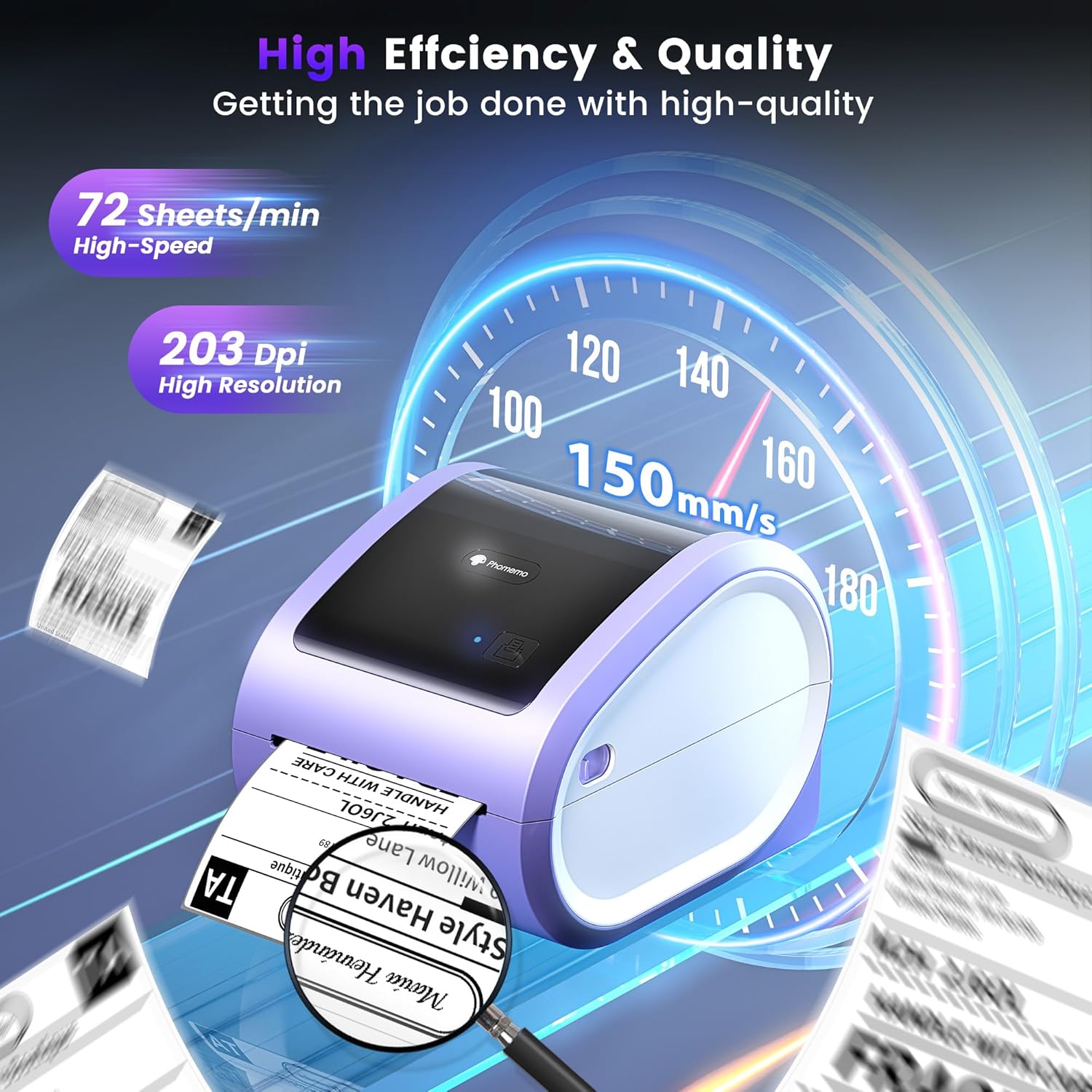
Figure 5: The Phomemo D520BT offers high efficiency and quality with a print speed of 150mm/s and 203 DPI resolution.

Figure 6: The Phomemo D520BT is compatible with various label sizes, from 1 inch to 4.6 inches wide.

Figure 7: The Phomemo D520BT supports multi-scenario applications for various labeling needs.

Figure 8: The Phomemo D520BT is compatible with all major shipping and sales platforms.
5. cynnal
5.1 Glanhau'r Pen Argraffu
Regular cleaning of the print head ensures optimal print quality and extends the printer's life.
- Diffoddwch yr argraffydd a dad-blygiwch y llinyn pŵer.
- Agorwch glawr yr argraffydd.
- Gently wipe the print head with an alcohol swab or a soft, lint-free cloth lightly dampyn cynnwys alcohol isopropyl.
- Gadewch i'r pen print sychu'n llwyr cyn cau'r clawr a throi'r argraffydd ymlaen.
5.2 Storio
Store the printer in a cool, dry place away from direct sunlight and extreme temperatures. Avoid exposing the printer to dust or moisture.
6. Datrys Problemau
If you encounter issues with your Phomemo D520BT printer, refer to the following common problems and solutions:
- Printer not powering on:
- Ensure the power adapter is securely connected to both the printer and a working power outlet.
- Check if the power button has been pressed firmly.
- Labels not printing or feeding incorrectly:
- Verify that labels are loaded correctly with the printing side facing up.
- Gwnewch yn siŵr nad oes unrhyw rwystrau yn llwybr y label.
- Check if the label roll or stack is depleted.
- Poor print quality (faded, streaky, or blank labels):
- Clean the print head as described in Section 5.1.
- Gwnewch yn siŵr eich bod yn defnyddio labeli thermol o ansawdd uchel.
- Check print density settings in your printer preferences.
- Problemau cysylltiad Bluetooth:
- Gwnewch yn siŵr bod Bluetooth wedi'i alluogi ar eich dyfais symudol a'r argraffydd.
- Ailgychwynwch yr argraffydd a'ch dyfais symudol.
- Ensure you are within the Bluetooth range.
- Re-pair the printer through the Labelife app.
- Problemau cysylltiad USB:
- Verify the USB cable is securely connected to both the printer and the computer.
- Ensure the correct printer drivers are installed.
- Rhowch gynnig ar borth USB neu gebl gwahanol.
For further assistance, refer to the detailed video tutorials and user manuals available online, or contact Phomemo customer support.
7. manylebau
| Nodwedd | Manyleb |
|---|---|
| Brand | Phomemo |
| Enw Model | D520BT |
| Technoleg Cysylltedd | Bluetooth, USB |
| Technoleg Argraffu | Thermol |
| Nodwedd Arbennig | Portable, Built-in Holder |
| Allbwn Argraffydd | Unlliw |
| Cyflymder Argraffu Uchaf | 150 mm/s (72 labels/min) |
| Cydraniad Argraffu | 203 DPI |
| Lled Argraffu Uchaf | 4.6 modfedd |
| Pwysau Eitem | 2.4 Bunt |
| Dimensiynau Cynnyrch | 10.31"D x 10.31"W x 7.87"H |
8. Gwarant a Chefnogaeth
Phomemo provides customer support to assist with any questions or issues you may encounter. For detailed warranty information, please refer to the warranty card included with your product or visit the official Phomemo website. Our customer support team is available via phone, email, or remote support.
For additional resources, including video tutorials and updated user manuals, please visit the Phomemo support page.


