1. Rhagymadrodd a Throsoddview
The Calix GigaCenter 844E-1 is a high-performance wireless router and modem designed to provide robust and reliable internet connectivity for home and small office environments. It supports dual-band Wi-Fi (2.4GHz and 5GHz) for optimal wireless performance and includes multiple Ethernet ports for wired connections. This manual provides detailed instructions for setting up, operating, maintaining, and troubleshooting your GigaCenter 844E-1 device.
2. Nodweddion Cynnyrch
- Wi-Fi Band Deuol: Supports 2.4GHz and 5GHz frequencies for flexible and high-speed wireless connections (802.11ac, 802.11n, 802.11a/g/b compatible).
- High LAN Data Rate: Capable of up to 1000 Mbps for fast wired connections.
- Porthladdoedd Lluosog: Includes Ethernet (RJ-45) ports (4 LAN ports), USB 2.0, and RJ-11 ports for versatile connectivity.
- Integrated Modem: Functions as both a router and a modem, simplifying network setup.
- Dyluniad Compact: Designed for efficient space utilization.
3. Cynnwys Pecyn
Gwiriwch fod yr holl eitemau yn bresennol yn eich pecyn:
- Calix GigaCenter 844E-1 Wireless Router Modem
- Cyflenwad Pŵer Adapter AC
- (Optional: Ethernet Cable, Phone Cable - may vary by package)
4. Canllaw Gosod
Follow these steps to set up your Calix GigaCenter 844E-1:
- Lleoli'r Dyfais: Place the GigaCenter 844E-1 in a central location in your home, away from obstructions and sources of interference (e.g., microwaves, cordless phones). Ensure adequate ventilation.
- Pwer Cysylltu: Connect the provided AC Adapter Power Supply to the "POWER" port on the back of the GigaCenter 844E-1 and then plug the adapter into a standard electrical outlet. The Power indicator light on the front panel should illuminate.

Ffigur 4.1: Blaen view of the Calix GigaCenter 844E-1 showing indicator lights and the included power adapter.
- Cysylltu â Ffynhonnell y Rhyngrwyd: Connect your internet service provider's (ISP) cable or fiber optic line to the appropriate WAN/Broadband port on the GigaCenter 844E-1. This port is typically labeled "ETH-WAN" or "Broadband". The Broadband indicator light should turn solid green once a connection is established.

Ffigur 4.2: Ochr view of the GigaCenter 844E-1 highlighting the ETH-WAN, Power, and Phone ports.
- Cysylltu Dyfeisiau â Gwifrau (Dewisol): Use standard Ethernet cables to connect computers, gaming consoles, or other network devices to the "ETHERNET 1-4" ports on the back of the GigaCenter 844E-1. The corresponding Ethernet indicator light will illuminate when a device is connected and active.

Figure 4.3: Top/back view of the GigaCenter 844E-1 displaying the USB, Reset, Ethernet (LAN), and Phone ports.
- Connect Phone Devices (Optional): If your service includes voice, connect analog phones to the "PHONE 1" or "PHONE 2" ports using RJ-11 cables.
- Cysylltiad Wi-Fi Cychwynnol:
- Locate the Wi-Fi Network Name (SSID) and Password (WPA Key) on the label usually found on the bottom or back of your GigaCenter 844E-1.
- Ar eich dyfais ddiwifr (gliniadur, ffôn clyfar, tabled), chwiliwch am rwydweithiau Wi-Fi sydd ar gael.
- Select your GigaCenter's SSID and enter the WPA Key when prompted.
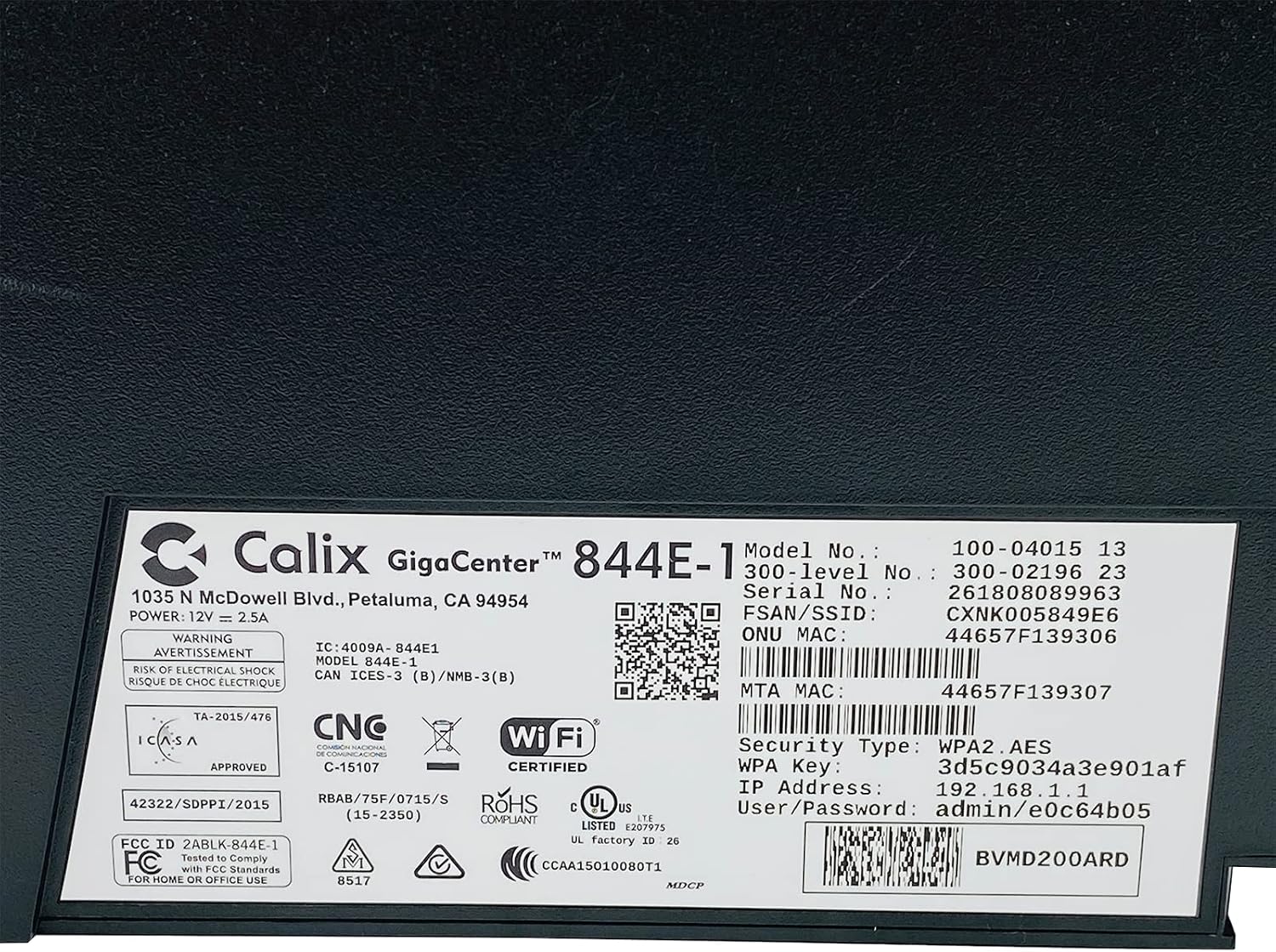
Ffigur 4.4: Manwl view of the bottom label, providing essential information such as model number, serial number, Wi-Fi SSID, and WPA Key for network access.
- Gwirio Cysylltiad: Ar ôl ei gysylltu, agorwch a web browser and try to access a websafle (e.e., www.google.com). If successful, your GigaCenter 844E-1 is set up and ready for use.
5. Cyfarwyddiadau Gweithredu
5.1 Goleuadau Dangosydd
The front panel of the GigaCenter 844E-1 features several indicator lights that provide status information:
| Ysgafn | Statws | Disgrifiad |
|---|---|---|
| GRYM | Gwyrdd solet | Mae'r ddyfais yn cael ei bweru ymlaen. |
| BAND EANG | Gwyrdd solet | Mae'r cysylltiad rhyngrwyd yn weithredol. |
| GWASANAETH | Gwyrdd solet | Service is active and provisioned. |
| 2.4 GHz WIFI | Solid Green/Flashing | 2.4 GHz Wi-Fi is active/data transfer. |
| 5 GHz WIFI | Solid Green/Flashing | 5 GHz Wi-Fi is active/data transfer. |
| ETHERNET 1-4 | Solid Green/Flashing | Wired connection active/data transfer. |
| PHONE 1-2 | Solid Green/Flashing | Phone service active/in use. |
| USB | Solid Green/Flashing | USB device connected/data transfer. |
| WPS | Fflachio | Paru WPS ar y gweill. |
5.2 Cyrchu'r Web Rhyngwyneb
To configure advanced settings, you can access the GigaCenter's web rhyngwyneb:
- Ensure your device is connected to the GigaCenter via Wi-Fi or Ethernet.
- Agor a web browser and enter the IP Address (e.g., 192.168.1.1) found on the product label into the address bar.
- Enter the User/Password (e.g., admin/e0c64b05) from the product label when prompted.
- You can now configure settings such as Wi-Fi name, password, port forwarding, and parental controls.
6. cynnal
- Glanhau: Defnyddiwch frethyn meddal, sych i lanhau tu allan y ddyfais. Peidiwch â defnyddio glanhawyr hylif na aerosolau.
- Awyru: Ensure the device's ventilation slots are not blocked to prevent overheating.
- Diweddariadau Cadarnwedd: Periodically check with your Internet Service Provider (ISP) for available firmware updates to ensure optimal performance and security.
- Ailgychwyn: If you experience connectivity issues, try restarting the device by unplugging the power adapter for 10 seconds and then plugging it back in.
7. Datrys Problemau
Mae'r adran hon yn mynd i'r afael â phroblemau cyffredin y gallech ddod ar eu traws:
7.1 Dim Cysylltiad Rhyngrwyd
- Gwirio Ceblau: Ensure all cables (power, internet source, Ethernet) are securely connected.
- Goleuadau Dangosydd: Verify that the POWER, BROADBAND, and SERVICE lights are solid green. If not, refer to Section 5.1 or contact your ISP.
- Ailgychwyn Dyfais: Power cycle the GigaCenter 844E-1 by unplugging it for 10 seconds and plugging it back in.
- Darparwr Gwasanaeth Rhyngrwydtage: Check with your ISP for any service outages yn eich ardal.
7.2 Wi-Fi Not Working or Slow
- Wi-Fi Lights: Ensure the WIFI 2.4 GHz and/or WIFI 5 GHz lights are solid green.
- Cyfrinair: Double-check that you are entering the correct Wi-Fi password (WPA Key).
- Cryfder y signal: Move closer to the GigaCenter 844E-1 to improve signal strength.
- Ymyrraeth: Lleihau ymyrraeth o ddyfeisiau electronig eraill.
- Optimeiddio Sianel: Cyrchwch y web interface to change Wi-Fi channels if experiencing congestion.
7.3 Methu Mynediad Web Rhyngwyneb
- Cyfeiriad IP: Confirm you are using the correct IP Address (e.g., 192.168.1.1).
- Cysylltiad: Ensure your device is connected to the GigaCenter's network.
- Manylion: Verify the User/Password from the product label.
- Wal Dân/Gwrthfeirws: Analluogwch dros dro unrhyw feddalwedd wal dân neu feddalwedd gwrthfeirws ar eich cyfrifiadur a allai fod yn rhwystro mynediad.
7.4 Ymarferoldeb WPS
The WPS (Wi-Fi Protected Setup) button allows for easy connection of WPS-compatible devices without manually entering the password. Press the WPS button on the GigaCenter 844E-1 and then activate WPS on your client device within two minutes. The WPS light will flash during the pairing process.
8. manylebau
| Nodwedd | Manylyn |
|---|---|
| Model | GigaCenter 844E-1 (100-04015 13) |
| Brand | Calix |
| Technoleg Cysylltedd | Wireless-Wi-Fi 802.11ac, Ethernet (RJ-45) Hub/Switch, 5G |
| Safonau Di-wifr | 802.11ac, 802.11n, 802.11a/g/b |
| Dosbarth Band Amlder | Deuol-Fand (2.4 GHz, 5 GHz) |
| Maximum LAN Data Rate | 1000 Mbps |
| Porthladdoedd | 4 x Ethernet (RJ-45), 1 x USB 2.0, 2 x RJ-11 (Phone) |
| Dyfeisiau Cydnaws | Personal Computer, Network Devices |
| Defnydd a Argymhellir | Cartref |
| Cydrannau wedi'u Cynnwys | Cyflenwad Pŵer |
| Pwysau Eitem | 3 pwys |
9. Gwybodaeth Diogelwch
- Peidiwch â gwneud y ddyfais yn agored i ddŵr neu leithder.
- Peidiwch ag agor y ddyfais casing. Cyfeiriwch yr holl waith cynnal a chadw at bersonél cymwys.
- Defnyddiwch yr addasydd pŵer a ddarperir yn unig.
- Cadwch y ddyfais i ffwrdd o ffynonellau gwres a golau haul uniongyrchol.
- Sicrhewch awyru priodol i atal gorboethi.
10. Gwarant a Chefnogaeth
For warranty information and technical support, please contact your Internet Service Provider (ISP) or the vendor from whom you purchased this device. The Calix GigaCenter 844E-1 is typically provided and supported by your ISP as part of your internet service package.
For general inquiries or to find more information about Calix products, you may visit the official Calix website (if available, search online for "Calix official website").


