1. Cynnyrch Drosview
The D-Link AC1200 Wi-Fi Router (DIR-850L) delivers next-generation wireless speed and coverage to all your Wi-Fi devices. With wireless dual-band speeds of 300 Mbps (2.4 GHz) and 867 Mbps (5 GHz), the DIR-850L avoids interference to deliver fast wireless speeds, improved coverage, and reliable connections. This router is ideal for streaming HD video, gaming, connecting multiple devices, and watching shows on your TV simultaneously. The DIR-850L is also backward compatible with existing wireless 802.11a/g/n devices for seamless connectivity. D-Link’s free mobile apps provide easy setup, remote monitoring, and access to content from anywhere on your smartphone or tablet.
Nodweddion Allweddol:
- Next Generation Wireless Technology: Wireless AC1200 for optimized performance and reliable coverage, delivering high-quality HD video streaming, gaming, and file trosglwyddiadau.
- Cydnawsedd yn ôl: Compatible with wireless 802.11a/g/n devices.
- Cysylltedd Dyfais Lluosog: Connect more devices with four Gigabit Ethernet ports.
- Rhannu Cyfryngau: Stream and share files using the USB Share Port and free mobile app.
- Gosodiad Hawdd: Intelligent browser wizard and Quick Router Setup Mobile app for simplified installation.
- Diogelwch Uwch: Preset security with advanced WPA2 encryption.
2. Cynnwys Pecyn
Ensure all items are present in your D-Link DIR-850L package:
- D-Link Wireless AC 1200 Dual-Band Gigabit Router (DIR-850L)
- Addasydd Pŵer
- Cebl Ethernet
- Canllaw Gosod Cyflym
Os oes unrhyw eitemau ar goll neu wedi'u difrodi, cysylltwch â'ch manwerthwr neu gymorth D-Link.
3. Caledwedd Drosview
Familiarize yourself with the physical components and indicators of your DIR-850L router.

Ffigur 3.1: Blaen View. Shows the cylindrical design of the router with the D-Link logo and LED indicators for Power and Internet status.

Ffigur 3.2: Ochr View. Illustrates the side of the router, highlighting the USB port for storage sharing and the Wi-Fi Protected Setup (WPS) button.
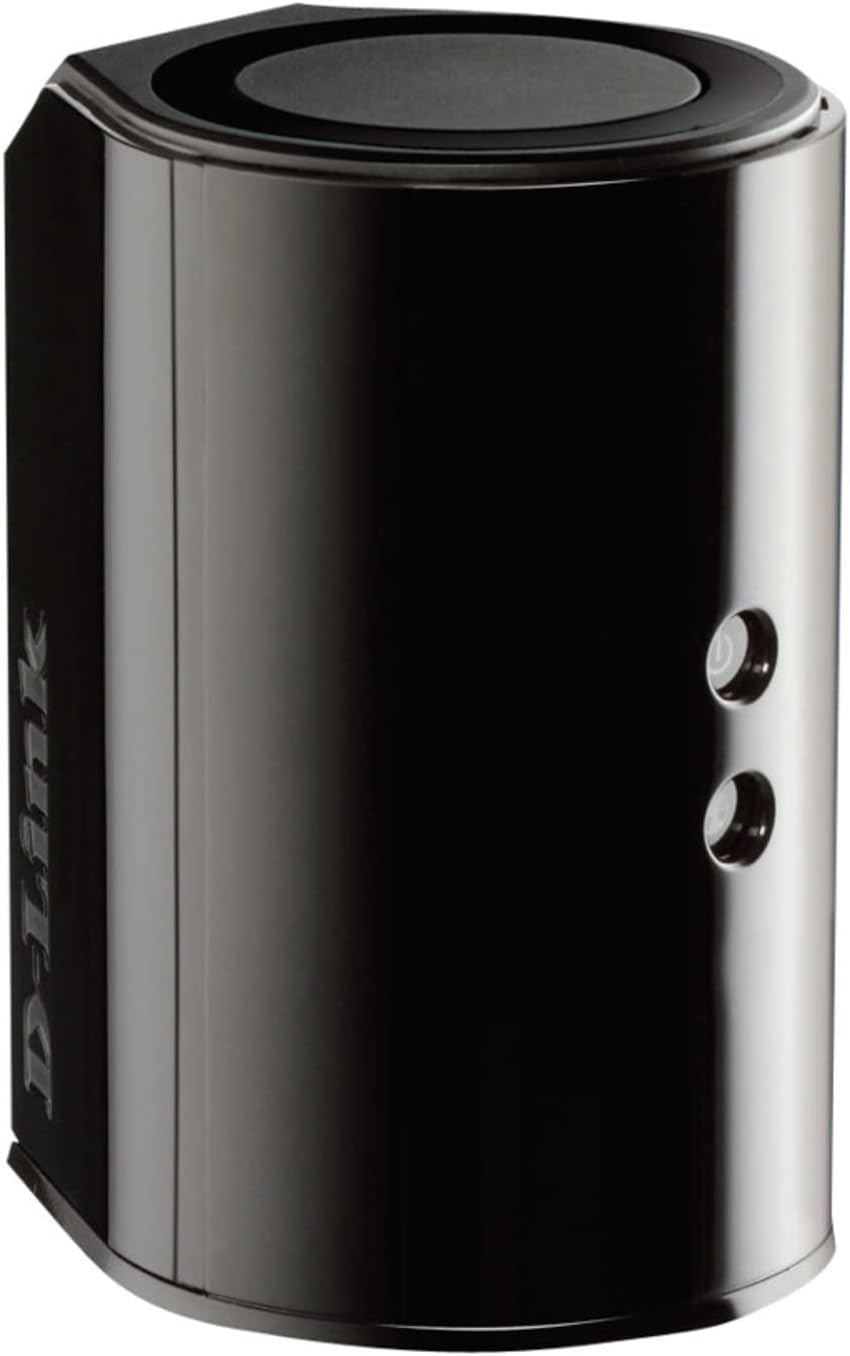
Ffigur 3.3: Cefn View. Displays the back panel of the router, featuring the WAN (Internet) port, four LAN (Ethernet) ports, and the power input connector.
Dangosyddion LED:
- Pwer LED: Solid green indicates the router is powered on. Blinking green indicates a firmware upgrade or reset.
- Rhyngrwyd LED: Solid green indicates a successful connection to the internet. Blinking green indicates data activity. Amber indicates no internet connection.
Porthladdoedd a Botymau:
- Porthladd WAN (Rhyngrwyd): Yn cysylltu â'ch modem i gael mynediad i'r rhyngrwyd.
- Porthladdoedd LAN (1-4): Connect wired devices such as computers, gaming consoles, or network storage.
- Porth USB: Connect a USB storage device for network sharing.
- Power Connector: Yn cysylltu â'r addasydd pŵer sydd wedi'i gynnwys.
- Botwm Ailosod: Pwyswch a daliwch am 10 eiliad i adfer gosodiadau diofyn y ffatri.
- Botwm WPS: Initiates Wi-Fi Protected Setup for easy wireless connection of compatible devices.
4. Gosod
Follow these steps to set up your D-Link DIR-850L router:
- Lleoli'r Llwybrydd: Rhowch eich llwybrydd mewn lleoliad canolog yn eich cartref, i ffwrdd o rwystrau a dyfeisiau a allai achosi ymyrraeth (e.e., ffonau diwifr, microdonnau).
- Cysylltu â Modem:
- Pŵer oddi ar eich modem.
- Connect one end of the provided Ethernet cable to the WAN (Internet) port on your DIR-850L router.
- Connect the other end of the Ethernet cable to the Ethernet port on your modem.
- Pŵer Ymlaen:
- Trowch eich modem ymlaen ac aros i'w oleuadau dangosydd sefydlogi (fel arfer yn dynodi cysylltiad rhyngrwyd gweithredol).
- Connect the power adapter to the power connector on your DIR-850L router and plug it into a power outlet.
- Wait for the Power LED on the router to turn solid green. The Internet LED should also turn green, indicating a successful connection.
- Cysylltwch Dyfais:
- Cysylltiad â gwifrau: Connect an Ethernet cable from one of the LAN ports (1-4) on the router to your computer's Ethernet port.
- Cysylltiad diwifr: On your Wi-Fi enabled device (laptop, smartphone, tablet), search for available Wi-Fi networks. Select the network name (SSID) found on the Wi-Fi Configuration Card (usually a sticker on the bottom of the router) and enter the Wi-Fi password.
- Rhedeg y Dewin Gosod:
- Agor a web browser (e.g., Chrome, Firefox) on the connected device.
- Math
http://dlinkrouter.localor192.168.0.1i mewn i'r bar cyfeiriad a gwasgwch Enter. - Follow the on-screen instructions of the D-Link Setup Wizard to configure your internet connection and personalize your Wi-Fi network name (SSID) and password.
Setup Video (General D-Link Router Overview):
Video 4.1: D-Link Wireless AC 1200 Mbps Home Cloud App-Enabled Dual-Band Gigabit Router Overview. Mae'r fideo hwn yn rhoi trosolwg cyffredinolview of D-Link routers, including the DIR-850L, and highlights their features and target users. While not a step-by-step setup guide, it offers insights into the router's capabilities.
5. Cyfarwyddiadau Gweithredu
Once your D-Link DIR-850L router is set up, you can manage and optimize your network.
Cysylltu Dyfeisiau:
- Di-wifr: Use the Wi-Fi network name (SSID) and password you configured during setup to connect your wireless devices. The router supports both 2.4 GHz and 5 GHz bands.
- Gwifrog: Connect devices directly to the LAN ports using Ethernet cables for a stable, high-speed connection.
Mynediad i Gosodiadau'r Llwybrydd:
I gael mynediad at osodiadau uwch, agorwch web porwr a llywio i http://dlinkrouter.local or 192.168.0.1. Log in with the administrator password you set during the initial setup. From here, you can:
- Newid gosodiadau Wi-Fi (SSID, cyfrinair, math o ddiogelwch).
- Configure guest Wi-Fi networks.
- Sefydlu rheolaethau rhieni.
- Rheoli dyfeisiau cysylltiedig.
- Diweddaru'r firmware.
Using the USB Share Port:
Plug a USB storage device (e.g., flash drive, external hard drive) into the USB port on the router. You can then access and share files on this storage device across your network using the D-Link SharePort Mobile app or through network shares on your computer.
6. cynnal
Mae cynnal a chadw rheolaidd yn helpu i sicrhau perfformiad a hirhoedledd gorau posibl eich llwybrydd.
- Wrthi'n ailgychwyn: Ailgychwynwch eich llwybrydd o bryd i'w gilydd (datgysylltwch o'r pŵer am 10 eiliad, yna plygiwch yn ôl i mewn) i glirio ei gof ac adnewyddu cysylltiadau rhwydwaith. Gall hyn ddatrys problemau perfformiad bach.
- Diweddariadau Cadarnwedd: Gwiriwch gefnogaeth D-Link website for firmware updates. Firmware updates can improve performance, add new features, and fix security vulnerabilities. Follow the instructions provided by D-Link carefully when performing updates.
- Glanhau: Keep the router clean and free from dust. Use a soft, dry cloth to wipe the exterior. Do not use liquid cleaners or aerosols. Ensure ventilation openings are not blocked.
- Diogelwch: Regularly change your Wi-Fi password and router administrator password to enhance network security.
7. Datrys Problemau
If you encounter issues with your D-Link DIR-850L router, refer to the following common problems and solutions:
Dim Cysylltiad Rhyngrwyd:
- Gwirio Ceblau: Gwnewch yn siŵr bod yr holl geblau Ethernet wedi'u cysylltu'n ddiogel â'r llwybrydd a'r modem.
- Statws Modem: Gwiriwch fod eich modem yn gweithio'n gywir a bod ganddo gysylltiad rhyngrwyd gweithredol.
- Reboot Sequence: Power off your modem, then your router. Wait 30 seconds, then power on the modem first. Once the modem is fully online, power on the router.
- Cyswllt Darparwr Gwasanaeth Rhyngrwyd: If the issue persists, contact your Internet Service Provider (ISP) to confirm service status.
Cyflymder Wi-Fi Araf:
- Lleoliad Llwybrydd: Move the router to a more central location, away from obstacles and interference sources.
- Ymyrraeth Sianel: Mewngofnodwch i'r llwybrydd web interface and try changing the Wi-Fi channel for both 2.4 GHz and 5 GHz bands to a less congested one.
- Dyfeisiau Cysylltiedig: Datgysylltwch ddyfeisiau nas defnyddir o'ch rhwydwaith.
- Firmware: Gwnewch yn siŵr bod cadarnwedd eich llwybrydd yn gyfredol.
Methu cysylltu â Wi-Fi:
- Cyfrinair Cywir: Double-check that you are entering the correct Wi-Fi password (case-sensitive).
- Darllediad SSID: Ensure the router is broadcasting its Wi-Fi network name (SSID).
- WPS: If your device supports WPS, try using the WPS button on the router to connect.
- Ailosod y Llwybrydd: As a last resort, perform a factory reset (see Hardware Overview) and reconfigure the router.
8. manylebau
| Nodwedd | Disgrifiad |
|---|---|
| Enw Model | DIR-850L |
| Math Di-wifr | 802.11ac (backward compatible with 802.11a/b/g/n) |
| Dosbarth Band Amlder | Band Deuol (2.4 GHz a 5 GHz) |
| Cyflymder Di-wifr | Hyd at 300 Mbps (2.4 GHz), Hyd at 867 Mbps (5 GHz) |
| Porthladdoedd Ethernet | 4 x LAN Gigabit, 1 x WAN Gigabit |
| Porth USB | 1 x USB 2.0 (for SharePort) |
| Math o Antena | Mewnol |
| Cydweddoldeb System Weithredu | Windows® 8, 7, Vista®, XP SP2, or Mac OS® X (v10.4 or higher) |
| Dimensiynau (LxWxH) | 4.45 x 3.43 x 5.72 modfedd |
| Pwysau Eitem | 9.9 owns (0.62 pwys) |
| Lliw | Du |
9. Gwarant a Chefnogaeth
Mae cynhyrchion D-Link wedi'u hategu gan warant gyfyngedig. Am delerau ac amodau gwarant penodol, cyfeiriwch at y wybodaeth warant sydd wedi'i chynnwys gyda'ch cynnyrch neu ewch i wefan swyddogol D-Link. websafle.
For technical support, product registration, and access to the latest drivers, firmware, and user manuals, please visit the D-Link support portal:
Cefnogaeth D-Link Websafle: www.dlink.com/support
You may also find helpful resources and community forums on the D-Link websafle.