
Rhagymadrodd
This manual provides comprehensive instructions for the HP 14-inch Laptop, Model 2026 Essential. It covers initial setup, daily operation, maintenance tips, and troubleshooting common issues. Please read this manual thoroughly to ensure proper use and longevity of your device.

Ffigur 1: HP 14-inch Essential Laptop highlighting key features like Intel Processor N150, 4GB LPDDR5 RAM, 628GB storage, Windows 11 Pro, HD anti-glare display, Intel Graphics, Wi-Fi 6, Microsoft Copilot Key, HD camera, integrated digital mics, and stereo speakers.
1. Gosod
1.1 Dadbocsio a Chynnwys y Pecyn
Carefully unpack your HP 14-inch Laptop and verify all components are present.
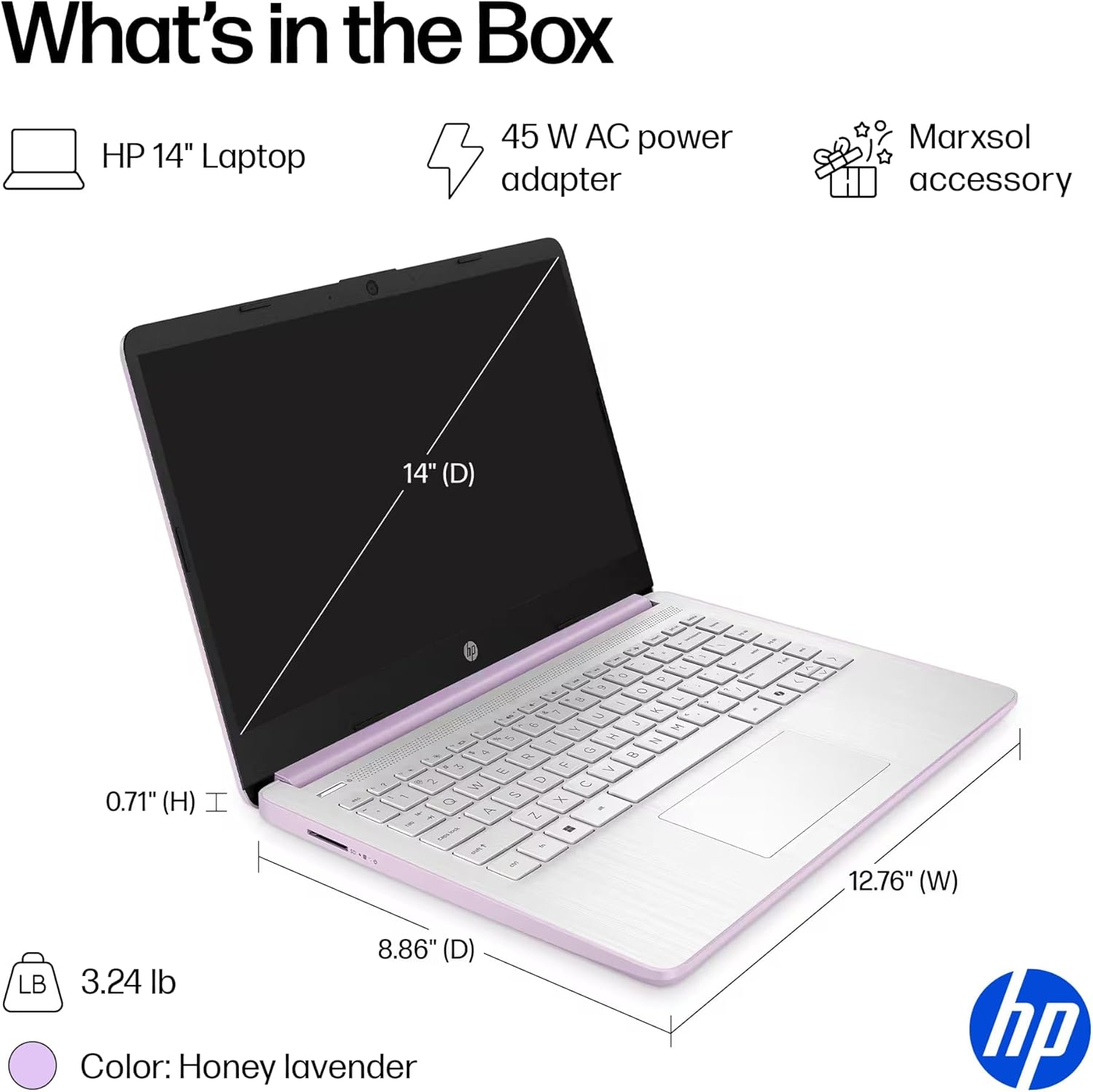
Ffigur 2: The package includes the HP 14-inch Laptop, a 45W AC power adapter, and the Marxsol accessory bundle. The laptop dimensions are 12.76" (W) x 8.86" (D) x 0.71" (H) and it weighs 3.24 lbs.
Dylai eich pecyn gynnwys:
- HP 14-inch Laptop
- 45W AC Power Adapter
- Marxsol Accessory Bundle:
- 6-in-1 USB-C Docking Station Hub
- 500GB External Drive
- USB Extension Cord
- Cebl HDMI
- Pad Llygoden
- Llygoden Di-wifr

Ffigur 3: The Marxsol accessory bundle includes a 6-in-1 USB-C Docking Station, Wireless Mouse, Mouse Pad, USB Extension Cable, HDMI Cable, and a 500GB External Drive.
1.2 Pŵer Cysylltu
Connect the AC power adapter to the laptop's AC Smart pin port and then plug the adapter into a power outlet. The battery will begin charging automatically. It is recommended to fully charge the battery before first use.
1.3 Initial Boot and Windows 11 Pro Setup
Press the power button to turn on the laptop. Follow the on-screen instructions to complete the initial setup of Windows 11 Pro. This process typically involves selecting your region, language, connecting to a Wi-Fi network, and creating a user account.

Ffigur 4: The laptop comes pre-installed with Windows 11 Pro and includes Microsoft Office 2024.
2. Gweithredu Eich Gliniadur
2.1 Pŵer Ymlaen/Diffodd a Modd Cysgu
- Pŵer Ymlaen: Pwyswch y botwm pŵer sydd wedi'i leoli ar y bysellfwrdd.
- Pwer i ffwrdd: Cliciwch y botwm Cychwyn, yna Pŵer, a dewiswch "Cau i Lawr".
- Modd Cwsg: Close the lid or click the Start button, then Power, and select "Sleep."
2.2 Bysellfwrdd a Phad Cyffwrdd
The laptop features a full-size English keyboard and a multi-touch touchpad.
- Ystumiau padiau cyffwrdd: Refer to Windows 11 settings for customizable touchpad gestures (e.g., two-finger scroll, pinch-to-zoom).
- Allweddi Swyddogaeth: Defnyddiwch y Fn key in combination with the function keys (F1-F12) for quick access to features like volume control, screen brightness, and Wi-Fi toggle.
2.3 Connecting Peripherals (Ports)
Your laptop is equipped with various ports for connecting external devices.
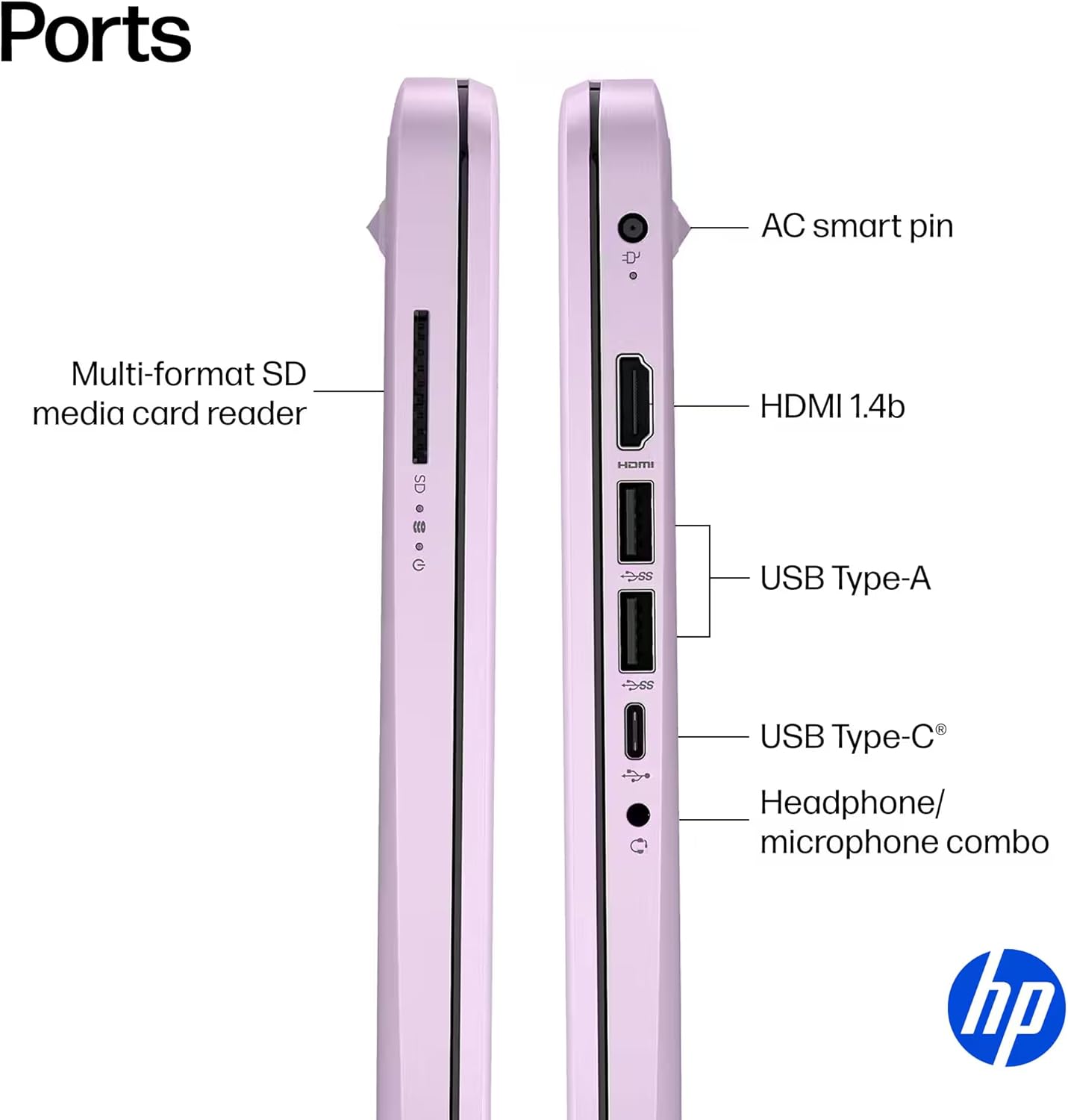
Ffigur 5: Ochr view of the HP 14-inch laptop showing available ports.
- USB Type-C (5Gbps signaling rate): Ar gyfer trosglwyddo data yn unig.
- USB Type-A (5Gbps signaling rate): For connecting USB devices like external drives, keyboards, and mice.
- HDMI 1.4b: Ar gyfer cysylltu ag arddangosfeydd neu daflunyddion allanol.
- Jac Combo Clustffonau/Meicroffon: Ar gyfer cysylltu clustffonau neu glustffon gyda meicroffon.
- Multi-format SD Media Card Reader: For reading SD cards.
- Pin Clyfar AC: Ar gyfer cysylltu'r addasydd pŵer.
2.4 Cysylltedd Di-wifr
The laptop supports Wi-Fi 6 (802.11ax) and Bluetooth 5.4 for high-speed wireless connections.
- Wi-Fi: To connect to a wireless network, click the Wi-Fi icon in the taskbar, select your network, and enter the password if required.
- Bluetooth: To pair Bluetooth devices, go to Windows Settings > Bluetooth & devices, and follow the pairing instructions.
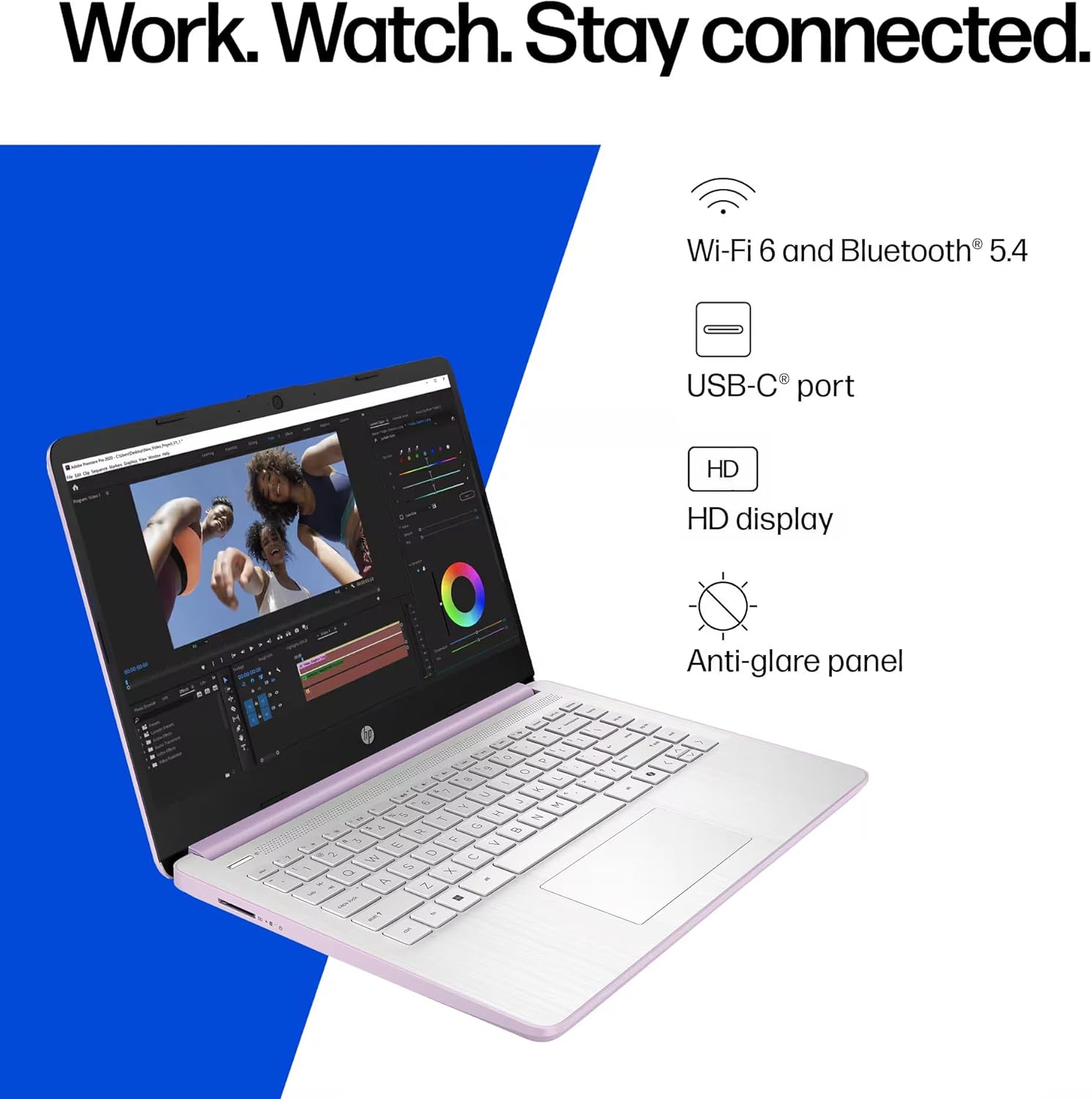
Ffigur 6: The laptop offers Wi-Fi 6 and Bluetooth 5.4 for robust wireless connectivity, alongside a USB-C port, HD display, and anti-glare panel.
2.5 Microsoft Copilot Key
The dedicated Microsoft Copilot key provides instant access to AI assistance. Press this key to launch Copilot and interact with it for various tasks, information, and creative assistance.

Ffigur 7: The Microsoft Copilot key on the keyboard provides quick access to AI features.
3. cynnal
3.1 Gofal Batri
- To maximize battery lifespan, avoid frequently discharging the battery completely.
- Storiwch y gliniadur mewn lle oer, sych os na chaiff ei ddefnyddio am gyfnodau hir.
- The laptop features a 3-cell, 41 Wh Li-ion battery, providing up to 9 hours of usage.
3.2 Glanhau Eich Gliniadur
- Sgrin: Defnyddiwch frethyn meddal, di-lint yn ysgafn dampwedi'i olchi â dŵr neu lanhawr sgrin. Peidiwch â chwistrellu hylif yn uniongyrchol ar y sgrin.
- Bysellfwrdd a Siasi: Defnyddiwch frethyn meddal, sych. Ar gyfer baw ystyfnig, defnyddiwch frethyn ychydig yn sych.amp gellir defnyddio lliain, gan sicrhau nad oes hylif yn mynd i mewn i agoriadau.
- Porthladdoedd: Cadwch y porthladdoedd yn rhydd o lwch a malurion. Defnyddiwch aer cywasgedig os oes angen, gan ddal y can yn unionsyth.
3.3 Diweddariadau Meddalwedd
Regularly update your Windows 11 Pro operating system and drivers to ensure optimal performance, security, and compatibility.
- Ewch i Gosodiadau > Diweddariad Windows i wirio am ddiweddariadau a'u gosod.
- Ensure your antivirus software is up-to-date.
4. Datrys Problemau
This section addresses common issues you might encounter with your HP 14-inch Laptop.
4.1 Problemau Pŵer
- Nid yw'r gliniadur yn troi ymlaen:
- Gwnewch yn siŵr bod yr addasydd AC wedi'i gysylltu'n ddiogel â'r gliniadur ac allfa bŵer sy'n gweithio.
- Gwiriwch fod y soced pŵer yn gweithio drwy blygio dyfais arall i mewn.
- Os yw'r batri wedi'i wagio'n llwyr, gadewch iddo wefru am o leiaf 30 munud cyn ceisio ei droi ymlaen.
- Batri ddim yn codi tâl:
- Check the power adapter and cable for any damage.
- Ensure the AC adapter is correctly seated in the laptop's charging port.
- Try restarting the laptop.
4.2 Materion Arddangos
- Screen is blank or black:
- Ensure the laptop is powered on and not in sleep mode.
- Connect an external monitor via HDMI to check if the issue is with the laptop's display or graphics output.
- Adjust screen brightness using the function keys.
- Sgrin yn fflachio:
- Diweddarwch eich gyrwyr graffeg.
- Check display settings in Windows for refresh rate compatibility.
4.3 Problemau Cysylltedd (Wi-Fi/Bluetooth)
- Methu cysylltu â Wi-Fi:
- Ensure Wi-Fi is enabled (check function keys or Windows settings).
- Ailgychwynwch eich llwybrydd a'ch modem.
- Forget the network in Windows settings and try reconnecting.
- Update network drivers.
- Dyfais Bluetooth heb ei pharu:
- Gwnewch yn siŵr bod Bluetooth wedi'i alluogi ar y gliniadur a'r ddyfais.
- Place the Bluetooth device in pairing mode.
- Remove previously paired instances of the device from Windows settings and try pairing again.
For further assistance, refer to the HP support websafle neu cysylltwch â gwasanaeth cwsmeriaid.
5. manylebau
Detailed technical specifications for the HP 14-inch Laptop (Model 2026 Essential).
| Nodwedd | Disgrifiad |
|---|---|
| Enw Model | 2026 Essential HP 14 Laptop |
| Prosesydd | Quad-Core Intel Processor N150 (Up to 3.6 GHz Max Turbo Frequency, 6 MB Intel Smart Cache, 4 cores, 4 threads) |
| Graffeg | Graffeg Intel Integredig |
| System Weithredu | Windows 11 Pro |
| Meddalwedd wedi'i Gynnwys | Microsoft Office 2024 |
| Cof (RAM) | 4GB LPDDR5 RAM |
| Storio | 128GB UFS (Universal Flash Storage) + 500GB External Drive |
| Arddangos | 14-inch diagonal, HD (1366 x 768), micro-edge, anti-glare, 250 nits, LED |
| Cysylltedd | Wi-Fi 6 (802.11ax) and Bluetooth 5.4 combo |
| Sain | HD Audio with stereo speakers |
| Webcam | Camera HP True Vision 720p HD gyda lleihau sŵn dros dro a meicroffonau digidol arae ddeuol integredig |
| Porthladdoedd |
|
| Batri | 3-cell, 41 Wh Li-ion battery, Up to 9 hours usage |
| Dimensiynau (W x D x H) | 12.76 x 8.86 x 0.71 modfedd |
| Pwysau | 3.24 pwys |
| Lliw | Honey Lavender |

Ffigur 8: Intel Processor N150 specifications, highlighting its 4 cores, 4 threads, 6 MB cache, and up to 3.6 GHz Turbo Boost frequency.
6. Gwarant a Chefnogaeth
For warranty information, please refer to the documentation included with your product or visit the official HP support website. HP provides various support resources, including drivers, software updates, and troubleshooting guides.
If you encounter issues that cannot be resolved using the troubleshooting steps in this manual, please contact HP Customer Support for assistance. Have your product model number (2026 Essential HP 14 Laptop) and serial number ready when contacting support.
Cymorth Ar-lein: Ymwelwch cefnogi.hp.com