
1. Rhagymadrodd
The Huawei OptiXstar K251a-21 is a sub-FTTR (Fiber to the Room) unit designed to extend the high-speed network provided by the Huawei FTTR OptiXstar F50 Plus main unit. This device supports ultra-Gigabit high-speed access via upstream fiber optic lines and delivers Ultra Gigabit dual-band Wi-Fi and ultra-Gigabit network ports to users. It integrates next-generation Wi-Fi 7 technology for higher speeds and lower latency, ensuring a superior home network experience.
2. Gwybodaeth Diogelwch
Please read and understand all safety instructions before using this device. Failure to follow these instructions may result in injury, damage to the device, or property damage.
- Defnyddiwch yr addasydd pŵer a gyflenwir gyda'r ddyfais yn unig.
- Peidiwch ag amlygu'r ddyfais i ddŵr, lleithder, na thymheredd eithafol.
- Osgoi gosod y ddyfais ger ffynonellau gwres neu mewn golau haul uniongyrchol.
- Sicrhewch awyru priodol i atal gorboethi.
- Peidiwch â cheisio agor na thrwsio'r ddyfais eich hun. Cysylltwch â phersonél gwasanaeth cymwys i gael cymorth.
- Cadwch y ddyfais i ffwrdd oddi wrth blant ac anifeiliaid anwes.
3. Cynnwys Pecyn
Gwiriwch fod yr holl eitemau yn bresennol yn eich pecyn:
- Huawei OptiXstar K251a-21 Sub FTTR Device
- Cebl Pŵer
- Canllaw Cychwyn Cyflym (os yw wedi'i gynnwys)
4. Cynnyrch Drosview
Ymgyfarwyddwch â chydrannau a dangosyddion y ddyfais.
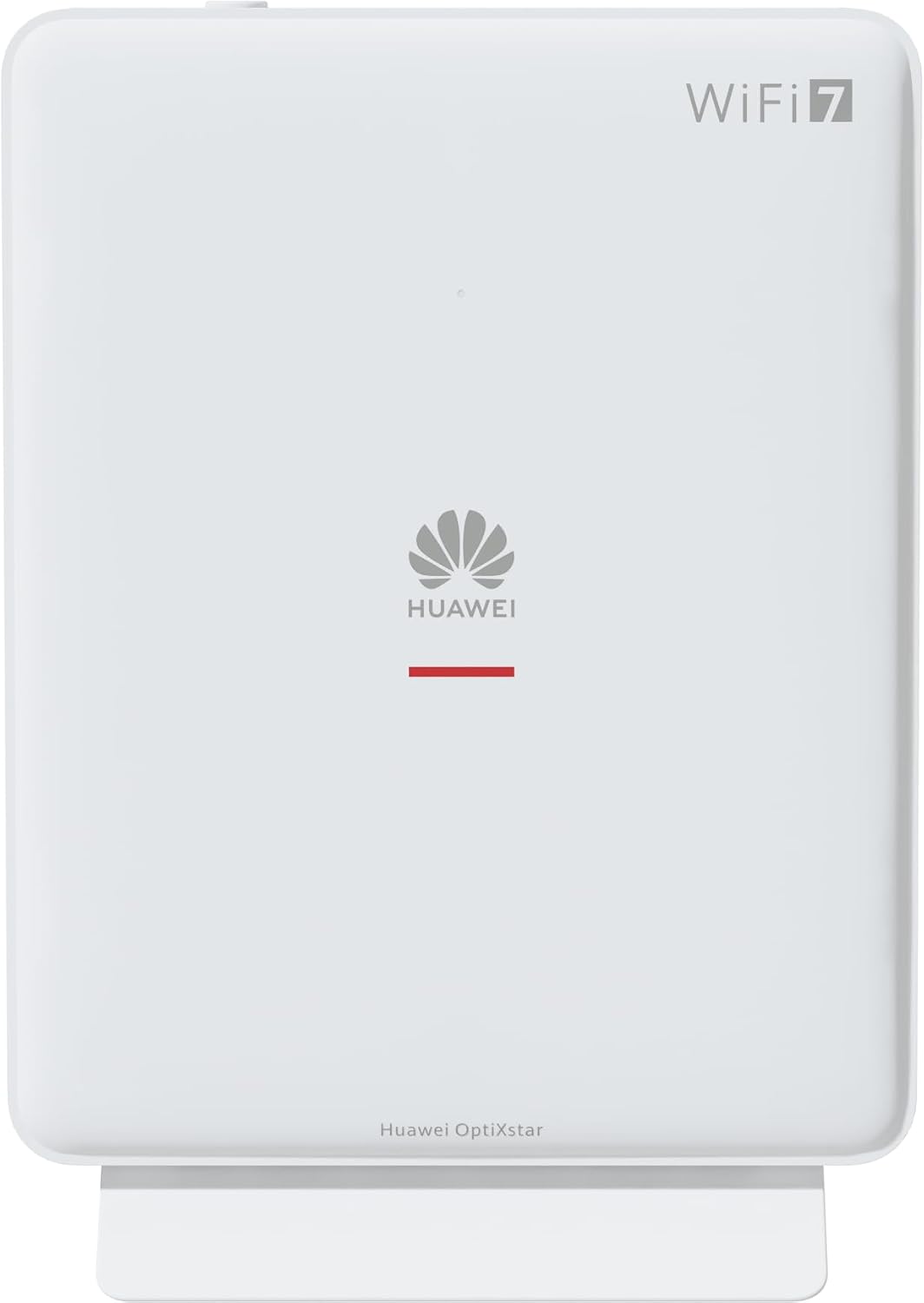
Ffigur 1: Blaen view of the Huawei OptiXstar K251a-21 Sub FTTR device, showing the Huawei logo and "WiFi 7" branding.

Ffigur 2: Ochr flaen onglog view of the Huawei OptiXstar K251a-21 Sub FTTR, highlighting its sleek design and ventilation.

Ffigur 3: Cefn view of the Huawei OptiXstar K251a-21 Sub FTTR, displaying the ports (Reset, 2-GE, 1-2.5GE, Power, FTTR) and mounting options.

Ffigur 4: Ochr profile of the Huawei OptiXstar K251a-21 Sub FTTR, showing its slim form factor and ventilation grilles.

Ffigur 5: Cefn onglog view of the Huawei OptiXstar K251a-21 Sub FTTR, providing a clear look at the port labels and layout.

Ffigur 6: Uchaf view of the Huawei OptiXstar K251a-21 Sub FTTR, featuring the WPS/LED button.
Porthladdoedd a Botymau:
- FTTR Port: Connects to the main FTTR unit via a fiber optic cable.
- 1-2.5GE Port: Gigabit Ethernet port for high-speed wired connections.
- 2-GE Port: Porthladd Gigabit Ethernet ar gyfer cysylltiadau gwifrau.
- Pwerdy: Yn cysylltu â'r addasydd pŵer.
- Botwm Ailosod: Used to restore factory settings (press and hold for 5-10 seconds).
- WPS/LED Button: Initiates Wi-Fi Protected Setup (WPS) for easy device connection and controls LED indicators.
5. Gosod
Follow these steps to set up your Huawei OptiXstar K251a-21 Sub FTTR device:
- Lleoliad: Choose a central location in your home for optimal Wi-Fi coverage. The device is suitable for various installation scenarios, including vertical placement on a desk, wall-mounting, plugging into a power strip, or mounting in an 86mm junction box with a bracket.
- Cysylltu Cebl Ffibr Optig: Connect one end of the fiber optic cable to the FTTR port on the Sub FTTR unit and the other end to the corresponding FTTR port on your Huawei FTTR OptiXstar F50 Plus main unit or wall outlet. Ensure the connection is secure.
- Pwer Cysylltu: Plug the power adapter into the Power port on the Sub FTTR unit, then plug the other end into a power outlet.
- Pŵer Ymlaen: The device will automatically power on. Wait for the indicator lights to stabilize, typically indicating a successful connection to the main FTTR unit and active Wi-Fi.
- Wired Connections (Optional): For wired devices, connect an Ethernet cable from the 1-2.5GE or 2-GE ports on the Sub FTTR to your computer, gaming console, or other network devices.
6. Gweithredu
Once set up, your OptiXstar K251a-21 provides seamless Wi-Fi 7 connectivity.
- Cysylltiad Wi-Fi: Chwiliwch am the Wi-Fi network name (SSID) broadcast by your FTTR system on your devices (smartphones, laptops, etc.). Enter the Wi-Fi password. The system's unique SRCN (Seamless Roaming Coordinate Network) technology ensures seamless roaming throughout your home.
- C-WAN Architecture: The C-WAN architecture centrally controls and coordinates network-wide Wi-Fi resources via the Main FTTR, providing an ultra-Gigabit high-speed experience.
- IoT Casing: The device features an IoT casing designed to protect home network security and privacy.
- Swyddogaeth WPS: Press the WPS/LED button briefly to use Wi-Fi Protected Setup (WPS) for quick connection of compatible devices without entering the password.
- Dangosyddion LED: The LED indicators provide status information. Refer to the main FTTR unit's manual or the device's specific documentation for detailed LED status meanings.
7. cynnal
Regular maintenance helps ensure optimal performance and longevity of your device.
- Glanhau: Gently wipe the device with a soft, dry cloth. Do not use liquid cleaners or abrasive materials.
- Diweddariadau Cadarnwedd: Huawei periodically releases firmware updates to improve performance and security. These updates are typically managed through the main FTTR unit or a dedicated mobile application. Ensure your system is always running the latest firmware.
- Awyru: Sicrhewch nad yw'r agoriadau awyru wedi'u rhwystro i atal gorboethi.
- Rheoli Ceblau: Keep fiber optic and power cables neatly organized and free from kinks or excessive bending.
8. Datrys Problemau
Os byddwch yn dod ar draws problemau, rhowch gynnig ar y camau datrys problemau canlynol:
- Dim pŵer: Check if the power cable is securely connected to both the device and the power outlet. Try a different outlet.
- Dim Cysylltiad Rhyngrwyd:
- Verify that the fiber optic cable is correctly connected to the FTTR port.
- Check the status indicators on both the Sub FTTR and the main FTTR unit.
- Restart both the Sub FTTR and the main FTTR unit by unplugging them from power for 30 seconds and then plugging them back in.
- Ensure your main FTTR unit has an active internet connection.
- Cyflymder Wi-Fi Araf:
- Ensure the device is placed optimally, away from obstructions and interference sources.
- Check if too many devices are connected to the network.
- Update the firmware of your FTTR system.
- Consider using a wired connection for bandwidth-intensive tasks.
- Methu cysylltu â Wi-Fi:
- Gwiriwch eich bod yn nodi'r cyfrinair Wi-Fi cywir.
- Try using the WPS button to connect.
- Restart your device and the Sub FTTR unit.
- Ailosod Ffatri: If issues persist, you may need to perform a factory reset. With the device powered on, use a pointed object (like a paperclip) to press and hold the Reset button for 5-10 seconds until the indicators change. Note that this will erase all custom settings.
9. manylebau
| Nodwedd | Manyleb |
|---|---|
| Brand | HUAWEI |
| Rhif Model | K8M251a-21G02 |
| Dimensiynau (pecyn) | 24.5 x 23.7 x 7.4 cm |
| Pwysau (Pecyn) | 300 gram |
| Nodwedd Arbennig | Diogelwch Rhyngrwyd |
| Dosbarth Band Amlder | Band Deuol |
| Safon Cyfathrebu Di-wifr | 802.11ax (Wi-Fi 7 Generation) |
| Dyfeisiau Cydnaws | Cyfrifiadur Personol |
| Defnyddiau a Argymhellir | Cartref |
| Cydrannau wedi'u Cynnwys | Cebl Pŵer |
| Technoleg Cysylltedd | Ethernet, FTTR, Wi-Fi, Fiberglass |
| Lliw | Gwyn |
| Nifer y Porthladdoedd | 4 (FTTR, 1-2.5GE, 2-GE, Power) |
| Cyfradd Trosglwyddo Data | 1 Gigabits per second |
| Cydnawsedd Cartref Clyfar | Compatible with smart home systems |
| Cysylltedd Rhyngrwyd | Oes |
| Protocol Cysylltedd | Wi-Fi |
10. Gwarant a Chefnogaeth
Am wybodaeth am warant a chymorth technegol, cyfeiriwch at wefan swyddogol Huawei website or contact your local Huawei customer service. Keep your purchase receipt for warranty claims.
Adnoddau Ar-lein: Visit the official Huawei support websafle ar gyfer Cwestiynau Cyffredin, llawlyfrau wedi'u diweddaru, a lawrlwythiadau meddalwedd.
Gwasanaeth Cwsmer: Contact details for customer support can typically be found on the Huawei website or in the documentation provided with your main FTTR unit.