
Rhagymadrodd
This manual provides detailed instructions for the setup, operation, and maintenance of your Dexnor Ultra-Light Magnetic Folio Keyboard Cover. This keyboard case is designed to enhance your tablet experience by providing laptop-like functionality and protection.
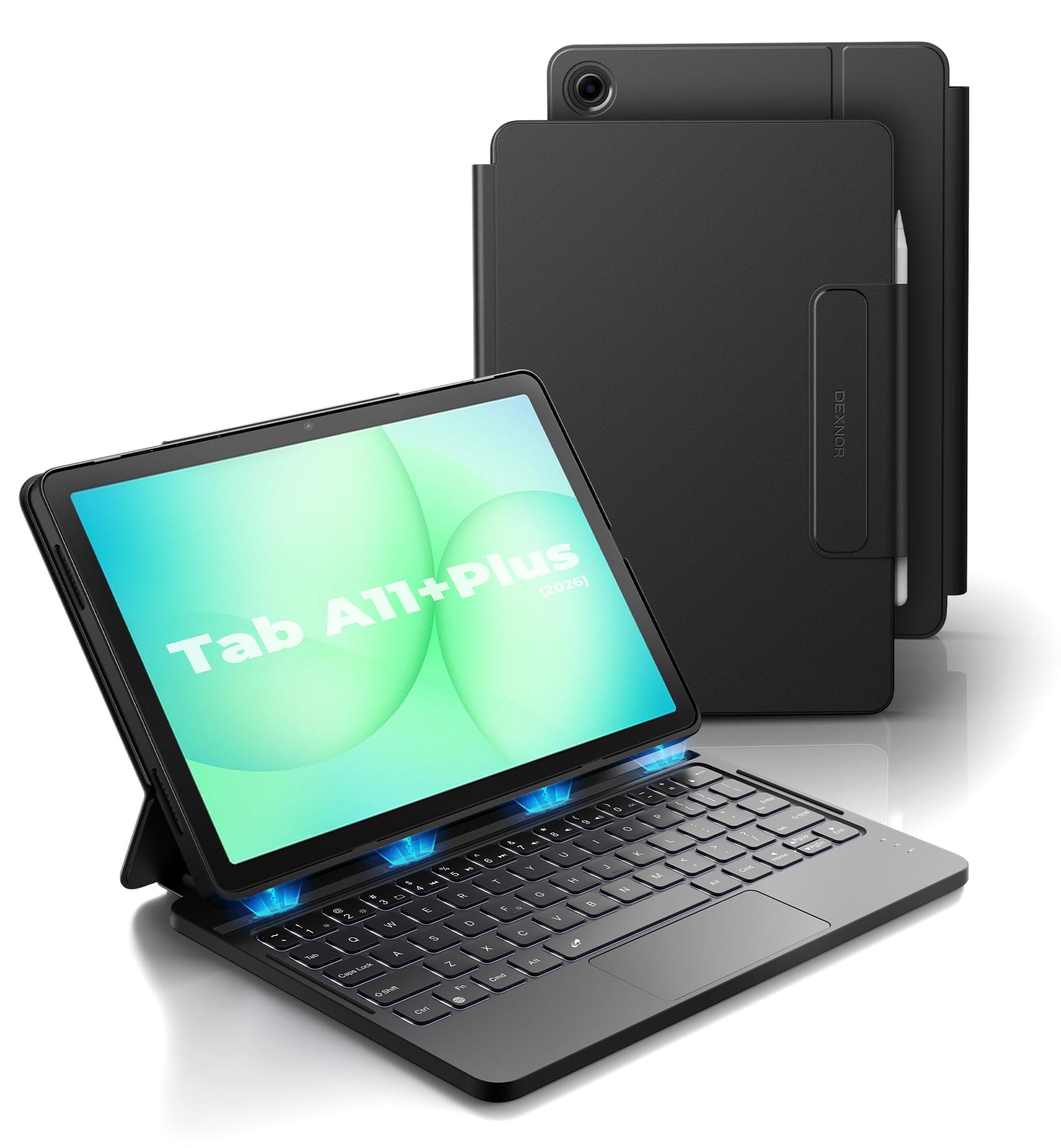
Image: The Dexnor Keyboard Case with a tablet inserted, showcasinei ddyluniad.
Cynnwys Pecyn
Gwiriwch y pecyn am yr eitemau canlynol:
- 1 x Dexnor Keyboard Case for Samsung Galaxy Tab A11+/A9+ Plus
- 1 x Cebl Codi Tâl USB
- 1 x Llawlyfr Defnyddiwr (y ddogfen hon)
Cydweddoldeb
This keyboard case is specifically designed for the following Samsung Galaxy Tab models:
- Samsung Galaxy Tab A11+ Plus (2025) (Model numbers: SM-X230, SM-X236B, SM-X315)
- Samsung Galaxy Tab A9+ Plus (2023) (Model numbers: SM-X210, SM-X215, SM-X216, SM-X218)
Please confirm your tablet's model number before use.
How to Check Your Tablet Model:
- Ewch i Gosodiadau > Cyffredinol > Ynglŷn â tabled.
- Find the specific model number listed.

Image: Visual guide on checking your tablet's model number for compatibility.
Cyfarwyddiadau Gosod
1. Attaching Your Tablet
The case features a strong magnetic slot to securely hold your tablet. Gently align your tablet with the magnetic area in the case until it snaps into place. Ensure all ports and buttons are accessible.

Image: The keyboard case providing stable support for the tablet at a 120-degree viewongl ing.
2. Cysylltiad Bluetooth
- Ensure the keyboard is charged (see 'Charging the Keyboard' below).
- Open the keyboard case. The keyboard will automatically power on.
- On your Samsung Galaxy Tab, go to Gosodiadau > Dyfeisiau cysylltiedig > Bluetooth.
- Turn on Bluetooth. Your tablet will search for available devices.
- Select "Dexnor Keyboard" (or similar name) from the list of devices.
- Dilynwch unrhyw awgrymiadau ar y sgrin i gwblhau'r broses baru.
Once paired, the keyboard will automatically connect to your tablet when opened and within range.
3. Gwefru'r Bysellfwrdd
Connect the provided USB charging cable to the keyboard's charging port and to a USB power adapter (not included). The charging indicator light will show the charging status. A full charge takes approximately 3 hours.
For visual guidance on setup and usage, please refer to the video below:
Video: Demonstrating the setup and use of the Dexnor Keyboard Case for Samsung Galaxy Tab A9+ Plus.
Cyfarwyddiadau Gweithredu
Keyboard Layout and Shortcuts
The keyboard features a standard QWERTY layout with responsive scissor-switch keys for comfortable typing. A full row of shortcut keys provides quick access to various tablet functions, including screen brightness, volume control, media playback, and more.
- Function Keys (Fn): Use the Fn key in combination with other keys for special functions.
- DeX Mode: Supported by pressing Fn + Enter.

Delwedd: Drosoddview of the keyboard layout, highlighting the row of shortcut keys for quick access to functions.
Multi-Touch Trackpad Usage
The integrated multi-touch trackpad allows for smooth and precise navigation, similar to a laptop. It supports various multi-finger gestures for enhanced productivity:
- Chwyddo Mewn/Allan: Pinch with two fingers.
- Rheoli Files: Swipe with three fingers.
- Pori Webtudalennau: Swipe left/right with two fingers.
- Newid Apps: Swipe up/down with three fingers.
To prevent accidental input (palm rejection), you can disable the trackpad by pressing FN + Spacebar.

Image: Close-up of the multi-touch trackpad, illustrating various gestures and the option to disable it.
Rheoli Backlight
The keyboard features a single-color backlight with 3 adjustable brightness levels, allowing for comfortable typing in low-light conditions. Use the dedicated backlight key (often represented by a light bulb icon) to cycle through brightness levels or turn the backlight off.

Image: The keyboard with its backlight illuminated, demonstrating visibility in dim environments.
Rheoli Pŵer
The keyboard case incorporates an upgraded power-saving design:
- Auto ymlaen / i ffwrdd: Simply open the case to power on the keyboard and wake your tablet. Close the case to turn off the keyboard and put your tablet to sleep. There is no physical power switch.
- Modd Cwsg: The keyboard will enter sleep mode after 30 minutes of inactivity to conserve battery. The backlight will sleep after 45 seconds of inactivity.
The built-in 650mAh lithium polymer battery offers extended usage:
- Up to 720 hours of standby time.
- Up to 200 hours of use without backlight.
- Up to 10 hours of continuous working time with the brightest backlight.

Image: A user actively working on the tablet with the keyboard case, demonstrating its utility for productivity.
Cynnal a chadw
- Glanhau: Defnyddio meddal, damp cloth to wipe the exterior of the case and keyboard. Avoid harsh chemicals or abrasive materials.
- Storio: When not in use, keep the case closed to protect your tablet and conserve keyboard battery. Store in a cool, dry place away from direct sunlight.
- Daliwr Stylus: The built-in S Pen holder keeps your stylus secure and easily accessible.

Image: The keyboard case in a closed position, highlighting its compact design and integrated stylus holder.
Datrys problemau
Keyboard Not Connecting via Bluetooth:
- Gwnewch yn siŵr bod y bysellfwrdd wedi'i wefru.
- Gwnewch yn siŵr bod Bluetooth wedi'i alluogi ar eich tabled.
- Try unpairing and re-pairing the keyboard in your tablet's Bluetooth settings.
- Restart both your tablet and the keyboard (by closing and reopening the case).
Allweddi Ddim yn Ymateb:
- Gwiriwch a yw'r bysellfwrdd wedi'i gysylltu'n iawn trwy Bluetooth.
- Gwnewch yn siŵr bod y bysellfwrdd wedi'i wefru.
- If specific keys are not working, check for any debris under the keys.
Trackpad Ddim yn Gweithio:
- Ensure the trackpad is not disabled (press FN + Spacebar to toggle).
- Gwiriwch y cysylltiad Bluetooth.
Goleuadau Cefn Ddim yn Gweithio:
- Press the backlight key to cycle through brightness levels.
- Gwnewch yn siŵr bod y bysellfwrdd wedi'i wefru'n ddigonol.
Manylebau
| Brand | Dexnor |
| Dyfeisiau Cydnaws | Samsung Galaxy Tab A11+ Plus (2025), Samsung Galaxy Tab A9+ Plus (2023) |
| Technoleg Cysylltedd | Bluetooth |
| Disgrifiad Bysellfwrdd | Multi Functional, Backlit, Multi-touch Trackpad |
| Deunydd | PU Leather, Polycarbonate |
| Dimensiynau Cynnyrch (L x W x H) | 11.08" x 4.53" x 0.43" |
| Gallu Batri | Polymer Lithiwm 650mAh |
| Amser Wrth Gefn | Hyd at 720 awr |
| Working Time (No Backlight) | Hyd at 200 awr |
| Working Time (Brightest Backlight) | Hyd at 10 awr |
| Amser Codi Tâl | Tua 3 awr |
| Nodweddion Arbennig | Backlit keys, Multi-touch trackpad, Auto-wake/sleep, Magnetic attachment, Stylus holder |
Gwarant a Chefnogaeth
Dexnor products come with a limited warranty. Please refer to the product packaging or the official Dexnor website for specific warranty terms and conditions. For technical support or customer service inquiries, please contact Dexnor customer support through their official channels.