
1. Cynnyrch Drosview
The MEETION K2000 is a wired ergonomic keyboard designed for comfort and enhanced typing experience. It features a translucent shell, split and curved key layout, integrated wrist rest, and customizable RGB backlighting. It offers broad compatibility with various operating systems via USB-A or USB-C connection.

Delwedd 1.1: The MEETION K2000 Ergonomic Wired RGB Keyboard, showcasing its split design and integrated wrist rest.
Fideo 1.1: Mae drosoddview of the MEETION K2000 Ergonomic Wired RGB Keyboard, highlighting its features and design.
2. Gosod
2.1 Cynnwys Pecyn
- MEETION K2000 Ergonomic Wired RGB Keyboard
- Addasydd USB-A i USB-C
- Llawlyfr Defnyddiwr
2.2 Cysylltu'r Bysellfwrdd
- Locate an available USB port on your computer (PC, Laptop, Mac).
- Connect the keyboard's USB-A cable directly to a USB-A port on your computer.
- If your computer only has USB-C ports, attach the provided USB-A to USB-C adapter to the keyboard's USB-A cable, then plug the adapter into a USB-C port on your computer.
- The keyboard is plug-and-play; no additional drivers are required for most operating systems.

Delwedd 2.1: The keyboard's USB-A cable and the included USB-A to USB-C adapter for versatile connectivity.
2.3 Addasu Ongl y Bysellfwrdd
The keyboard features adjustable flip-out feet at the bottom to customize your typing angle for optimal comfort. You can choose between 2°, 4.07°, or 4.3° incline settings.

Delwedd 2.2: The adjustable feet on the underside of the keyboard allow for different typing angles.
3. Cyfarwyddiadau Gweithredu
3.1 Dyluniad Ergonomig a Gorffwysfa Arddwrn
The keyboard's split, curved layout and integrated padded wrist rest are designed to promote a natural hand and wrist posture, reducing strain during extended use. The scissor-switch key design offers a quiet and comfortable typing experience.
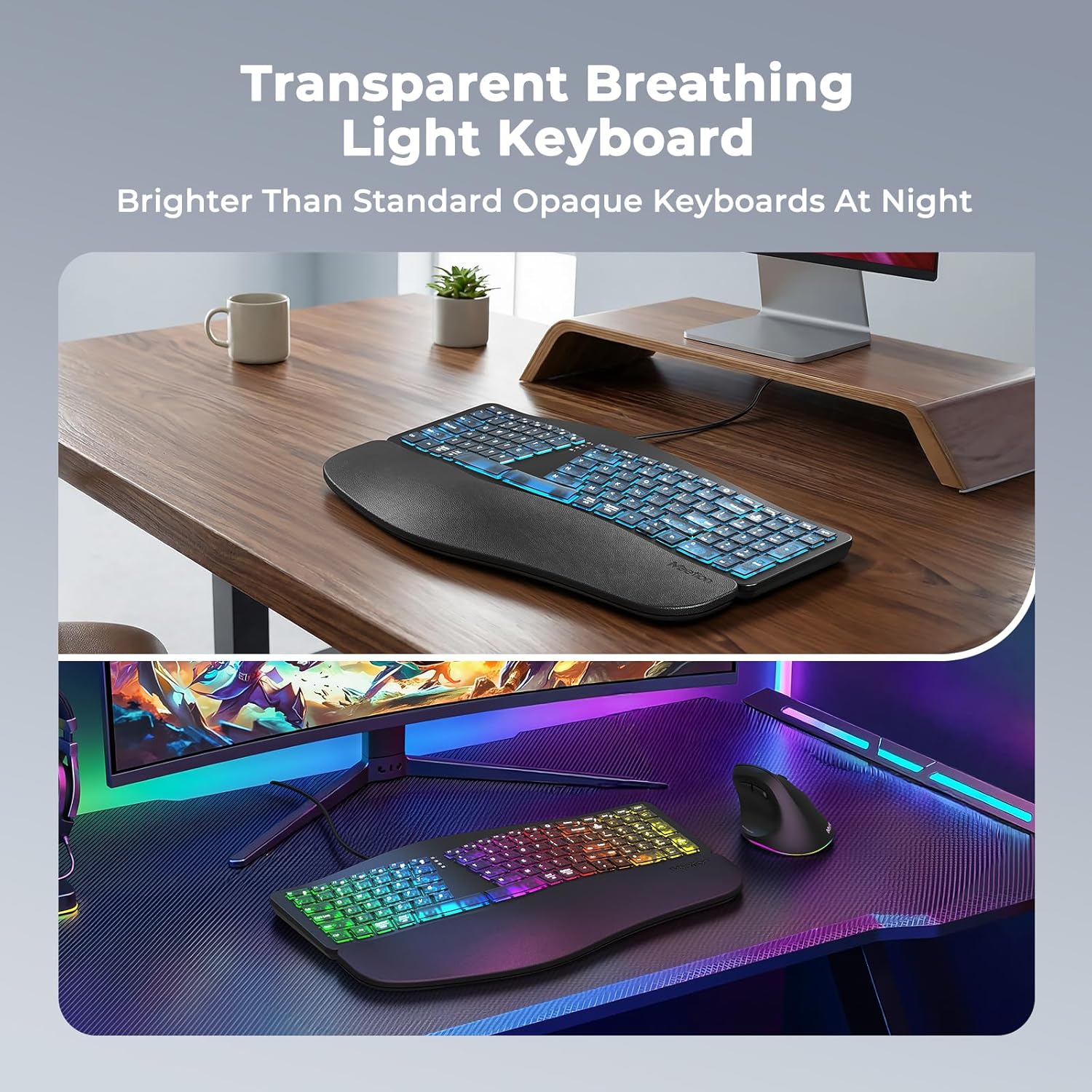
Delwedd 3.1: The split ergonomic design of the keyboard helps maintain a comfortable typing posture.
3.2 Rheoli Backlight
The translucent keycaps allow for vibrant backlighting. You can customize the lighting effects and brightness levels:
- Addasu Disgleirdeb: Gwasgwch Fn + Shift Dde repeatedly to cycle through 25%, 50%, 75%, 100% brightness, or turn the backlight off.
- Change Backlight Mode/Color: Gwasgwch Fn + Right Enter repeatedly to switch between different modes:
- RGB Breathing (dynamic color cycling)
- 7 Static Colors: Red, Green, Blue, White, Purple, Cyan, Yellow
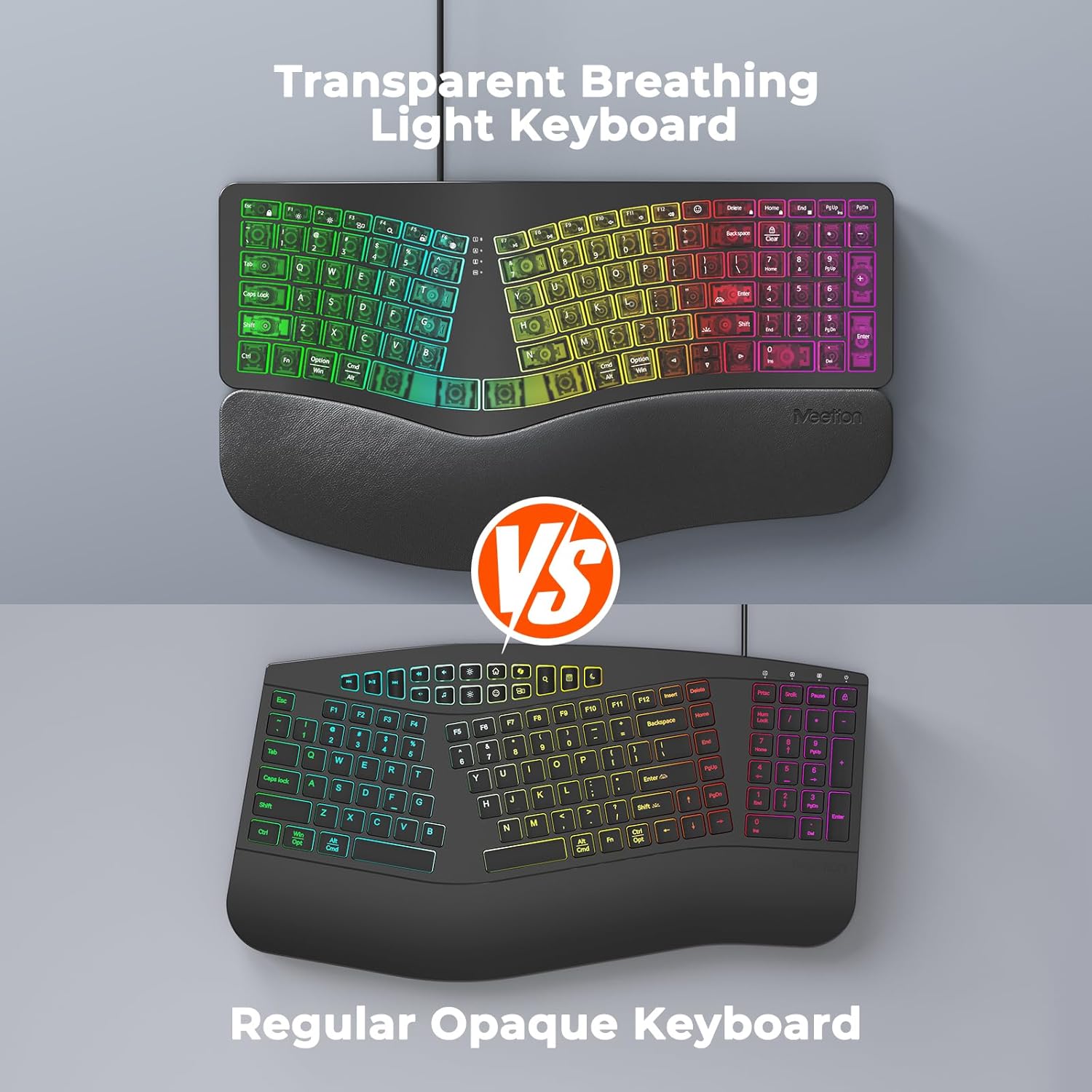
Delwedd 3.2: Instructions for adjusting backlight brightness and cycling through various color modes.
Fideo 3.1: Demonstration of the K2000 keyboard's backlit features and color options.
3.3 System Layout Switching
The keyboard supports both Windows and Mac layouts. To switch between systems:
- Canys Ffenestri systems: Press Fn + Q.
- Canys Mac systems: Press Fn + W.

Delwedd 3.3: The keyboard supports both Windows and Mac operating systems, with dedicated function keys for switching layouts.
3.4 Emoji Shortcuts
Access emoji shortcuts by pressing the dedicated Emoji key. This feature is compatible with Windows, MacOS, iPad (iPadOS), and Android Samsung devices. Please note that it does not support iPhone (iOS).

Delwedd 3.4: The dedicated emoji shortcut key for quick access to emojis on compatible devices.
4. cynnal
4.1 Glanhau
- I lanhau'r bysellfwrdd, sychwch yr wyneb yn ysgafn gyda lliain meddal, sych, neu ychydig yn feddal.amp brethyn.
- Avoid using harsh chemicals, abrasive cleaners, or solvents, as these may damage the keyboard's finish or keycaps.
- I lanhau rhwng allweddi, defnyddiwch aer cywasgedig i gael gwared â llwch a malurion.
4.2 Gofal Cap Allweddi
- Ensure keycaps are firmly seated. If a keycap feels loose, gently press it down until it clicks into place.
- Avoid excessive force when pressing keys to prevent damage.
5. Datrys Problemau
5.1 Bysellfwrdd Ddim yn Ymateb
- Ensure the USB cable is securely plugged into your computer's USB port.
- Rhowch gynnig ar gysylltu'r bysellfwrdd â phorthladd USB gwahanol ar eich cyfrifiadur.
- If using the USB-C adapter, ensure it is firmly connected to both the keyboard cable and the computer's USB-C port.
- Test the keyboard on another computer to determine if the issue is with the keyboard or your computer's port/drivers.
5.2 Problemau Goleuo Cefn
- Os yw'r golau cefn i ffwrdd, pwyswch Fn + Shift Dde i gynyddu disgleirdeb.
- If the color is not desired, press Fn + Right Enter to cycle through different color modes.
- Ensure the keyboard is properly connected, as power issues can affect backlighting.
5.3 Allweddi Heb eu Cofrestru
- Gently press down on the affected keycap to ensure it is properly seated.
- Clean any debris or dust from under the keycap using compressed air.
- If the issue persists, try the troubleshooting steps for "Keyboard Not Responding".
6. manylebau
| Brand | CYFARFOD |
| Rhif Model | K2000 |
| Technoleg Cysylltedd | USB-A, USB-C |
| Disgrifiad Bysellfwrdd | Multimedia, Ergonomic, Backlit |
| Nodweddion Arbennig | Backlit, Ergonomic, Wired, Wrist Rest |
| Lliw | Du |
| Cefnogaeth Lliw Backlighting Bysellfwrdd | RGB (7 static colors + breathing mode) |
| Deunydd | Acrylonitrile Butadiene Styrene, Thermoplastic Polyurethane (TPU) |
| Cynllun Bysellfwrdd | QWERTY |
| Dyfeisiau Cydnaws | Gliniadur, cyfrifiadur personol (Windows, Mac) |
7. Gwarant a Chefnogaeth
7.1 Gwarant y Gwneuthurwr
The MEETION K2000 Ergonomic Wired RGB Keyboard comes with a Gwarant Gwneuthurwr 1 Flwyddyn. Mae'r warant hon yn cwmpasu diffygion mewn deunyddiau a chrefftwaith o dan ddefnydd arferol.
7.2 Cefnogaeth Dechnegol
For technical assistance, troubleshooting, or warranty claims, please contact MEETION customer support. Refer to the product packaging or the official MEETION websafle am y wybodaeth gyswllt ddiweddaraf.


