
1. Rhagymadrodd
This manual provides essential information for setting up, operating, and maintaining your Plimpton Kids Tablet 10 Inch, Model Kids 20. This device is designed to offer a secure and engaging digital experience for children, featuring the Android 15 operating system, an octa-core processor, and integrated Google Kids Space.
2. Beth sydd yn y Bocs
- 1 x PlimPad Kids Android 15 Tablet
- 1 x USB Adaptor
- 1 x Cebl Tâl USB
- Llawlyfr Defnyddiwr

3. Nodweddion Cynnyrch
- Perfformiad Uwch: Equipped with an enhanced Android 15 system, a 2.0GHz 8-core processor, 4GB RAM, and 64GB storage (expandable to 1TB).
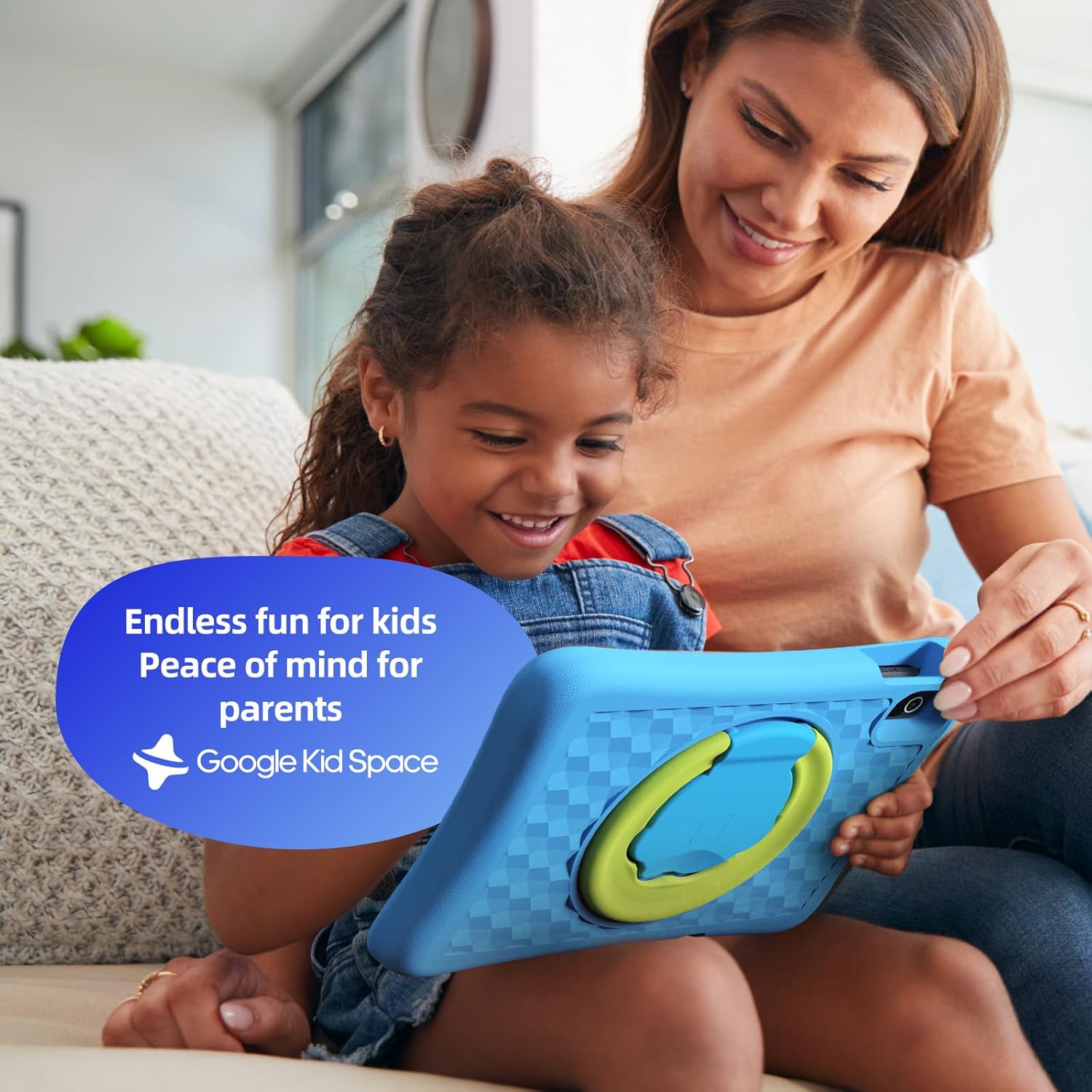
- Google Kids Space & Parental Control: Pre-installed with Google Kids Space and educator-endorsed apps. User-friendly parental controls allow content filtering, educational targets, and time restrictions.
- Eye Protection Display: 10.1" HD IPS glass screen (1280 x 800 resolution) with low blue light technology and automatic brightness adjustment to reduce eye fatigue.
- Dyluniad Gwydn: Rugged, anti-drop EVA protective case, odorless and resistant to deformation, with a 360° rotatable bracket.
- Optimized Battery: Upgraded power system for extended daily use, leveraging Android 15's efficiency for smarter power management.

4. Gosod
4.1 Pŵer Cychwynnol Ymlaen
- Press and hold the power button located on the side of the tablet until the screen lights up.
- Dilynwch yr awgrymiadau ar y sgrin i ddewis eich iaith a'ch rhanbarth dewisol.
4.2 Cysylltiad Wi-Fi
- From the initial setup screen or Settings menu, select 'Wi-Fi'.
- Dewiswch eich rhwydwaith Wi-Fi cartref o'r rhestr.
- Enter your Wi-Fi password and tap 'Connect'.
4.3 Gosod Cyfrif Google
- Sign in with an existing Google account or create a new one. This account will be used for parental controls and app downloads.
- Follow the instructions to link your child's profile to your Google Family Link account for parental management.
4.4 Google Kids Space Configuration
- Once your Google account is set up, the tablet will guide you through configuring Google Kids Space.
- Select your child's age and interests to personalize content recommendations.
- Review and adjust parental control settings within Google Kids Space or via the Google Family Link app on your own device.
5. Gweithredu'r Tabled
5.1 Navigating Google Kids Space
Google Kids Space provides a child-friendly interface with curated content. Children can navigate through different categories like 'Play', 'Read', and 'Watch' to discover apps, books, and videos tailored to their age and interests.
5.2 Parental Controls with Google Family Link
Manage your child's digital experience remotely using the Google Family Link app on your smartphone. This allows you to:
- Set daily screen time limits.
- Approve or block apps from the Google Play Store.
- Track app usage and activity.
- Set device bedtime.
- Manage content restrictions for websites and searches.

5.3 Defnydd o'r Cyfryngau
The tablet supports various media types:
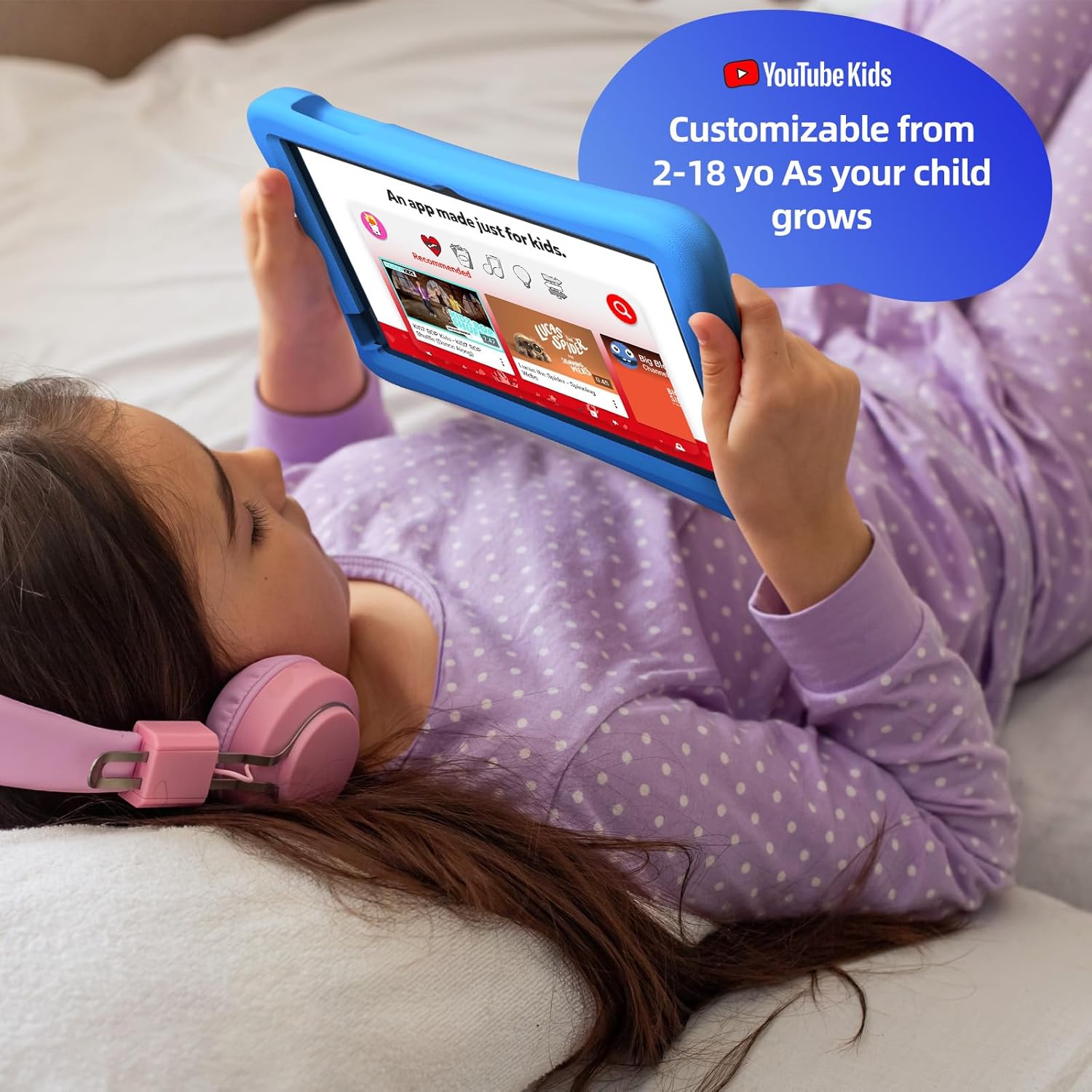
- Fideos: Access YouTube Kids for age-appropriate video content. Parental controls can further refine available videos.
- Llyfrau: Explore a library of digital books within Google Kids Space, promoting reading and literacy.
- Gemau: A wide selection of educational and entertaining games are available, with new content regularly updated.

6. cynnal
6.1 Gofal Batri
- Charge the tablet fully before first use.
- Osgowch ddraenio'r batri'n llwyr yn rheolaidd er mwyn ymestyn ei oes.
- Use only the provided USB Adaptor and Charge Cable.
6.2 Glanhau
- Diffoddwch y tabled cyn glanhau.
- Defnyddiwch frethyn meddal, di-lint i sychu'r sgrin a'r tu allan.
- Ceisiwch osgoi defnyddio cemegau llym neu ddeunyddiau sgraffiniol.
6.3 Diweddariadau Meddalwedd
Ensure the tablet's software is up-to-date for optimal performance and security. Connect to Wi-Fi and check for updates periodically in the Settings menu.
7. Datrys Problemau
7.1 Tabled Ddim yn Troi Ymlaen
- Gwnewch yn siŵr bod y batri wedi'i wefru. Cysylltwch y dabled â'r gwefrydd ac aros ychydig funudau cyn ceisio ei throi ymlaen eto.
- Pwyswch a daliwch y botwm pŵer am 10-15 eiliad i berfformio ailosodiad caled.
7.2 Perfformiad Araf
- Cau cymwysiadau nas defnyddir sy'n rhedeg yn y cefndir.
- Clear cache data for frequently used apps in Settings > Apps.
- Ensure sufficient storage space is available. Delete unnecessary files neu apiau.
7.3 Problemau Cysylltedd Wi-Fi
- Ailgychwynwch eich llwybrydd Wi-Fi a'r dabled.
- Anghofiwch y rhwydwaith yn y gosodiadau Wi-Fi ac ailgysylltwch.
- Gwnewch yn siŵr bod y dabled o fewn cyrraedd y signal Wi-Fi.
8. manylebau
| Nodwedd | Manyleb |
|---|---|
| Maint arddangos sgrin sefydlog | 10.1 modfedd |
| Cydraniad Sgrin | 1280 x 800 picsel |
| Prosesydd | 2 GHz Octa-Core |
| System Weithredu | Android 15 |
| Maint Cof Flash | 64 GB |
| HWRDD | 4 GB |
| Storfa Ehangadwy | Up to 1 TB (SD card not included) |
| Bywyd Batri Cyfartalog | 8 Awr |
| Pwysau Eitem | 1.76 pwys |
| Dimensiynau Cynnyrch | 10.86 x 7.83 x 1.22 modfedd |
| Lliw | Glas |
9. Gwarant a Chefnogaeth
The Plimpton Kids Tablet comes with a Gwarant 2 mlynedd. Additionally, a 30-day worry-free return and replacement policy is provided. For any questions or concerns, please contact Plimpton customer support. Our team is dedicated to resolving any issues you may encounter.
For detailed support, refer to the customer support card included in your product packaging or visit the official Plimpton websafle.