
1. Rhagymadrodd
Thank you for choosing the Picun G2 Wireless Gaming Headset. This manual provides detailed instructions for setting up, operating, and maintaining your headset to ensure optimal performance and an immersive gaming experience. Please read this manual thoroughly before use.
Beth Sydd yn y Bocs
- 1 x Picun G2 Wireless Gaming Headset
- 1 x USB-A & Type-C 2-in-1 Wireless Dongle
- 1 x Cebl Codi Tâl USB-C
- Cebl Sain 1 x 3.5mm
- 1 x Llawlyfr Defnyddiwr
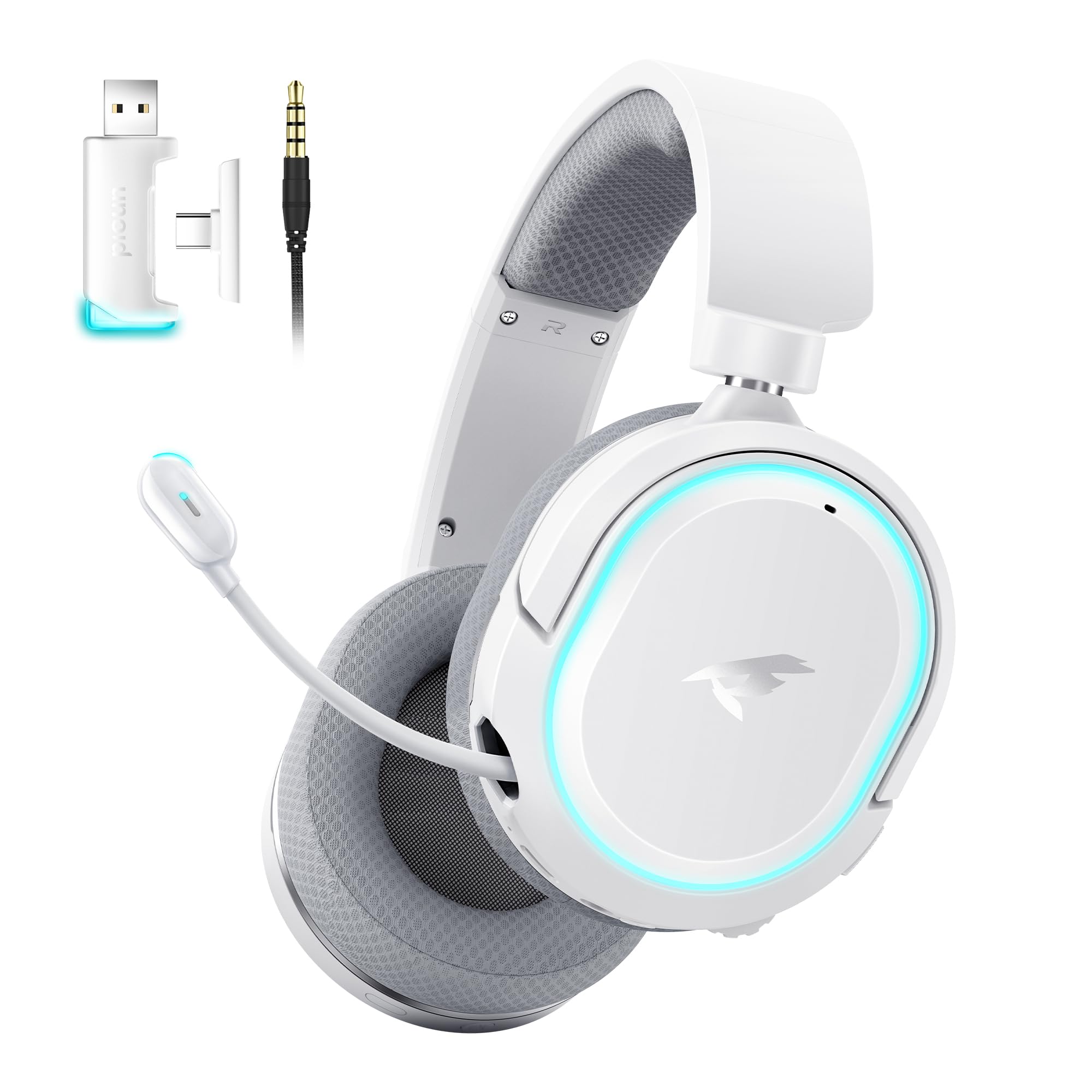
Image: Picun G2 Wireless Gaming Headset (Grey)
2. Cynnyrch Drosview
Familiarize yourself with the various components and controls of your Picun G2 headset.

Image: Headset Controls Diagram
- 7.1 Mode Light Control: Button to activate/deactivate 7.1 virtual surround sound and control RGB lighting.
- Porth Codi Tâl: USB-C port for charging the headset.
- Porth Sain 3.5mm: Ar gyfer cysylltiad gwifrau gan ddefnyddio'r cebl sain 3.5mm sydd wedi'i gynnwys.
- Botwm Pŵer: Press and hold to power on/off. Short press for play/pause in Bluetooth mode.
- Olwyn Gyfrol: Scroll up or down to adjust the volume.
- Mic Mute: Slide switch to mute or unmute the microphone.
3. Gosod a Chysylltiad
3.1 Gwefru'r Clustffon
Before first use, fully charge the headset using the provided USB-C charging cable. Connect the USB-C end to the headset's charging port and the USB-A end to a power source (e.g., computer USB port, USB wall adapter).
3.2 Connecting via 2.4GHz Wireless (Dongle)
For ultra-low latency gaming on PC, PS5, PS4, or Nintendo Switch (docked mode):
- Insert the 2.4GHz USB-A/Type-C dongle into an available USB port on your device.
- Power on the headset. It will automatically connect to the dongle.
- Gwnewch yn siŵr bod y clustffon wedi'i dewis fel y ddyfais allbwn a mewnbwn sain yng ngosodiadau sain eich dyfais.
3.3 Cysylltu drwy Bluetooth 5.4
For wireless connection to smartphones, tablets, and other Bluetooth-enabled devices:
- With the headset powered off, press and hold the Power Button until the LED indicator flashes blue and red, indicating pairing mode.
- On your device, enable Bluetooth and search for "Picun G2".
- Select "Picun G2" to pair. The LED will turn solid blue once connected.
3.4 Connecting via 3.5mm Wired
For universal compatibility with devices featuring a 3.5mm audio jack:
- Connect one end of the 3.5mm audio cable to the headset's 3.5mm audio port.
- Connect the other end to your device's 3.5mm audio jack.
- Note: Microphone functionality may vary or be unavailable in wired mode depending on the device.

Image: Multiple Connection Options
4. Cyfarwyddiadau Gweithredu
4.1 Pŵer Ymlaen/Diffodd
- Pŵer Ymlaen: Pwyswch a dal y Botwm Pwer am 3 eiliad.
- Pwer i ffwrdd: Pwyswch a dal y Botwm Pwer am 3 eiliad.
4.2 Rheoli Cyfaint
- Cylchdroi y Olwyn Cyfrol upwards to increase volume.
- Cylchdroi y Olwyn Cyfrol i lawr i ostwng y gyfrol.
4.3 Microphone Usage (Retractable ENC Noise-Canceling Mic)
- Extend/Retract Mic: Gently pull out or push in the microphone from the left earcup.
- Tewi/Dad-dewi: Defnyddiwch y Mic Mud slide switch located on the earcup.

Image: Retractable ENC Noise-Canceling Microphone
4.4 7.1 Virtual Surround Sound Activation
- Gwasgwch y 7.1 Mode Light Control button to toggle 7.1 virtual surround sound on or off.
- The RGB lighting will indicate the status of the 7.1 mode.

Image: 7.1 Surround Sound Activation
5. Gwybodaeth Batri
The Picun G2 headset offers extended battery life for prolonged usage.
- Up to 100 hours playtime in Bluetooth mode (RGB off).
- Approximately 42-45 hours playtime via 2.4GHz wireless (RGB on).
- Full charge typically takes 2-3 hours.
- The headset supports charging while in use.

Image: Battery Life and Charging
6. Cysur a Dyluniad
The Picun G2 is designed for comfort during extended gaming sessions.
- Band pen addasadwy: Customize the fit for various head sizes.
- Rotatable Earcups: Allows for flexible positioning and storage.
- Soft Memory Sponge Cushions: Breathable fabric earcups and headband provide comfort and reduce pressure.

Image: Comfort Features
7. Datrys Problemau
If you encounter any issues with your Picun G2 headset, please refer to the following common solutions:
| Problem | Ateb |
|---|---|
| Dim sain o'r clustffonau |
|
| Meicroffon ddim yn gweithio |
|
| Cannot connect via 2.4GHz wireless |
|
| Methu cysylltu trwy Bluetooth |
|
| Bywyd batri byr |
|
8. manylebau
| Nodwedd | Manylyn |
|---|---|
| Brand | Picun |
| Enw Model | Picun-G2 |
| Technoleg Cysylltedd | 2.4GHz Wireless, Bluetooth 5.4, 3.5mm Wired |
| Lleoliad Clust | Dros Glust |
| Math Gyrrwr Sain | Gyrrwr Dynamig (40mm) |
| rhwystriant | 32 Ohms |
| Amrediad Amrediad | 20 Hz - 20,000 Hz |
| Latency Sain | 5 Milieiliad (2.4GHz) |
| Fersiwn Bluetooth | 5.4 |
| Amrediad Bluetooth | 10 o Fesurau |
| Bywyd Batri | Up to 100 Hours (Bluetooth, RGB off) / 42-45 Hours (2.4GHz, RGB on) |
| Amser Codi Tâl | 2-3 Awr |
| Meicroffon | Retractable ENC Noise-Canceling Omnidirectional Mic |
| Dyfeisiau Cydnaws | PC, Mac, Laptop, Desktop, Phone, Pad, Tablet, PlayStation 4/5/pro/Slim, Gaming Consoles, Switch, Nintendo Switch (microphone invalid on Switch via 3.5mm) |
| Deunydd | ABS, Breathable Fabric, PC, Soft Memory Sponge Cushions |
| Nodweddion Ychwanegol | 7.1 Virtual Surround Sound, RGB Lighting, Adjustable Headband, Rotatable Earcups |
9. Gwarant a Chefnogaeth
9.1 Gwybodaeth Gwarant
The Picun G2 Wireless Gaming Headset comes with a Gwarant 1 mlynedd from the date of purchase. This warranty covers manufacturing defects and ensures the product is free from defects in material and workmanship under normal use. Please retain your proof of purchase for warranty claims.
Nid yw'r warant yn cwmpasu:
- Difrod a achosir gan gamddefnydd, camdriniaeth, damwain neu esgeulustod.
- Atgyweirio neu addasu heb awdurdod.
- Traul arferol.
9.2 Cefnogaeth i Gwsmeriaid
For technical assistance, warranty claims, or any questions regarding your Picun G2 Wireless Gaming Headset, please contact Picun customer support through the following channels:
- E-bost: support@picun.com (example, e-bost gwirioneddol heb ei ddarparu)
- Websafle: Visit the official Picun websafle ar gyfer Cwestiynau Cyffredin ac adnoddau cymorth.
Please have your model number (Picun-G2) and proof of purchase ready when contacting support.