
1. Rhagymadrodd
Thank you for choosing the Pisichen 27-inch 4K UHD Touchscreen Monitor with Webcam. This manual provides essential information for the safe and efficient operation of your new monitor. Please read it thoroughly before use and retain it for future reference.
2. Gwybodaeth Diogelwch
- Ffynhonnell Pwer: Defnyddiwch yr addasydd pŵer a gyflenwir gyda'r monitor yn unig. Gwnewch yn siŵr bod y soced pŵer yn cwrdd â'r cyfaint.tage gofynion.
- Awyru: Peidiwch â rhwystro agoriadau awyru. Gadewch ddigon o le o amgylch y monitor ar gyfer llif aer priodol.
- Amlygiad Hylif: Cadwch y monitor i ffwrdd o hylifau. Peidiwch â'i amlygu i law na lleithder.
- Glanhau: Disconnect the power cable before cleaning. Use a soft, dry cloth. Avoid abrasive cleaners.
- Lleoliad: Rhowch y monitor ar arwyneb sefydlog, gwastad i'w atal rhag cwympo.
- Gwasanaethu: Do not attempt to service the monitor yourself. Refer all servicing to qualified personnel.
3. Cynnwys Pecyn
Gwiriwch gynnwys y pecyn wrth ddadbacio. Os oes unrhyw eitemau ar goll neu wedi'u difrodi, cysylltwch â'ch manwerthwr.
- Pisichen 27-inch 4K UHD Touchscreen Monitor
- Stand Monitor (Sylfaen a Braich)
- Addasydd Pŵer
- Cebl HDMI
- USB-B to USB-A Cable (for Touch Function)
- Llawlyfr Defnyddiwr
4. Cynnyrch Drosview
4.1 Nodweddion Allweddol
- Ultra HD 4K Touchscreen Display: 27-inch 4K Ultra HD screen with vibrant colors, sharp details, and wide viewing angles. Features a responsive 10-point touchscreen for intuitive control.
- Built-in High-Definition Webcam: Integredig webcam for video calls, online meetings, and streaming, reducing desk clutter.
- Cysylltedd Amlbwrpas: Multiple ports including HDMI, DisplayPort, and USB-C for easy connections to various devices. Supports both touch and traditional input.
- Optimized for Productivity and Creativity: Large 4K touch display for precise control and streamlined workflows, ideal for graphic designers, content creators, and multitasking.
- Sleek and Functional Design: Modern design with an adjustable stand for optimal viewing angles and comfort during extended use.
4.2 Monitro porthladdoedd
The monitor features various ports for connecting to your devices. Refer to the image below for port identification.
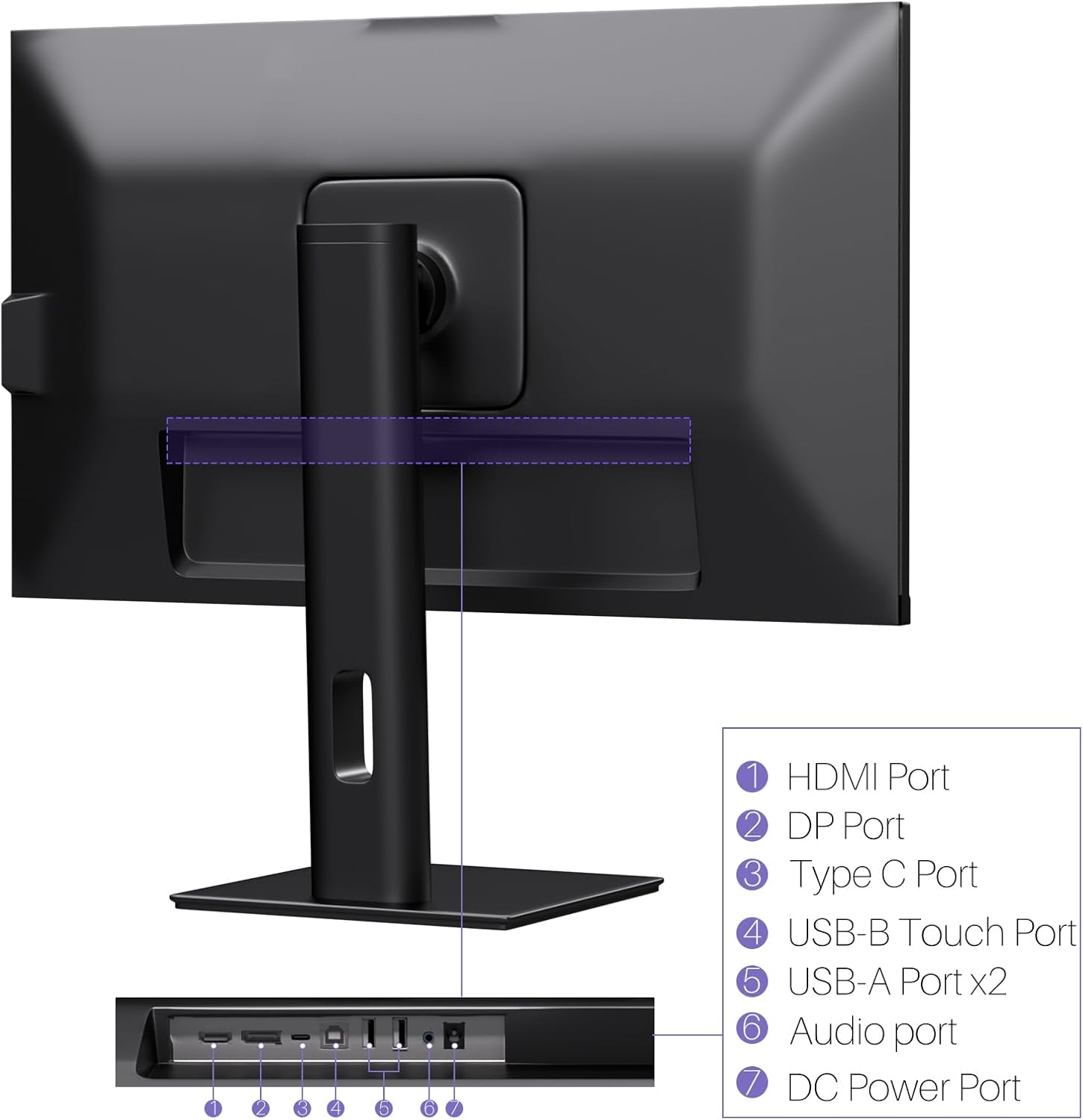
Delwedd: Cefn view of the monitor displaying the HDMI, DP, Type-C, USB-B Touch, USB-A, Audio, and DC Power ports.
- Porthladd HDMI: Connects to devices via HDMI cable for video and audio input.
- Porth DP: Connects to devices via DisplayPort cable for video and audio input.
- Porthladd Math-C: Connects to devices via USB-C cable for video, audio, and power delivery. (Requires USB-C port on signal device to support DisplayPort Alternate Mode for touch functionality).
- USB-B Touch Port: Connects to your computer via USB-B to USB-A cable to enable touchscreen functionality.
- Porthladd USB-A (x2): Ar gyfer cysylltu perifferolion USB.
- Porth Sain: Ar gyfer cysylltu dyfeisiau sain allanol.
- Porthladd pŵer DC: Yn cysylltu â'r addasydd pŵer.
5. Cyfarwyddiadau Gosod
5.1 Cydosod y Stand
- Tynnwch gydrannau'r monitor a'r stondin o'r pecynnu yn ofalus.
- Attach the stand arm to the monitor's VESA mounting points.
- Secure the stand base to the arm using the provided screws.
- Ensure all connections are tight and the monitor is stable.
5.2 Cysylltu â Dyfais
The monitor supports various connection types. Choose the appropriate cable for your device.

Image: Connection diagrams illustrating how to connect the monitor as a secondary display (HDMI/DP + DC), a touchscreen monitor (HDMI/DP + USB-B + DC), or via USB-C (USB-C + DC).
- For Video and Audio (Non-Touch): Connect an HDMI or DisplayPort cable from your computer to the corresponding port on the monitor.
- For Video, Audio, and Touch (Windows PC): Connect an HDMI or DisplayPort cable for video/audio. Additionally, connect the USB-B to USB-A cable from the monitor's USB-B Touch Port to a USB-A port on your computer.
- For Video, Audio, and Touch (USB-C Compatible Device): Connect a USB-C cable from your device to the monitor's Type-C port. Ensure your device's USB-C port supports DisplayPort Alternate Mode for touch functionality.
5.3 Cysylltiad Pwer
- Connect the power adapter to the monitor's DC Power Port.
- Plygiwch yr addasydd pŵer i mewn i allfa wal.
6. Cyfarwyddiadau Gweithredu
6.1 Pŵer Ymlaen/Diffodd
Pwyswch y botwm pŵer sydd wedi'i leoli ar y monitor i'w droi ymlaen neu i ffwrdd.
6.2 Dewislen Arddangos Ar y Sgrin (OSD)
Use the control buttons (typically located on the back or bottom of the monitor) to navigate the OSD menu. This menu allows you to adjust settings such as brightness, contrast, color temperature, input source, and other display parameters.
6.3 Touchscreen Functionality
The monitor features a 10-point multi-touch screen. Ensure the USB-B to USB-A cable (or USB-C cable for compatible devices) is connected to enable touch functionality.

Image: A user's hand interacting with the monitor screen, highlighting the responsive 10-point touch experience.
- Basic Touch: Tap to click, swipe to scroll.
- Ystumiau Aml-Gyffwrdd: Use two fingers to zoom in/out, rotate, or pan, depending on the application.
- Touch Calibration (Windows Only): If the cursor does not align with your touch, calibration may be required. Go to Control Panel > Hardware and Sound > Tablet PC Settings > Calibrate. Follow the on-screen prompts.
6.4 Defnyddio'r Mewnol Webcam
Mae'r integredig webcam is automatically detected by most operating systems and video conferencing applications. No additional drivers are typically required.

Image: The monitor displaying a video conference call, showcasing its integrated webcam for seamless communication.
- Open your preferred video conferencing software (e.g., Zoom, Microsoft Teams, Skype).
- Select the integrated webcam as your video input device in the application's settings.
6.5 Adjusting Display Resolution
To set the resolution of the monitor (Windows):
- Right-click on your desktop and select "Display Settings."
- Find your monitor (if multiple displays are connected).
- Under "Display resolution," select the recommended resolution of 3840 x 2160.
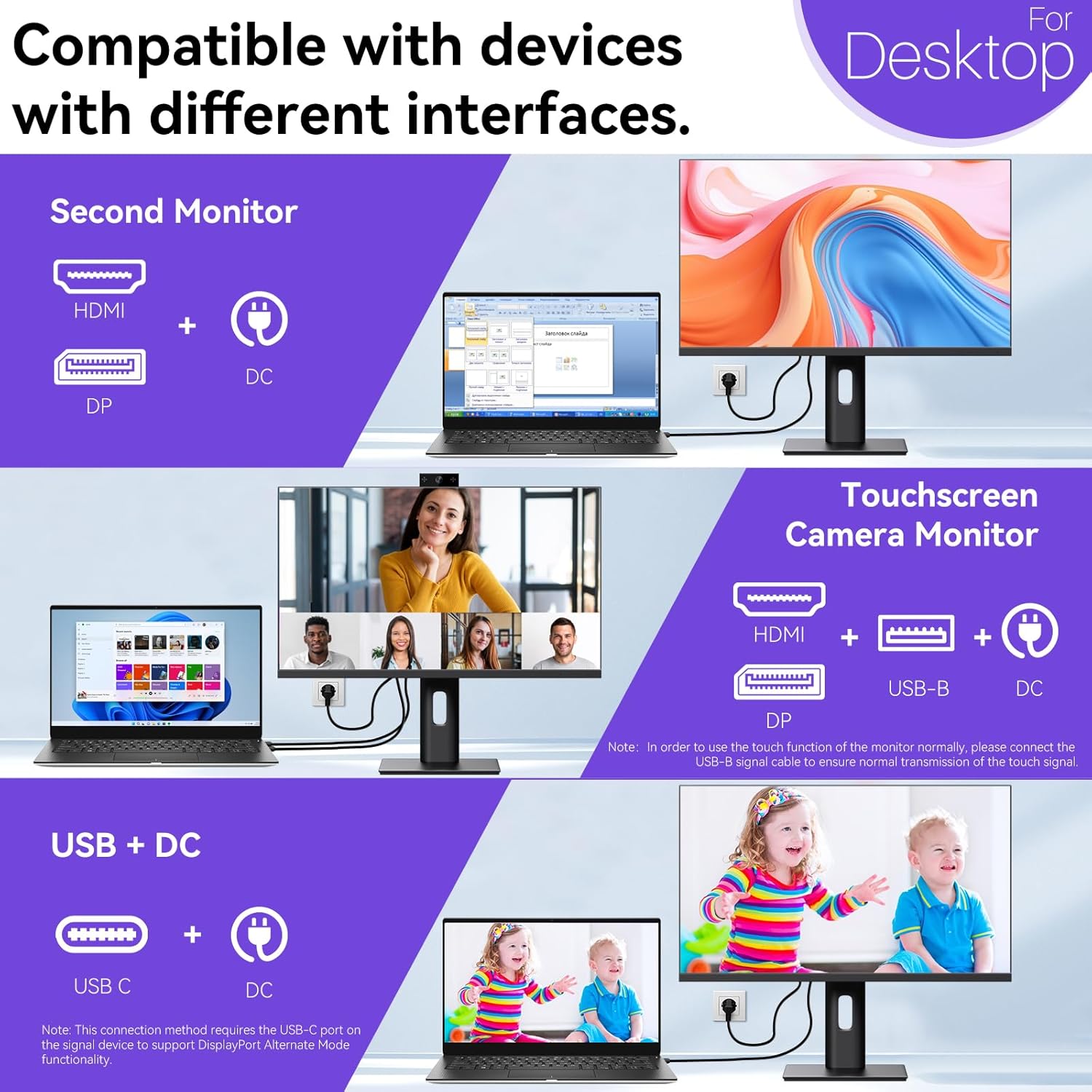
Image: A visual comparison demonstrating the superior clarity of 4K UHD (3840x2160) compared to FHD (1920x1080) and QHD (2560x1440) resolutions.
7. cynnal
- Glanhau'r sgrin: Sychwch y sgrin yn ysgafn gyda lliain meddal, di-flwff. Ar gyfer marciau ystyfnig, sychwch yn ysgafnampgolchwch y lliain gyda dŵr neu doddiant glanhau penodol ar gyfer y sgrin. Peidiwch â chwistrellu hylif yn uniongyrchol ar y sgrin.
- Glanhau'r Casing: Defnyddiwch frethyn meddal, sych i lanhau'r monitor casing.
- Storio: If storing the monitor for an extended period, disconnect it from power, pack it in its original packaging, and store it in a cool, dry place.
8. Datrys Problemau
If you encounter issues with your monitor, refer to the following troubleshooting guide. For problems not listed, please contact customer support.
| Problem | Achos Posibl | Ateb |
|---|---|---|
| Dim delwedd ar y sgrin | Cebl pŵer wedi'i ddatgysylltu; Cebl fideo wedi'i ddatgysylltu; Ffynhonnell mewnbwn anghywir wedi'i dewis. | Ensure power cable is securely connected. Check video cable (HDMI/DP/USB-C) connections. Select correct input source via OSD menu. |
| Sgrin gyffwrdd ddim yn ymateb | USB-B cable not connected; USB-C port not supporting DisplayPort Alternate Mode; Device incompatibility (e.g., iPhone). | Ensure the USB-B to USB-A cable is connected from the monitor to your computer. If using USB-C, verify your device's USB-C port supports DisplayPort Alternate Mode. Note: Touch function is not supported when connected to an iPhone due to iOS system restrictions. |
| Cursor moves incorrectly (Windows) | Touchscreen calibration required. | Perform touchscreen calibration: Go to Control Panel > Hardware and Sound > Tablet PC Settings > Calibrate. |
| Webcam heb ei ganfod | USB connection issue; Software settings. | Ensure all necessary USB cables are connected. Check your application's settings to select the correct webcam. |
9. manylebau
| Nodwedd | Manylyn |
|---|---|
| Brand | Pisichen |
| Rhif Model | 27INTSCMR-4K |
| Maint Sgrin | 27 modfedd |
| Datrysiad | 3840 x 2160 Picsel (4K UHD 2160p) |
| Cymhareb Agwedd | 16:9 |
| Disgleirdeb Delwedd | 400 Candela |
| Disgrifiad o Arwyneb y Sgrin | Sglein |
| Dimensiynau Cynnyrch | 14.37 x 24.21 x 16.54 modfedd |
| Pwysau Eitem | 16.59 pwys |
| Gwneuthurwr | Shenzhen Konowa Electronics Co., LTD |
| Cysylltedd | HDMI, DisplayPort, USB-C, USB-B (for touch), USB-A (x2), Audio Port |
10. Gwarant a Chefnogaeth
This product comes with a manufacturer's warranty. Please refer to the warranty card included in your package for specific terms and conditions. For technical support or inquiries, please contact Pisichen customer service at cefnogaeth_2308@163.com. When contacting support, please provide your model number and a detailed description of the issue, including any relevant pictures or videos.