
Rhagymadrodd
This manual provides detailed instructions for the setup, operation, maintenance, and troubleshooting of your Pisichen 24-inch Touchscreen Monitor with Built-in Webcam (Model 238TS-CMR). This monitor features a 2K QHD (2560x1440) resolution display with a 100Hz refresh rate, 10-point multi-touch functionality, and an integrated pop-up webcam, designed to enhance your productivity and interactive experience.
Gwybodaeth Diogelwch
- Rhowch y monitor ar arwyneb sefydlog, gwastad bob amser i atal cwympiadau damweiniol.
- Peidiwch ag amlygu'r monitor i law, lleithder, na thymheredd eithafol.
- Osgoi rhwystro agoriadau awyru i atal gorboethi.
- Defnyddiwch yr addasydd pŵer a gyflenwir gyda'r monitor yn unig.
- Disconnect the power cable from the outlet before cleaning or if the monitor will be unused for an extended period.
- Peidiwch â cheisio dadosod na thrwsio'r monitor eich hun. Cyfeiriwch bob gwasanaethu at bersonél cymwys.
Cynnwys Pecyn
Gwiriwch fod yr holl eitemau yn bresennol yn eich pecyn:
- Pisichen 24-inch Touchscreen Monitor (Model 238TS-CMR)
- Stand Monitor (Sylfaen a Braich)
- Addasydd Pŵer a Chebl
- Cebl HDMI
- Cebl USB-C i USB-C
- USB-A to USB-B Cable (for touch functionality with non-USB-C devices)
- Llawlyfr Defnyddiwr (y ddogfen hon)
Gosod
1. Stondin Cynulliad
- Tynnwch y monitor o'i becynnu yn ofalus a'i osod wyneb i lawr ar arwyneb meddal, glân i atal crafiadau.
- Attach the stand arm to the back of the monitor using the provided screws.
- Connect the stand base to the stand arm and secure it with the designated screw.
- Once assembled, carefully lift the monitor and place it upright on your desk.

Figure 1: Monitor stand assembly and adjustment capabilities.
2. Cysylltu â'ch Dyfais
The monitor supports multiple connection types. Choose the appropriate cable for your device.
- Cysylltiad Pwer: Connect the power adapter to the monitor's DC power port and then plug it into a power outlet.
- USB-C Connection (Recommended for full functionality): If your device has a USB-C port that supports DisplayPort Alternate Mode, connect the monitor using the provided USB-C to USB-C cable. This single cable can transmit video, audio, and touch signals, and may also provide power delivery to your laptop.
- HDMI or DisplayPort Connection: Connect an HDMI or DisplayPort cable from your device to the corresponding port on the monitor for video and audio. For touch functionality, you must also connect the USB-A to USB-B cable from your device's USB port to the monitor's USB-B upstream port.
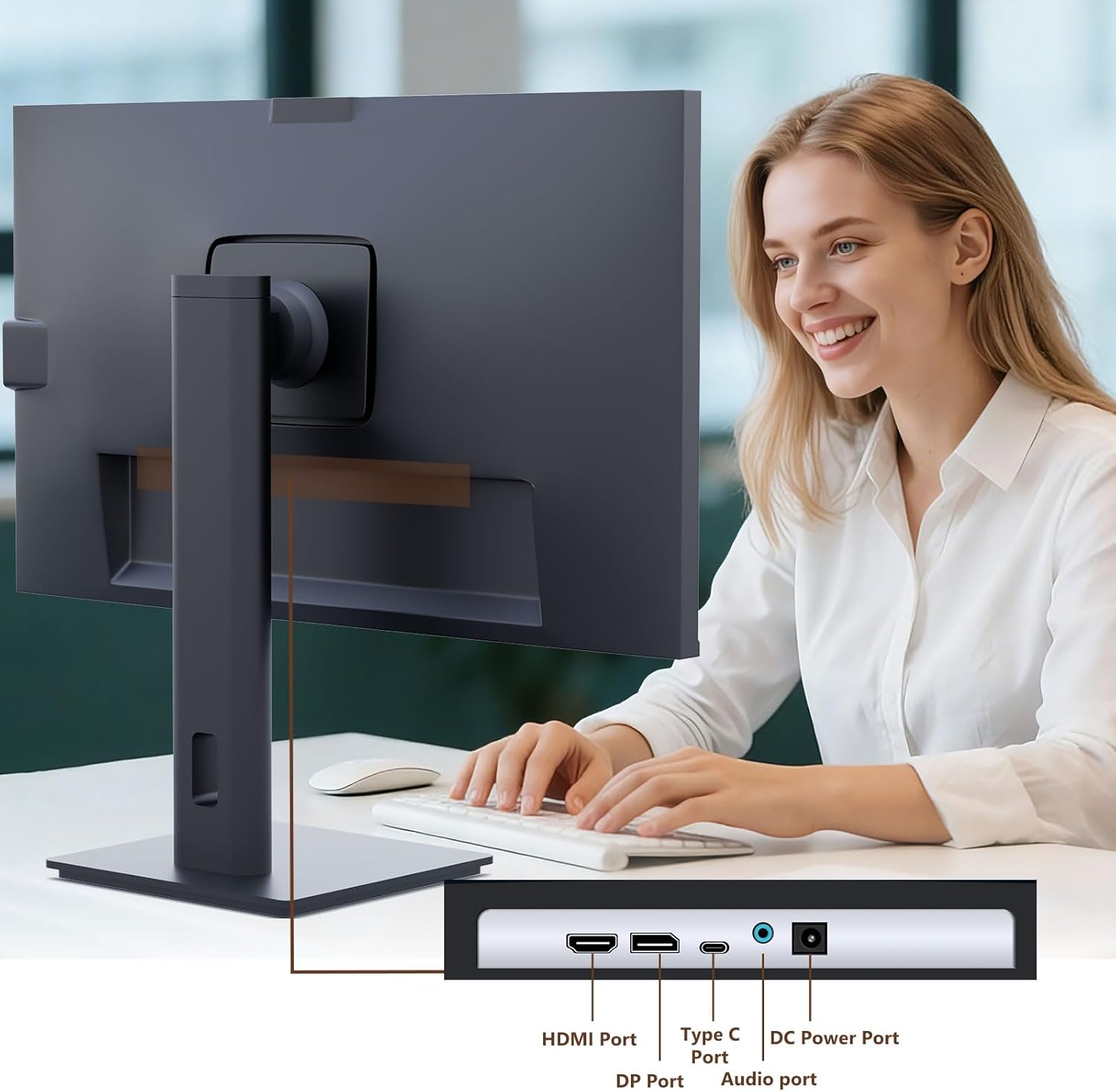
Figure 2: Available ports on the Pisichen monitor.

Figure 3: USB-C one-cable connection for simplified setup.

Figure 4: Connection options for desktop and laptop devices.
3. Troi ymlaen yn gychwynnol
Press the power button located on the monitor to turn it on. The monitor will automatically detect the active input source. If multiple sources are connected, you may need to select the correct input via the On-Screen Display (OSD) menu.
Cyfarwyddiadau Gweithredu
1. Ymarferoldeb Sgrin Gyffwrdd
The monitor supports 10-point multi-touch. Ensure the USB-C cable is connected (for full functionality) or the USB-A to USB-B cable is connected in addition to your video cable for touch input to work. Touch gestures are similar to those used on tablets or smartphones.
- Tap: Single touch for selection or activation.
- Llusgwch: Touch and hold, then move your finger to move items.
- Pinsiad/Taenu: Defnyddiwch ddau fys i chwyddo i mewn neu allan.
- Swipe: Symudwch eich bys ar draws y sgrin i sgrolio neu lywio.

Figure 5: Demonstrating intuitive touch interaction.

Figure 6: Collaborative use of the multi-touch display.
2. Built-in WebDefnydd cam
The monitor features a pop-up webcam for privacy and convenience. To use the webcam, gently press the top center of the monitor frame where the webcam is located. It will pop up. To retract it, gently press it down until it clicks into place.
Ensure your operating system and video conferencing software recognize the webcam. No additional drivers are typically required for basic functionality.

Figure 7: The monitor with its built-in pop-up webcam in use during a video conference.

Figure 8: High-definition video calls using the integrated webcam.
3. Dewislen Arddangos Ar-Sgrin (OSD).
The OSD menu allows you to adjust various monitor settings. Use the buttons on the back or bottom of the monitor to navigate and select options.
- Disgleirdeb/Cyferbyniad: Addaswch lefelau disgleirdeb a chyferbyniad yr arddangosfa.
- Gosodiadau lliw: Modify color temperature, gamma, and other color-related parameters.
- Ffynhonnell Mewnbwn: Manually select between HDMI, DisplayPort, or USB-C inputs.
- Sain: Addaswch y gyfrol ar gyfer siaradwyr adeiledig neu glustffonau cysylltiedig.
- Modd Llun: Dewiswch ddulliau arddangos rhagosodedig (e.e., Safonol, Gêm, Ffilm).
- HDR: Enable or disable High Dynamic Range settings for improved dark detail optimization.

Figure 9: HDR feature for enhanced visual detail.
4. Addasiadau Ergonomig
Mae'r stondin monitor yn caniatáu amryw o addasiadau i wneud y gorau o'ch viewing cysur:
- Addasiad Uchder: Gently push or pull the monitor up or down.
- Tilt: Tilt the screen forward or backward to find the ideal angle.
- troi: Trowch y monitor i'r chwith neu'r dde ar ei waelod.
- Colyn: Cylchdroi'r sgrin 90 gradd ar gyfer modd portread viewing.
Figure 10: Ergonomic adjustments for optimal viewing.
Cynnal a chadw
- Glanhau'r sgrin: Sychwch y sgrin yn ysgafn gyda lliain meddal, di-flwff. Ar gyfer marciau ystyfnig,ampen the cloth slightly with water or a non-abrasive screen cleaner. Do not spray liquid directly onto the screen.
- Glanhau'r Corff: Defnyddiwch frethyn meddal, sych i sychu wyneb y monitor.asing. Osgowch ddefnyddio glanedyddion cryf neu lanhawyr sgraffiniol.
- Storio: Os ydych chi'n storio'r monitor am gyfnod hir, datgysylltwch yr holl geblau a'i storio mewn lle oer, sych, yn ddelfrydol yn ei becynnu gwreiddiol.
Datrys problemau
Dim Pwer
- Gwnewch yn siŵr bod y cebl pŵer wedi'i gysylltu'n ddiogel â'r monitor a'r soced pŵer.
- Gwiriwch fod y soced pŵer yn gweithio trwy blygio dyfais arall i mewn.
- Gwiriwch a yw'r addasydd pŵer wedi'i gysylltu'n gywir â'r monitor.
Dim Signal / Sgrin Wag
- Confirm the video cable (HDMI, DP, or USB-C) is securely connected to both the monitor and your device.
- Gwnewch yn siŵr bod y ffynhonnell fewnbwn gywir wedi'i dewis yn newislen OSD y monitor.
- Check your computer's display settings to ensure the monitor is detected and enabled.
- Rhowch gynnig ar gebl fideo neu borthladd gwahanol os yw ar gael.
Touch Functionality Not Working
- If using HDMI or DisplayPort, ensure the USB-A to USB-B cable is connected from your device to the monitor.
- If using USB-C, ensure your device's USB-C port supports DisplayPort Alternate Mode and touch data transmission.
- Check your operating system's touch settings.
- Note that some devices, such as game consoles (PS3/4/5, Xbox, Steam Deck, Fire TV Cube) and certain Apple products (iPhone, iPad, Switch), do not support touch functionality with this monitor.

Figure 11: Touch compatibility chart for various devices.
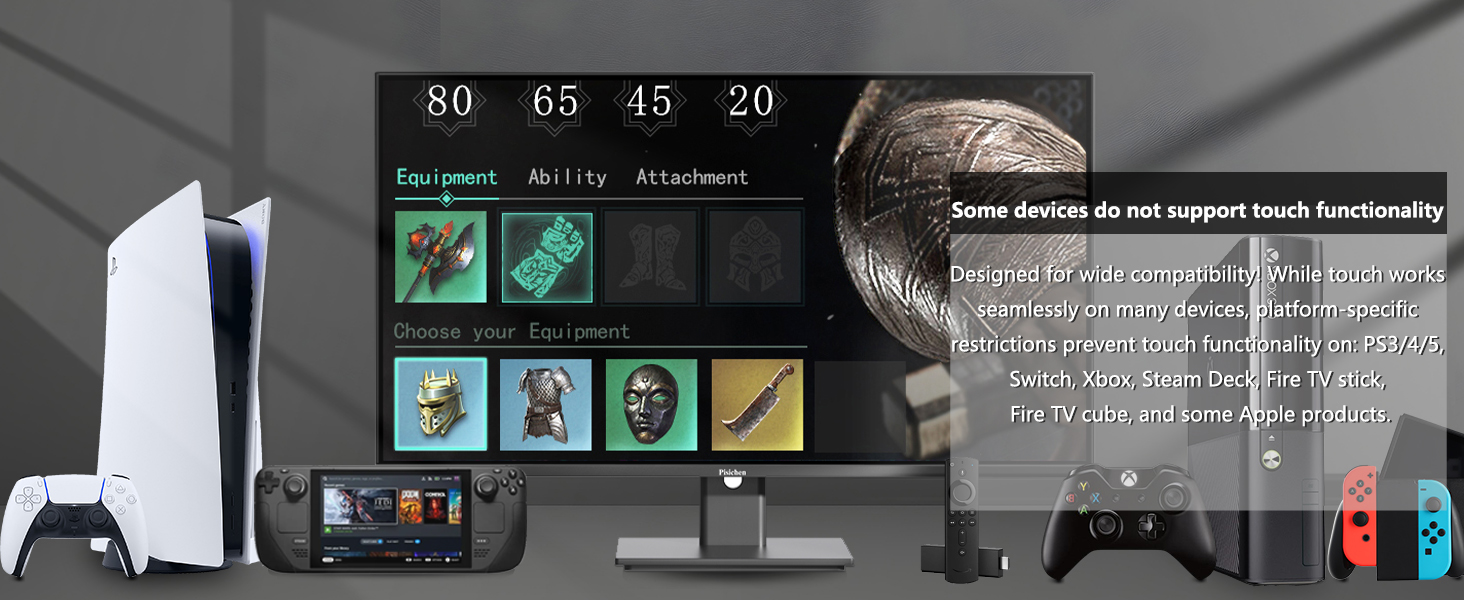
Figure 12: Devices that do not support touch functionality.
Webcam Not Detected
- Sicrhau y webcam is fully popped up.
- Verify that the USB connection (either USB-C or USB-A to USB-B) is properly established.
- Gwiriwch osodiadau preifatrwydd eich system weithredu i sicrhau bod mynediad i'r camera yn cael ei ganiatáu i gymwysiadau.
- Ailgychwyn eich cyfrifiadur.
Manylebau
| Nodwedd | Disgrifiad |
|---|---|
| Rhif Model | 238TS-CMR |
| Maint Sgrin | 23.8 modfedd |
| Datrysiad | 2560 x 1440 (QHD Eang 1440p) |
| Cyfradd Adnewyddu | 100Hz |
| Disgleirdeb | 400 Candela (nits) |
| Cymhareb Cyferbyniad | 3000:1 |
| Technoleg Cyffwrdd | Aml-gyffwrdd 10-Pwynt |
| Webcam | Built-in Pop-up Camera |
| Cysylltedd | HDMI, DisplayPort (DP), USB Type-C, USB-B (upstream), Audio Out, DC Power |
| Cymhareb Agwedd | 16:9 |
| Arwyneb y Sgrin | Sglein |
| Dimensiynau Cynnyrch | 1.97 x 21.26 x 12.6 modfedd |
| Pwysau Eitem | 11.53 pwys |
| Gwneuthurwr | Shenzhen Konowa Electronics Co., LTD |
Gwarant a Chefnogaeth
Your Pisichen monitor is covered by a limited warranty. Please refer to the warranty card included in your package for specific terms and conditions, including the warranty period and coverage details.
For technical support, troubleshooting assistance, or warranty claims, please contact Pisichen customer service. Contact information can typically be found on the manufacturer's websafle neu ar y cerdyn gwarant.
When contacting support, please have your monitor's model number (238TS-CMR) and purchase information readily available.