
Rhagymadrodd
Thank you for choosing the NexiGo Wireless Controller NS32-A9. This controller is designed to enhance your gaming experience on Nintendo Switch and Switch 2 consoles, offering advanced features such as no deadzone thumbsticks, customizable RGB lighting, adjustable vibration, six-axis gyroscope, and a turbo function. Please read this manual carefully to ensure proper setup and operation.
Nodweddion Cynnyrch
- No Deadzone Thumbsticks: Experience precise control with minimal input delay, ensuring accurate movements in games.
- Dual Motors and Six-Axis Gyroscope: Enjoy immersive haptic feedback and responsive motion controls for a dynamic gaming experience.
- Dangosydd LED: The thumbsticks feature LED activity indicator rings that light up and flash during use, providing visual feedback.
- Codi Tâl Cyflym: The controller can be fully charged in 2-3 hours, providing up to 10 hours of gameplay.
- Cysylltiad Bluetooth: Easily pairs wirelessly with your Nintendo Switch console. Initial pairing requires a wired connection.
- Comfortable Non-Slip Design: Constructed from durable ABS material with ergonomic, non-slip grips to reduce hand fatigue during extended play sessions.
- Swyddogaeth Turbo: Allows for partial and full automatic button mashing for repetitive actions in games.
- Dirgryniad Addasadwy: Customize the intensity of the haptic feedback with four distinct levels.
- Cydnawsedd Eang: Compatible with Nintendo Switch, Nintendo Switch OLED, Nintendo Switch Lite, and PC.
- Switch Wake-Up Function: Conveniently wake up your Nintendo Switch console directly from the controller.

Image: No Deadzone Precision

Image: Wide Compatibility Overview
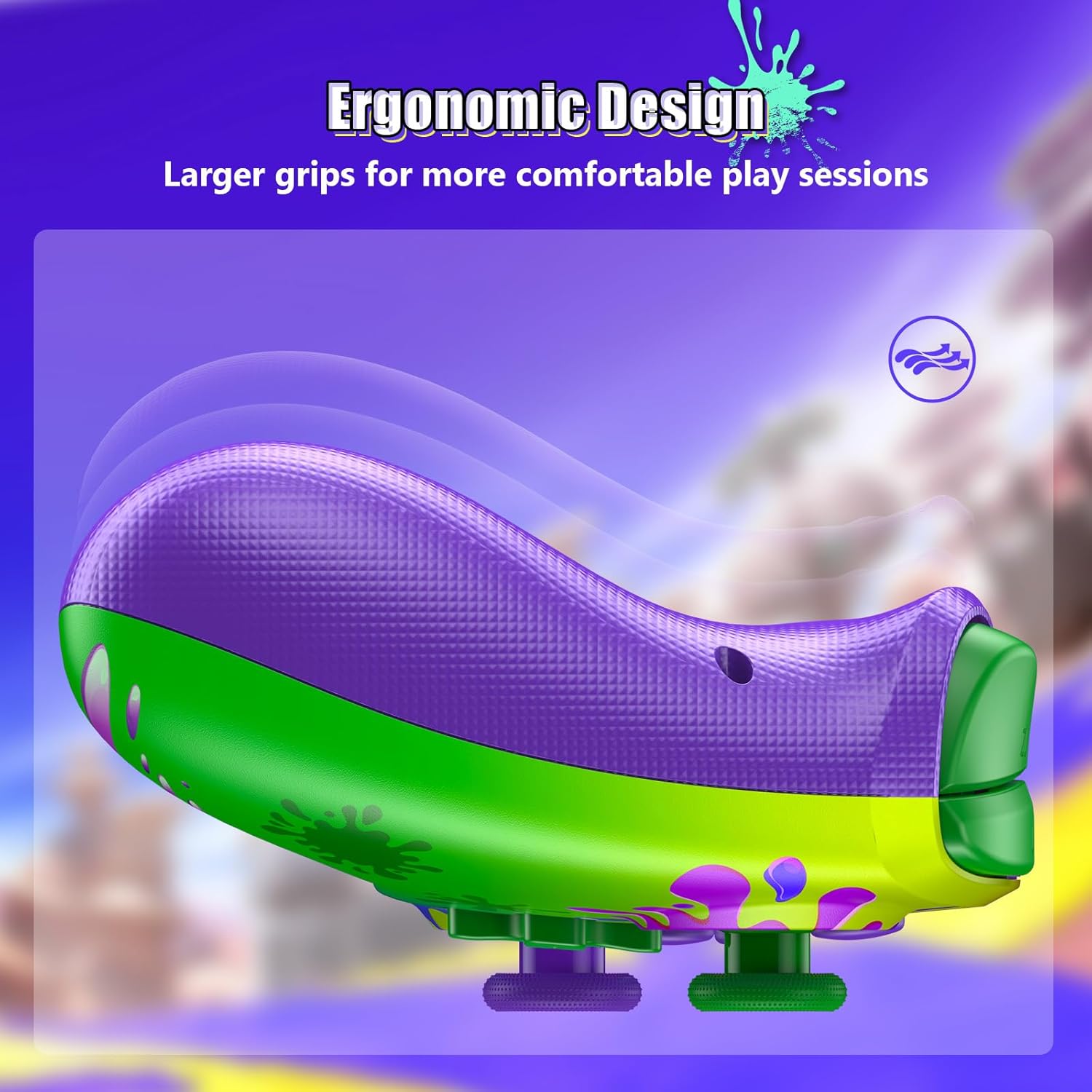
Image: Ergonomic Design for Comfort
Setup: Wireless Connection
Follow these steps to connect your NexiGo Wireless Controller to your Nintendo Switch console:
- Cam 1: Turn on your Nintendo Switch console and navigate to the "Controllers" menu from the HOME screen.
- Cam 2: Select "Change Grip/Order" from the list of options.
- Cam 3: Press and hold the Pairing button on the top of your controller for at least two seconds. The Pairing button is typically a small, circular button located near the charging port.
- Cam 4: The LEDs on your controller will flash during the pairing process and remain solid when the connection is successful.
Nodyn: You can only connect your controller wirelessly after pairing it once via a USB cable for the initial setup.
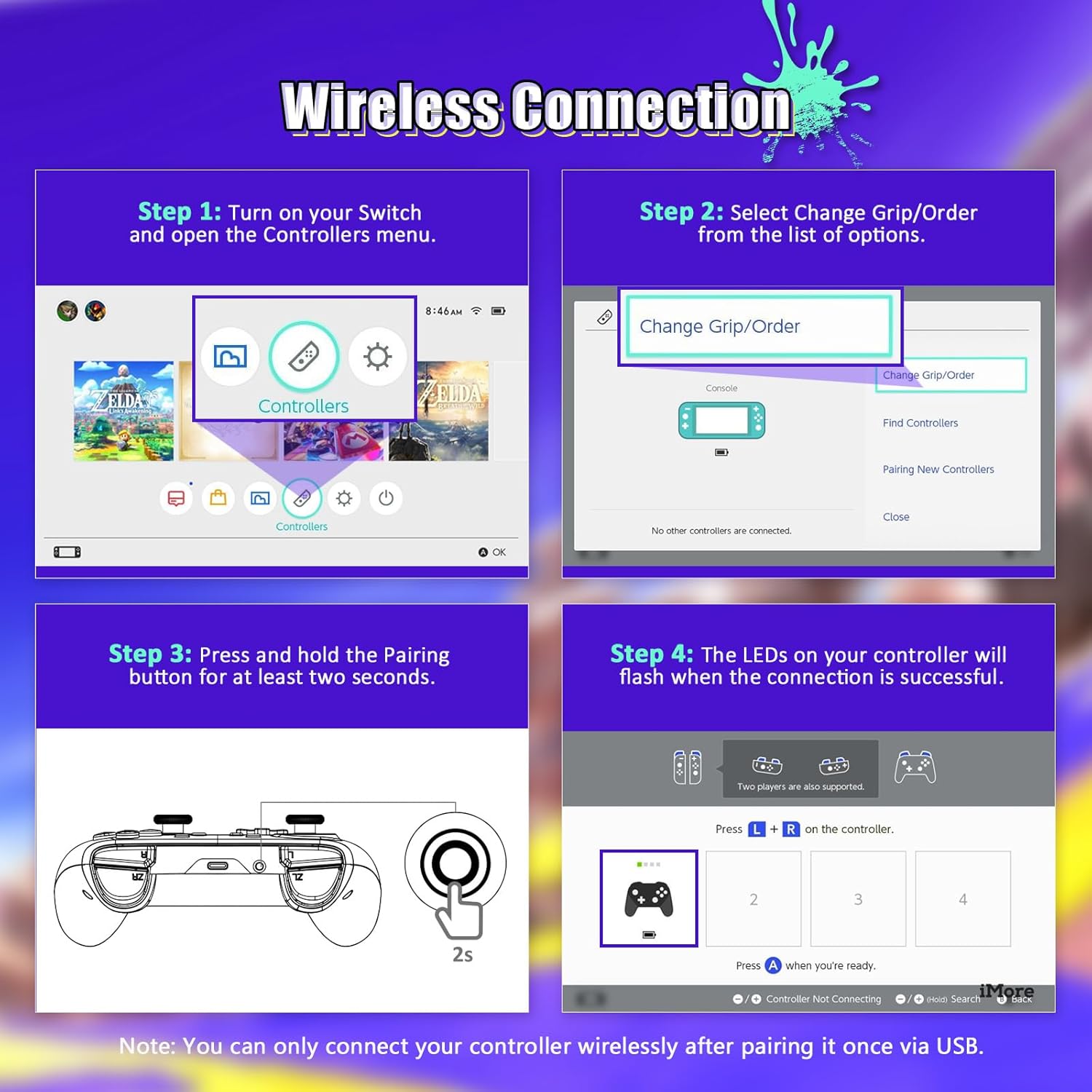
Image: Wireless Connection Setup Guide
Cyfarwyddiadau Gweithredu
Swyddogaeth Turbo
The Turbo function allows you to assign rapid-fire capabilities to specific buttons. This is useful for games requiring quick, repeated button presses.
- Wrthi'n actifadu Turbo: Press and hold the button you wish to assign Turbo to, then press the Turbo button (usually located on the back or bottom of the controller). The button will now rapidly input when held down.
- Dadactifadu Turbo: Repeat the activation steps for the same button to turn off the Turbo function.
- Addasu Cyflymder Turbo: (If applicable, consult specific controller documentation for speed adjustment methods, often involves Turbo button + D-pad up/down).

Image: Turbo Mode in action
Dirgryniad Addasadwy
The controller features four levels of vibration intensity. You can adjust this to suit your preference or the game you are playing.
- Adjusting Vibration: Typically, this is done by holding a specific button (e.g., Turbo or Function button) and pressing the D-pad Up or Down. Refer to the quick start guide for your specific model's button combination.
- The four levels are usually 0% (off), 30%, 75%, and 100% intensity.

Image: Adjustable Vibration Levels
Gyrosgop Chwe Echel
The built-in six-axis gyroscope provides precise motion control for games that support it. This allows for intuitive tilt and motion-based gameplay.
- Gwnewch yn siŵr bod y gêm rydych chi'n ei chwarae yn cefnogi rheolyddion symudiad.
- Calibrate the gyroscope if you experience inaccurate motion sensing. This option is usually found in the Nintendo Switch system settings under "Controllers and Sensors."
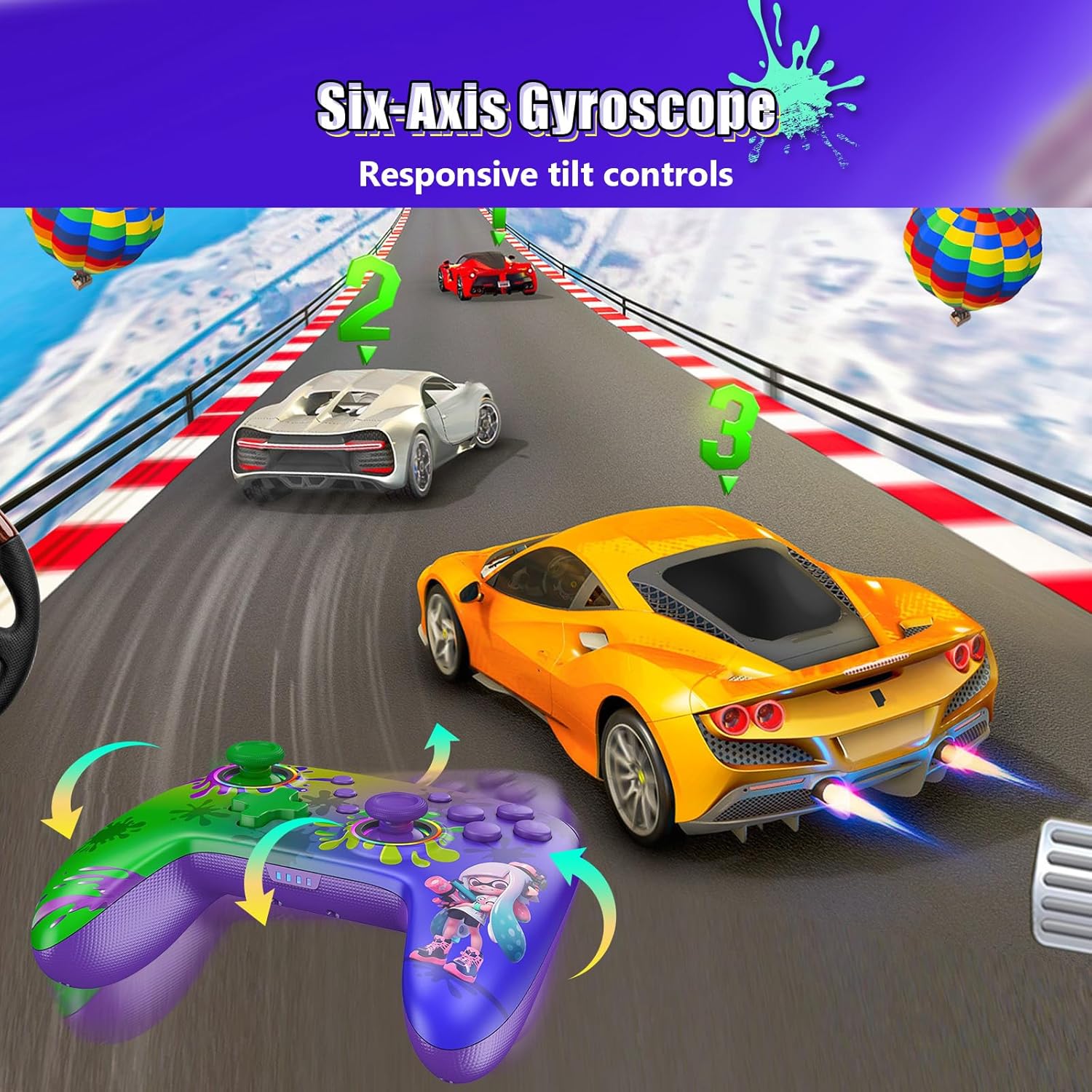
Image: Six-Axis Gyroscope in use
RGB Thumbsticks
The controller features customizable RGB lighting around the thumbsticks. These lights can be adjusted for color, brightness, and mode.
- Changing Colors/Modes: Refer to the controller's quick start guide for specific button combinations to cycle through seven colors, adjust brightness, and select from three lighting modes (e.g., breathing, cycling, static).
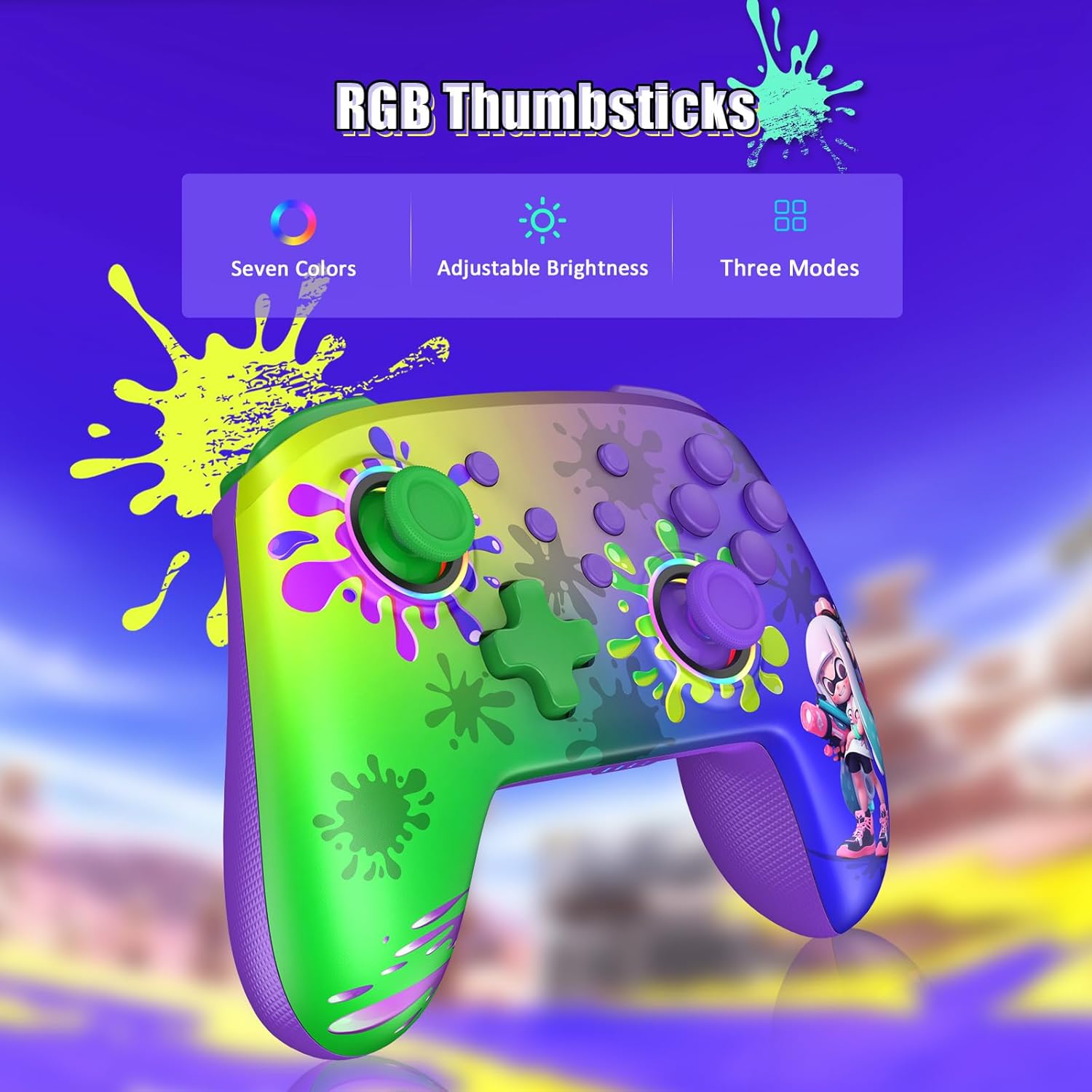
Image: RGB Thumbsticks Features
Cynnal a chadw
- Glanhau: Defnyddiwch frethyn meddal, sych i lanhau'r rheolydd. Osgowch ddefnyddio cemegau llym neu ddeunyddiau sgraffiniol.
- Storio: Storiwch y rheolydd mewn lle oer, sych i ffwrdd o olau haul uniongyrchol a thymheredd eithafol.
- Gofal Batri: Er mwyn ymestyn oes y batri, osgoi rhyddhau'r rheolydd yn llwyr yn aml. Gwefrwch ef yn rheolaidd, hyd yn oed os nad yw'n cael ei ddefnyddio'n gyson.
- Osgoi diferion: Amddiffynwch y rheolydd rhag cwympiadau ac effeithiau, a all niweidio cydrannau mewnol.
Datrys problemau
- Rheolydd heb gysylltu:
- Sicrhewch fod tâl ar y rheolydd.
- Verify Bluetooth is enabled on your Nintendo Switch.
- Attempt to re-pair the controller by following the "Wireless Connection" steps.
- Try connecting the controller via USB cable to confirm it powers on.
- Input Lag or Unresponsive Buttons:
- Ensure there are no obstructions between the controller and the console.
- Gwiriwch am ymyrraeth gan ddyfeisiau diwifr eraill.
- Update the controller's firmware if an update is available (check the NexiGo official websafle).
- Dirgryniad Ddim yn Gweithio:
- Gwiriwch y gosodiadau yn y gêm i sicrhau bod dirgryniad wedi'i alluogi.
- Adjust the vibration intensity using the controller's dedicated function.
- Motion Controls Inaccurate:
- Calibrate the gyroscope in the Nintendo Switch system settings.
- Ensure the controller is held steadily during calibration.
Manylebau
| Rhif Model | NS32-A9 |
| Dimensiynau Cynnyrch | 6.14 x 4.02 x 2.56 modfedd |
| Pwysau Eitem | 10.6 owns |
| Cysylltedd | Bluetooth |
| Bywyd Batri | Hyd at 10 awr (tua) |
| Amser Codi Tâl | 2-3 awr (tua) |
| Gwneuthurwr | Inc nesaf |
Gwarant a Chefnogaeth
NexiGo products are designed for reliability and performance. For any issues or questions, please refer to the following support information:
- Cefnogaeth i Gwsmeriaid: NexiGo offers quick response customer support, typically within 24 hours.
- Polisi Dychwelyd: Products can be returned within 30 days for an exchange or refund, subject to terms and conditions.
- Cymorth Technegol: Lifetime technical customer support is provided for your NexiGo product.
- For detailed warranty information and to contact support, please visit the official NexiGo websafle neu cyfeiriwch at y cerdyn gwarant sydd wedi'i gynnwys gyda'ch cynnyrch.