
1. Rhagymadrodd
This manual provides essential information for setting up, operating, maintaining, and troubleshooting your Auusda 16-inch FHD Laptop T161N. Please read this manual thoroughly before using your device to ensure proper function and longevity.
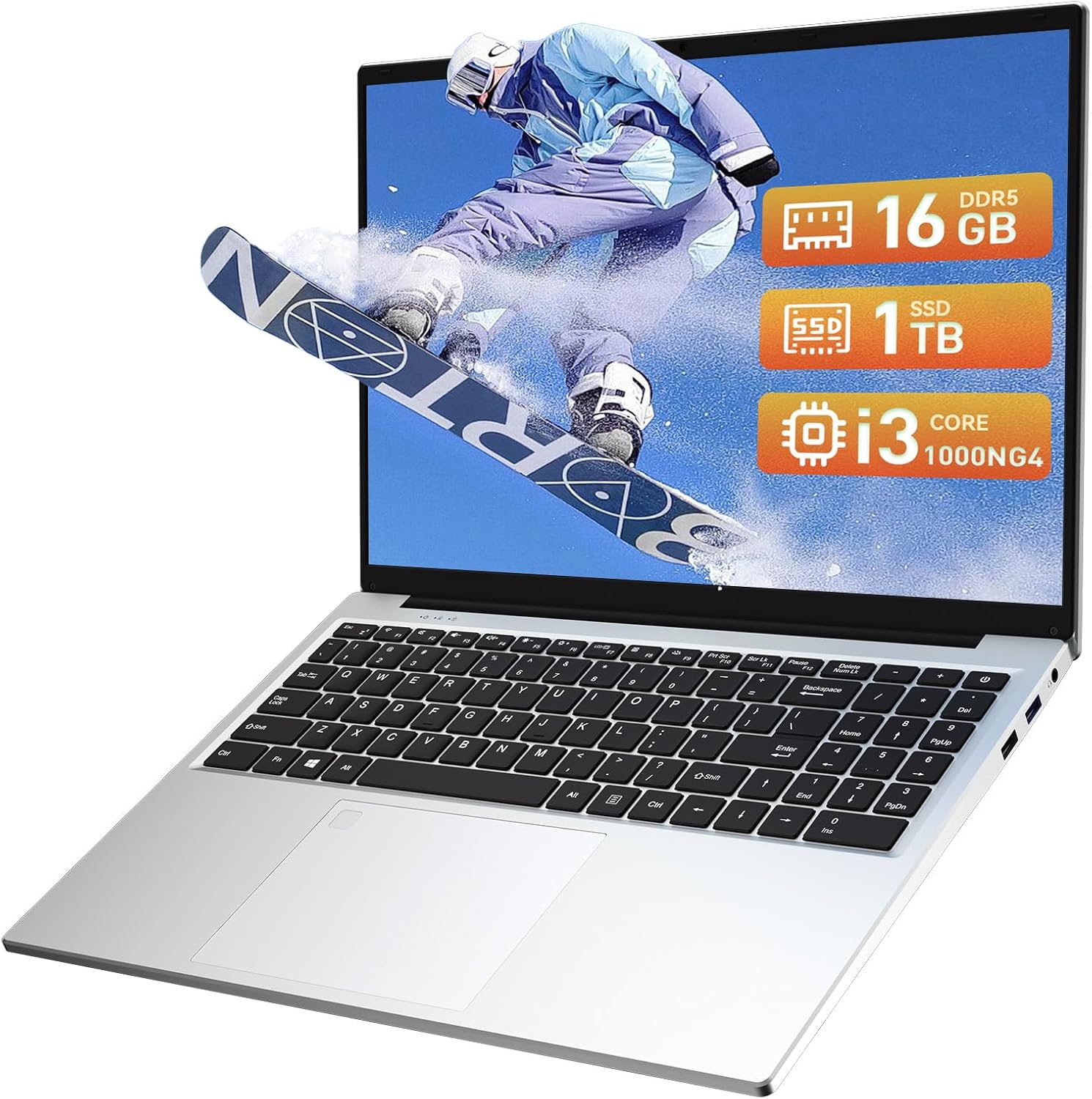
Image: The Auusda 16-inch FHD Laptop T161N, showcasinei ddyluniad a'i sgrin cain.
2. Beth sydd yn y Bocs
Upon opening your Auusda T161N laptop package, verify that all the following items are included:
- Auusda 16-inch FHD Laptop T161N
- Addasydd pŵer / gwefrydd
- Llawlyfr Cyfarwyddiadau (y ddogfen hon)
- Gorchudd Bysellfwrdd

Image: A visual representation of the items included in the Auusda T161N laptop packaging.
3. Cynnyrch Drosview
3.1 Nodweddion Allweddol
- Arddangos: 16-inch Full HD (1920x1080) IPS screen with 180° viewongl ing.
- Prosesydd: Intel Core i3-1000NG4 (up to 3.2GHz).
- Cof: 16GB DDR4 RAM.
- Storio: 1TB PCIe SSD.
- Cysylltedd: Wi-Fi 6, Bluetooth 5.3.
- Diogelwch: Fingerprint Reader.
- Mewnbwn: Backlit Keyboard.
- System Weithredu: Windows 11 Pro.
3.2 Porthladdoedd a Chysylltwyr
The Auusda T161N laptop is equipped with various ports for versatile connectivity:
- Porthladdoedd USB 3.0 (x2)
- Full-Function Type-C Port (x1) - Supports data transfer, screen mirroring, and charging.
- Porth USB 2.0 (x1)
- Mini HDMI Port (x1)
- 3.5mm Standard Headphone Jack (x1)
- Microphone Input (shared with headphone jack)
- Porthladd Codi Tâl

Image: A detailed diagram illustrating the location and type of ports on the Auusda T161N laptop.
3.3 Visual Overview
Fideo: Dros benview of the Auusda 16-inch FHD Laptop T161N, demonstrating its design and key features.
4. Gosod
4.1 Codi Tâl Cychwynnol
- Cysylltwch yr addasydd pŵer â'r porthladd gwefru ar y gliniadur.
- Plygiwch yr addasydd pŵer i mewn i allfa wal.
- Allow the laptop to charge for at least 30 minutes before initial use, or until the battery indicator shows sufficient charge.
4.2 Troi ymlaen a Gosod Windows Cychwynnol
- Press the power button located on the keyboard to turn on the laptop.
- Follow the on-screen instructions to complete the Windows 11 Pro setup process. This includes selecting your region, language, connecting to a Wi-Fi network, and creating a user account.
- Ensure you have an active internet connection for Windows updates and driver installations during the setup.
5. Cyfarwyddiadau Gweithredu
5.1 Keyboard Functions (Fn + Function Keys)
The laptop features a full-size keyboard with dedicated function keys that can be accessed by pressing the Fn key in combination with the corresponding function key (F1-F12).
- Bysellfwrdd ôl-oleuo: Gwasgwch Fn + F9 to cycle through 2 brightness levels. Pressing it a third time turns the backlight off.
- Clo Rhif: Gwasgwch Fn + Num Lk to toggle the numeric keypad on or off.
- Rheoli cyfaint: Defnydd Fn + Speaker keys (F1-F3) to mute, decrease, or increase volume.
- Rheoli disgleirdeb: Defnydd Fn + Sun keys (F4-F5) to decrease or increase screen brightness.

Image: A visual guide to using the Fn (Function) keys on the Auusda T161N keyboard for various controls.
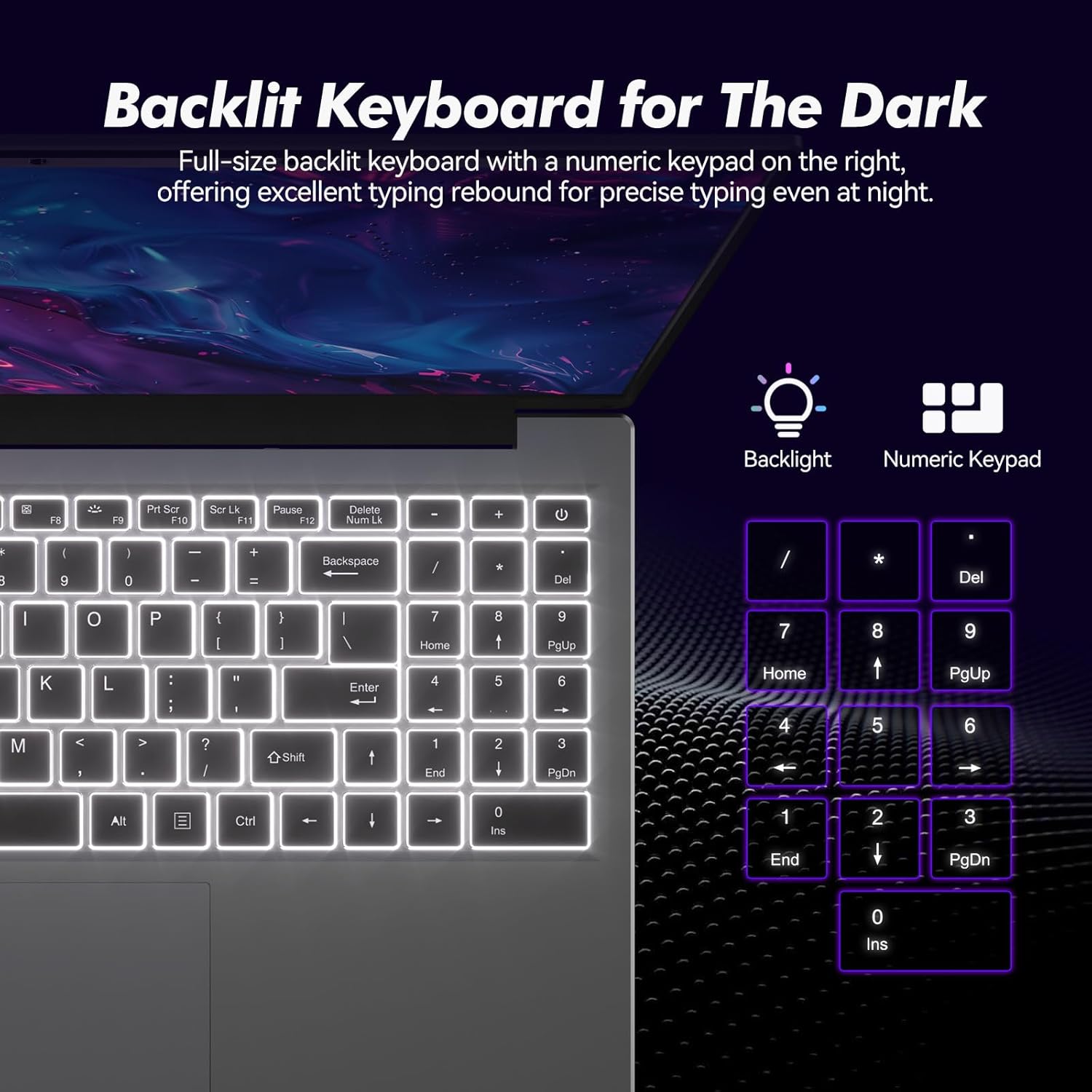
Delwedd: Llun agos view of the backlit keyboard and numeric keypad, highlighting their functionality.
5.2 Darllenydd Olion Bysedd
The integrated fingerprint reader provides a secure and fast way to unlock your laptop. To set up fingerprint recognition:
- Navigate to Windows Settings > Accounts > Sign-in options.
- Under 'Windows Hello Fingerprint', click 'Set up'.
- Follow the on-screen prompts to register your fingerprint.
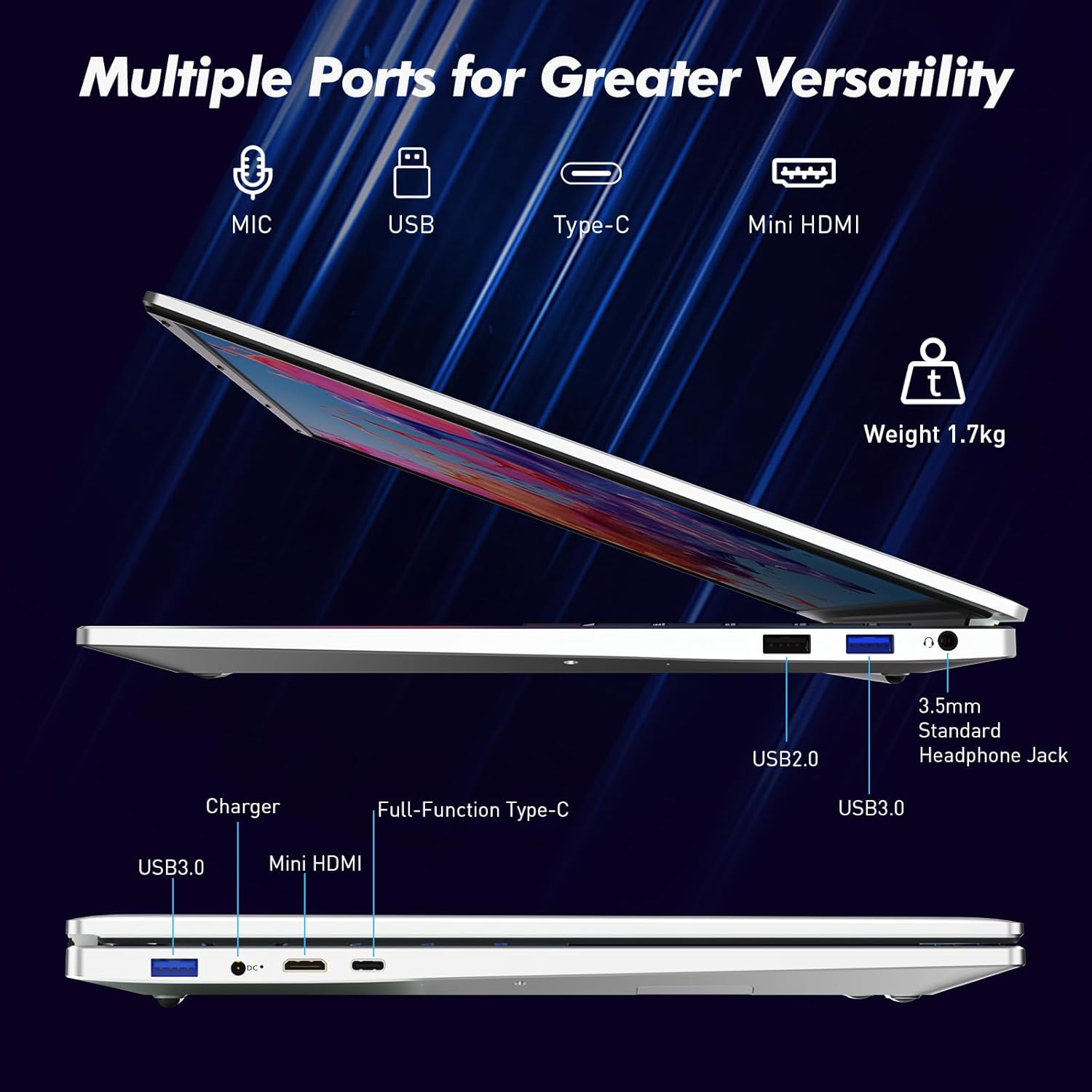
Image: A visual representation of the fingerprint reader location and its quick unlock capability.
5.3 Type-C Connectivity
The full-function Type-C port offers versatile connectivity options:
- Trosglwyddo Data: Connect compatible devices for high-speed data exchange.
- Drych Sgrin: Output video to an external display using a compatible Type-C to HDMI/DisplayPort adapter (sold separately).
- Codi tâl: Charge the laptop using a compatible Type-C power delivery charger.
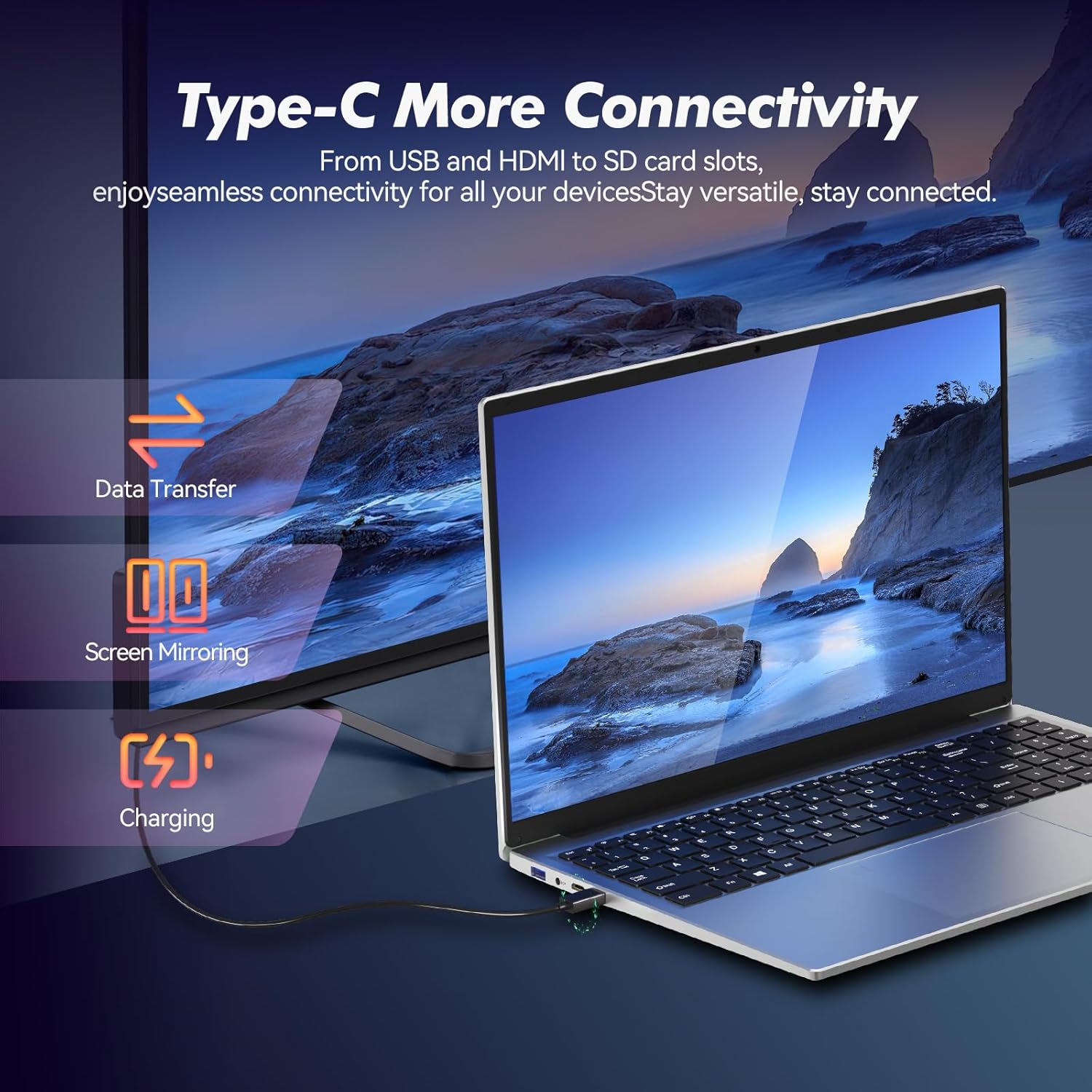
Image: Illustrates the multi-functional capabilities of the Type-C port, including data transfer, screen mirroring, and charging.
5.4 Wi-Fi 6 and Bluetooth 5.3
The laptop supports Wi-Fi 6 for faster and more stable wireless internet connections and Bluetooth 5.3 for connecting wireless peripherals.
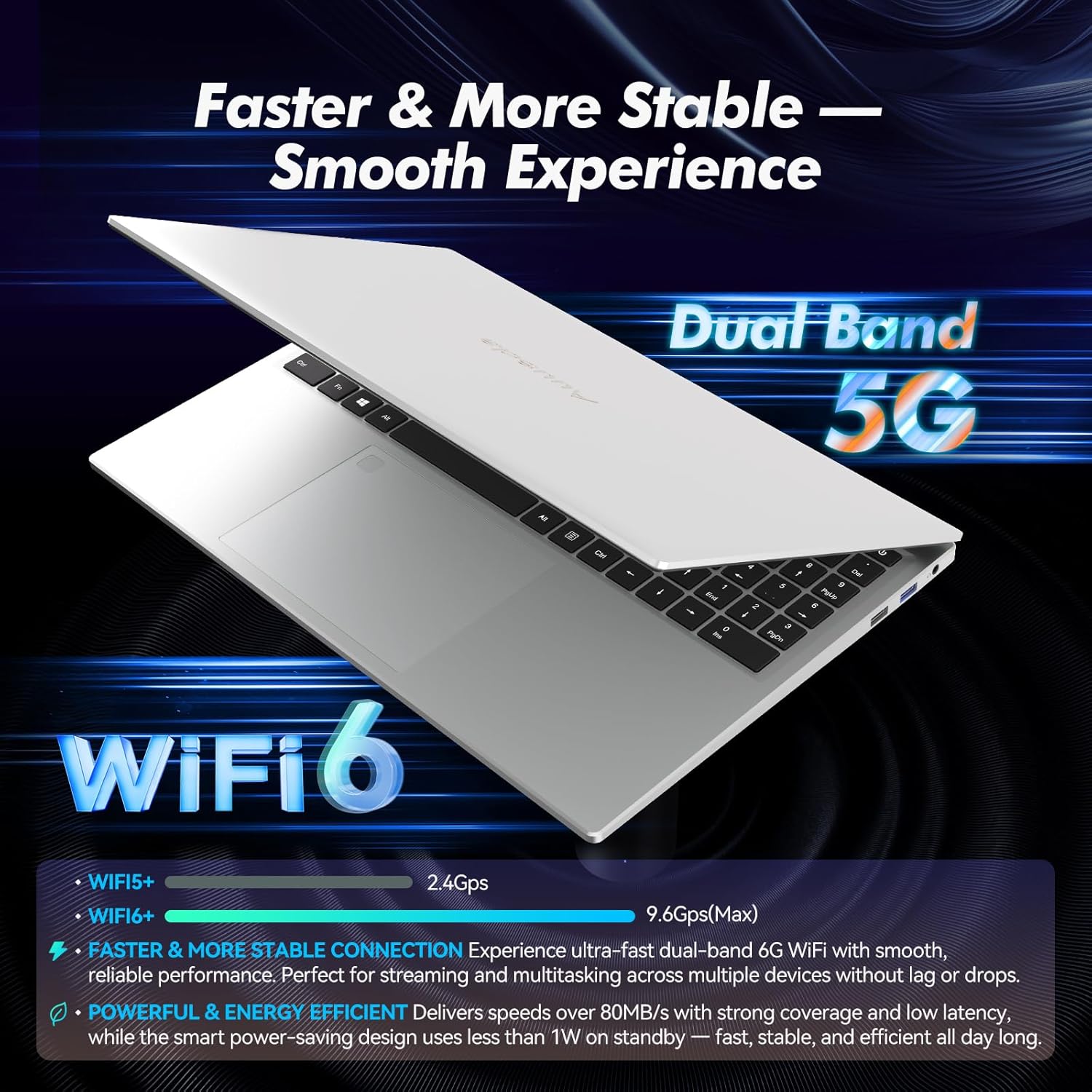
Image: Highlights the advanced wireless connectivity of the laptop, including Wi-Fi 6 and Dual Band 5G support.
6. manylebau
Below are the detailed technical specifications for the Auusda 16-inch FHD Laptop T161N:
| Nodwedd | Manyleb |
|---|---|
| Rhif Model | T161N |
| Maint Sgrin | 16 modfedd |
| Cydraniad Sgrin | 1920 x 1080 picsel (FHD) |
| Prosesydd | Intel Core i3-1000NG4 (1.09 GHz, up to 3.2 GHz) |
| HWRDD | 16 GB DDR4 SDRAM |
| Gyriant Caled | 1 TB SSD (PCIe) |
| Cydbrosesydd graffeg | Iris Plus Graphics G4 48EUs (Integrated) |
| System Weithredu | Windows 11 Pro |
| Math Di-wifr | 802.11ax (Wi-Fi 6), Bluetooth 5.3 |
| Porthladdoedd USB 3.0 | 2 |
| Porthladdoedd USB 2.0 | 1 |
| Pwysau Eitem | 5.21 pwys |
| Dimensiynau Cynnyrch | 14.17 x 10.83 x 0.71 modfedd |
| Lliw | Arian |
| Batris | 1 batri 12V (wedi'i gynnwys) |
7. cynnal
Regular maintenance helps ensure the optimal performance and longevity of your laptop.
7.1 Glanhau
- Defnyddiwch frethyn meddal, di-flwff i lanhau'r sgrin a'r arwynebau allanol. Ar gyfer marciau ystyfnig, rhwbiwch ychydigampgolchwch y lliain gyda dŵr neu lanhawr sy'n ddiogel rhag sgriniau.
- Osgowch chwistrellu hylifau'n uniongyrchol ar y gliniadur.
- Defnyddiwch aer cywasgedig i glirio llwch o allweddi'r bysellfwrdd a griliau awyru.
7.2 Diweddariadau Meddalwedd
- Chwiliwch am ddiweddariadau Windows yn rheolaidd a'u gosod i sicrhau sefydlogrwydd a diogelwch y system. Ewch i Gosodiadau > Diweddariad Windows.
- Keep your drivers updated. Windows Update typically handles this, but you may occasionally need to check the Auusda support website for specific driver updates.
7.3 Gofal Batri
- Osgowch ollwng y batri'n llwyr yn aml.
- Storiwch y gliniadur mewn lle oer, sych os na chaiff ei ddefnyddio am gyfnodau hir.
8. Datrys Problemau
Mae'r adran hon yn mynd i'r afael â phroblemau cyffredin y gallech ddod ar eu traws gyda'ch gliniadur.
8.1 Nid yw'r Gliniadur yn Troi Ymlaen
- Gwnewch yn siŵr bod yr addasydd pŵer wedi'i gysylltu'n ddiogel â'r gliniadur ac allfa bŵer sy'n gweithio.
- Gwiriwch fod y soced pŵer yn gweithio drwy blygio dyfais arall i mewn.
- If the battery is completely drained, allow it to charge for at least 15-30 minutes before attempting to power on again.
8.2 Problemau Cysylltedd Wi-Fi
- Check if Wi-Fi is enabled in Windows settings (Settings > Network & internet > Wi-Fi).
- Ailgychwynwch eich llwybrydd a'ch modem.
- Ensure you are within range of your Wi-Fi network.
- Update your Wi-Fi drivers if necessary.
8.3 Keyboard or Touchpad Not Responding
- Ailgychwyn y gliniadur.
- Check for any physical obstructions or debris under the keys or on the touchpad.
- Ensure the touchpad has not been accidentally disabled (some laptops have a function key or a setting to toggle the touchpad).
For further assistance, refer to the support section below.
9. Gwarant a Chefnogaeth
Auusda provides customer support and warranty services for its products.
9.1 Gwybodaeth Gwarant
Auusda laptops typically come with a two-year after-sales service period. Please retain your proof of purchase for warranty claims.
9.2 Cefnogaeth i Gwsmeriaid
If you encounter issues or require technical assistance, please contact Auusda customer support:
- Cefnogaeth E-bost: Send your order number and a video demonstrating the problem to Auusda.ltd@gmail.com.
- Amazon Buyer Account: Log in to your Amazon buyer account, find your order, and click "Get Help" or "Ask questions" for direct support.