
1. Rhagymadrodd
Thank you for choosing the GooDee AC321 Video Projector. This manual provides essential information for setting up, operating, and maintaining your device to ensure optimal performance and longevity. Please read this manual thoroughly before using the projector.

Image: The GooDee AC321 Video Projector, a compact device with a lens on the front, resting on its adjustable stand.
2. Beth sydd yn y Bocs
Gwiriwch fod yr holl eitemau yn bresennol yn y pecynnu:
- GooDee AC321 Projector
- Cord Pŵer
- Cebl HDMI
- Rheolaeth Anghysbell
- Llawlyfr Defnyddiwr (y ddogfen hon)

Image: A visual representation of the items included with the GooDee AC321 projector: the projector unit, remote control, power cable, lens cover, and a 90-degree HDMI cable.
3. Gosod
3.1 Cysylltiad Pwer
- Cysylltwch y llinyn pŵer â phorthladd mewnbwn pŵer y taflunydd.
- Plygiwch ben arall y llinyn pŵer i mewn i soced drydanol addas.
- Pwyswch y botwm pŵer ar y taflunydd neu'r teclyn rheoli o bell i droi'r ddyfais ymlaen.
3.2 Placement and Positioning
The GooDee AC321 features a flexible hovering stand, allowing for versatile placement options:
- Tabletop Projection: Place the projector on a flat surface and adjust the stand to direct the image onto a wall or screen.
- Rhagamcaniad Nenfwd: The projector can be tilted upwards to project onto a ceiling, ideal for comfortable viewing while lying down.
- Mowntio trybedd: Utilize the 1/4-inch screw holes at the bottom of the projector to mount it on a tripod for stable and precise positioning.

Image: The GooDee AC321 projector demonstrating its flexible stand, capable of adjusting the projection angle up to 120 degrees for various viewing positions, including ceiling projection.
3.3 Initial Power On and Focus
Upon powering on, the projector will automatically perform autofocus and keystone correction to provide a clear and rectangular image. Further adjustments can be made via the remote control.
Video: A demonstration of the GooDee Mini Projector's initial setup, showing the power-on sequence, automatic focus adjustment, and the main user interface with various streaming apps.
4. Cyfarwyddiadau Gweithredu
4.1 Llywio a Rhyngwyneb Defnyddiwr
The GooDee AC321 runs on Movin 2.0 OS, providing a smart TV experience with pre-installed streaming applications. Use the included remote control to navigate the interface:
- Pad Cyfeiriadol: Use the arrow buttons to move between apps and menu options.
- Botwm Iawn: Dewiswch eitem neu cadarnhewch weithred.
- Botwm Cartref: Dychwelyd i'r brif sgrin gartref.
- Botwm Cefn: Ewch yn ôl i'r sgrin flaenorol.
- Botymau Cyfrol: Addaswch lefel allbwn y sain.
- Botymau Ap Pwrpasol: Quickly access Netflix, YouTube, and Prime Video.

Image: The GooDee AC321 projector's home screen, showcasing a variety of pre-installed streaming applications like Netflix, YouTube, and Prime Video, ready for selection.
4.2 App Access and Streaming
The projector comes pre-licensed with major streaming platforms. Connect to your Wi-Fi network to access over 10,000 streaming channels and a built-in app store for additional content.
4.3 Adlewyrchu Sgrin
The GooDee AC321 supports various casting protocols including DLNA, AirPlay, and Miracast, allowing seamless screen mirroring from iOS, Android, and Windows devices.

Image: The GooDee AC321 projector casting content from a mobile device to a large screen, illustrating its screen mirroring capabilities across different operating systems.
5. Cysylltedd
Mae'r taflunydd yn cynnig sawl opsiwn cysylltedd:
- HDMI: Connect to computers, gaming consoles, TV boxes, or DVD players.
- USB: Chwarae cyfryngau yn uniongyrchol o ddyfeisiau storio USB.
- Jac Sain 3.5mm: Cysylltwch siaradwyr neu glustffonau allanol.
- Wi-Fi 6: For high-speed wireless internet and streaming.
- Bluetooth 5.4: For stable connection to external audio devices like speakers or headphones.
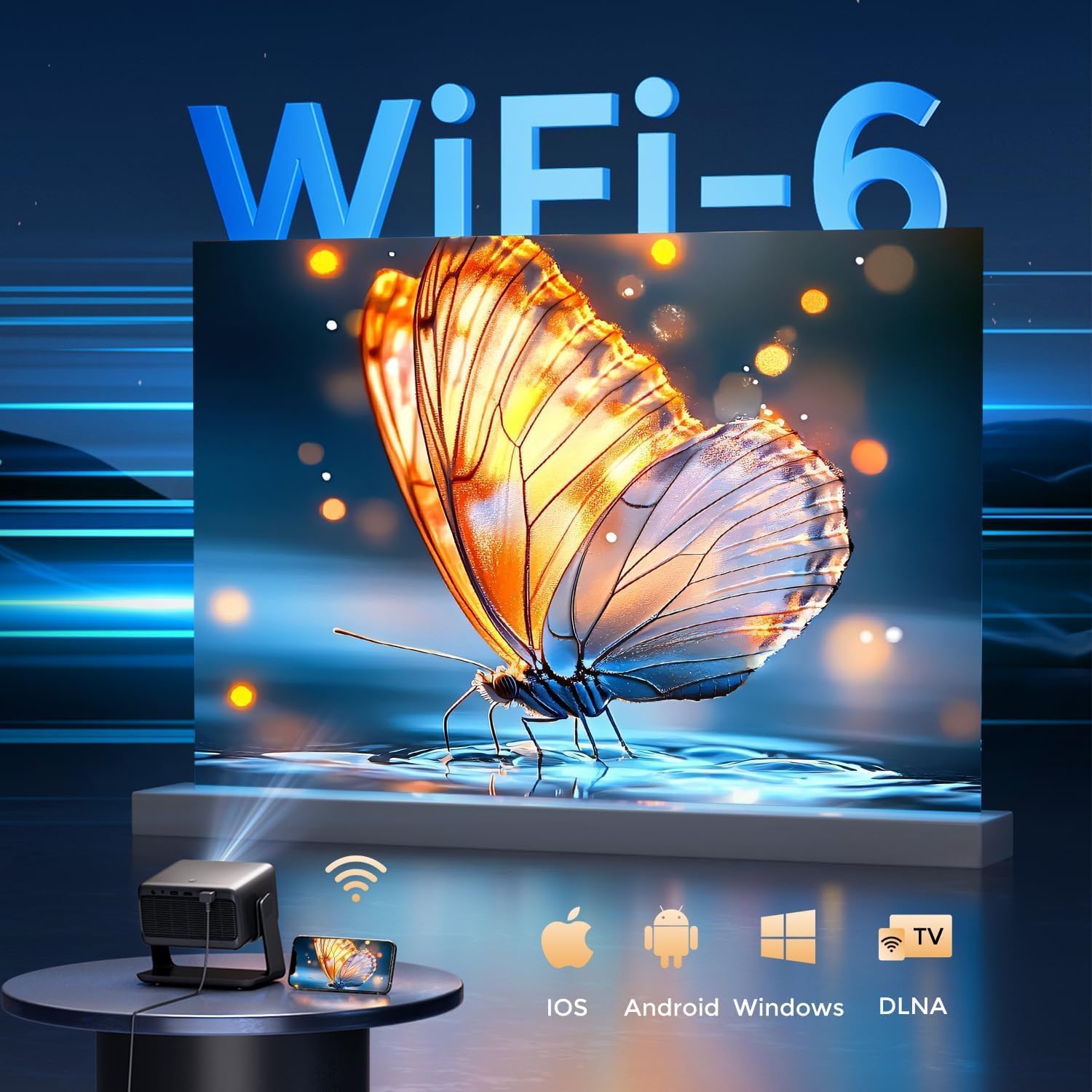
Image: The rear panel of the GooDee AC321 projector, highlighting its connectivity ports including a 3.5mm audio jack, USB port, HDMI input, and power connector.
6. Display & Audio Features
6.1 Visual Performance
Experience an immersive visual feast with the following display capabilities:
- Datrysiad Brodorol: 1080p (1920 x 1080) for sharp and clear images.
- 4K Video Decoding: Supports 4K video input for smooth playback of high-definition content.
- Disgleirdeb: 1200 ANSI lumens ensures clear picture quality even in ambient light conditions.
- AI Image Quality Optimization: Utilizes deep learning algorithms to analyze and optimize picture pixels in real-time, enhancing HDR10+ color and 25000:1 contrast ratio.
- Large Screen Zooming: Project images from 60 to 200 inches, with adjustable zoom from 50-100%.
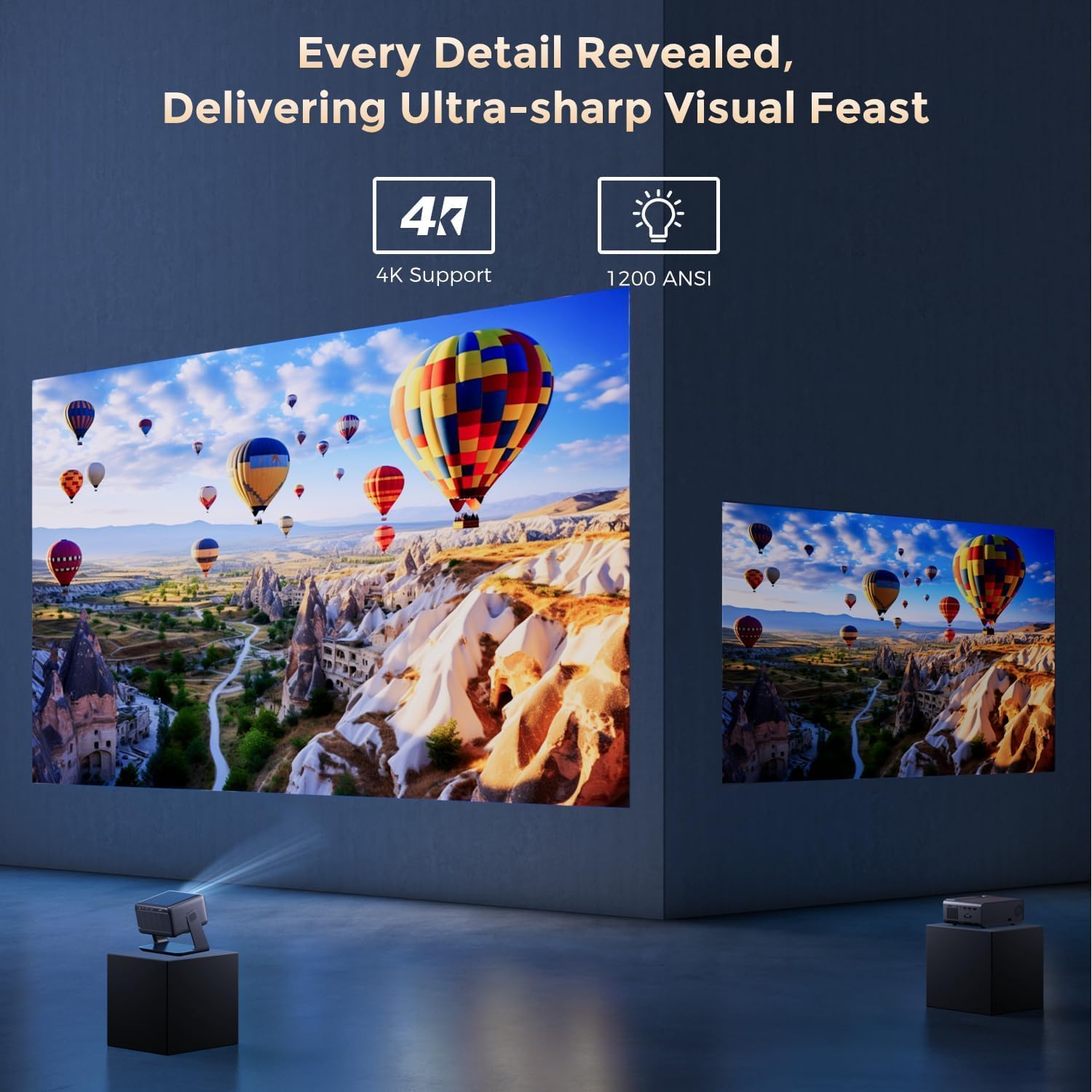
Image: The GooDee AC321 projector showcasing its visual capabilities with a bright, detailed image, emphasizing 4K support and 1200 ANSI lumens for superior clarity.
6.2 Profiad Sain
The projector is equipped with built-in features for an immersive audio experience:
- Sain Dolby: Integrated Dolby Audio speakers provide rich and immersive sound.
- Bluetooth 5.4: Connect wirelessly to external Bluetooth speakers or soundbars for enhanced audio.
7. Nodweddion Uwch
The GooDee AC321 incorporates intelligent features for effortless setup and optimal viewing:
- Ffocws Auto: Automatically adjusts the image clarity in seconds.
- Cywiriad Carreg Allwedd Auto: Intelligently corrects vertical and horizontal trapezoidal distortion, ensuring a perfectly rectangular image even from an angled projection.
- Aliniad Sgrin Awtomatig: Automatically fits the projected image to your screen.
- Osgoi Rhwystrau Auto: Detects and adjusts the projection to avoid obstacles in the projection path.

Delwedd: Tryloyw view of the GooDee AC321 projector, illustrating its AI 3D ToF Technology for automatic keystone correction, obstacle avoidance, focus, and screen fitting.
Video: A demonstration of the GooDee Mini Smart Projector's automatic keystone correction and focus features, showing how the image quickly adjusts to a perfect rectangle and sharp clarity.
8. manylebau
| Nodwedd | Disgrifiad |
|---|---|
| Rhif Model | AC321 |
| Brand | Dyfrdwy |
| Cydraniad Arddangos | 1920 x 1080 (Brodorol) |
| Datgodio Fideo | 4K Cefnogwyd |
| Disgleirdeb | 1200 ANSI Lumens |
| Technoleg Cysylltedd | 3.5mm Jack, Bluetooth 5.4, HDMI, USB, Wi-Fi 6 |
| Nodweddion Arbennig | Auto Focus, Auto Keystone, Auto Screen Alignment, Auto Obstacle Avoidance, Built-In Cooling System, Built-In Speaker, Smart TV OS (Movin 2.0), Dolby Audio |
| Pwysau Eitem | 4.66 pwys |
| Dimensiynau Cynnyrch | 8.1 x 6.1 x 7.1 modfedd |
| Pŵer â Gradd | 65W |
9. cynnal
To ensure the longevity and optimal performance of your GooDee AC321 projector, follow these maintenance guidelines:
- Glanhau'r Lens: Defnyddiwch frethyn meddal, di-flwff sydd wedi'i gynllunio'n benodol ar gyfer lensys optegol. Sychwch y lens yn ysgafn i gael gwared â llwch neu staeniau. Osgowch ddefnyddio deunyddiau sgraffiniol neu gemegau llym.
- Cleaning the Vents: Regularly check and clean the air intake and exhaust vents to prevent dust buildup, which can hinder cooling and affect performance. Use a soft brush or compressed air.
- Storio: When not in use for extended periods, store the projector in a cool, dry place, away from direct sunlight and extreme temperatures. Use the provided lens cover to protect the lens.
- Pŵer i ffwrdd yn gywir: Always power off the projector using the designated power button and allow it to complete its shutdown cycle before unplugging.
10. Datrys Problemau
If you encounter any issues with your GooDee AC321 projector, refer to the following common troubleshooting steps:
- Dim Llun:
- Gwnewch yn siŵr bod y llinyn pŵer wedi'i gysylltu'n ddiogel a bod y taflunydd wedi'i droi ymlaen.
- Check the input source (HDMI, USB) and ensure it is correctly selected.
- Verify that the connected device (laptop, console) is powered on and outputting a signal.
- Dim Sain:
- Addaswch y gyfrol ar y taflunydd a'r ddyfais ffynhonnell gysylltiedig.
- If using external speakers, ensure they are properly connected via Bluetooth or the 3.5mm audio jack.
- Check the audio output settings on the connected source device.
- Delwedd Niwlog:
- Allow the auto-focus function to complete its cycle.
- Ensure the projector lens is clean.
- Adjust the projector's distance from the screen/wall.
- Image is Distorted (Trapezoid Shape):
- Allow the auto-keystone correction to complete.
- Manually adjust keystone settings via the remote control if needed.
- Problemau Cysylltiad Wi-Fi/Bluetooth:
- Gwnewch yn siŵr bod y taflunydd o fewn cyrraedd eich llwybrydd Wi-Fi neu ddyfais Bluetooth.
- Restart the projector and your router/Bluetooth device.
- Gwiriwch gyfrinair Wi-Fi a gosodiadau rhwydwaith.
11. Gwarant a Chefnogaeth
The GooDee AC321 Video Projector comes with a Gwarant 12 mis. For any product-related inquiries, technical assistance, or warranty claims, please contact GooDee customer support.
GooDee offers Cefnogaeth Sgwrs Fyw 24/7 to assist you with any issues. You can also visit the official GooDee website for more information and to register your product for warranty activation.
- Websafle: www.top-goodee.com
- Gwasanaeth Cwsmer: Cyfeiriwch at y wybodaeth gyswllt a ddarperir ar y wefan swyddogol websafle neu yn eich pecynnu cynnyrch.