
1. Rhagymadrodd
This manual provides essential information for the NIMO 15.6" Gaming Laptop (Model N159). It covers product features, setup procedures, operating instructions, maintenance guidelines, troubleshooting tips, and detailed specifications. Please read this manual thoroughly before using your new laptop to ensure optimal performance and longevity.

Image: The NIMO 15.6" Gaming Laptop, showcasing its display and key features like fingerprint unlock, Type-C PD charger, and backlit keyboard.
2. Beth sydd yn y Bocs
Gwiriwch fod yr holl eitemau yn bresennol yn y pecynnu:
- 1 x NIMO N159 Laptop
- 1 x Type-C 100W PD Fast Charger
- 1 x Llawlyfr Defnyddiwr (y ddogfen hon)
- Windows 11 Home Operating System (pre-installed)
- Warranty Information (2 Years Warranty, 90 Days Return)
3. Cynnyrch Drosview
3.1 Nodweddion Allweddol
- Prosesydd: AMD Ryzen 7 7735HS (8 Cores, 16 Threads, up to 4.75GHz)
- Graffeg: Integrated AMD Radeon 680M GPU
- Arddangos: 15.6" Full HD (1920x1080) IPS Anti-Glare Display
- Cof: 16GB DDR5 RAM (upgradeable)
- Storio: 1TB PCIe 4.0 SSD (upgradeable)
- Codi tâl: 100W Type-C PD Fast Charger
- Diogelwch: Fingerprint Reader for secure unlock
- Bysellfwrdd: Backlit Keyboard with Numeric Keypad
- Sain: Dual 2W stereo speakers, dual beamforming microphones
- Webcam: 2MP with physical camera shutter
- System Weithredu: Windows 11 Cartref

Image: An illustration detailing the AMD Ryzen 7 7735HS processor, highlighting its 8 cores, 16 threads, and integrated Radeon 680M graphics for balanced performance.
3.2 Porthladdoedd a Chysylltwyr
Familiarize yourself with the available ports on your NIMO laptop:

Image: A detailed diagram illustrating the location and type of ports on the NIMO laptop, including USB 2.0, USB 3.2 Gen1, Type-C Gen2 (multifunction), HDMI 2.0, Audio Jack, Micro SD Reader, and Kensington Lock.
- Porth USB 2.0: For connecting older USB devices.
- USB 3.2 Gen1 Ports (x4): For high-speed data transfer with compatible USB devices.
- Type-C Gen2 Ports (x2, Multifunction): Supports data transfer, video output, and power delivery (100W PD fast charging).
- Porthladd HDMI 2.0: For connecting to external displays or TVs.
- Jack Sain: Ar gyfer cysylltu clustffonau neu siaradwyr allanol.
- Micro SD Reader: Ar gyfer darllen cardiau cof Micro SD.
- Slot Clo Kensington: For securing your laptop with a compatible lock.
4. Gosod
4.1 Pŵer Cychwynnol Ymlaen
- Dadbaciwch y gliniadur a'r holl ategolion o'r blwch.
- Connect the 100W Type-C PD Fast Charger to one of the Type-C ports on the laptop and then to a power outlet.
- Agorwch gaead y gliniadur. Efallai y bydd y gliniadur yn troi ymlaen yn awtomatig, neu efallai y bydd angen i chi wasgu'r botwm pŵer.
- Dilynwch y cyfarwyddiadau ar y sgrin i gwblhau'r gosodiad Windows 11 Home, gan gynnwys dewis iaith, cysylltiad rhwydwaith, a chreu cyfrif defnyddiwr.
4.2 Codi Tâl ar y Batri
Before first use, it is recommended to fully charge the laptop battery. The 100W Type-C PD Fast Charger can provide approximately 5 hours of usage time with just 1 hour of charging.

Image: A visual representation of the 100W Type-C lightning-fast charger connected to the NIMO laptop, demonstrating its ability to charge quickly and efficiently.
5. Cyfarwyddiadau Gweithredu
5.1 Pŵer Ymlaen/Diffodd a Modd Cysgu
- Pŵer Ymlaen: Pwyswch y botwm pŵer sydd wedi'i leoli ar y bysellfwrdd.
- Pwer i ffwrdd: Cliciwch y botwm Cychwyn yn Windows, yna dewiswch Pŵer > Cau i Lawr.
- Modd Cwsg: Cliciwch y botwm Cychwyn, yna dewiswch Pŵer > Cysgu, neu caewch gaead y gliniadur.
5.2 Using the Fingerprint Unlock
The fingerprint reader is integrated into the touchpad for quick and secure access.
- During Windows setup or later in Windows Settings, configure your fingerprint for login.
- To unlock, simply place your registered finger on the fingerprint reader on the touchpad.
5.3 Adjusting the Backlit Keyboard
The keyboard backlight can be adjusted for comfortable typing in various lighting conditions.

Image: A visual guide demonstrating the fingerprint unlock feature on the touchpad and the functionality of the backlit keyboard, including how to cycle through brightness settings using the F9 key.
- Gwasgwch y F9 key to cycle through backlight settings:
- 1 Tap: Light (Temporary)
- 2 Taps: Light (Temporary)
- 3 Taps: Light (Constant)
- 4 Taps: Off
5.4 Defnyddio'r Webcam Shutter
For privacy, the laptop includes a physical camera shutter.
- Slide the shutter to the left to open the camera.
- Slide the shutter to the right to close and cover the camera lens.

Image: A visual guide demonstrating the physical camera shutter, showing both the 'Camera Open' and 'Camera Close' statuses for enhanced privacy.
6. cynnal
6.1 Glanhau'r Gliniadur
- Always power off the laptop and disconnect the charger before cleaning.
- Defnyddiwch frethyn meddal, di-lint ychydig dampwedi'i lanhau â dŵr neu lanhawr sgrin ar gyfer yr arddangosfa.
- Ar gyfer y bysellfwrdd a'r siasi, defnyddiwch frethyn meddal, sych. Osgowch gemegau llym neu ddeunyddiau sgraffiniol.
- Use compressed air to clear dust from vents periodically.
6.2 Gofal Batri
- Osgowch ollwng y batri'n llwyr yn aml.
- Storiwch y gliniadur mewn lle oer, sych os na chaiff ei ddefnyddio am gyfnodau hir.
- Do not expose the laptop to extreme temperatures.
6.3 Diweddariadau Meddalwedd
Chwiliwch am ddiweddariadau system weithredu a gyrwyr a'u gosod yn rheolaidd i sicrhau perfformiad a diogelwch gorau posibl.
7. Datrys Problemau
| Problem | Achos Posibl | Ateb |
|---|---|---|
| Nid yw'r gliniadur yn troi ymlaen. | Problem gyda batri neu addasydd pŵer isel. | Connect the charger and wait a few minutes before attempting to power on. Ensure the charger is properly connected to both the laptop and the power outlet. |
| Mae'r sgrin yn wag neu'n ddu. | Laptop in sleep mode, display settings issue, or hardware problem. | Press any key or the power button to wake from sleep. Try connecting an external monitor to check if the display output works. Restart the laptop. |
| Nid yw cefn golau'r bysellfwrdd yn gweithio | Backlight turned off or at lowest setting. | Gwasgwch y F9 key repeatedly to cycle through brightness levels and turn on the backlight. |
| Fingerprint unlock not working. | Finger not properly placed, or sensor issue. | Ensure your finger is clean and dry and covers the sensor completely. Re-register your fingerprint in Windows Settings if the issue persists. |
| Perfformiad araf. | Too many applications running, insufficient storage, or outdated drivers. | Close unnecessary applications. Check available storage space. Update Windows and device drivers. |
If you encounter issues not listed here or require further assistance, please contact NIMO customer support.
8. manylebau
| Brand | NIMO |
| Enw Model | NIMO N159B |
| Maint Sgrin | 15.6 modfedd |
| Cydraniad Sgrin | 1920 x 1080 Pixels (FHD IPS) |
| Prosesydd | AMD Ryzen 7 7735HS (8 Cores, 4.75 GHz Max Turbo) |
| HWRDD | 16 GB DDR5 (4800 MHz) |
| Gyriant Caled | SSD 1024 GB (PCIe 4.0) |
| Cydbrosesydd graffeg | AMD Radeon 680M (Integrated) |
| System Weithredu | Windows 11 Cartref |
| Math Di-wifr | 802.11a/b/g/n/ac |
| Porthladdoedd USB 2.0 | 1 |
| Porthladdoedd USB 3.0 | 4 |
| Bywyd Batri Cyfartalog | 5 Hours (54Wh, 11.4V/4700mAh) |
| Pwysau Eitem | 3.8 pwys |
| Dimensiynau Cynnyrch | 14.07 x 8.98 x 0.76 modfedd |
| Lliw | Glas |
| Cefn Webcam Datrys | 2 AS |
| Nodweddion Arbennig | Backlit Keyboard, Fingerprint Reader, HD Audio, Numeric Keypad |
9. Gwarant a Chefnogaeth
9.1 Gwarant y Gwneuthurwr
Your NIMO N159 laptop is covered by a comprehensive Gwarant Gwneuthurwr 2 Flwyddyn from Nimo Direct Inc. This warranty covers defects in materials and workmanship under normal use. For warranty claims, please contact customer support.
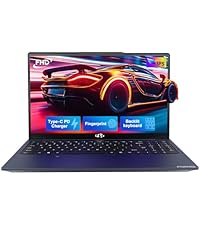
Image: A technician working on a laptop's internal components, representing the 2-year support provided for Nimo products.
9.2 Polisi Dychwelyd
Nimo Direct Inc. offers a 90-Day Hassle-Free Return Policy. You may return any Nimo product for any reason within 90 days of purchase. Please refer to your purchase documentation for specific return procedures.
Image: A delivery person handing a package to a customer, illustrating the 90-day return policy for Nimo products.
9.3 Cefnogaeth i Gwsmeriaid
For any product-related questions, technical assistance, or warranty claims, please contact our professional after-sales service team. Our dedicated support team is available to resolve issues or facilitate replacements.
- E-bost: gwasanaeth@nimopc.com
- Ar-lein: Visit the official NIMO website or product page for contact options.
Image: Customer service representatives wearing headsets, indicating professional customer assistance available via phone and live chat.