
1. Rhagymadrodd
This manual provides essential information for the proper setup, operation, and maintenance of your Pisichen 24-inch 2K QHD 2560x1440 IPS Touchscreen Monitor. Please read this manual thoroughly before using the product to ensure optimal performance and safety.
The Pisichen 24-inch monitor features a 2K QHD (2560x1440) resolution IPS panel, a 100Hz refresh rate, and 10-point multi-touch functionality, designed for both productivity and entertainment.
2. Cynnwys Pecyn
Verify that all items listed below are present in your product package. If any items are missing or damaged, please contact customer support.
- Pisichen 24-inch 2K QHD Touchscreen Monitor
- Stand Monitor (Sylfaen a Gwddf)
- Cebl DP
- Cebl HDMI
- USB B Touch Cable
- Cebl CC USB
- DC Adapter Power
- Llawlyfr Defnyddiwr (y ddogfen hon)

Ffigur 2.1: Included accessories with the Pisichen 24-inch monitor.
3. Cyfarwyddiadau Gosod
3.1. Cydosod y Stand Monitor
- Tynnwch gydrannau'r monitor a'r stondin o'r pecynnu yn ofalus.
- Cysylltwch wddf y stondin â phanel y monitor. Gwnewch yn siŵr ei fod yn clicio'n ddiogel i'w le neu ei fod wedi'i glymu â'r sgriwiau a ddarperir.
- Attach the stand base to the stand neck. Tighten the thumb screw at the bottom of the base to secure it.
- Rhowch y monitor wedi'i ymgynnull ar arwyneb sefydlog, gwastad.
3.2. Cysylltu â Dyfais
The monitor offers multiple connectivity options. Choose the appropriate cable for your device.
- Cysylltiad HDMI: Connect one end of the HDMI cable to the HDMI port on your computer or device and the other end to the HDMI port on the monitor.
- Cysylltiad USB-C: Connect one end of the USB-C cable to a compatible USB-C port on your computer or device (which supports video output) and the other end to the USB-C port on the monitor. This connection can also provide power and data.
- DisplayPort (DP) Connection: Connect one end of the DP cable to the DisplayPort on your computer or device and the other end to the DP port on the monitor.
- USB B for Touch Function: For touch functionality with a PC, connect the included USB B Touch Cable from the USB-B port on the monitor to a standard USB-A port on your computer. This is essential for enabling touch input.

Ffigur 3.1: Universal connectivity options for the monitor.
3.3. Pweru Ymlaen
- Connect the DC Power Adapter to the power input port on the monitor.
- Plygiwch yr addasydd pŵer i mewn i allfa wal.
- Press the power button on the monitor (location may vary, typically on the back or bottom right) to turn it on.
4. Cyfarwyddiadau Gweithredu
4.1. Gweithrediad Sylfaenol
- Pŵer ymlaen / i ffwrdd: Pwyswch y botwm pŵer i droi'r monitor ymlaen neu i ffwrdd.
- Dewis Ffynhonnell Mewnbwn: Use the monitor's OSD (On-Screen Display) menu buttons to select the desired input source (HDMI, USB-C, DP).
- Llywio Dewislen OSD: The monitor features physical buttons (usually on the back or bottom) to access and navigate the OSD menu. These buttons typically include Menu, Up, Down, and Exit/Select.
4.2. Touch Functionality
The Pisichen monitor supports 10-point multi-touch input, allowing for intuitive interaction with your content. To enable touch functionality:
- Ensure the USB B Touch Cable is connected from the monitor's USB-B port to your computer's USB-A port.
- Your operating system should automatically detect the touch input device. No additional drivers are typically required for Windows.

Ffigur 4.1: Direct touch control on the monitor.
Touch Compatibility
The touch function is widely compatible with various devices. Refer to the compatibility chart below for optimal performance.

Ffigur 4.2: Touch compatibility for various devices.
Nodyn: Some devices, including certain gaming consoles (PS3/4/5, Xbox, Steam Deck) and mobile devices (iPhone, iPad, Switch, Fire TV), do not support the touch functionality of this monitor due to platform-specific restrictions.
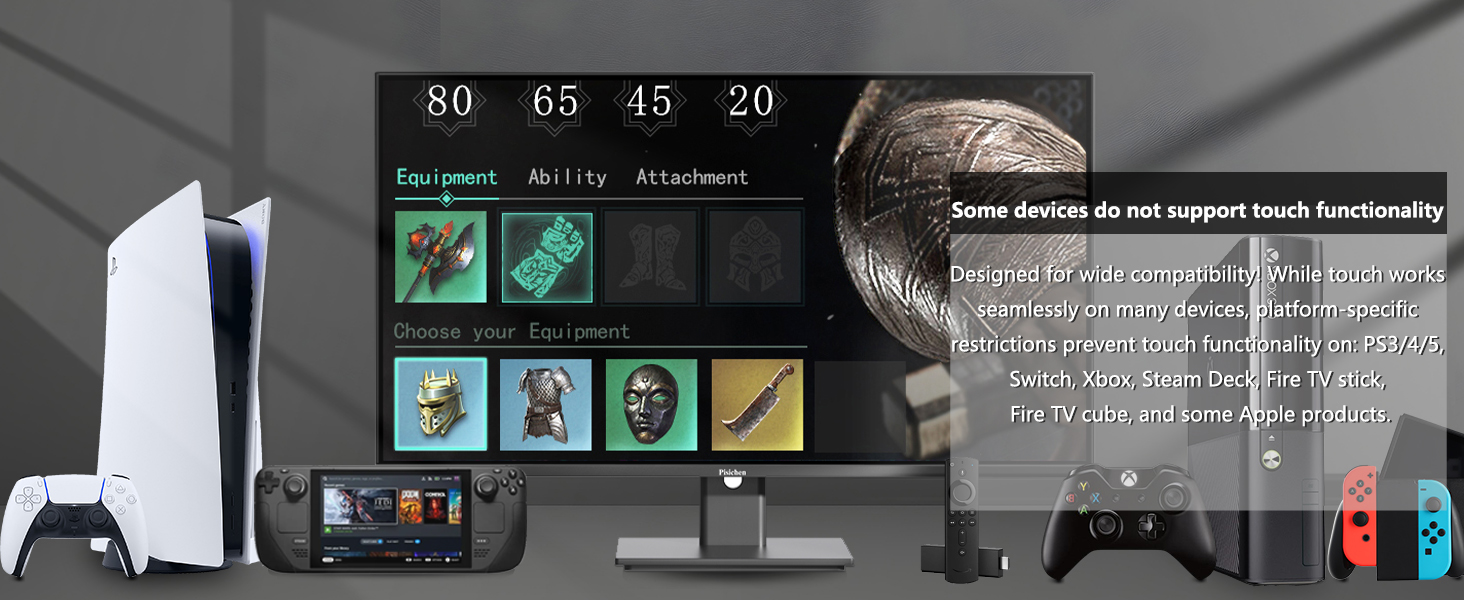
Ffigur 4.3: Devices where touch functionality is not supported.
5. Gosodiadau Arddangos
Access the OSD menu to adjust various display settings for optimal viewing.
- Penderfyniad: The monitor supports a native resolution of 2560x1440 (2K QHD). Ensure your device's display settings are configured to this resolution for the sharpest image.
- Cyfradd Adnewyddu: The monitor operates at a 100Hz refresh rate, providing smoother visuals compared to standard 60Hz monitors.
- Disgleirdeb a Chyferbyniad: Adjust these settings to suit your environment and personal preference. The monitor features 400 cd/m² brightness and a 1500:1 contrast ratio.
- Gosodiadau lliw: Fine-tune color temperature, gamma, and other color parameters. The IPS panel ensures wide viewonglau ac atgynhyrchu lliw cywir.
- Nodweddion Cysur Llygaid: The monitor includes Flicker-Free technology and Low Bluelight modes to reduce eye strain during extended use.

Ffigur 5.1: Visual comparison of 2K QHD vs. Full HD resolution.

Ffigur 5.2: IPS panel benefits: True Color, True Vision from Any Angle.

Ffigur 5.3: Advanced Eye-Comfort features.
6. cynnal
6.1. Glanhau'r Monitor
- Diffoddwch y monitor bob amser a datgysylltwch y llinyn pŵer cyn glanhau.
- Defnyddiwch frethyn meddal, di-lint ychydig dampwedi'i lanhau â dŵr neu lanhawr sgrin ysgafn, nad yw'n sgraffiniol.
- Sychwch y sgrin a'r arwynebau allanol yn ysgafn. Osgowch roi gormod o bwysau.
- Do not use alcohol, ammonia-based cleaners, or abrasive materials, as these can damage the screen surface.
6.2. Storio
If storing the monitor for an extended period, ensure it is powered off, unplugged, and stored in a cool, dry place away from direct sunlight and extreme temperatures. Use the original packaging if available for best protection.
7. Datrys Problemau
Os byddwch chi'n dod ar draws problemau gyda'ch monitor, cyfeiriwch at y camau datrys problemau cyffredin canlynol:
- Dim pŵer: Ensure the power adapter is securely connected to both the monitor and a working power outlet. Check if the power indicator light on the monitor is on.
- Dim Arwydd: Verify that the video cable (HDMI, USB-C, or DP) is securely connected to both the monitor and your source device. Ensure the correct input source is selected via the OSD menu.
- No Touch Functionality: Confirm that the USB B Touch Cable is properly connected from the monitor to your computer. Check your computer's device manager to see if the touch device is recognized.
- Sgrin yn Fflachio: Check the video cable connection. Try a different cable or input port. Ensure your graphics card drivers are up to date.
- Ystumio Delwedd/Lliwiau Anghywir: Reset the monitor to factory settings via the OSD menu. Adjust brightness, contrast, and color settings.
Ar gyfer problemau parhaus nad ydynt wedi'u datrys gan y camau hyn, cysylltwch â chymorth cwsmeriaid.
8. manylebau
| Nodwedd | Manyleb |
|---|---|
| Rhif Model | QHD-2k100hz-24INTS |
| Maint Sgrin | 24 modfedd |
| Datrysiad | 2560 x 1440 Picsel (QHD Eang 1440p) |
| Cymhareb Agwedd | 16:9 |
| Cyfradd Adnewyddu | 100Hz |
| Amser Ymateb | 3ms |
| Math o Banel | IPS |
| Swyddogaeth Gyffwrdd | Aml-gyffwrdd 10-Pwynt |
| Disgleirdeb Delwedd | 400 Candela (cd/m²) |
| Cymhareb Cyferbyniad | 1500:1 |
| Disgrifiad o Arwyneb y Sgrin | Sglein |
| Cysylltedd | HDMI, USB-C, USB A, USB B (for Touch Function) |
| Cyfanswm Porthladdoedd USB | 2 (USB-C, USB-B) |
| Dimensiynau Cynnyrch | 1.97 x 21.26 x 12.6 modfedd |
| Pwysau Eitem | 10.08 pwys |
| Gwneuthurwr | Shenzhen Konowa Electronics Co., LTD |
9. Gwarant a Chefnogaeth
For warranty information, please refer to the warranty card included in your product packaging or visit the official Pisichen website. If you require technical assistance, troubleshooting, or have questions about your product, please contact Pisichen customer support through their official channels.
Cadwch eich prawf prynu ar gyfer hawliadau gwarant.