
Oakcastle IR200
Oakcastle IR200 Internet Radio User Manual
Model: IR200
1. Rhagymadrodd
Thank you for choosing the Oakcastle IR200 Internet Radio. This manual provides essential information for the safe and efficient operation of your device. Please read it thoroughly before use and retain it for future reference.
The Oakcastle IR200 is a versatile audio system offering multiple listening options, including Internet Radio, DAB+, FM, Bluetooth 5.3, and AUX input. It features a color display, remote control, and podcast support for a comprehensive audio experience.
2. Cynnwys Pecyn
Carefully unpack the box and ensure all items listed below are present and in good condition:
- Oakcastle IR200 Internet Radio Unit
- Cebl Pŵer
- Rheolaeth Anghysbell
- Llawlyfr Defnyddiwr (y ddogfen hon)
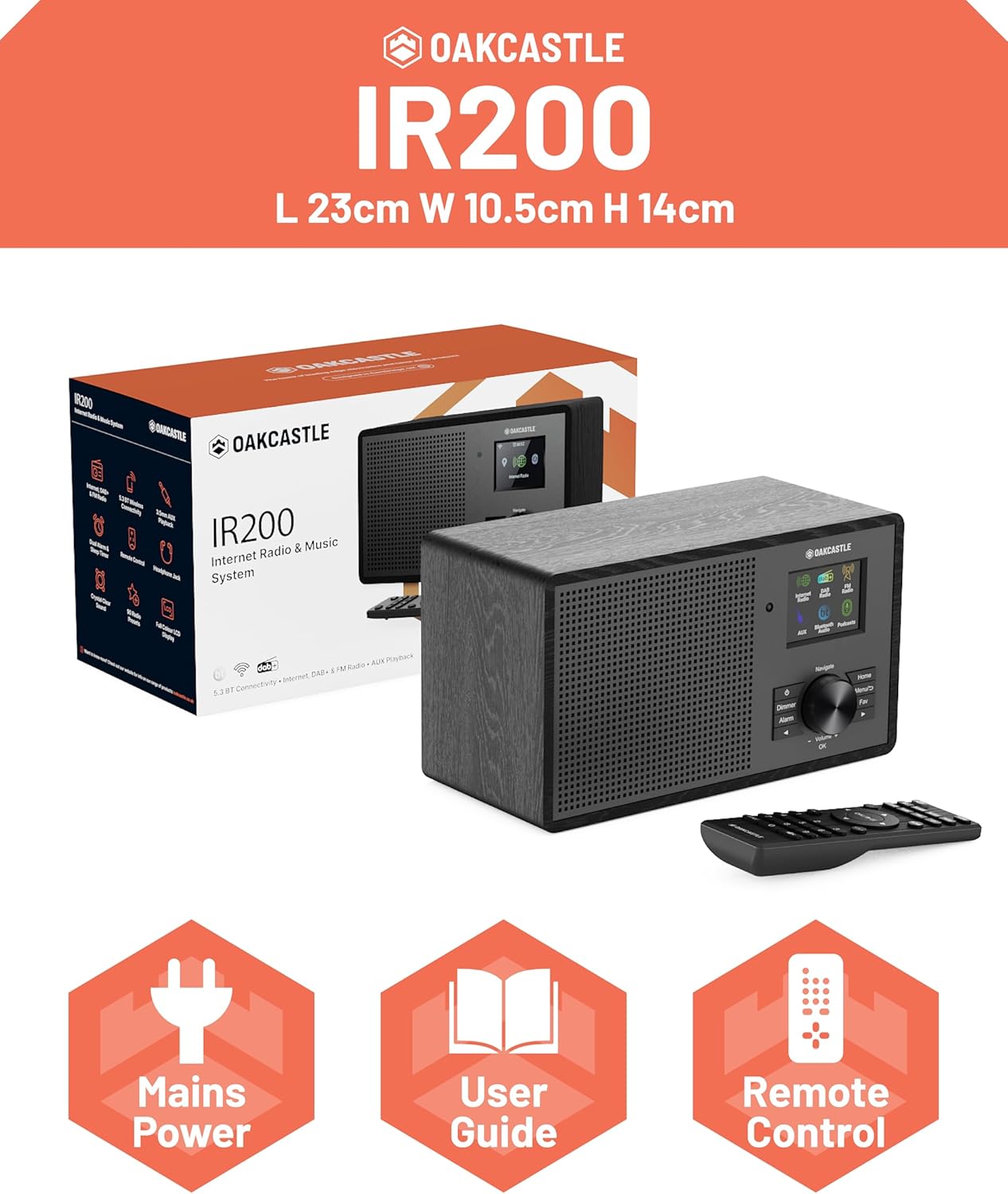
Image 2.1: Contents of the Oakcastle IR200 package, including the radio unit, its box, power cable, remote control, and user manual.
3. Cynnyrch Drosview
Familiarize yourself with the main components and controls of your Oakcastle IR200 radio.
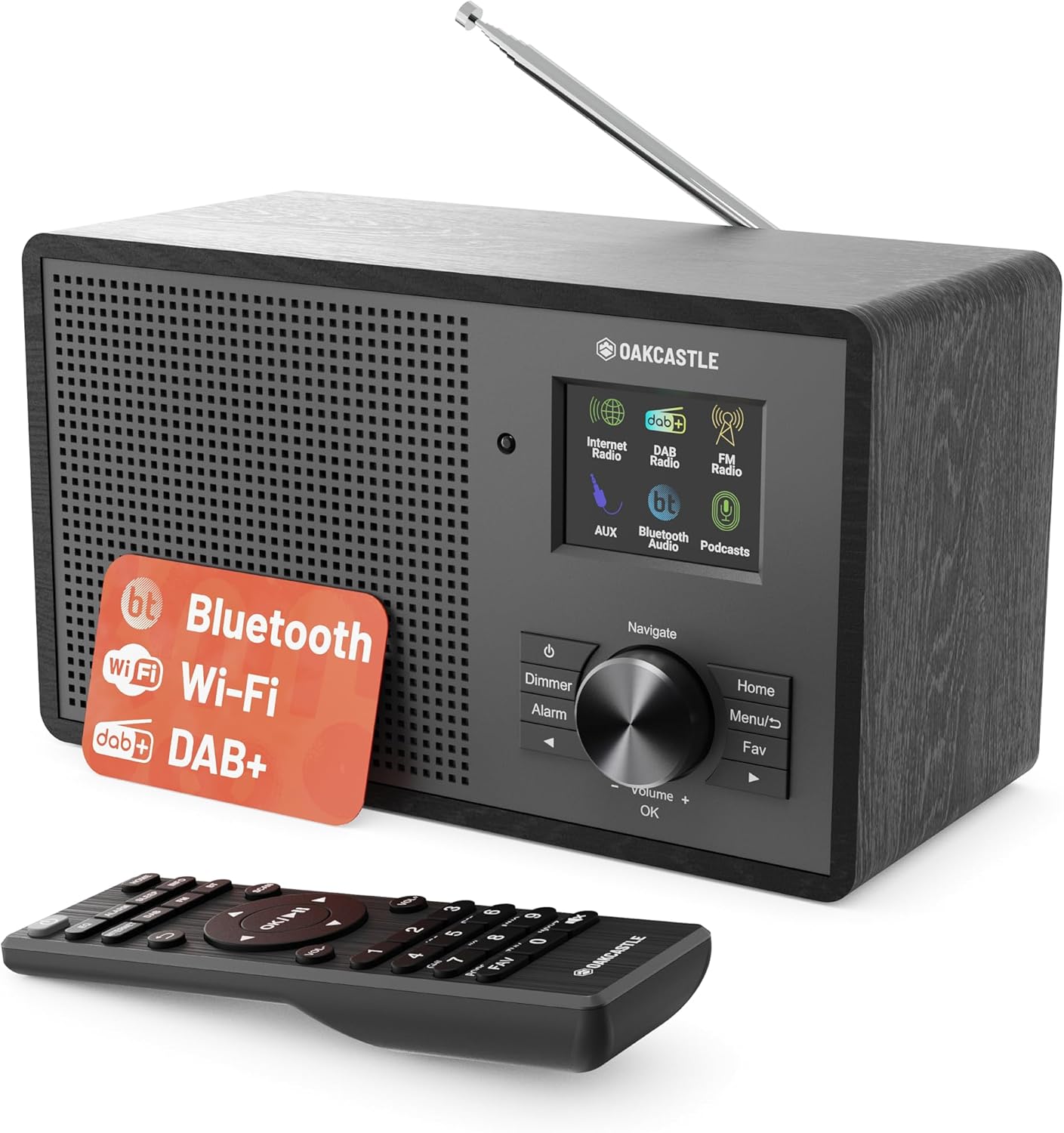
Delwedd 3.1: Blaen view of the Oakcastle IR200 radio, showcasing the display, control knob, buttons, and the included remote control.
3.1 Rheolaethau Panel Blaen
- Sgrin Arddangos: Yn dangos gwybodaeth am yr orsaf, yr amser, ac opsiynau'r ddewislen.
- Navigate/Volume/OK Knob: Rotate to navigate menus or adjust volume; press to confirm selections.
- Botwm Pŵer: Turns the unit on/off or puts it into standby.
- Botwm pylu: Yn addasu disgleirdeb arddangos.
- Botwm Larwm: Yn cyrchu gosodiadau larwm.
- Botwm Cartref: Yn dychwelyd i'r brif ddewislen.
- Botwm Dewislen: Accesses mode-specific menus.
- Botwm Ffefrynnau: Accesses favorite station presets.
3.2 Cysylltiadau Panel Cefn

Delwedd 3.2: Cefn view of the Oakcastle IR200, highlighting the headphone output and AUX input ports.
- Antena telesgopig: For DAB+ and FM reception.
- Mewnbwn AUX: Cysylltwch dyfeisiau sain allanol.
- Allbwn clustffon: Cysylltu clustffonau ar gyfer gwrando preifat.
- DC YN: Cysylltiad addasydd pŵer.
4. Gosodiad Cychwynnol
4.1 Cysylltiad Pwer
- Insert the power cable into the DC IN port on the rear of the radio.
- Plug the other end of the power cable into a wall socket.
- Press the Power button on the front panel or remote control to turn on the radio.
4.2 Addasiad Antena
For optimal DAB+ and FM reception, fully extend the telescopic antenna located at the rear of the unit.
4.3 Network Connection (for Internet Radio)
- Ar ôl ei droi ymlaen am y tro cyntaf, bydd y radio yn eich tywys trwy'r gosodiad rhwydwaith.
- Select "Network Wizard" or "Wi-Fi Setup" from the menu.
- Bydd y radio yn sganio am rwydweithiau Wi-Fi sydd ar gael. Dewiswch eich rhwydwaith o'r rhestr.
- Enter your Wi-Fi password using the navigation knob and OK button.
- Once connected, the radio will display a confirmation message.
5. Dulliau Gweithredu
The Oakcastle IR200 offers several listening modes. Press the "Home" button to access the main menu and select your desired mode.
5.1 Radio Rhyngrwyd
Access thousands of global radio stations via your Wi-Fi connection.

Image 5.1: The radio's display screen in Internet Radio mode, showing station information.
- From the main menu, select "Internet Radio".
- You can browse stations by location, genre, or search by name.
- Rotate the Navigate knob to scroll through options and press OK to select.
- To save a station as a favorite, press the "Fav" button during playback.
Radio DAB+ 5.2
Mwynhewch ddarllediadau radio digidol o ansawdd uchel.

Image 5.2: The radio's display screen in DAB+ Radio mode, showing the current station.
- From the main menu, select "DAB+ Radio".
- Bydd y radio yn sganio'n awtomatig am orsafoedd DAB+ sydd ar gael.
- Use the Navigate knob to select a station from the list.
- To save a station as a favorite, press the "Fav" button during playback.
Radio 5.3 FM
Tune into traditional analog FM broadcasts.
- O'r brif ddewislen, dewiswch "Radio FM".
- To auto-scan for stations, press and hold the OK button or use the scan function via the menu.
- To manually tune, rotate the Navigate knob.
- To save a station as a favorite, press the "Fav" button during playback.
5.4 Cysylltedd Bluetooth
Ffrydiwch sain yn ddi-wifr o'ch dyfeisiau sydd wedi'u galluogi gan Bluetooth.

Image 5.3: The radio's display screen in Bluetooth mode, indicating readiness for pairing.
- From the main menu, select "Bluetooth". The radio will enter pairing mode.
- On your external device (e.g., smartphone), enable Bluetooth and search for "Oakcastle IR200".
- Select "Oakcastle IR200" to pair. Once connected, you can stream audio.
5.5 AUX Mewnbwn
Cysylltwch ffynonellau sain allanol gan ddefnyddio cebl sain 3.5mm.
- Connect one end of a 3.5mm audio cable to the AUX IN port on the rear of the radio.
- Cysylltwch y pen arall â'r jac clustffonau neu allbwn sain eich dyfais allanol.
- From the main menu, select "AUX".
- Rheoli chwarae o'ch dyfais allanol.
5.6 Podlediad
Browse and listen to a wide range of podcasts.
- From the main menu, select "Podcasts".
- Browse podcasts by category or search for specific titles.
- Select a podcast to start listening.
6. Gosodiadau a Nodweddion
6.1 Gosodiadau System
Access general system settings via the main menu to configure time, language, display, and more.
- Amser/Dyddiad: Set time format, synchronize time.
- Iaith: Select your preferred language for the menu.
- Arddangos: Adjust backlight, color scheme.
- Rhwydwaith: Reconfigure Wi-Fi settings.
- Diweddariad Meddalwedd: Check for and install firmware updates.
6.2 Cyfartaledd (EQ)
Customize the audio output to your preference using the equalizer settings, accessible via the remote control or system menu.
6.3 Rhagosodiad
The radio supports over 90 presets for your favorite Internet, DAB+, and FM stations. To recall a preset, press the "Fav" button and select from the list.
6.4 Larymau
Set alarms to wake up to your favorite radio station or a buzzer sound. Access alarm settings via the "Alarm" button on the front panel or remote.
7. Rheolaeth Anghysbell
The included remote control provides convenient access to all radio functions from a distance.
Ensure batteries are correctly inserted. Point the remote control towards the front of the radio for optimal response.
7.1 Swyddogaethau Rheoli o Bell
- Pwer: On/Off/Standby.
- Cyfrol +/-: Addasu lefel cyfaint.
- Botymau Llywio (I Fyny/I Lawr/Chwith/Dde): Llywio bwydlenni.
- IAWN: Cadarnhau'r dewis.
- Mode Buttons (Internet, DAB, FM, Bluetooth, AUX): Newid rhwng moddau.
- Preset Buttons (1-90+): Directly select saved favorite stations.
- EQ: Cyrchu gosodiadau cyfartalwr.
- Dewislen: Access mode-specific menus.
- Ffefrynnau: Access favorite station list.
8. cynnal
8.1 Glanhau
To clean the radio, use a soft, dry cloth. Do not use abrasive cleaners, waxes, or solvents as these may damage the finish.
8.2 Gofal Cyffredinol
- Cadwch yr uned i ffwrdd o olau haul uniongyrchol, ffynonellau gwres a lleithder.
- Osgowch ollwng yr uned neu ei rhoi dan effeithiau cryf.
- Sicrhewch awyru priodol o amgylch yr uned.
9. Datrys Problemau
| Problem | Achos Posibl | Ateb |
|---|---|---|
| Dim pŵer | Power cable not connected; wall socket not active. | Check power cable connection; try a different wall socket. |
| Dim sain | Cyfaint yn rhy isel; Mud wedi'i actifadu; Ffynhonnell anghywir wedi'i dewis. | Increase volume; Check mute status; Select correct input mode. |
| Internet Radio not connecting | Incorrect Wi-Fi password; Weak Wi-Fi signal; Router issue. | Re-enter Wi-Fi password; Move radio closer to router; Restart router. |
| Derbyniad DAB+/FM gwael | Antenna not extended; Poor signal area. | Fully extend antenna; Reposition radio for better signal. |
| Bluetooth ddim yn paru | Radio not in pairing mode; Device too far; Device already paired. | Ensure radio is in Bluetooth mode; Move device closer; Unpair from other devices. |
10. manylebau
| Nodwedd | Manylyn |
|---|---|
| Brand | Castell Derw |
| Model | IR200 |
| Lliw | Du |
| Technoleg Cysylltedd | Wi-Fi, Bluetooth 5.3, AUX |
| Technoleg Tiwnio | Internet Radio, DAB+, FM |
| Nodweddion Arbennig | Bluetooth, EQ, Podcasts, Internet Radio, Remote Control |
| Ffynhonnell Pwer | Electric Cable (Mains) |
| Dimensiynau Cynnyrch (H x W x D) | 14 cm x 10.5 cm x 23 cm (tua) |
| Pwysau Cynnyrch | 0.94 kg |
| Dyfeisiau Cydnaws | Chwaraewr MP3, Ffôn Clyfar, Tabled |
11. Gwarant a Chefnogaeth
11.1 Gwybodaeth Gwarant
The Oakcastle IR200 comes with a standard warranty. An extended 3-year warranty is available upon product registration on the manufacturer's website. Please refer to the warranty card included in your package or visit the official Oakcastle websafle am fanylion.
11.2 Cefnogaeth i Gwsmeriaid
For technical assistance, troubleshooting, or further inquiries, please contact Oakcastle customer support. Contact details can typically be found on the official Oakcastle websafle neu ar y cerdyn gwarant.
Ask a question about this manual
Ask about setup, troubleshooting, compatibility, parts, safety, or missing instructions. Manuals+ will review the question and use this page’s manual context to help answer it.