
1. Rhagymadrodd
Thank you for choosing the Transformers GM04 Lightweight Wireless Gaming Mouse. This manual provides essential information for setting up, operating, and maintaining your new gaming mouse. Designed for precision and comfort, the GM04 features a high-precision PAW3311 sensor, triple connection modes (2.4G wireless, Bluetooth 5.3, and USB-C wired), 5 programmable buttons, and up to 100 hours of battery life. Its ergonomic design and lightweight construction ensure a comfortable and responsive experience for gaming, work, and study.
2. Beth sydd yn y Bocs
- TF-GM04 Wireless Gaming Mouse x 1
- USB Wireless Dongle x 1
- Cebl USB-C x 1
- Llawlyfr Defnyddiwr x 1
3. Cynnyrch Drosview
Familiarize yourself with the key features and components of your Transformers GM04 gaming mouse.
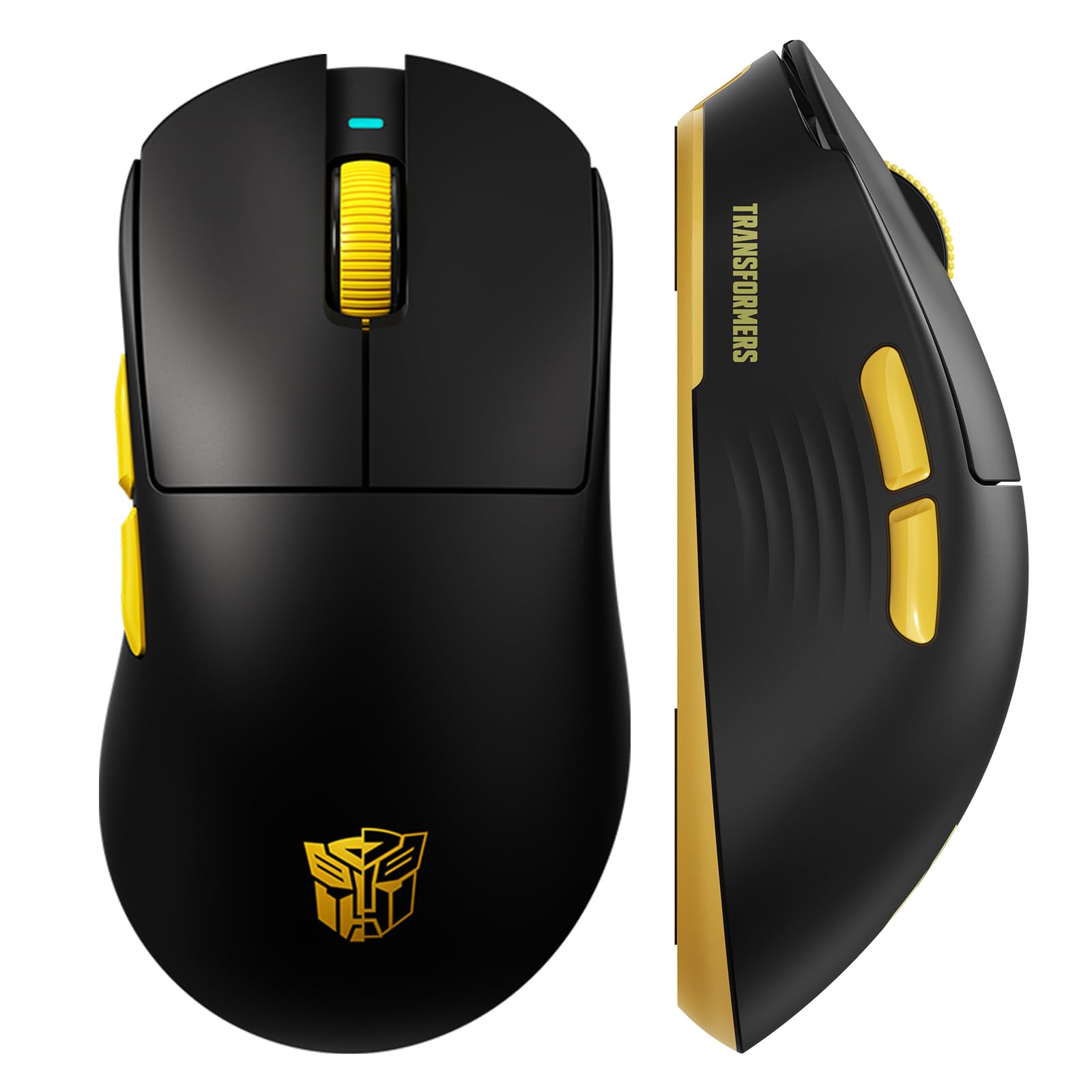
Delwedd 1: The Transformers GM04 Wireless Gaming Mouse, showcasing its sleek black and yellow design, along with icons highlighting its core features such as PixArt PAW3311 sensor, up to 12000 DPI, 1000Hz polling rate, 20 million clicks, Tri-Mode connectivity, custom macros, 63g lightweight design, and up to 100 hours of battery life. A USB wireless dongle is also visible next to the mouse.

Delwedd 2: A hand demonstrating the ergonomic design of the Transformers GM04 mouse. The image highlights how the mouse fits comfortably in the palm, promoting more comfort and less fatigue during extended use, thanks to its non-slip texture.

Delwedd 3: The underside of the Transformers GM04 mouse, detailing the 2.4G/OFF/BT switch for connection modes, the DPI button, and the storage compartment for the 2.4G wireless receiver. This view is crucial for understanding how to switch modes and adjust settings.

Delwedd 4: An illustration of the 6-level adjustable DPI settings for the Transformers GM04 mouse. It shows the DPI values (1200, 2400, 3200, 4800, 6400, 12000) and their corresponding LED indicator colors (Red, Green, Blue, Purple, Yellow, Cyan), which helps users identify the current DPI level.
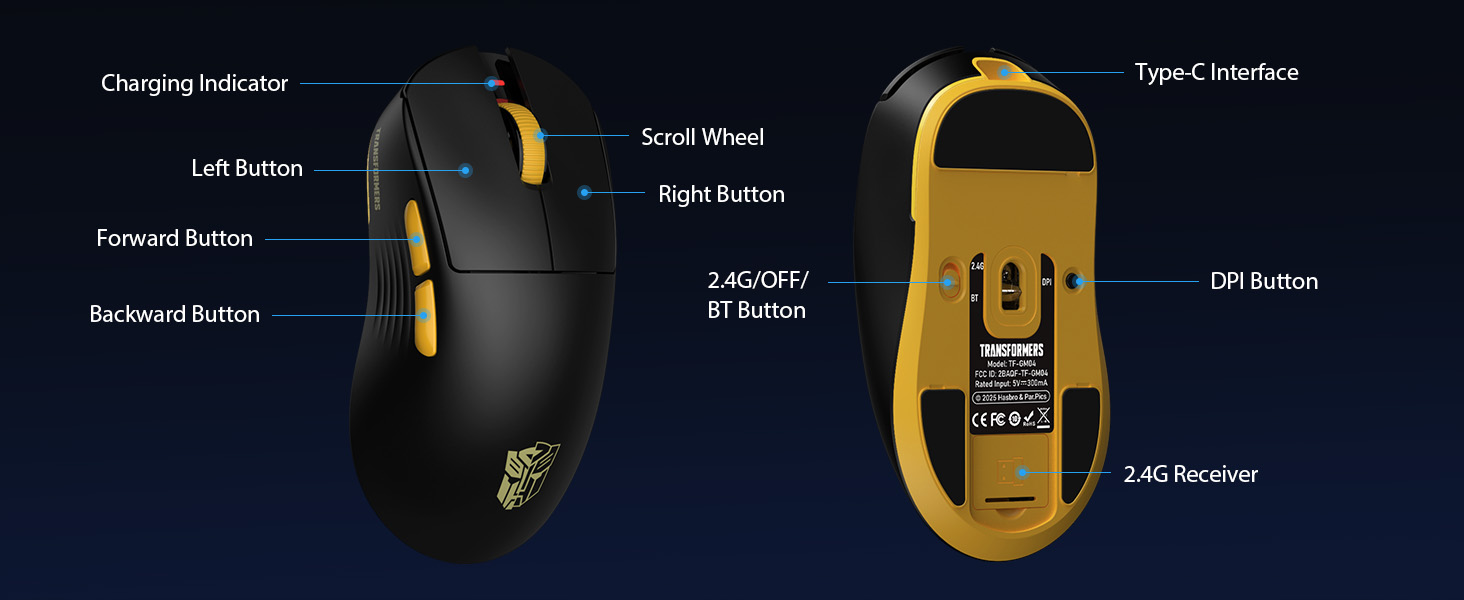
Delwedd 5: Ffrwydrodd view diagram of the Transformers GM04 mouse, highlighting the HUANO micro switches. This image emphasizes the precision-engineered mechanical switches designed for crisp feedback and a lifespan of over 20 million clicks, ideal for rapid gaming actions.
Fideo 1: An official product video from Transformers Keyboard showcasing the GM04 Lightweight Wireless Gaming Mouse. This short video provides a dynamic overview of the mouse's design and features.
4. Gosod
4.1. Gwefru'r Llygoden
Before first use, it is recommended to fully charge your GM04 mouse. Connect the provided USB-C cable to the mouse's front port and the other end to a USB power source (e.g., computer USB port, USB wall adapter). The LED indicator will show charging status.
4.2. Cysylltu'r Llygoden
The GM04 mouse supports three connection modes: 2.4G Wireless, Bluetooth 5.3, and USB-C Wired. Use the switch on the bottom of the mouse to select your desired mode.
4.2.1. Modd Di-wifr 2.4G
- Remove the USB wireless dongle from its storage slot on the bottom of the mouse.
- Plug the USB wireless dongle into an available USB-A port on your computer.
- Llithrwch y switsh modd ar waelod y llygoden i'r safle "2.4G".
- Dylai'r llygoden gysylltu'n awtomatig â'ch cyfrifiadur.
4.2.2. Modd Bluetooth
- Llithrwch y switsh modd ar waelod y llygoden i'r safle "BT".
- Ar eich cyfrifiadur neu ddyfais, agorwch osodiadau Bluetooth a chwiliwch am ddyfeisiau newydd.
- Select "TF-GM04 BT" from the list of available devices to pair.
- The mouse should connect and be ready for use.
4.2.3. USB-C Wired Mode
- Connect the provided USB-C cable to the mouse's front port and the other end to a USB-A port on your computer.
- Bydd y llygoden yn newid yn awtomatig i fodd gwifrau ac yn dechrau gwefru.
5. Gweithredu
5.1. Addasiad DPI
The GM04 mouse offers 6 default DPI settings. To cycle through these settings, press the DPI botwm located on the bottom of the mouse. The LED indicator will change color to reflect the current DPI level:
- Coch: 1200 DPI
- Gwyrdd: 2400 DPI
- Glas: 3200 DPI
- Porffor: 4800 DPI
- Melyn: 6400 DPI
- Cyan: 12000 DPI
5.2. Botymau Rhaglenadwy
The mouse features 5 programmable buttons. To customize these buttons with macro commands, shortcut keys, or other functions, you will need to use the dedicated driver software. This software is typically available for Windows systems under 2.4G wireless and wired modes. Bluetooth mode may not support full software customization.
5.3. Connection Mode Switching
Easily switch between 2.4G Wireless, Bluetooth, and Wired modes using the dedicated switch on the bottom of the mouse. This allows for seamless transitions between multiple devices.
5.4. Dangosyddion LED
- Dangosydd DPI: Changes color according to the current DPI setting (see 5.1).
- Dangosydd Codi Tâl: A green LED near the scroll wheel indicates charging. It turns off when fully charged.
6. cynnal
6.1. Glanhau
To maintain optimal performance and appearance, regularly clean your mouse. Use a soft, dry cloth to wipe the surface. For stubborn dirt, a slightly damp gellir defnyddio brethyn, gan sicrhau nad oes lleithder yn mynd i mewn i'r cydrannau mewnol. Osgowch gemegau llym neu ddeunyddiau sgraffiniol.
6.2. Gofal Batri
The GM04 mouse is equipped with a 500mAh high-capacity battery. To prolong battery life:
- Osgowch ollwng y batri'n llwyr yn aml.
- Storiwch y llygoden mewn lle oer, sych pan nad yw'n cael ei defnyddio am gyfnodau hir.
- If using wired mode, the mouse will charge automatically.
7. Datrys Problemau
7.1. Llygoden Ddim yn Ymateb
- Gwirio Batri: Ensure the mouse is charged. Connect it via USB-C cable.
- Check Connection Mode: Verify the switch on the bottom is set to the correct mode (2.4G, BT, or Wired).
- Re-pair (2.4G/Bluetooth): For 2.4G, try plugging the dongle into a different USB port. For Bluetooth, unpair and re-pair the device in your computer's settings.
- Try Wired Mode: Connect the mouse directly via USB-C cable to see if it functions.
7.2. DPI Ddim yn Newid
- Ensure you are pressing the correct DPI button on the bottom of the mouse.
- Observe the LED indicator for color changes to confirm DPI cycles.
- If using custom software, ensure settings are applied correctly.
7.3. Lag or Disconnection in Wireless Mode
- Lleihau Ymyrraeth: Move the mouse closer to the receiver/device. Avoid obstacles or other wireless devices that may cause interference.
- Gwirio Batri: Low battery can affect wireless performance.
- Diweddaru Gyrwyr: Ensure your computer's Bluetooth or USB drivers are up to date.
8. manylebau
| Nodwedd | Manylyn |
|---|---|
| Dimensiynau Cynnyrch | 4.68 x 2.52 x 0.1 modfedd |
| Pwysau Eitem | 2.22 owns (tua 63g) |
| Rhif Model yr Eitem | TF-GM04 |
| Technoleg Cysylltedd | Di-wifr 2.4G, Bluetooth 5.3, USB-C â Gwifrau |
| Technoleg Canfod Symudiad | Optegol (Synhwyrydd PAW3311) |
| Gosodiadau DPI | 1200/2400/3200/4800/6400/12000 (Adjustable) |
| Cyfradd Bleidleisio | 1000Hz (1ms latency) |
| Cyflymder Olrhain | 300 FPS |
| Cyflymiad | 35G |
| Botymau | 5 Botwm Rhaglenadwy |
| Newid Math | HUANO Micro Switches (20 Million Clicks) |
| Gallu Batri | 500mAh |
| Bywyd Batri | Up to 100 hours (Bluetooth mode) |
| Cydweddoldeb | Windows, Mac OS, and other systems |
9. Gwarant a Chefnogaeth
9.1. Gwybodaeth Gwarant
The Transformers GM04 Lightweight Wireless Gaming Mouse comes with a standard manufacturer's warranty. Please refer to the packaging or the official Transformers website for detailed warranty terms and conditions. Keep your purchase receipt as proof of purchase for any warranty claims.
9.2. Cefnogaeth i Gwsmeriaid
For technical assistance, troubleshooting, or any questions regarding your Transformers GM04 mouse, please contact Transformers customer support. Contact details can typically be found on the product packaging or the official brand websafle.