
1. Rhagymadrodd
The TABWEE 10.1 Inch WiFi Digital Calendar, Model P10, is an interactive touchscreen display designed to streamline family organization. It integrates calendars, task management, meal planning, and digital photo frame capabilities into a single device. This manual provides detailed instructions to help you set up and utilize all features of your new digital calendar.

Delwedd 1.1: The TABWEE Digital Calendar in use, showcasing its calendar interface and mobile app synchronization.
2. Gwybodaeth Diogelwch
- Gwnewch yn siŵr bod y ddyfais wedi'i gosod ar arwyneb sefydlog, gwastad i atal cwympiadau damweiniol.
- Defnyddiwch yr addasydd pŵer a ddarperir yn unig. Gall defnyddio addaswyr heb awdurdod niweidio'r ddyfais a gwneud y warant yn ddi-rym.
- Cadwch y ddyfais i ffwrdd o ddŵr, lleithder, a thymheredd eithafol.
- Do not attempt to open or repair the device yourself. Refer to qualified service personnel for any maintenance or repair needs.
- Keep out of reach of small children to prevent accidental ingestion of small parts or damage to the device.
3. Cynnwys Pecyn
Gwiriwch fod yr holl eitemau yn bresennol yn y pecyn:
- TABWEE 10.1 Inch WiFi Digital Calendar (Model P10)
- Addasydd Pŵer
- Llawlyfr Defnyddiwr (y ddogfen hon)
4. Cynnyrch Drosview
Familiarize yourself with the physical components of your TABWEE Digital Calendar.

Delwedd 4.1: Technical details and component layout of the TABWEE Digital Calendar.
- Botwm Pwer Ar / Oddi: Located on the side for turning the device on or off.
- Botymau Cyfrol i Fyny / Lawr: Adjust the device's audio output.
- Synhwyrydd Golau: Yn addasu disgleirdeb y sgrin yn awtomatig yn seiliedig ar olau amgylchynol.
- Stondin Cymorth: Integrated stand for desk placement.
5. Gosod
5.1 Pŵer Cychwynnol
- Connect the provided power adapter to the device's power port.
- Plug the adapter into a standard electrical outlet. The device will automatically power on.
- Dilynwch yr awgrymiadau ar y sgrin i ddewis eich iaith a'ch rhanbarth.
5.2 Cysylltiad Rhwydwaith
- On the initial setup screen, select your Wi-Fi network from the list.
- Enter your Wi-Fi password and tap 'Connect'.
- Ensure the device is connected to a stable internet connection for full functionality.
5.3 Gosod Ap a Chreu Cyfrif
To fully utilize the calendar's features, download and set up the companion 'eCalendar' app on your smartphone (iOS or Android).

Delwedd 5.1: Steps for downloading and creating an account on the eCalendar app.
- Scan the QR code displayed on the calendar screen or search for 'eCalendar' in your device's app store (Google Play Store for Android, Apple App Store for iOS).
- Dadlwythwch a gosodwch yr app.
- Open the eCalendar app and follow the prompts to create a new account or log in if you already have one.
- Cytuno â'r Cytundeb Defnyddiwr a'r Polisi Preifatrwydd.
5.4 Device Linking
Link your TABWEE Digital Calendar to your eCalendar app account.

Delwedd 5.2: Linking the calendar device to the eCalendar app and setting up your unique calendar email.
- In the eCalendar app, select the option to 'Add Device' or 'Activate a new eCalendar Frame'.
- Follow the on-screen instructions to pair your device. This may involve scanning a QR code displayed on the calendar or entering a pairing code.
- Once linked, you can set up your unique calendar email address within the app.
6. Gweithrediad
6.1 Mordwyo Sylfaenol
The TABWEE Digital Calendar features a responsive touchscreen. Navigate through menus and features by tapping, swiping, and pinching as you would on a tablet device.
6.2 Rheoli Calendr
The core function of your device is calendar management, allowing for seamless synchronization and event organization.
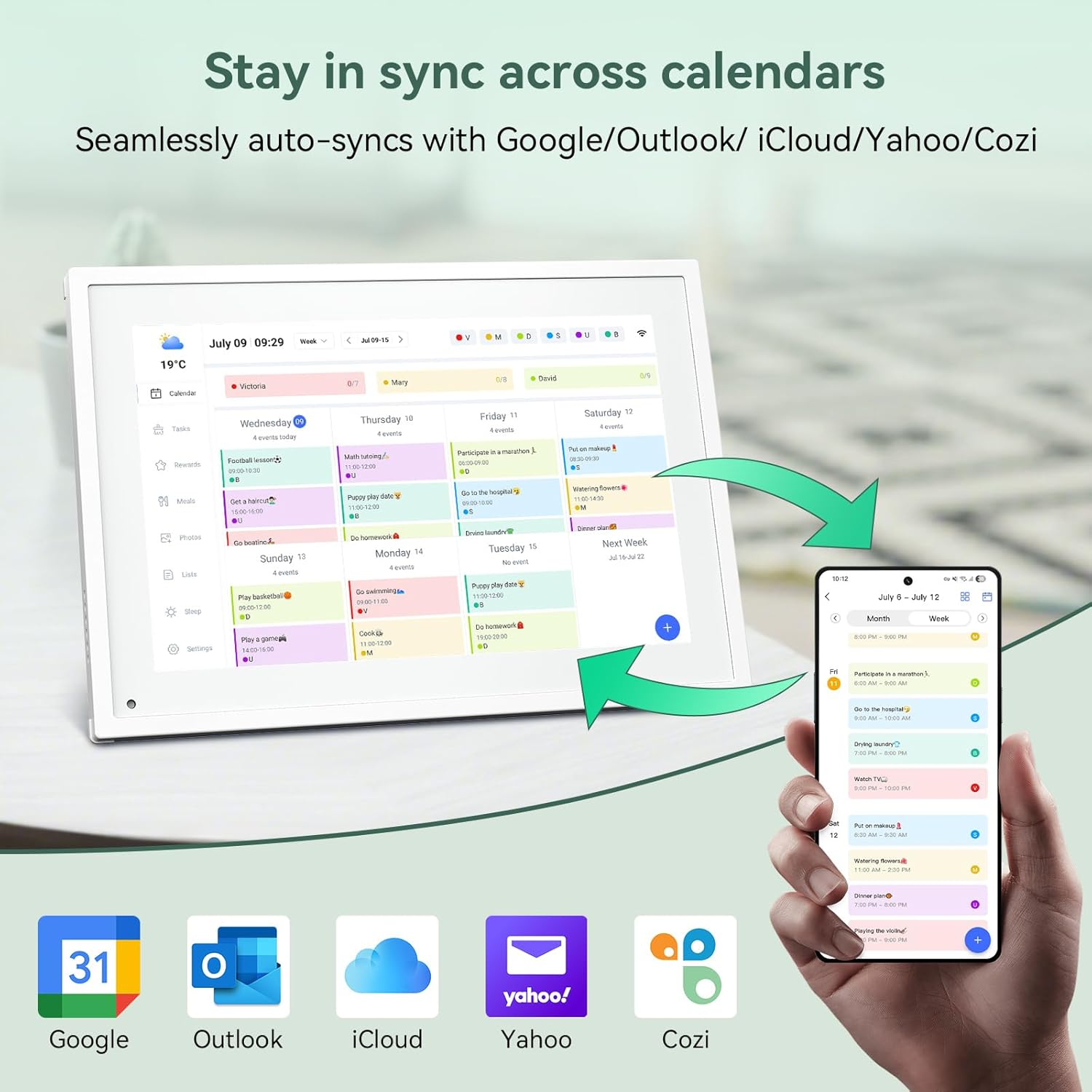
Delwedd 6.1: Seamless synchronization of the digital calendar with various external calendar services.
- Syncing External Calendars: Within the eCalendar app settings, you can link your Google, Apple, Outlook, Yahoo, or Cozi calendars. Events from these linked accounts will automatically appear on your TABWEE Digital Calendar.
- Ychwanegu/Golygu Digwyddiadau: Tap on a date or time slot on the calendar display or use the eCalendar app to add new events. You can specify event details, set reminders, and assign participants.
- Wedi'i addasu Views: Switch between day, week, or month views directly on the device or through the app.
6.3 Task Management (Chore Chart)
Organize tasks and chores for family members with a built-in reward system.
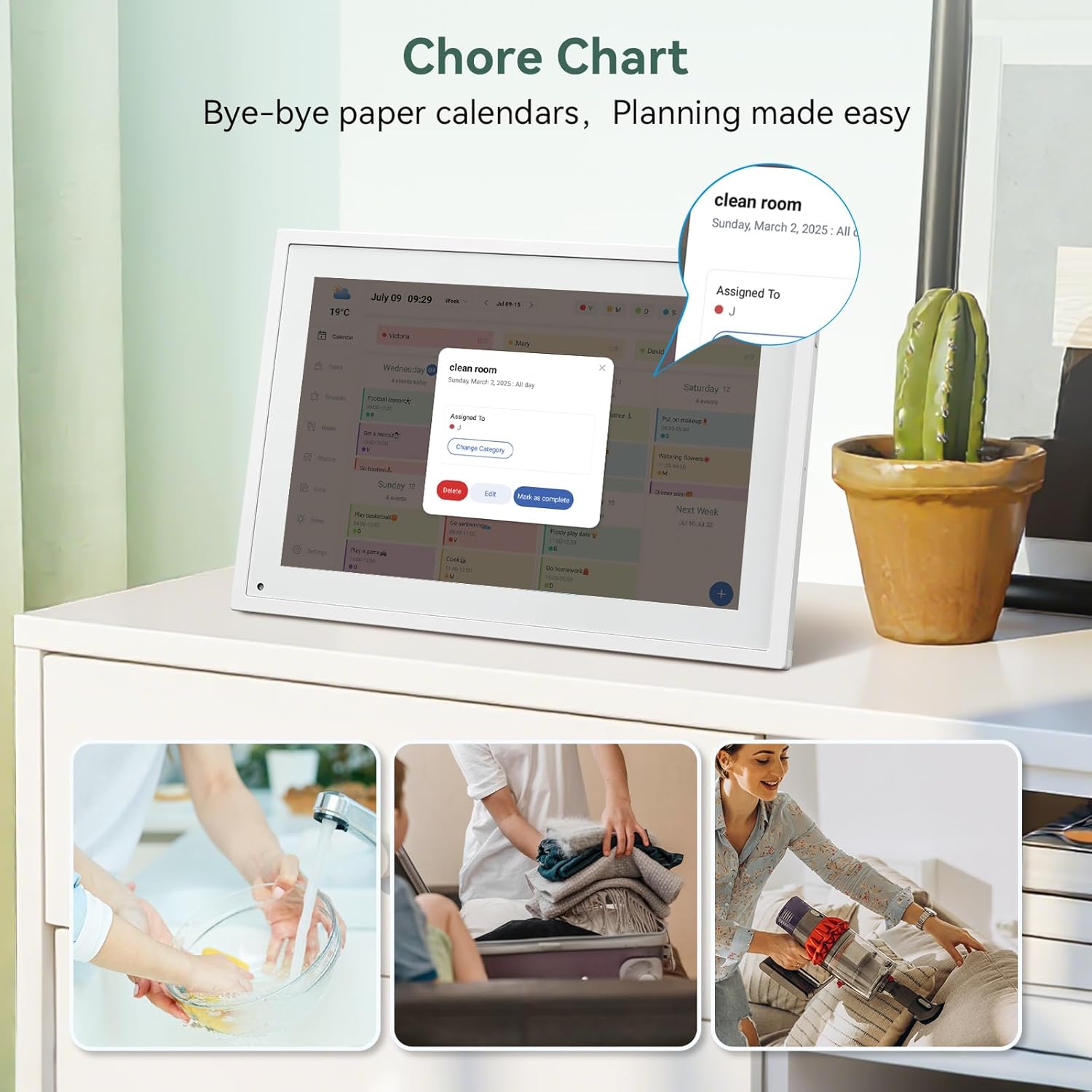
Delwedd 6.2: Managing tasks and chores on the digital calendar interface.
- Creating Tasks: Use the 'Tasks' section on the device or app to create new tasks. Assign them to specific individuals, set due dates, and configure recurring tasks.
- Tracking Progress: Users can mark tasks as complete. The system tracks completion and can be configured to award points.
- System Gwobrau: Set up a star-point reward system within the app. Points earned from completed tasks can be redeemed for custom rewards, encouraging participation.

Delwedd 6.3: The task manager and rewards interface, designed for engaging users.
6.4 Cynllunio Prydau Bwyd
Plan your meals directly on the device or through the app.

Delwedd 6.4: Visual meal planning interface on the digital calendar.
- Create Meal Plans: Access the 'Meals' section to plan breakfasts, lunches, dinners, and snacks for the week.
- Custom Recipes: Upload and store your favorite recipes.
- Grocery Lists: Generate grocery lists based on your meal plans.
6.5 Ymarferoldeb Ffrâm Llun Digidol
The device can also function as a digital photo frame.

Delwedd 6.5: The digital calendar switching between calendar and photo frame modes, in both landscape and portrait orientations.
- Moddau Newid: Navigate to the 'Photos' section on the device or app to activate the digital photo frame mode.
- Wrthi'n uwchlwytho lluniau: Upload your favorite memories directly from your smartphone via the eCalendar app.
- Cyfeiriadedd: The device supports both landscape and portrait orientations, automatically adjusting the display.
6.6 Nodweddion Eraill
The TABWEE Digital Calendar includes additional smart features to enhance usability.
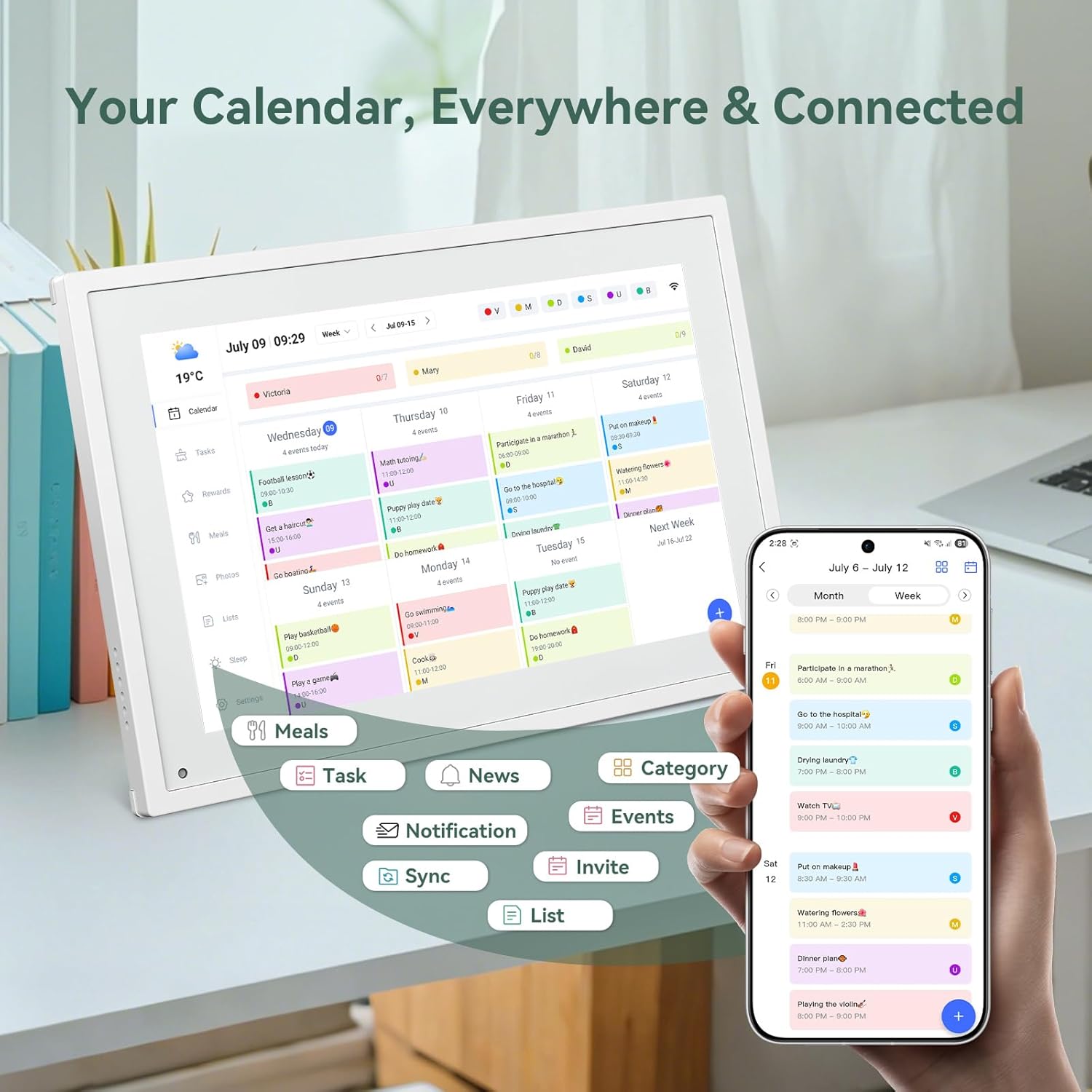
Delwedd 6.6: Drosoddview of smart features and app connectivity.
- Live Weather Forecasts: Displays current weather conditions and forecasts.
- Auto-Disgleirdeb: The built-in light sensor automatically adjusts screen brightness for optimal viewing.
- Modd Cwsg: Configure scheduled times for the device to enter a low-power sleep mode.
- Custom Lists: Create and manage various lists (e.g., shopping lists, packing lists).
- Cod lliw: Assign different colors to events or tasks for easy visual identification.
7. cynnal
7.1 Glanhau'r Dyfais
- Sychwch y sgrin yn ysgafn gyda lliain meddal, di-flwff. Ar gyfer staeniau ystyfnig, sychwch ychydigamprhowch y lliain gyda dŵr neu doddiant glanhau sgrin.
- Osgowch ddefnyddio cemegau llym, deunyddiau sgraffiniol, neu chwistrellau aerosol yn uniongyrchol ar y ddyfais.
- Sicrhewch fod y ddyfais wedi'i phweru i ffwrdd a'i dad-blygio cyn ei glanhau.
7.2 Diweddariadau Meddalwedd
The device may receive periodic software updates to improve performance and add new features. Ensure your device is connected to Wi-Fi to receive these updates. You will typically be notified on-screen when an update is available.
8. Datrys Problemau
| Problem | Achos Posibl | Ateb |
|---|---|---|
| Nid yw'r ddyfais yn pweru ymlaen. | Addasydd pŵer heb ei gysylltu neu'n ddiffygiol. | Gwnewch yn siŵr bod yr addasydd pŵer wedi'i gysylltu'n ddiogel â'r ddyfais ac mewn soced pŵer sy'n gweithio. |
| Methu cysylltu â Wi-Fi. | Cyfrinair anghywir, allan o gyrraedd, neu broblem rhwydwaith. | Verify Wi-Fi password. Move the device closer to the router. Restart your router. |
| Calendar events are not syncing. | App not linked, external calendar not connected, or internet issue. | Check app-device linking. Ensure external calendars are correctly linked in the eCalendar app. Verify internet connection. |
| Nid yw'r sgrin yn ymateb. | Gwall meddalwedd dros dro. | Restart the device by holding the power button until it turns off, then power it back on. |
9. manylebau
| Nodwedd | Manylyn |
|---|---|
| Rhif Model | P10 |
| Maint Sgrin | 10.1 modfedd |
| Math Arddangos | Sgrîn gyffwrdd |
| Cysylltedd | WiFi |
| Dimensiynau Cynnyrch | 10.51 x 0.91 x 7.32 modfedd (26.7 x 2.3 x 18.6 cm) |
| Pwysau Eitem | 2.58 pwys (1.17 kg) |
| Math Mowntio | Desk Mount (not wall-mountable) |
| Ffynhonnell Pwer | Plug-in (no internal battery) |
| Lliw | Gwyn |
10. Gwarant a Chefnogaeth
The TABWEE Digital Calendar comes with a standard manufacturer's warranty. For specific warranty terms and conditions, please refer to the warranty card included in your product packaging or visit the official TABWEE websafle.
For technical support, troubleshooting assistance, or any inquiries regarding your product, please contact TABWEE customer service through their official websafle neu'r wybodaeth gyswllt a ddarperir yn nogfennaeth eich cynnyrch.