
1. Rhagymadrodd
This manual provides detailed instructions for the installation, operation, and maintenance of your TEKXDD H8 Smart Lock. This 4-in-1 electronic lock offers multiple unlocking methods including Tuya App, fingerprint, digital password, and mechanical key. Please read this manual thoroughly before installation and use to ensure proper function and security.
2. Cynnwys Pecyn
Gwiriwch fod yr holl gydrannau yn bresennol yn y pecyn:
- Front Panel (with handle and keypad)
- Back Panel (with handle and battery compartment)
- Corff Clo Mortise
- Plât Streic
- Sgriwiau Mowntio ac Ategolion
- Allweddi Mecanyddol (2)
- Llawlyfr Defnyddiwr (y ddogfen hon)
Note: 4 AAA batteries are required but not included in the package.
3. manylebau
| Nodwedd | Manyleb |
|---|---|
| Model | H8 |
| Dulliau Datgloi | Tuya App, Fingerprint, Digital Password, Mechanical Key |
| Gallu Olion Bysedd | Hyd at 255 o olion bysedd |
| Capasiti Cyfrinair | Up to 100 customizable digit codes |
| Cyflymder Cydnabod | ≤ 0.2 eiliad |
| Cyfradd Cydnabod | 99% |
| Trwch Drws sy'n Gymwys | 1.37 - 1.96 modfedd (35mm - 50mm) |
| Tymheredd Gweithredu | 14°F - 140°F (-10°C - 60°C) |
| Cyflenwad Pŵer | 4 x batris AAA (heb eu cynnwys) |
| Pŵer Argyfwng | USB interface (for power bank) |
| Deunydd | Dur Di-staen |
| Dimensiynau (L x W x H) | 6.69 x 2.36 x 0.79 modfedd (170 x 60 x 20 mm) |
| Pwysau | 1.5 pwys (0.68 kg) |
4. Canllaw Gosod
4.1 Door Preparation and Measurement
Ensure your door meets the specified thickness requirements (1.37-1.96 inches). Measure the backset (distance from the door edge to the center of the door hole) and adjust the latch accordingly to 60mm or 70mm.
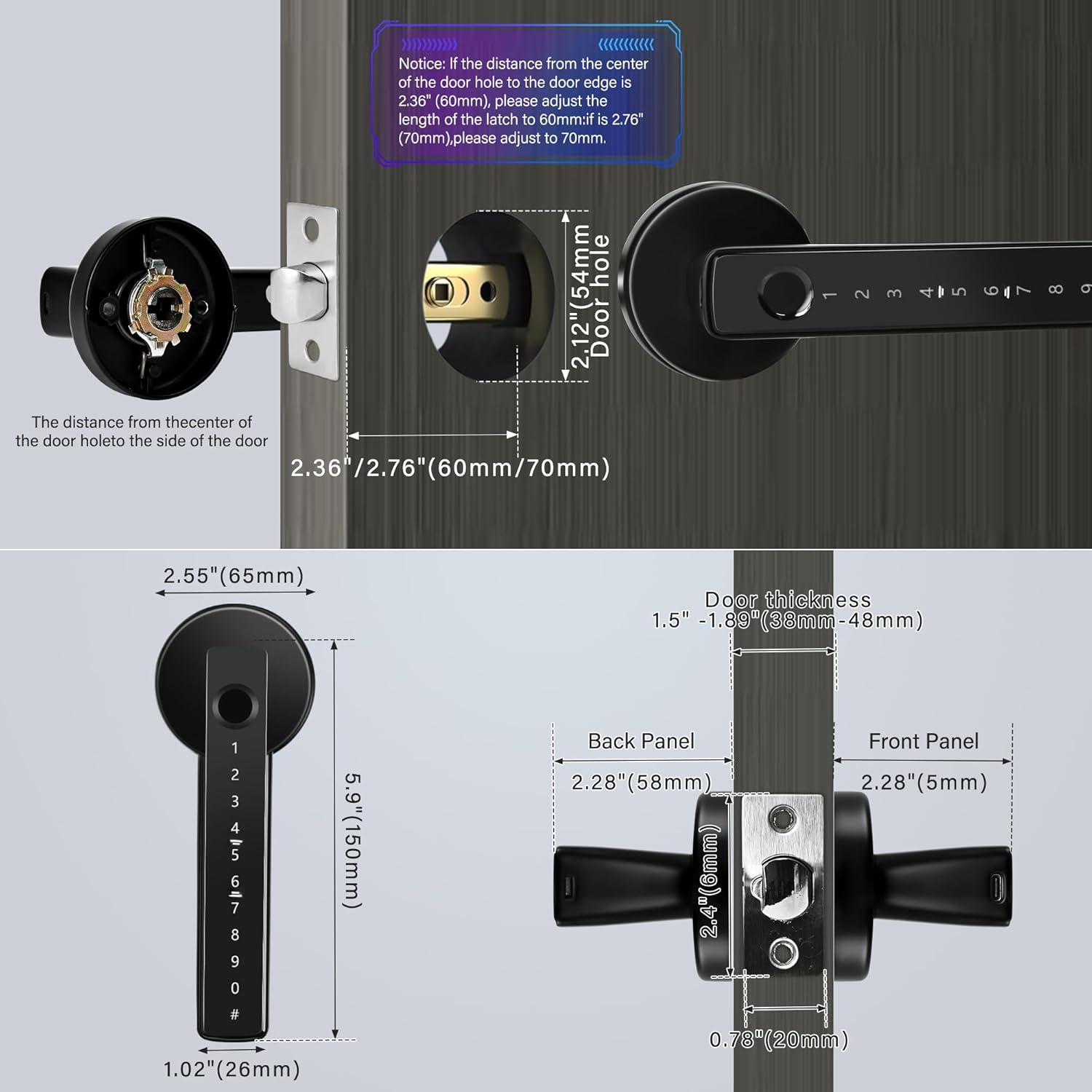
Image: Door Measurement Guide. This image illustrates the critical measurements for door preparation, including door thickness, backset (distance from door edge to center of hole), and the overall dimensions of the smart lock components (front panel, back panel, and mortise). It highlights how to adjust the latch for 60mm or 70mm backset.
4.2 Installing the Mortise Lock Body
- Insert the mortise lock body into the edge of the door.
- Secure it with screws. Ensure the latch bolt operates smoothly.
4.3 Gosod y Panel Blaen
- Pass the spindle and cable through the door hole.
- Align the front panel with the mortise and secure it to the door.
4.4 Installing the Back Panel and Batteries
- Cysylltwch y cebl o'r panel blaen i'r cysylltydd ar y panel cefn.
- Align the back panel with the spindle and mounting holes.
- Secure the back panel with screws.
- Open the battery compartment cover on the back panel.
- Insert 4 new AAA batteries, ensuring correct polarity.
- Caewch y clawr adran batri.
4.5 Initial Setup and App Pairing (Tuya App)
- Lawrlwythwch yr ap "Tuya Smart" neu "Smart Life" o siop apiau eich ffôn clyfar.
- Cofrestrwch neu fewngofnodwch i'ch cyfrif.
- On the lock, press and hold the reset button (usually located on the back panel or inside the battery compartment) until you hear a prompt or see an indicator light.
- In the app, tap "+" to add a device. Select "Security & Video Surveillance" > "Door Lock (Wi-Fi)" or "Smart Lock".
- Follow the on-screen instructions to connect the lock to your Wi-Fi network. A Tuya gateway may be required for remote control functionality.

Image: Tuya App Interface. This image displays a smartphone screen showing the Tuya app interface for controlling the smart lock. It highlights features like one-touch unlocking, checking unlock records, remote control (requires gateway), door lock alarms, managing authorized users, and generating dynamic/temporary passwords.
5. Cyfarwyddiadau Gweithredu
5.1 Adding Users (Fingerprints, Passwords)
All user management (adding/deleting fingerprints, passwords) is performed through the Tuya App after the lock is paired.
- Open the Tuya App and select your TEKXDD H8 Smart Lock.
- Navigate to "User Management" or "Members".
- To Add Fingerprint: Select "Add Fingerprint" and follow the app's prompts to place your finger on the sensor multiple times until registered. The lock supports up to 255 fingerprints.
- To Add Password: Select "Add Password" and enter your desired digital code. You can set permanent, timed, or one-time passwords. The lock supports up to 100 customizable digit codes.

Image: Fingerprint Biometrics. This image highlights the smart lock's fingerprint recognition capabilities, stating a capacity of 255 fingerprints, a recognition speed of 0.2 seconds, a 99% accuracy rate, and 360° recognition direction for reliable access.
5.2 Dulliau Datgloi
- Olion Bysedd: Rhowch eich bys cofrestredig ar y synhwyrydd olion bysedd. Bydd y clo yn datgloi os caiff yr olion bysedd eu hadnabod.
- Digital Password: Enter your registered password on the keypad, then press '#'.
- Ap Tuya: Open the Tuya App, select your lock, and tap the "Unlock" button. (Requires a Tuya gateway for remote unlocking).
- Allwedd Mecanyddol: Insert the mechanical key into the keyhole (usually hidden) and turn to unlock. This is for emergency access.
5.3 Anti-Peeping Password
To prevent others from guessing your password, you can enter random digits before and after your actual password. For example, if your password is "123456", you can enter "888123456999". The lock will recognize the correct sequence within the longer string.
5.4 Swyddogaeth Cloi Awtomatig
The lock is designed to automatically lock after a set period once the door is closed. This setting can typically be configured within the Tuya App. You can also manually lock the door by pressing the button for 1 second or through the app.

Image: Lock Setting Methods. This image illustrates two methods for setting the lock's behavior: Method 1 shows pressing a button on the lock for 1 second to open/close unlocked mode, and Method 2 shows the Tuya app interface for turning off the automatic lock switch.
6. cynnal
6.1 Batri Newydd
The lock will issue an alert when the batteries are running low. Replace all 4 AAA batteries promptly to ensure continuous operation. Always use new, high-quality alkaline batteries.
- Open the battery compartment cover on the back panel.
- Tynnwch yr hen fatris.
- Insert 4 new AAA batteries, observing correct polarity (+/-).
- Caewch y clawr adran batri.
6.2 o Gyflenwad Pŵer Argyfwng
In case the batteries completely run out before replacement, you can use a portable power bank to temporarily power the lock via the USB interface located on the front panel. This allows you to unlock the door and replace the batteries.

Image: Emergency Unlock Options. This image displays the various emergency unlocking methods for the smart lock: Fingerprint, Smartphone APP, IC card (if supported by model), Mechanical Key, and Emergency USB power. It shows a USB power bank connected to the lock's emergency port and a mechanical key being used.
6.3 Glanhau
Sychwch wyneb y clo gyda lliain meddal, damp brethyn. Osgowch ddefnyddio glanhawyr sgraffiniol neu doddyddion a allai niweidio'r gorffeniad neu'r cydrannau electronig.
7. Datrys Problemau
- Clo ddim yn ymateb: Check battery level. If low, replace batteries or use emergency USB power.
- Ôl bysedd heb ei adnabod: Gwnewch yn siŵr bod eich bys yn lân ac yn sych. Rhowch gynnig ar ailgofrestru eich olion bysedd yn yr ap.
- Cyfrinair ddim yn gweithio: Verify the correct password is being entered. Ensure no random digits are accidentally included unless using the anti-peeping feature.
- Problemau cysylltu apiau: Ensure your phone's Bluetooth/Wi-Fi is on. Check if the lock is within range of your Wi-Fi router or Tuya gateway. Restart the app and the lock (by removing and reinserting batteries).
- Lock beeps continuously: This usually indicates low battery. Replace batteries immediately.
- Drws ddim yn cloi/datgloi'n esmwyth: Check for any obstructions in the door frame or latch. Ensure the lock is installed correctly and aligned with the strike plate.
8. Gwarant a Chefnogaeth
For any problems or inquiries, please contact TEKXDD customer support. You can typically reach support by logging into your Amazon account, navigating to "Your Orders", finding the order ID for this product, and clicking "Contact Seller".
Cadwch eich derbynneb prynu at ddibenion gwarant.