
1. Rhagymadrodd
This manual provides essential information for the safe and effective operation of your GooDee 4K UHD Smart Projector GD500PLUS. Please read it thoroughly before using the product and retain it for future reference. This projector integrates Google TV, AI voice control, WiFi, Bluetooth, and Dolby Sound for a comprehensive home entertainment experience.
2. Beth sydd yn y Bocs
Gwiriwch fod yr holl eitemau yn bresennol wrth ddadbocsio:
- Taflunydd
- Cord Pŵer
- Cebl HDMI
- Gorchudd Lens Taflunydd
- Rheolaeth Anghysbell
- Llawlyfr Defnyddiwr
3. Nodweddion Allweddol
- Built-in Google TV: Access popular streaming applications like Netflix, YouTube, and Prime Video directly.
- AI Smart Voice Assistant: Control the projector and search for content using voice commands via the remote.
- 4K UHD Support: Supports 4K resolution input for high-definition viewing.
- WiFi Deuol-Fand 6: Provides stable and low-latency wireless connectivity.
- Bluetooth 5.2: For connecting external audio devices wirelessly.
- Sain Dolby: Enhanced audio experience for immersive sound.
- AI Auto Focus & Keystone Correction: Automatic image adjustment for optimal clarity and geometry.
- AI Auto Obstacle Avoidance & Screen Fit: Automatically adjusts the projection to avoid obstacles and fit the screen.
- Opsiynau Cysylltedd Lluosog: HDMI, USB, AV, Headset ports.
4. Canllaw Gosod
4.1 Lleoliad
Position the projector on a stable, flat surface or mount it securely. Ensure there are no obstructions in front of the lens. For optimal viewing, project onto a smooth, light-colored wall or a dedicated projector screen. Maintain adequate ventilation around the projector.
4.2 Cysylltiad Pwer
- Cysylltwch y llinyn pŵer â mewnbwn pŵer y taflunydd.
- Plygiwch ben arall y llinyn pŵer i mewn i allfa bŵer.
- Pwyswch y botwm pŵer ar y taflunydd neu'r teclyn rheoli o bell i'w droi ymlaen.
4.3 Gosod Cychwynnol (Google TV)
Upon first use, the projector will guide you through the Google TV setup process. Follow the on-screen instructions to:
- Dewiswch eich iaith.
- Cysylltwch â rhwydwaith Wi-Fi.
- Sign in with your Google account to access streaming services and apps.
- Install desired applications like Netflix, Prime Video, and YouTube.

Image: The GooDee 4K UHD Smart Projector projecting the Google TV home screen, showing various streaming application icons such as Hulu, Prime Video, and YouTube.
5. Cyfarwyddiadau Gweithredu
5.1 Llywio a Rhyngwyneb
Use the provided remote control to navigate the Google TV interface. The directional pad and select button are used for menu navigation and selection. Dedicated buttons for popular streaming services may be available for quick access.
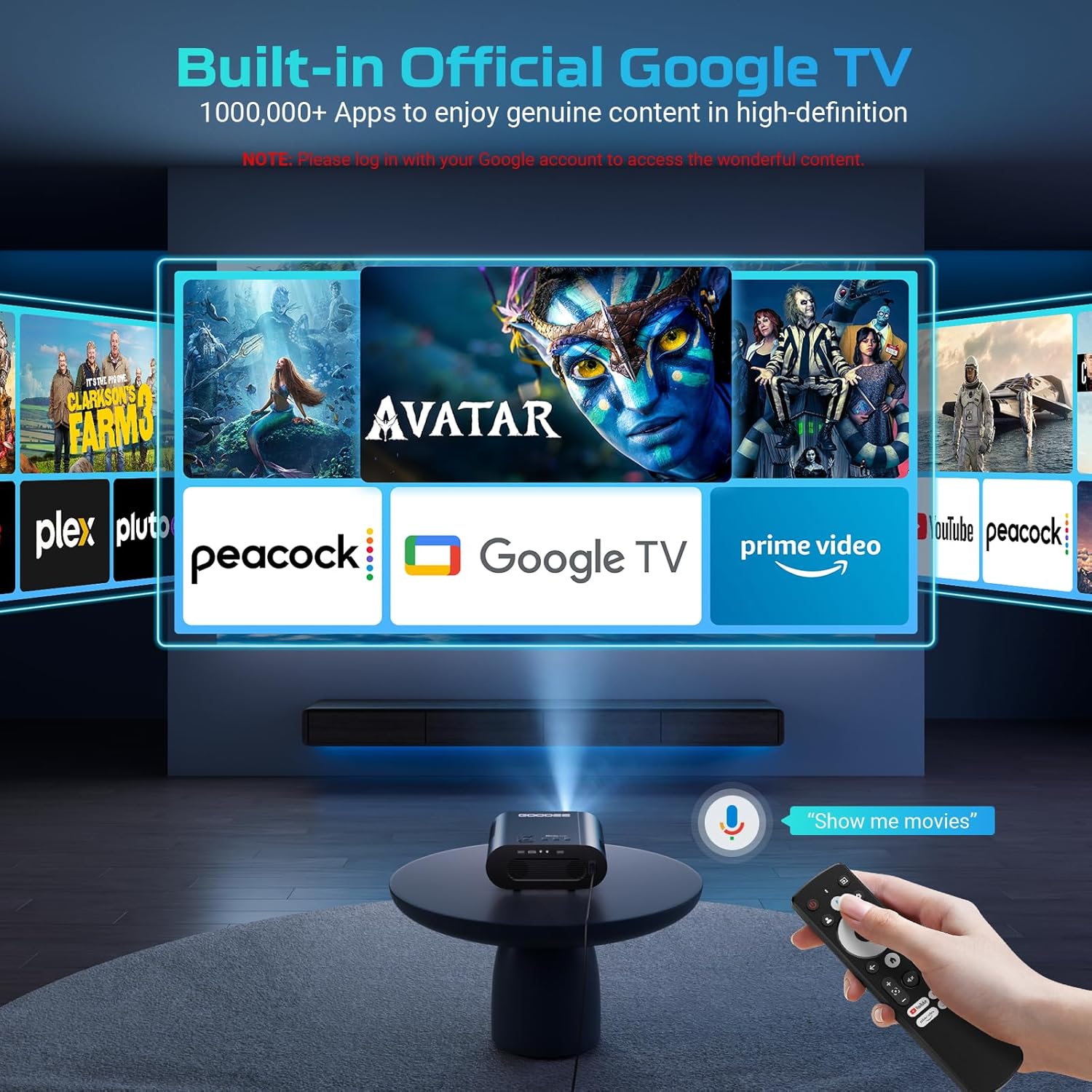
Image: The GooDee projector displaying the Google TV interface with multiple streaming apps. A hand holds the remote control, demonstrating voice command functionality.
5.2 AI Smart Voice Assistant
The AI Smart Voice Assistant allows for hands-free control. Press and hold the voice control button on the remote and speak your command. Exampmae llai yn cynnwys:
- "Agor Netflix"
- "Chwiliwch am action movies"
- "Adjust volume to 50"
- "What's the weather?"

Image: A woman on a couch speaking into the projector's remote control, with voice commands like "Open Netflix" and "Play Avatar" displayed on the projected screen, illustrating the AI smart voice assistant feature.
5.3 Cysylltedd
5.3.1 Wi-Fi Connection (Dual-Band WiFi 6)
Ensure your projector is connected to a stable Wi-Fi network for streaming content and system updates. Navigate to Gosodiadau> Rhwydwaith a'r Rhyngrwyd to manage your Wi-Fi connection.

Image: The GooDee projector displaying a high-speed car race, with a smartphone mirroring content and a Wi-Fi 6 icon indicating advanced wireless connectivity.
5.3.2 Bluetooth Connection (Bluetooth 5.2)
Connect external Bluetooth speakers, headphones, or other audio devices for an enhanced sound experience. Go to Settings > Remotes & Accessories > Pair remote or accessory to pair new devices.

Image: The GooDee projector projecting a concert scene, with sound waves emanating from the projector to two external Bluetooth speakers, highlighting Bluetooth 5.2 and Dolby Audio features.
5.3.3 HDMI and USB Inputs
Use the HDMI port to connect external devices such as gaming consoles, laptops, or Blu-ray players. The USB port can be used for media playback from USB drives or for connecting compatible accessories.

Image: The GooDee projector surrounded by various compatible devices including headphones, an AV receiver, a USB drive, an HDMI cable, a game controller, a laptop, and a smartphone, illustrating its versatile connectivity.
5.4 Addasu Delwedd
5.4.1 AI Auto Focus & Keystone Correction
The projector features automatic focus and keystone correction. This system automatically adjusts the image for clarity and corrects trapezoidal distortion, ensuring a perfectly rectangular picture even if the projector is not perfectly aligned with the screen.

Image: The GooDee projector displaying a football game, with overlays showing AI Auto Keystone, AI Auto Focus, AI Auto Obstacle Avoidance, AI Auto Screen Fit, and 50-100% Zoom features, indicating automatic image adjustments.
5.4.2 AI Auto Obstacle Avoidance & Screen Fit
The projector can detect obstacles in the projection path and automatically adjust the image to avoid them. It also features an auto screen fit function to optimize the image size and position for your screen.
5.5 Chwarae Cyfryngau
Utilize the built-in Google TV apps for streaming. For local media, insert a USB drive into the USB port and use a file manager app (downloadable from the Google Play Store) to browse and play content.
Video: An official GooDee video showcasing the 4K projector's features, including Google TV integration, AI voice control, automatic adjustments, and various entertainment scenarios.
6. cynnal
6.1 Gofal Lens
To maintain optimal image quality, keep the projector lens clean. Use a soft, lint-free cloth specifically designed for optical lenses. Avoid using abrasive cleaners or excessive force.
6.2 Glanhau'r Taflunydd
Wipe the exterior of the projector with a soft, dry cloth. Do not use liquid or aerosol cleaners directly on the unit. Ensure ventilation ports are clear of dust and debris to prevent overheating.
6.3 Storio
When not in use for extended periods, store the projector in a cool, dry place, away from direct sunlight and extreme temperatures. Use the lens cover to protect the lens from dust and scratches.
7. Datrys Problemau
- Dim pŵer: Ensure the power cord is securely connected to both the projector and the power outlet. Check if the power outlet is functional.
- Dim Llun: Verify that the correct input source is selected. Check HDMI cable connections if using an external device. Ensure the lens cover is removed.
- Delwedd aneglur: The projector features AI auto-focus. If the image remains blurry, try repositioning the projector or manually adjusting focus if an option is available in settings.
- Dim Sain: Check the volume settings on both the projector and any connected external audio devices. Ensure Bluetooth devices are properly paired.
- Materion Cysylltedd Wi-Fi: Restart your router and the projector. Ensure the projector is within range of your Wi-Fi network. Re-enter Wi-Fi password if necessary.
- Rheolaeth Anghysbell Ddim yn Ymateb: Amnewidiwch y batris yn y teclyn rheoli o bell. Gwnewch yn siŵr nad oes unrhyw rwystrau rhwng y teclyn rheoli o bell a'r taflunydd.
8. manylebau
| Nodwedd | Manyleb |
|---|---|
| Dimensiynau Cynnyrch | 20.8 x 13 x 10.6 modfedd |
| Pwysau Eitem | 4.2 pwys |
| Rhif Model yr Eitem | GD500PLUS |
| Cydraniad Arddangos | 1920 x 1080 (Brodorol) |
| Technoleg Cysylltedd | Wi-Fi, Bluetooth |
| Nodwedd Arbennig | Wi-Fi Adeiledig |
| Defnyddiau a Argymhellir | Busnes, Addysg, Gemau, Sinema Gartref |
9. Gwarant a Chefnogaeth
GooDee products are designed for reliability and performance. For warranty information, please refer to the warranty card included with your product or visit the official GooDee website. For technical support, troubleshooting assistance, or service inquiries, please contact GooDee customer support through the contact information provided on the official websafle neu yn eich pecynnu cynnyrch.