
KOOSMILE N150 (P8)
KOOSMILE N150 8-inch 2-in-1 Mini Laptop User Manual
Model: N150 (P8)
1. Rhagymadrodd
This manual provides essential information for the setup, operation, maintenance, and troubleshooting of your KOOSMILE N150 8-inch 2-in-1 Mini Laptop. Please read this manual thoroughly before using the device to ensure proper functionality and to prevent damage.
2. Cynnwys Pecyn
Gwiriwch fod yr holl eitemau yn bresennol yn y pecyn:
- KOOSMILE N150 8-inch 2-in-1 Mini Laptop x1
- PD Adapter x1
- Active Stylus x1
- Cebl HDMI x1
- HUB x1
- Llawlyfr Defnyddiwr x1
- Data Cables x2
3. Cynnyrch Drosview
Familiarize yourself with the components and ports of your mini laptop.
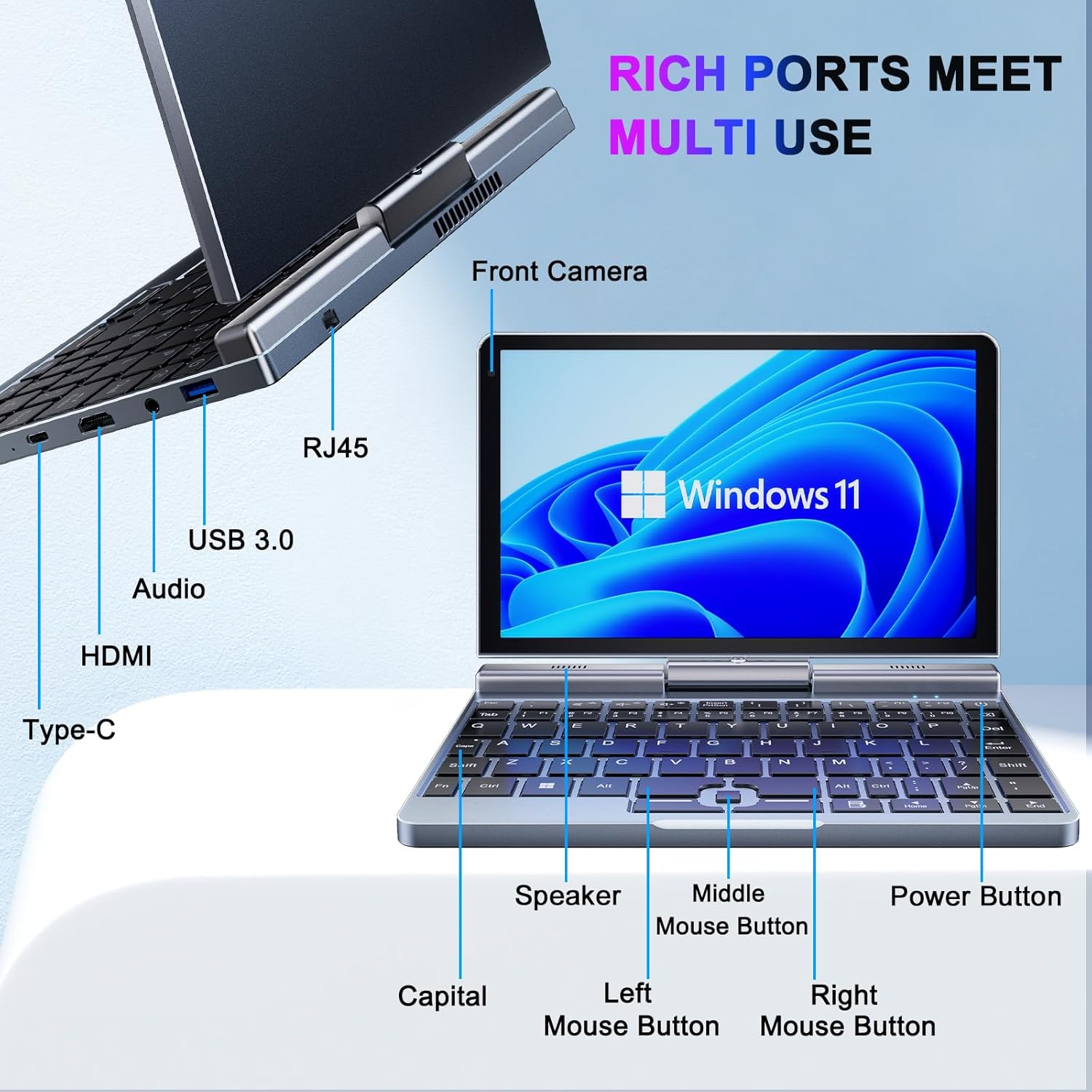
Delwedd 3.1: KOOSMILE N150 Mini Laptop with labeled ports and buttons. Key components include the Front Camera, RJ45 port, USB 3.0 port, Audio jack, HDMI port, Type-C port, Speaker, Middle Mouse Button, Left Mouse Button, Right Mouse Button, Capital indicator, and Power Button.
3.1 Nodweddion Allweddol
- Prosesydd: Intel N150 (4 cores/4 threads, up to 3.6GHz)
- System Weithredu: Windows 11 Pro
- Arddangos: Sgrin Gyffwrdd HD 8 modfedd (1280x800 picsel)
- Cof: 12GB LPDDR5 RAM (4800 MHz)
- Storio: 512GB or 1TB M.2 SSD (expandable up to 2TB)
- Cysylltedd: Wi-Fi 6 (802.11ax), Bluetooth 5.2, Gigabit Ethernet (via RJ45)
- Porthladdoedd: USB 3.0, USB Type-C, HDMI, Headphone Jack
- Camera: Camera Blaen 2MP
- Dyluniad: 180° Rotating Screen, 2-in-1 Convertible (Laptop/Tablet mode), CNC-machined full-metal body
- Pwysau: Tua 0.78 kg (1.72 pwys)
4. Gosod
4.1 Codi Tâl Cychwynnol
- Connect the provided PD Adapter to the USB Type-C port on the laptop.
- Plygiwch yr addasydd i mewn i allfa bŵer.
- Allow the device to charge fully before first use. A full charge is indicated by the charging LED changing color or turning off.
- Nodyn: Use only the provided PD adapter or a compatible Type-C charger with sufficient voltage (e.g., a laptop or Steamdeck charger) to ensure proper charging. Standard phone USB blocks may not provide enough power.
4.2 Cychwyn Cyntaf a Gosod Windows
- Press and hold the Power Button (refer to Image 3.1) until the screen illuminates.
- Follow the on-screen instructions to complete the Windows 11 Pro setup process. This typically includes selecting your region, language, connecting to a Wi-Fi network, and creating a user account.
5. Cyfarwyddiadau Gweithredu
5.1 Pŵer Ymlaen/Diffodd a Modd Cysgu
- Pŵer Ymlaen: Pwyswch y botwm pŵer.
- Modd Cwsg: Briefly press the Power Button while the device is on. Press again to wake.
- Cau i Lawr: Click the Windows Start button, then Power, and select "Shut down."
- Ailgychwyn: Click the Windows Start button, then Power, and select "Restart."
5.2 Using the 2-in-1 Functionality
The laptop features a 180° rotating screen, allowing it to transform into various modes.
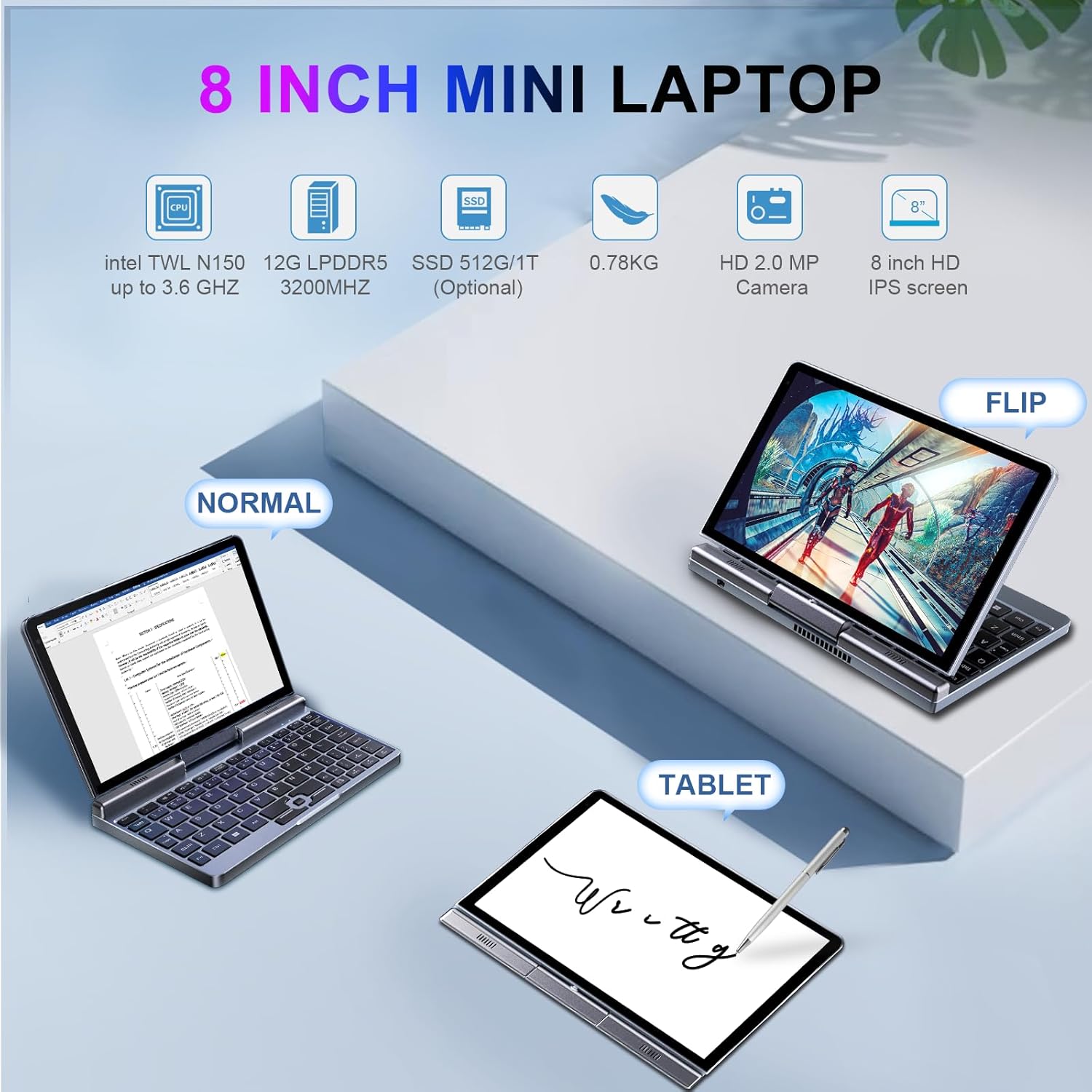
Delwedd 5.1: Demonstrates the KOOSMILE N150 Mini Laptop in its three primary modes: Normal (traditional laptop), Flip (tent mode), and Tablet (screen folded back). This highlights the device's versatility for different usage scenarios.
- Modd Gliniadur: Standard configuration for typing with the physical keyboard.
- Tent Mode (Flip): Rotate the screen 180 degrees and stand the device in a tent shape for media consumption or presentations.
- Modd Tabled: Fold the screen completely back against the base for a full touchscreen experience. The physical keyboard will automatically disable in this mode.
5.3 Touch Screen and Stylus Usage
- The 8-inch HD screen supports multi-touch gestures.
- Use the included Active Stylus for precise input, drawing, or note-taking, especially in Tablet mode.
5.4 Cysylltu Arddangosfeydd Allanol
The laptop supports external displays via HDMI and USB Type-C (DisplayPort out).

Delwedd 5.2: The KOOSMILE N150 Mini Laptop connected to an external monitor, demonstrating its capability for multi-screen display and enhanced productivity. The image shows the laptop displaying a document while the external monitor shows a larger view of the same document.

Delwedd 5.3: The KOOSMILE N150 Mini Laptop configured as a micro desktop, connected to two external monitors, a keyboard, and a mouse. This setup illustrates its potential for multi-tasking and extended workspace.
- Connect an HDMI cable from the laptop's HDMI port to your external display.
- Alternatively, use a USB Type-C to DisplayPort cable or adapter for compatible monitors.
- Gwasgwch Allwedd Windows + P to open the Project menu and select your desired display mode (e.g., Duplicate, Extend, Second screen only).
5.5 Cysylltedd Rhwydwaith
- Wi-Fi: Access Wi-Fi settings via the Windows taskbar icon to connect to available wireless networks.
- Bluetooth: Enable Bluetooth in Windows settings to pair with Bluetooth devices like headphones or keyboards.
- Ethernet: Connect an Ethernet cable to the RJ45 port for a wired network connection.
6. cynnal
6.1 Glanhau
- Defnyddiwch frethyn meddal, di-lint i lanhau'r sgrin a'r tu allan.
- Ar gyfer marciau ystyfnig, rhwbiwch yn ysgafnampgolchwch y lliain gyda dŵr neu doddiant glanhau sgrin. Osgowch gemegau llym.
- Sicrhewch fod y ddyfais wedi'i phweru i ffwrdd a'i dad-blygio cyn ei glanhau.
6.2 Gofal Batri
- Er mwyn ymestyn oes y batri, osgoi tymereddau eithafol.
- Peidiwch â gadael i'r batri ollwng ei ollwng yn aml.
- If storing the device for an extended period, charge it to approximately 50-70%.
6.3 Diweddariadau Meddalwedd
- Regularly check for and install Windows updates to ensure optimal performance and security. Go to Gosodiadau > Diweddariad Windows.
7. Datrys Problemau
| Problem | Ateb Posibl |
|---|---|
| Nid yw'r ddyfais yn pweru ymlaen. |
|
| Batri ddim yn codi tâl. |
|
| Problemau cysylltiad Wi-Fi. |
|
| Touchscreen or stylus not responding. |
|
| Device runs hot during use. |
|
8. manylebau
| Nodwedd | Manylyn |
|---|---|
| Model | P8 (N150) |
| Prosesydd | Intel N150 (4 cores/4 threads, up to 3.6GHz) |
| Graffeg | Graffeg Intel UHD (Integredig) |
| System Weithredu | Windows 11 Pro |
| Arddangos | 8-inch HD Touch Screen, 1280 x 800 pixels |
| HWRDD | 12GB LPDDR5 (4800 MHz) |
| Storio | 512GB or 1TB M.2 SSD (Expandable up to 2TB) |
| Cysylltedd Di-wifr | Wi-Fi 6 (802.11ax), Bluetooth 5.2 |
| Porthladdoedd | 1x USB 3.0, 1x USB Type-C (DisplayPort out), 1x HDMI, 1x Headphone Jack, 1x RJ45 (Ethernet) |
| Camera | Camera Blaen 2MP |
| Batri | 36.5 WH Lithium Polymer |
| Dimensiynau (LxWxH) | 7.87 x 5.51 x 0.79 modfedd |
| Pwysau | 1.72 pwys (0.78 kg) |
| Lliw | Llwyd |
9. Gwarant a Chefnogaeth
KOOSMILE provides a 1-year warranty for this product. For technical support, warranty claims, or any inquiries, please contact KOOSMILE customer support. Contact details can typically be found on the KOOSMILE official websafle neu drwy eich platfform prynu.
Efallai y bydd adnoddau ar-lein a chwestiynau cyffredin ar gael hefyd ar y KOOSMILE Store.
Ask a question about this manual
Ask about setup, troubleshooting, compatibility, parts, safety, or missing instructions. Manuals+ will review the question and use this page’s manual context to help answer it.