
1. Rhagymadrodd
This user manual provides detailed instructions for the KTC M27P6 27-inch MiniLED Gaming Monitor. Please read this manual thoroughly before operating the device to ensure proper usage and optimal performance. Keep this manual for future reference.
The KTC M27P6 is a high-performance gaming monitor featuring a 27-inch MiniLED panel with 1152 local dimming zones, offering exceptional contrast and brightness up to HDR1400. It supports dual display modes: 4K resolution at 160Hz and Full HD resolution at 320Hz, providing versatility for various gaming and professional needs. Key features include a 1ms GtG response time, Adaptive Sync technology, and comprehensive connectivity options including USB-C with 65W power delivery and KVM functionality.

Delwedd: Drosoddview of KTC M27P6 monitor's key features including MiniLED, 1152 local dimming zones, dual mode 4K@160Hz/FHD@320Hz, USB-C, KVM, HDR1400, 145% sRGB, Fast IPS, and Adaptive-Sync.
2. Gwybodaeth Diogelwch
- Rhowch y monitor ar arwyneb sefydlog, gwastad bob amser i'w atal rhag cwympo.
- Do not expose the monitor to rain or moisture to avoid electric shock or fire.
- Keep the monitor away from direct sunlight, heat sources, or extreme temperatures.
- Sicrhewch awyru digonol o amgylch y monitor. Peidiwch â rhwystro agoriadau awyru.
- Defnyddiwch yr addasydd pŵer a'r ceblau a ddarperir neu a argymhellir gan y gwneuthurwr yn unig.
- Unplug the power cord from the outlet if the monitor will not be used for a long period.
- Peidiwch â cheisio atgyweirio'r monitor eich hun. Cyfeiriwch bob gwasanaeth at bersonél gwasanaeth cymwys.
- Ceisiwch osgoi cyffwrdd â'r sgrin gyda gwrthrychau miniog.
3. Cynnwys Pecyn
Verify that all components are present in your package. If any items are missing or damaged, contact your retailer.
- KTC M27P6 27-inch MiniLED Gaming Monitor
- Stand Monitor (Sylfaen a Braich)
- Addasydd Pŵer
- Cebl Pŵer
- Cebl HDMI
- Cebl DisplayPort
- Cebl USB-C
- USB-B to USB-A Cable (for KVM/USB Hub)
- Llawlyfr Defnyddiwr (y ddogfen hon)
- Cerdyn Gwarant
4. Monitro Drosview
4.1 Blaen View
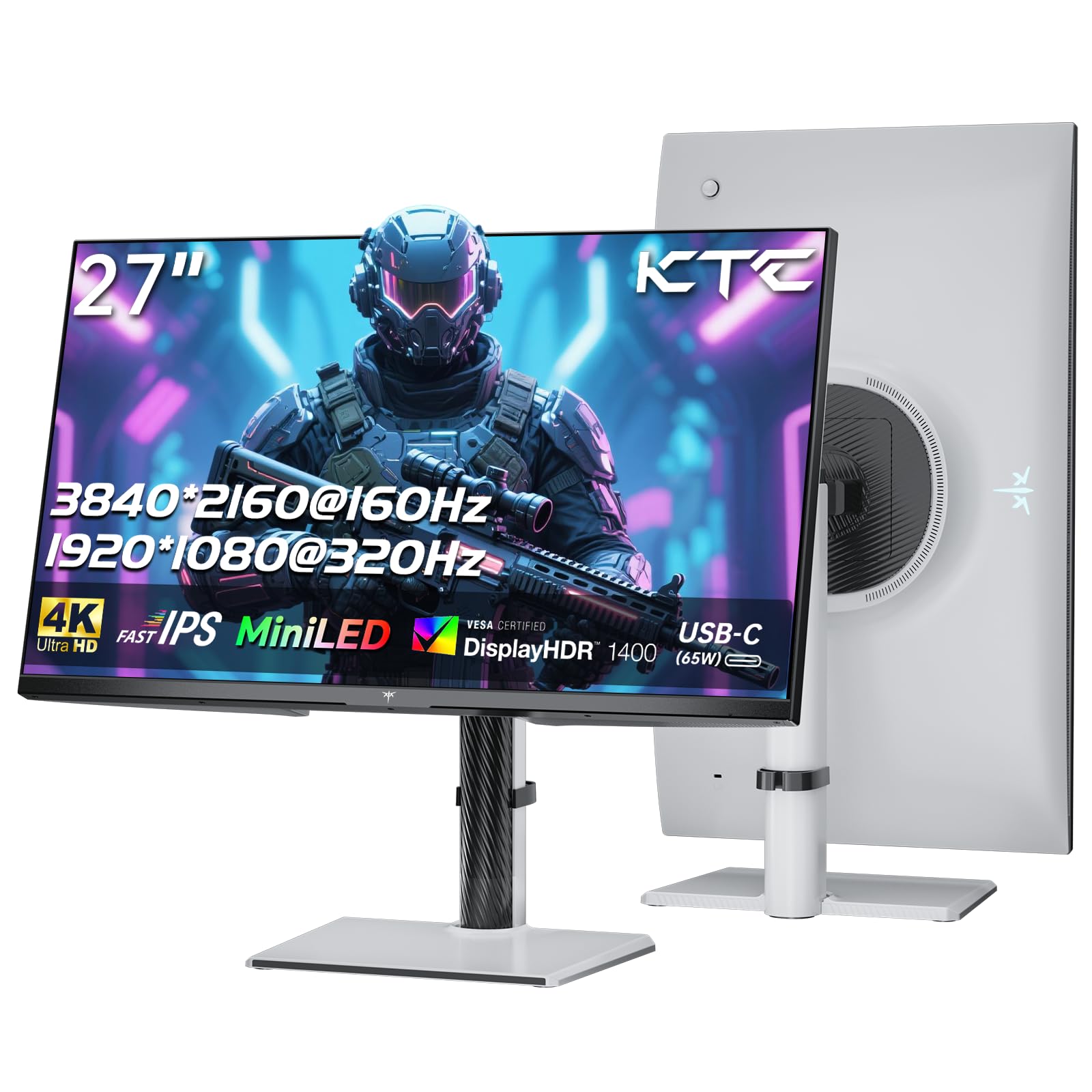
Delwedd: Blaen view of the KTC M27P6 27-inch MiniLED Gaming Monitor.
The front of the monitor features the 27-inch MiniLED display panel. The KTC logo is typically located at the bottom center bezel.
4.2 Cefn View a Phorthladdoedd

Delwedd: Cefn view of the KTC M27P6 monitor, highlighting the various input/output ports and the adjustable stand.
The rear of the monitor houses the input/output ports and the stand attachment point. The ports include:
- Mewnbwn pŵer: Ar gyfer cysylltu'r addasydd pŵer.
- Porthladdoedd HDMI 2.1 (x2): For connecting to devices supporting HDMI 2.1 (4K@160Hz / FHD@320Hz).
- DisplayPort 1.4 Ports (x2): For connecting to devices supporting DisplayPort 1.4 (4K@160Hz / FHD@320Hz).
- Porthladd USB-C (x1): Full-function port supporting video input (4K@160Hz / FHD@320Hz) and 65W Power Delivery.
- USB-B Upstream Port (x1): For connecting the monitor's USB hub to your computer, enabling the downstream USB-A ports and KVM functionality.
- USB-A 3.0 Downstream Ports (x3): For connecting peripherals like keyboards, mice, or USB drives.
- 3.5mm Sain Allan: Ar gyfer cysylltu clustffonau neu siaradwyr allanol.
Fideo: Dros benview of the KTC M27P6 monitor's features and design, including its connectivity options and adjustable stand.
5. Gosod
5.1 Cydosod y Stand
- Tynnwch gydrannau'r monitor a'r stondin o'r pecynnu yn ofalus.
- Attach the stand arm to the monitor panel by aligning the mounting points and securing with screws (if applicable).
- Attach the stand base to the stand arm, ensuring it is firmly connected.
- Rhowch y monitor wedi'i ymgynnull ar arwyneb sefydlog, gwastad.
The monitor also supports VESA mounting (100x100mm) for use with compatible wall mounts or monitor arms. Ensure the VESA mount is rated for the monitor's weight.

Image: Diagram illustrating the multi-angle adjustment capabilities of the KTC M27P6 monitor stand, including height, tilt, swivel, and pivot.
5.2 Cysylltu Ceblau
- Cysylltiad Pwer: Connect the power adapter to the monitor's power input, then plug the power cable into a power outlet.
- Cysylltiad Fideo:
- For PC/Gaming Console: Connect one end of the HDMI or DisplayPort cable to your device's output and the other end to the corresponding port on the monitor.
- For USB-C Compatible Devices: Connect the USB-C cable from your device to the monitor's USB-C port for video, data, and power delivery.
- USB Hub/KVM Connection: To use the monitor's USB-A ports and KVM functionality, connect the USB-B to USB-A cable from the monitor's USB-B upstream port to a USB-A port on your computer.
- Cysylltiad Sain: If using external headphones or speakers, connect them to the 3.5mm audio out port on the monitor.
6. Cyfarwyddiadau Gweithredu
6.1 Pŵer Ymlaen/Diffodd
Press the power button (usually located on the back or bottom of the monitor) to turn the monitor on or off. The power indicator light will illuminate when the monitor is on.
6.2 Llywio Dewislen OSD
The On-Screen Display (OSD) menu allows you to adjust various monitor settings. Use the joystick or buttons (refer to your monitor's physical layout) to navigate the OSD menu:
- Press Joystick/Button: Enter OSD menu or confirm selection.
- Symud y Joystick i Fyny/I Lawr: Llywiwch drwy opsiynau dewislen.
- Symud y ffon reoli i'r chwith/i'r dde: Adjust values or move to sub-menus.
- Botwm Ymadael: Exit the current menu or OSD.
6.3 Dual Mode Switching (4K@160Hz / FHD@320Hz)
The KTC M27P6 supports seamless switching between two display modes: 4K (3840x2160) at 160Hz and Full HD (1920x1080) at 320Hz. This allows you to optimize performance based on your content (e.g., high-resolution graphics for AAA games or ultra-high refresh rate for competitive FPS games).
To switch modes, access the OSD menu and navigate to the "Display" or "Gaming" settings. Select the desired resolution and refresh rate. Your connected device must also support these resolutions and refresh rates for optimal performance.

Image: Illustration of the KTC M27P6 monitor's seamless dual mode switching capability, showing a 4K@160Hz gaming scene and a FHD@320Hz gaming scene.
6.4 Cysoni Addasol
The monitor supports Adaptive Sync (AMD FreeSync and NVIDIA G-Sync compatible) to eliminate screen tearing and stuttering, providing a smoother gaming experience. Ensure Adaptive Sync is enabled in the monitor's OSD settings and in your graphics card control panel.

Image: Visual representation of Adaptive Sync technology, showing how it prevents screen tearing by synchronizing the monitor's refresh rate with the GPU's frame rate.
6.5 KVM Functionality
The integrated KVM (Keyboard, Video, Mouse) switch allows you to control multiple computers or devices connected to the monitor using a single keyboard and mouse. To use KVM:
- Connect your primary computer to the monitor via DisplayPort/HDMI and the USB-B upstream cable.
- Connect your secondary device (e.g., laptop via USB-C) to the monitor.
- Connect your keyboard and mouse to the USB-A downstream ports on the monitor.
- Switch between connected devices using the KVM hotkey or OSD menu option.
6.6 Color Settings and HDR1400
The monitor features a MiniLED panel with 1152 local dimming zones and VESA DisplayHDR 1400 certification, providing high contrast and vibrant colors. You can adjust color settings (brightness, contrast, color temperature, gamma) through the OSD menu. For HDR content, ensure HDR is enabled in your operating system and the monitor's OSD. The monitor supports 10-bit color depth and a wide color gamut (145% sRGB / 99% DCI-P3).

Image: Visual comparison demonstrating the enhanced dynamic range and detail provided by HDR1400 on the KTC M27P6 monitor.
7. cynnal
- Glanhau'r sgrin: Sychwch y sgrin yn ysgafn gyda lliain meddal, di-flwff. Ar gyfer marciau ystyfnig,ampen the cloth with a small amount of screen cleaner (non-ammonia based). Do not spray cleaner directly onto the screen.
- Glanhau'r Casing: Defnyddiwch frethyn meddal, sych i sychu'r monitor casing. Osgowch ddefnyddio glanhawyr neu doddyddion sgraffiniol.
- Awyru: Ensure the ventilation openings on the monitor are clear of dust and debris to prevent overheating.
8. Datrys Problemau
| Problem | Achos Posibl | Ateb |
|---|---|---|
| Dim delwedd ar y sgrin | Cebl pŵer wedi'i ddatgysylltu; Cebl fideo wedi'i ddatgysylltu; Ffynhonnell mewnbwn anghywir. | Gwiriwch gysylltiadau cebl pŵer a fideo. Dewiswch y ffynhonnell fewnbwn gywir drwy'r ddewislen OSD. |
| Mae'r ddelwedd yn aneglur neu wedi'i gwyrdroi | Incorrect resolution; Faulty video cable. | Set the display resolution to the native 3840x2160 or 1920x1080. Try a different video cable. |
| Rhwygo sgrin neu atalnodi mewn gemau | Adaptive Sync not enabled; Graphics card driver issues. | Enable Adaptive Sync in monitor OSD and graphics card settings. Update graphics drivers. |
| Nid yw pyrth USB yn gweithio | USB-B upstream cable not connected; Driver issues. | Ensure the USB-B upstream cable is connected from the monitor to your computer. Check computer's USB drivers. |
| Dim sain o'r allbwn sain | Incorrect audio output selected; Volume too low. | Check audio output settings on your computer. Adjust monitor and device volume. |
9. manylebau
| Nodwedd | Manylyn |
|---|---|
| Brand | KTC |
| Enw Model | M27P6 |
| Maint Sgrin | 27 Pollici (27 inches) |
| Math o Banel | MiniLED, Fast IPS |
| Resolution (Native) | 3840 x 2160 (4K UHD) |
| Cyfradd Adnewyddu Uchaf (4K) | 160 Hz |
| Cyfradd Adnewyddu Uchaf (FHD) | 320 Hz |
| Amser Ymateb | 1ms GtG |
| Parthau Pylu Lleol | 1152 Parth |
| Ardystiad HDR | VESA DisplayHDR 1400 |
| Disgleirdeb | 1400 cd / m² (brig) |
| Cymhareb Cyferbyniad | 1,000,000: 1 (Dynamig) |
| Lliw Gamut | 145% sRGB, 99% DCI-P3 |
| Dyfnder Lliw | 10-did |
| Cysoni Addasol | AMD FreeSync, NVIDIA G-Sync Compatible |
| Viewongl ing | 178 Gradd |
| Cysylltedd | 2x HDMI 2.1, 2x DisplayPort 1.4, 1x USB-C (65W PD), 1x USB-B Upstream, 3x USB-A 3.0 Downstream, 1x 3.5mm Audio Out |
| Cefnogaeth KVM | Oes |
| Addasiadau Sefyllfa | Uchder, gogwydd, troelli, colyn |
| Mount VESA | 100 x 100 mm |
| Dimensiynau (DxWxH) | 21.1P x 61.7L x 54.7H cm |
10. Gwarant a Chefnogaeth
KTC products are covered by a limited warranty. Please refer to the warranty card included in your package for specific terms and conditions. For technical support, troubleshooting assistance, or warranty claims, please contact KTC customer service or visit the official KTC websafle.
You can find more information and contact details on the KTC official store page: Siop KTC.