
1. Rhagymadrodd
This manual provides essential instructions for the safe and effective use of your jeeber Babyphone VB805PRO-2. Please read this manual thoroughly before operating the device and retain it for future reference. The system includes a 5-inch IPS display monitor and two 2K/3MP cameras, offering comprehensive monitoring capabilities for your baby's environment.

Delwedd 1.1: Drosoddview of the jeeber Babyphone VB805PRO-2 system, including the parent unit, two baby cameras, and the mobile application interface.
2. Cynnwys Pecyn
Gwiriwch fod yr holl eitemau a restrir isod yn bresennol yn eich pecyn:
- 1 x Parent Unit (5-inch IPS Monitor)
- 2 x Baby Camera Units (2K/3MP)
- 2 x Addasyddion Pwer ar gyfer Camerâu
- 1 x Power Adapter for Parent Unit
- 1 x Monitor Stand
- 1 x Llawlyfr Defnyddiwr
- Wall mounting accessories (screws, anchors)
3. Cydrannau Cynnyrch
3.1 Uned Rhieni (Monitro)
The parent unit features a 5-inch IPS display for clear viewing. It includes controls for camera selection, pan/tilt/zoom, two-way audio, and menu navigation. The unit is battery-powered for portability.
3.2 Baby Camera Units
Each camera unit features a 2K/3MP sensor with 360-degree pan and tilt capabilities. They are equipped with HDR night vision, temperature sensors, and microphones for sound detection. The cameras require continuous power via the provided adapters.
4. Canllaw Gosod
4.1 Codi Tâl ar yr Uned Rhieni
- Connect the parent unit power adapter to the monitor's charging port.
- Plygiwch yr addasydd i mewn i allfa bŵer.
- Charge the unit fully before first use (approximately 4-6 hours). The battery indicator on the screen will show charging status.
4.2 Positioning the Baby Camera Units
- Place each camera on a flat, stable surface or mount it to a wall using the included accessories. Ensure the camera has a clear, unobstructed view of the baby's crib or play area.
- Position the camera at least 1 meter (3 feet) away from the baby to avoid potential hazards.
- Connect the camera power adapter to the camera unit and plug it into a power outlet. The camera will power on automatically.
4.3 Initial Connection (Monitor & Cameras)
The parent unit and cameras are pre-paired at the factory for direct connection. Simply power on both the parent unit and the cameras. The monitor should automatically display the camera feed. If a camera is not displayed, ensure it is powered on and within range.
4.4 App Installation and Connection (Optional)
For remote monitoring via smartphone or tablet, download the 'FeelBaby' app from your device's app store. Follow the in-app instructions to connect your cameras to your home Wi-Fi network and link them to your account. This enables features like remote viewing, virtual fence, and advanced alerts.
5. Cyfarwyddiadau Gweithredu
5.1 Monitro Sylfaenol
Once powered on, the parent unit will display the live video feed from the connected cameras. Use the navigation buttons on the monitor to switch between cameras or view both simultaneously (dual-screen mode).
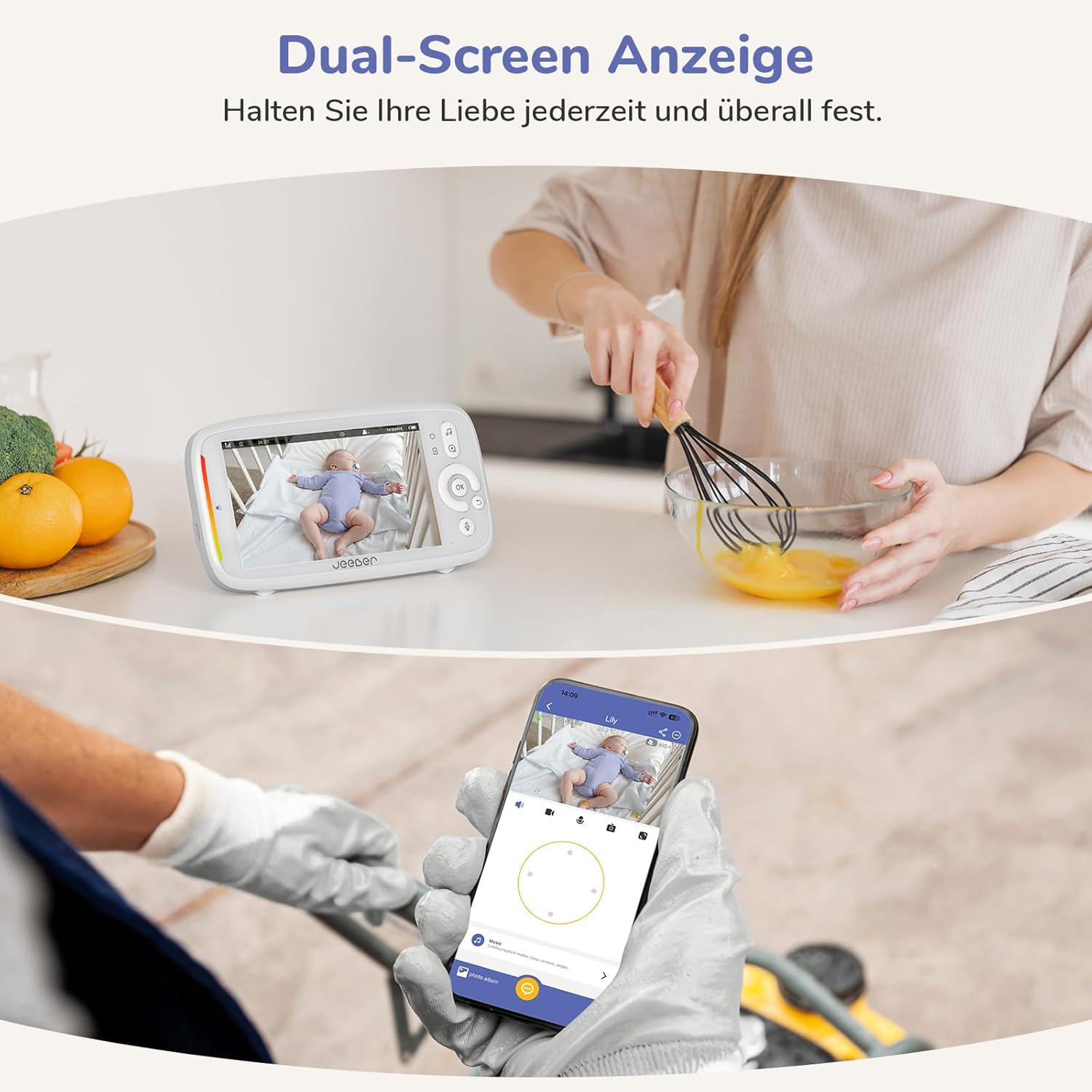
Image 5.1: The monitor and smartphone app displaying simultaneous views of the baby, illustrating the dual-screen monitoring capability.
5.2 Panio, Gogwyddu, a Chwyddo
Defnyddiwch y botymau cyfeiriadol ar yr uned rhiant i addasu'r camera o bell viewing angle (360-degree pan and tilt). The zoom function allows for closer inspection of the baby's activity.
5.3 Sain Dwyffordd
Press and hold the talk button on the parent unit to speak to your baby through the camera's speaker. Release the button to hear your baby's sounds.
5.4 Gweledigaeth Nos
The cameras automatically activate HDR night vision in low-light conditions, providing a clear black-and-white image. The system uses invisible infrared light, ensuring no red glow disturbs your baby.

Image 5.2: The camera unit and a visual representation of its invisible infrared night vision, which operates without emitting visible red light.
5.5 Arddangosfa Tymheredd
The parent unit displays the ambient temperature of the baby's room, measured by the camera's built-in sensor. You can set temperature range alarms in the monitor settings.
5.6 VOX Mode / Sound Detection
VOX (Voice Operated eXchange) mode activates the monitor's screen and sound when a certain noise level is detected in the baby's room, conserving battery life. You can adjust the sensitivity level in the settings.

Image 5.3: The parent unit displaying a sound alert, indicating the VOX mode has detected noise in the baby's room.
5.7 Canfod Cynnig
The camera can detect movement within its field of view and send alerts to the parent unit or the mobile app. Sensitivity levels can be configured in the settings.

Image 5.4: The camera's intelligent motion detection feature highlighting a baby in a crib, triggering an alert.
5.8 Cry Detection
The system is equipped with advanced algorithms to specifically detect a baby's crying sounds, differentiating them from other noises. Alerts are sent to the parent unit or app when crying is detected.
5.9 Virtual Safety Fence
Through the mobile app, you can define a virtual boundary within the camera's view. If the baby crosses this boundary, an alert will be triggered, notifying you of potential movement out of a designated safe zone.

Image 5.5: The virtual safety fence feature, showing an alert triggered when a child moves beyond a predefined safe area.
6. cynnal
6.1 Glanhau
Wipe the camera lenses and monitor screen with a soft, dry, lint-free cloth. Do not use abrasive cleaners or solvents. Ensure devices are powered off and unplugged before cleaning.
6.2 Gofal Batri (Uned Rhiant)
To prolong battery life, avoid fully discharging the parent unit frequently. Charge the unit regularly. If storing the unit for an extended period, charge it to about 50% and store in a cool, dry place.
7. Datrys Problemau
- No image on monitor: Ensure both the parent unit and cameras are powered on and within range. Check power connections. Try re-pairing if necessary (refer to specific pairing instructions in the full manual).
- Poor signal/intermittent connection: Move the parent unit closer to the cameras. Reduce obstacles between units (walls, furniture). Avoid placing near other electronic devices that may cause interference.
- Dim sain: Check the volume level on the parent unit. Ensure the camera's microphone is not obstructed.
- Problemau cysylltu apiau: Ensure your smartphone/tablet is connected to a stable Wi-Fi network. Verify camera Wi-Fi connection in the app settings. Restart the app and cameras.
- Temperature reading inaccurate: Ensure the camera is not placed near heat sources or in direct sunlight.
8. manylebau
| Nodwedd | Manylyn |
|---|---|
| Rhif Model | VB805PRO-2 |
| Datrysiad Camera | 2K/3MP |
| Monitro Maint Sgrin | IPS 5-modfedd |
| Camera Viewongl ing | 355 Gradd (Pan/Tilt) |
| Ystod Golwg Nos | Hyd at 10 metr |
| Technoleg Di-wifr | FHSS (Monitor), Wi-Fi (App) |
| Ffynhonnell Pwer | Battery powered (Monitor), Wired (Cameras) |
| Battery Type (Monitor) | Lithiwm-ion (1 yn gynwysedig) |
| Nodweddion Arbennig | HDR Night Vision, Cry/Motion/Sound Detection, Temperature Display, Two-Way Audio, Virtual Fence, Dual-Screen Display |
| Dimensiynau (L x W x H) | 20.8 x 20.2 x 10.8 cm |
| Pwysau | 1.1 cilogram |
9. Gwarant a Chefnogaeth
Your jeeber Babyphone VB805PRO-2 comes with a standard manufacturer's warranty. Please refer to the warranty card included in your package for specific terms and conditions. For technical support, troubleshooting assistance, or warranty claims, please contact jeeber customer service through the contact information provided on the product packaging or the official jeeber websafle.