
1. Rhagymadrodd
This manual provides essential information for setting up, operating, and maintaining your ASUS AiO V470 Series All-in-One PC. Please read this guide thoroughly before using your device to ensure proper function and longevity.

Image: ASUS V470 AiO PC showcasing its minimalist design and thoughtful functionality.
2. Beth sydd yn y Bocs
Gwiriwch fod yr holl eitemau yn bresennol yn y pecynnu:
- ASUS AiO V470 All-in-One PC
- Bysellfwrdd Di-wifr
- Llygoden Di-wifr
- Addasydd Pŵer
- Dogfennaeth (Canllaw Cychwyn Cyflym, Cerdyn Gwarant)
3. Gosod
3.1 Dadbacio a Lleoli
- Carefully remove the All-in-One PC and accessories from the packaging.
- Place the PC on a stable, flat surface with adequate ventilation around the unit.
- Ensure the area is free from direct sunlight, heat sources, and excessive dust.
3.2 Cysylltu Perifferolion
- Cysylltiad Pwer: Connect the power adapter to the DC-in port on the back of the PC, then plug the power cord into a wall outlet.
- Bysellfwrdd a Llygoden Di-wifr: Insert batteries into the wireless keyboard and mouse. The devices are pre-paired; if not, follow the instructions provided with the peripherals for pairing.
- Dyfeisiau Allanol: Connect any external devices such as printers, external hard drives, or additional monitors to the appropriate ports.
4. Cydrannau a Phorthladdoedd
Familiarize yourself with the various ports and components of your ASUS AiO V470 PC.

Delwedd: Manwl view of the I/O ports for connectivity.
4.1 Side I/O Ports
- Slot Clo Kensington: For securing your device with a compatible lock.
- Jac Sain Combo 3.5mm: Ar gyfer cysylltu clustffonau neu glustffon gyda meicroffon.
- Porthladd Math-A USB 2.0: For connecting USB 2.0 compatible devices.
4.2 Back I/O Ports
- Porthladd mewnbwn DC: Ar gyfer cysylltu'r addasydd pŵer.
- Porthladd Ethernet Gigabit RJ45: Ar gyfer cysylltiad rhwydwaith gwifrau.
- HDMI In 1.4 Port: For connecting external video sources to use the AiO as a monitor.
- HDMI Out 1.4 Port: For connecting an external display.
- Porthladd USB 3.2 Gen 1 Math-C: For high-speed data transfer and connecting compatible Type-C devices.
- 3x Porthladd USB 3.2 Gen 1 Math-A: For connecting high-speed USB 3.2 compatible devices.
5. Cyfarwyddiadau Gweithredu
5.1 Pweru Ymlaen/Diffodd
- Pŵer Ymlaen: Press the power button located on the bottom right side of the display.
- Pwer i ffwrdd: In Windows, click Start > Power > Shut down. Alternatively, press and hold the power button for 4 seconds to force a shutdown (use only when necessary).
5.2 Nodweddion Arddangos
Your ASUS AiO V470 features a high-quality display designed for clarity and comfort.
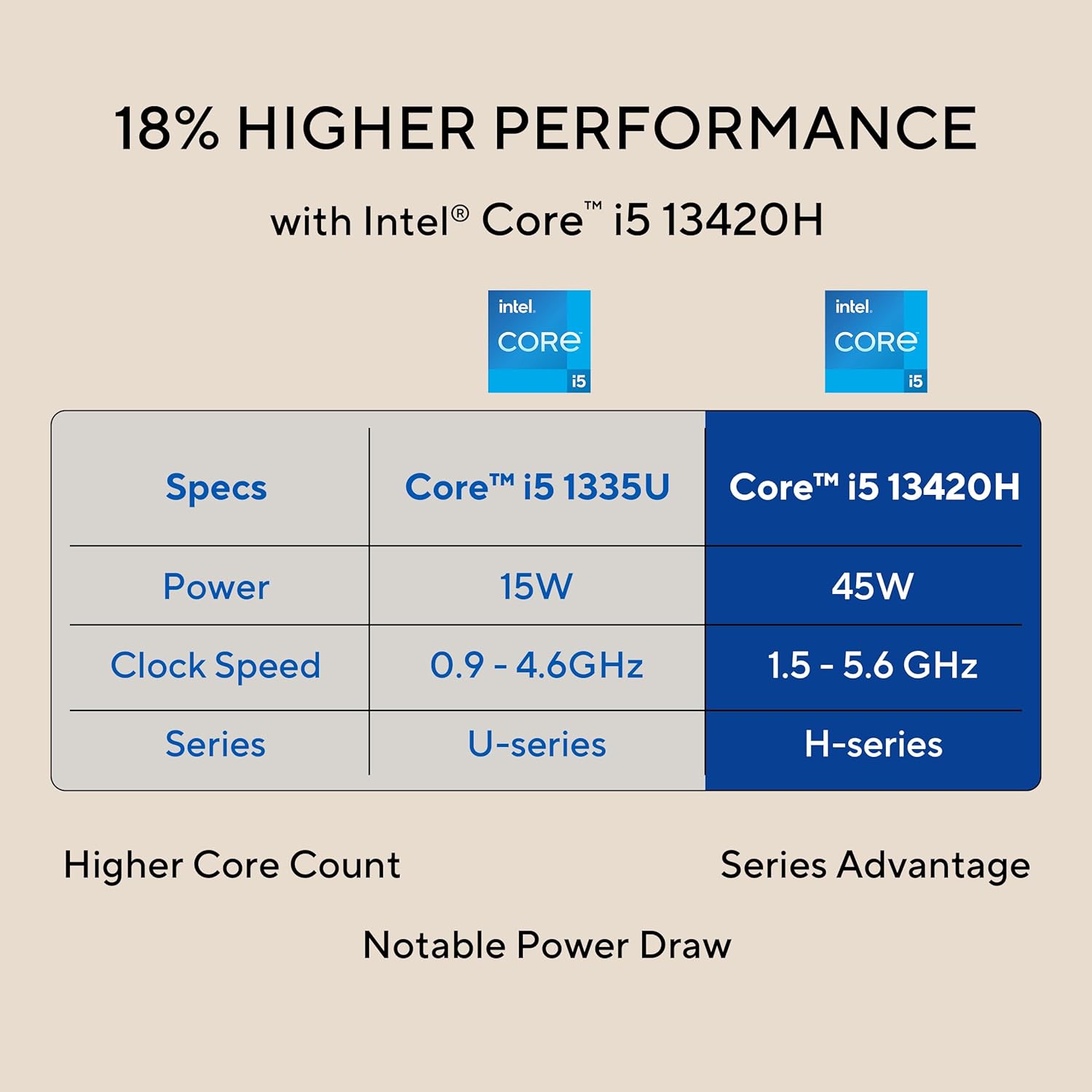
Image: The 27-inch FHD NanoEdge display with TÜV Rheinland-certified eye care.
- 27.0-inch FHD (1920 x 1080) Display: Provides clear and vibrant visuals.
- Gwrth-lacharedd: Reduces reflections for comfortable viewing.
- Cyfradd Adnewyddu 100Hz: Offers smoother motion for an enhanced visual experience.
- TÜV Rheinland-certified Eye Care: Designed to reduce blue light emissions and flicker for eye comfort during extended use.
5.3 Camera and Audio Features
The integrated camera and audio system enhance your communication and multimedia experience.

Image: Retractable camera for privacy and security features.
- Retractable 1080p HD Camera: Push to hide the camera for instant privacy.
- Canslo Sŵn AI: Reduces background noise during video calls and recordings for clearer audio.
- 5W x 2 Speakers with Dolby Atmos: Delivers immersive and high-quality sound.

Image: Advanced and immersive sound experience with integrated speakers.
5.4 Cysylltedd
Your AiO PC offers robust connectivity options.
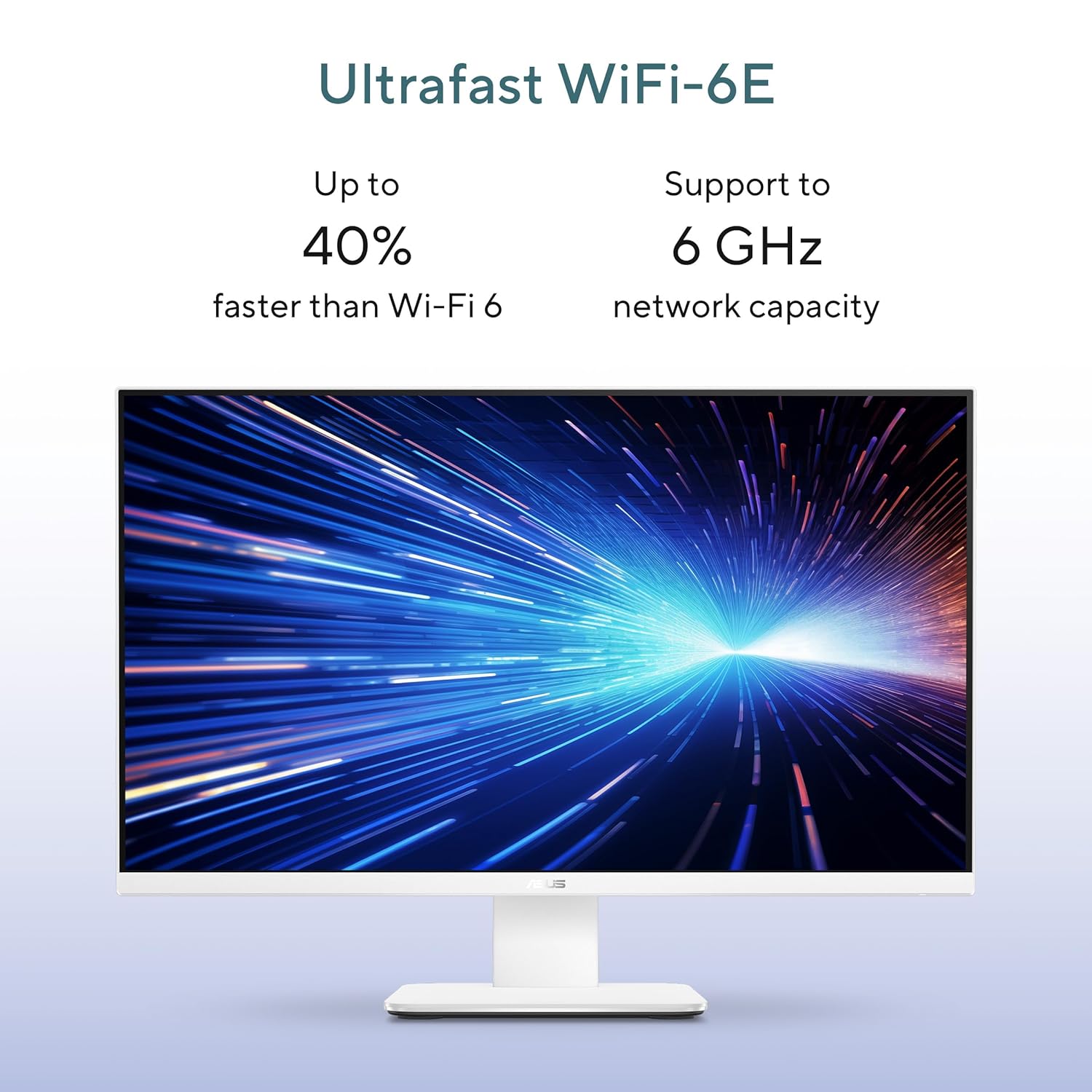
Image: Ultrafast Wi-Fi 6E for high-speed wireless connectivity.
- Wi-Fi 7: Ar gyfer mynediad rhyngrwyd diwifr cyflym.
- Ethernet Gigabit: Ar gyfer cysylltiadau rhwydwaith gwifrau sefydlog a chyflym.
- Bluetooth: For connecting wireless peripherals like headphones and speakers.
6. cynnal
Proper maintenance ensures the longevity and optimal performance of your ASUS AiO V470 PC.
- Glanhau'r Arddangosfa: Defnyddiwch frethyn meddal, di-flwff sydd wedi'i gynllunio'n benodol ar gyfer electroneg.ampen the cloth slightly with water or a screen cleaner, then gently wipe the screen. Avoid harsh chemicals.
- Glanhau'r Siasi: Use a soft, dry cloth to wipe down the exterior. For stubborn marks, a slightly damp gellir defnyddio lliain, ac yna un sych.
- Awyru: Ensure that the ventilation openings are not blocked to prevent overheating. Regularly check for dust accumulation and gently clean with compressed air if necessary.
- Diweddariadau Meddalwedd: Keep your operating system and drivers updated to ensure security and performance.
- Copi wrth gefn o ddata: Regularly back up important data to an external drive or cloud storage.
7. Datrys Problemau
Mae'r adran hon yn mynd i'r afael â phroblemau cyffredin y gallech ddod ar eu traws.
7.1 Dim Pŵer
- Ensure the power adapter is securely connected to the PC and the wall outlet.
- Gwiriwch fod y soced wal yn gweithio drwy blygio dyfais arall i mewn.
- Gwiriwch yr addasydd pŵer am unrhyw ddifrod gweladwy.
7.2 Materion Arddangos
- If the screen is blank, ensure the PC is powered on and not in sleep mode.
- If using an external video source via HDMI In, ensure the correct input is selected (refer to your PC's on-screen display settings).
- Adjust brightness settings in Windows.
7.3 Peripheral Not Responding
- For wireless keyboard/mouse, check battery levels and ensure they are within range.
- For wired devices, ensure they are properly connected to the correct USB ports.
- Rhowch gynnig ar gysylltu'r teclyn ymylol â phorthladd USB gwahanol.
8. manylebau
Detailed technical specifications for your ASUS AiO V470 PC.

Image: Key performance specifications including processor, memory, and storage.
| Nodwedd | Manyleb |
|---|---|
| Prosesydd | Intel Core i5-13420H (2.1 GHz, up to 4.6 GHz, 8 cores, 12 threads, 12MB Cache) |
| System Weithredu | Windows 11 Cartref |
| Arddangos | 27.0-inch FHD (1920 x 1080), 16:9, 300nits, 100Hz, Anti-glare, TÜV Rheinland-certified Eye Care |
| Graffeg | Graffeg integredig Intel UHD |
| Cof | 16GB DDR5 RAM |
| Storio | 1TB M.2 NVMe PCIe 4.0 SSD |
| Camera | Retractable 1080p HD Camera |
| Sain | 5W x 2 Speakers, AI Noise Cancellation, Dolby Atmos |
| Cysylltedd Di-wifr | Wi-Fi 7, Bluetooth |
| Cysylltedd Wired | RJ45 Ethernet Gigabit |
| I/O Porthladdoedd | 1x USB 2.0 Type-A, 3x USB 3.2 Gen 1 Type-A, 1x USB 3.2 Gen 1 Type-C, 1x HDMI In 1.4, 1x HDMI Out 1.4, 1x 3.5mm Combo Audio Jack, 1x DC-in, 1x Kensington Lock Slot |
| Dimensiynau (W x D x H) | 61.3 x 1.7 x 44.7 cm |
| Pwysau | 9 Cilogram |
| Included Peripherals | Wireless Keyboard, Wireless Mouse |
9. Gwarant a Chefnogaeth
Your ASUS AiO V470 PC comes with comprehensive warranty and support services.

Image: ASUS 4A Guarantee and support contact details.
9.1 Gwybodaeth Gwarant
This genuine ASUS AiO PC includes a 1-year Global Warranty ac an Onsite Domestic Warranty from ASUS. The warranty covers manufacturing defects and does not cover physical damage. To activate your warranty, please register your product on the official ASUS websafle.
9.2 Cefnogaeth i Gwsmeriaid
For product-related queries or immediate assistance, please contact ASUS support:
- Rhif Di-doll: 1800-2090365 (Monday - Saturday, 09:00 AM - 06:00 PM)
- E-bost: rc_india@asus.com
- Service Center Information: Ewch i gefnogaeth ASUS website for an extensive network of over 180 service centers across India: https://www.asus.com/in/support/Service-Center/India