
Pisichen 21.5INTS-White-NEW
Llawlyfr Defnyddiwr Monitor Sgrin Gyffwrdd 21.5-Modfedd Pisichen
Model: 21.5INTS-White-NEW
Rhagymadrodd
This user manual provides comprehensive instructions for the setup, operation, maintenance, and troubleshooting of your Pisichen 21.5-Inch Touchscreen Monitor. Please read this manual thoroughly before using the product to ensure proper functionality and to prevent damage.
The Pisichen 21.5-inch touch monitor is designed to enhance your work efficiency and provide an interactive experience with its responsive 10-point capacitive touchscreen. It features a Full HD 1920x1080 resolution display, built-in speakers, and versatile connectivity options including HDMI, VGA, and USB for touch functionality.
Nodweddion Allweddol
- Sensitive 10-Point Capacitive Touchscreen: Offers seamless and responsive interaction, allowing direct engagement with content and simultaneous multi-finger input.
- Stunning FHD 1080P Display: A 21.5-inch Full HD (1920x1080) resolution screen with a 1000:1 contrast ratio, 250cd/㎡ brightness, 170° viewing angle, and 60Hz refresh rate for clear and smooth visuals. Includes low-blue-light and eye-care technology.
- Cydnawsedd Dyfais Eang: Equipped with USB2.0 (for touch), HDMI, VGA, and DC ports for easy connection to PCs, laptops, PS3/4, and gaming consoles.
- Dulliau Arddangos Amlbwrpas: Supports duplicate, extend, and second-screen modes to enhance productivity and workspace.
- Built-in Speakers and VESA Mounting: Integrated speakers provide audio, and the 75x75mm VESA mount allows for flexible installation options.
Cynnwys Pecyn
Please verify that all items are present in the package before proceeding with the setup.

The package includes the Pisichen 21.5-inch touchscreen monitor, a user manual, an HDMI cable, a USB cable, and a power adapter, ensuring it is ready for immediate use.
- Pisichen 21.5-Inch Touchscreen Monitor
- Addasydd Pŵer
- Cebl HDMI
- USB Cable (for touch function)
- Llawlyfr Defnyddiwr
Cyfarwyddiadau Gosod
1. Cysylltu'r Monitor
The monitor offers various connection options to suit your needs. Ensure all connections are secure before powering on the device.

Manwl view of the monitor's input/output ports, including HDMI, VGA, headphone, DC power, and USB 2.0 touch ports.
- Cysylltiad Pwer: Connect the provided power adapter to the DC power port on the monitor and then plug it into a wall outlet.
- Video Connection (HDMI): Use the HDMI cable to connect the monitor's HDMI port to the HDMI output port on your computer, laptop, or gaming console.
- Video Connection (VGA): Alternatively, use a VGA cable to connect the monitor's VGA port to the VGA output port on your computer or laptop.
- Touch Function Connection: To enable the touch function, connect the included USB cable from the monitor's USB 2.0 touch port to an available USB port on your computer. This step is crucial for touch signal transmission.
- Allbwn Sain (Dewisol): If you prefer external audio, you can connect headphones or external speakers to the headphone jack. The monitor also has built-in speakers.
2. Opsiynau Mowntio
The Pisichen monitor supports both desktop placement and VESA wall mounting for flexible setup.
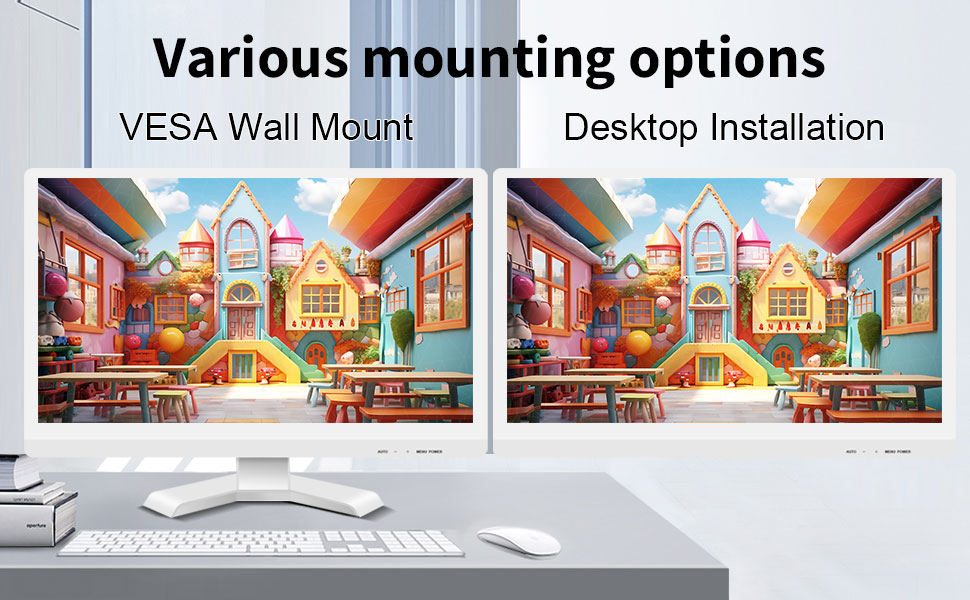
The monitor can be set up on a desktop stand or mounted on a wall using a VESA compatible bracket.
- Gosod bwrdd gwaith: Attach the provided stand to the monitor base and place it on a stable, flat surface.
- Mynydd Wal VESA: The monitor features a 75x75mm VESA mounting pattern. Use a compatible VESA bracket (not included) to mount the monitor on a wall or an adjustable arm. Ensure the mount can support the monitor's weight (9.88 pounds).

Cefn view of the monitor highlighting the VESA 75x75mm mounting pattern and overall dimensions.
Cyfarwyddiadau Gweithredu
1. Pweru Ymlaen / I ffwrdd
Locate the power button on the monitor. Press it to turn the monitor on or off. The power indicator light will illuminate when the monitor is on.
2. Using the Touchscreen Function
Once the USB cable is connected to your computer, the 10-point capacitive touch function will be active. You can interact with the screen using your fingers or a passive capacitive stylus.

The monitor supports direct touch interaction for intuitive control.
- Cyffyrddiad Sengl: Cyfwerth â chlic llygoden.
- Tap a Dal: Cyfwerth â chlic dde.
- Llusgwch: Move items by touching and dragging.
- Pinsio-i-Chwyddo: Defnyddiwch ddau fys i chwyddo i mewn neu allan ar gynnwys.
- Aml-gyffwrdd: The monitor supports up to 10 simultaneous touch points, enabling collaborative work or complex gestures.

The 10-point multi-touch feature allows for multiple users or complex interactions simultaneously.
Nodyn Pwysig: The touch functionality is disabled on Mac OS, iPad OS, and iOS. This monitor only supports passive capacitive styluses.
3. Dulliau Arddangos
The monitor supports various display modes when connected to a computer:
- Modd Dyblyg: Displays the same content on both your primary screen and the Pisichen monitor.
- Ymestyn Modd: Extends your desktop across both screens, providing more workspace.
- Modd Ail Sgrin yn Unig: Displays content only on the Pisichen monitor, turning off your primary screen.
You can typically switch between these modes through your operating system's display settings (e.g., Windows Display Settings).
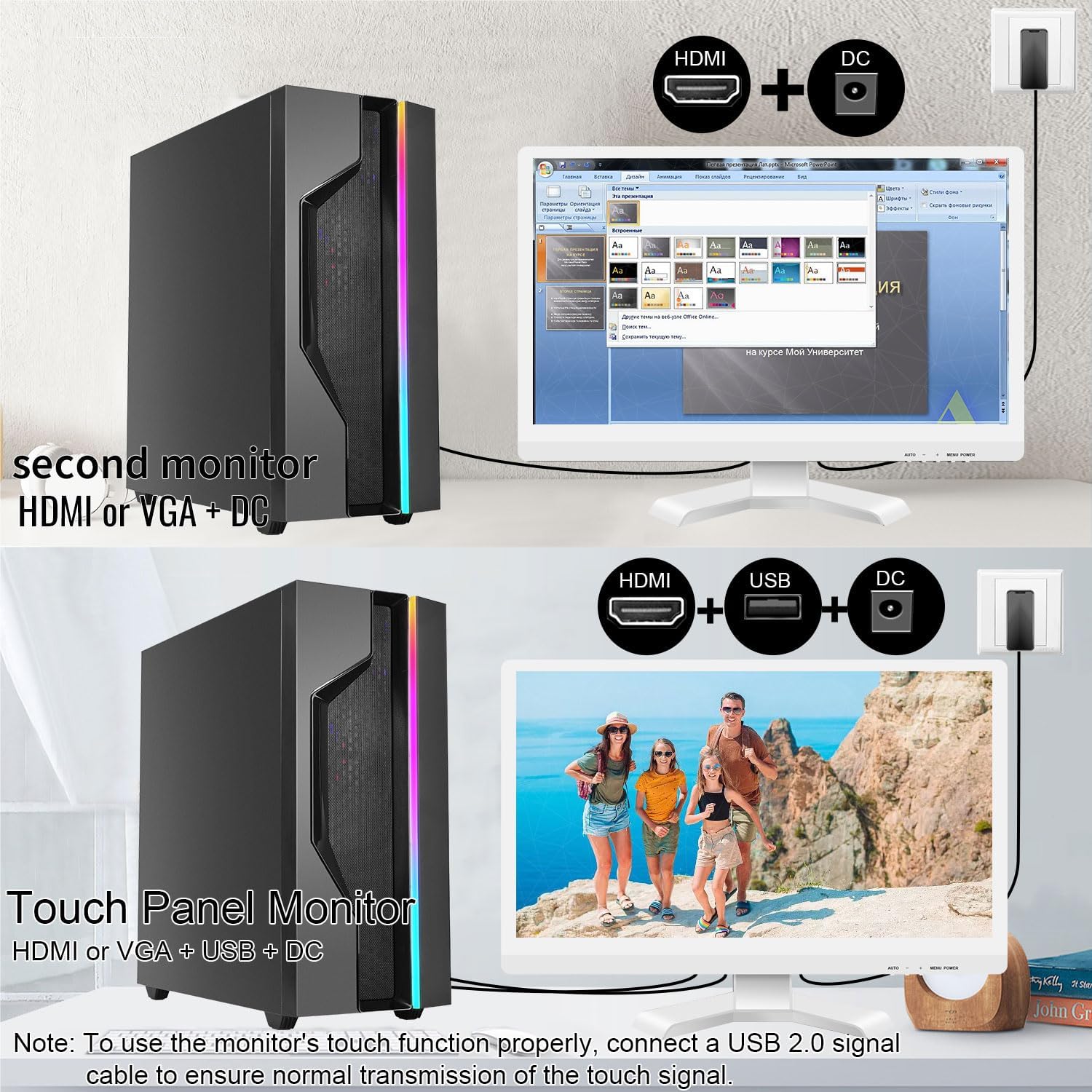
Illustrations of connecting the monitor as a secondary display or as a touch-enabled display.
4. Dewislen Arddangos Ar-Sgrin (OSD).
The monitor features an OSD menu for adjusting display settings. Use the buttons located on the monitor's frame (usually on the bottom right) to navigate and select options.
- Botwm Dewislen: Yn agor y ddewislen OSD.
- Botymau Up / Down: Llywiwch drwy opsiynau dewislen.
- Enter/Select Button: Yn cadarnhau dewis neu'n mynd i mewn i is-ddewislen.
- Botwm Ymadael: Yn gadael y ddewislen neu'r OSD cyfredol.
Common OSD settings include brightness, contrast, color temperature, input source selection, and aspect ratio.
Cynnal a Chadw a Gofal
- Glanhau'r sgrin:
Always power off the monitor and unplug it before cleaning. Use a soft, lint-free cloth lightly dampened with water or a non-abrasive, monitor-specific cleaning solution. Do not spray liquid directly onto the screen. Avoid using alcohol, ammonia, or abrasive cleaners, as they can damage the screen surface.
- Glanhau'r Casing:
Sychwch y monitor casing with a soft, dry cloth. If necessary, a slightly damp cloth can be used, but ensure no moisture enters the vents or ports.
- Storio:
When not in use for extended periods, store the monitor in a cool, dry place, away from direct sunlight and extreme temperatures. If possible, use the original packaging for protection.
- Awyru:
Ensure the monitor's ventilation openings are not blocked. Proper airflow is essential to prevent overheating.
- Trin:
Handle the monitor with care. Avoid dropping it or subjecting it to strong impacts. Do not place heavy objects on top of the monitor.
Datrys problemau
| Problem | Achos Posibl | Ateb |
|---|---|---|
| Dim delwedd ar y sgrin |
|
|
| Sgrin gyffwrdd ddim yn ymateb |
|
|
| Mae'r ddelwedd yn aneglur neu wedi'i gwyrdroi |
|
|
| Dim sain gan siaradwyr adeiledig |
|
|
Manylebau
| Rhif Model | 21.5INTS-White-NEW |
| Maint Sgrin | 21.5 modfedd |
| Datrysiad | 1920 x 1080 Picsel (FHD 1080p) |
| Cymhareb Agwedd | 16:9 |
| Disgleirdeb | 250 Candela (cd/㎡) |
| Cymhareb Cyferbyniad | 1000:1 |
| Viewongl ing | 170° |
| Cyfradd Adnewyddu | 60Hz |
| Technoleg Cyffwrdd | Cyffwrdd Capacitive 10-Pwynt |
| Porthladdoedd Mewnbwn | HDMI, VGA, USB 2.0 (for touch), DC Power |
| Sain | Built-in Speakers, Headphone Jack |
| Cydnawsedd Mount VESA | 75x75mm |
| Dimensiynau Cynnyrch (L x W x H) | 0.78 x 20.4 x 14.9 modfedd |
| Pwysau Eitem | 9.88 pwys |
| Gwneuthurwr | Shenzhen Konowa Electronics Co., LTD |
| Gwlad Tarddiad | Tsieina |
Gwarant a Chefnogaeth
For warranty information and technical support, please refer to the official Pisichen website or contact their customer service directly. Details are typically provided on the product packaging or the manufacturer's official support channels.
Gallwch ymweld â'r Pisichen Store on Amazon for more product information and potential support contacts.
Ask a question about this manual
Ask about setup, troubleshooting, compatibility, parts, safety, or missing instructions. Manuals+ will review the question and use this page’s manual context to help answer it.