
doqo F109ATS-Pro
doqo Keyboard Case User Manual
For iPad 10th Generation (2022) and iPad 11th Generation (2025)
Model: F109ATS-Pro
1. Rhagymadrodd
This manual provides detailed instructions for the setup, operation, and maintenance of your doqo Keyboard Case. Please read this manual thoroughly before using the product to ensure optimal performance and longevity.
1.1. Cynnyrch Drosview
The doqo Keyboard Case is designed to enhance your iPad experience, transforming it into a versatile workstation. It features a 360° rotatable hinge, a multi-touch trackpad, and a 7-color backlit keyboard.

Image 1.1: doqo Keyboard Case with an iPad, showcasing the keyboard and the tablet in an open position.
1.2. Cydweddoldeb
The doqo Keyboard Case (Model F109ATS-Pro) is compatible with the following iPad models:
- iPad 10.9-inch 10th Generation 2022 (Model Numbers: A2696, A2757, A2777)
- iPad 11th Generation (A16, 2025) (Model Numbers: A3354, A3355, A3356)
Note: This case is NOT compatible with iPad Pro 11-inch, iPad Air 11-inch, or iPad 9th/8th/7th Generation models.

Image 1.2: Visual guide for compatible iPad models, showing specific model numbers for 10th and 11th generation iPads and explicitly listing incompatible models.
To verify your iPad model number, check the back of your tablet or navigate to Settings > General > About > Model Number on your iPad.
2. Gosod
2.1. Installing Your iPad
- Gently open the doqo Keyboard Case.
- Align your iPad with the protective shell.
- Press firmly around the edges of the iPad until it securely snaps into place within the case. Ensure all corners are properly seated.
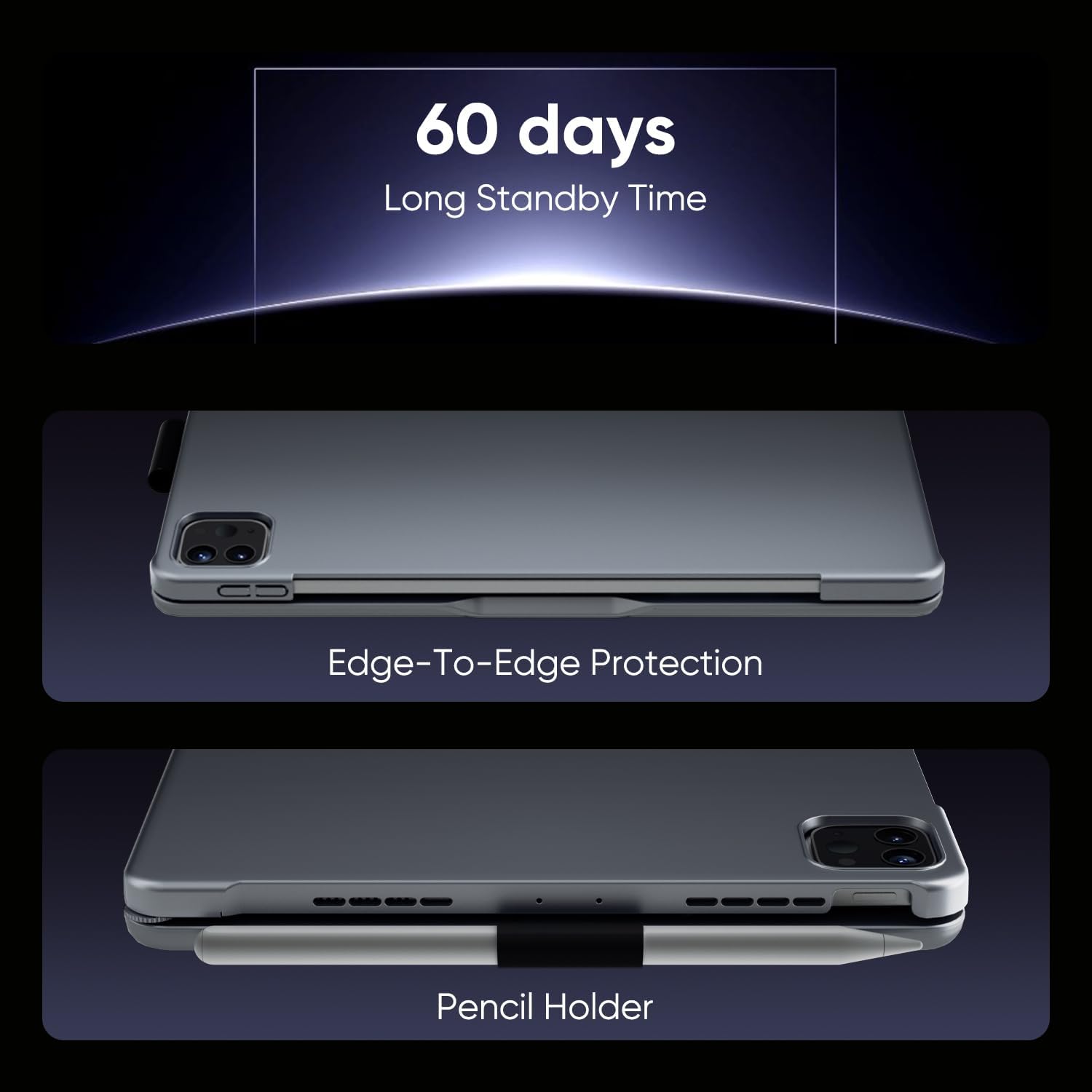
Image 2.1: The doqo Keyboard Case providing edge-to-edge protection for the iPad, featuring a dedicated pencil holder on the side.
2.2. Pâr Bluetooth
- Ensure the keyboard case is charged (refer to Section 3.4 for charging instructions).
- Turn on the keyboard by pressing the power button (usually located on the side or top edge of the keyboard). The indicator light will flash.
- Ar eich iPad, ewch i Gosodiadau > Bluetooth.
- Toggle Bluetooth to the ON sefyllfa.
- Your iPad will search for available devices. Select "doqo Keyboard" or a similar name from the list of devices.
- If prompted, enter the pairing code displayed on your iPad using the keyboard, then press Ewch i mewn.
- Once paired, the indicator light on the keyboard will stop flashing, and your iPad will show "Connected" next to the keyboard's name.
The keyboard will automatically reconnect to your iPad when both devices are powered on and Bluetooth is enabled, typically within 3 seconds.
3. Cyfarwyddiadau Gweithredu
3.1. Dulliau Defnydd
The doqo Keyboard Case features a dual-axis rotatable 360° hinge and 180° flip functionality, allowing for multiple usage modes:
- Laptop Mode (Working): Standard laptop-like setup for typing and productivity.
- Viewing Mode (Watching): Fold the keyboard back to watch videos or presentations.
- Tablet Mode (Reading/Painting): Fold the keyboard completely behind the iPad for a traditional tablet experience.
- Modd Rhannu: Rotate the screen 180° to share content with others.
- Modd Amddiffyn: Close the case to protect both the screen and the back of your iPad.

Image 3.1: Illustration of the six versatile usage modes: Sharing, Protect, Painting, Watching, Working, and Reading, enabled by the 360° rotatable and 180° folding design.
3.2. Swyddogaethau Bysellfwrdd
The keyboard features a standard layout with additional shortcut keys for enhanced productivity.
- Bysellau llwybr byr: A dedicated row of keys at the top provides quick access to functions such as volume control, media playback, screen brightness, and more.

Image 3.2: A user interacting with the doqo keyboard case, highlighting the standard layout keys, multi-touch trackpad, and a row of shortcut keys for a laptop-like experience.
3.3. Rheoli Backlight
The keyboard features 7-color RGB backlighting with 3 adjustable brightness levels.
- Newid Lliwiau: Gwasgwch y RGB key (often combined with a function key like Fn) to cycle through the 7 available colors.
- Addasu Disgleirdeb: Gwasgwch y Disgleirdeb key (often combined with Fn) to cycle through 3 brightness levels or turn the backlight off.
The laser-etched key characters allow the backlight to shine through clearly, improving visibility in low-light conditions.

Image 3.3: The doqo keyboard case displaying its 7-color RGB backlit keys, illustrating how laser-etched characters enhance visibility.
3.4. Multi-Touch Trackpad
The integrated trackpad supports multi-touch gestures for precise navigation and control.
- Tap Bys Sengl: Chwith-gliciwch.
- Tap Dau Fys: Right-click (context menu).
- Sgroliwch Dau Fys: Sgroliwch i fyny/i lawr neu i'r chwith/dde.
- Pinsio i Chwyddo: Chwyddo i mewn/allan ar gynnwys.
- Swipe Gestures: Specific gestures may vary based on iPadOS settings. Refer to your iPad's settings for full customization.
3.5. Auto Sleep/Wake Function
The case supports automatic sleep/wake functionality. Closing the case will put your iPad to sleep, and opening it will wake your iPad, helping to conserve battery life.
4. cynnal
4.1. Gwefru'r Bysellfwrdd
The keyboard is powered by a built-in rechargeable battery. When the battery is low, the indicator light will typically flash. Connect the provided USB-C charging cable to the keyboard's charging port and to a USB power adapter (not included).
- A full charge provides approximately 60 days of standby time.
- The keyboard has a 500 mAh battery capacity.
4.2. Glanhau
- Defnyddiwch feddal, damp cloth to wipe the exterior of the case.
- For the keyboard, use a soft, dry cloth. Avoid excessive moisture.
- Peidiwch â defnyddio cemegolion llym na glanhawyr sgraffiniol.
5. Datrys Problemau
5.1. Bysellfwrdd Ddim yn Cysylltu trwy Bluetooth
- Gwirio Batri: Gwnewch yn siŵr bod y bysellfwrdd wedi'i wefru'n ddigonol.
- Ailgychwyn y Bysellfwrdd: Diffoddwch y bysellfwrdd ac yna ymlaen eto.
- Ailgychwyn yr iPad: Ailgychwyn eich iPad.
- Anghofiwch Ddychymyg: On your iPad, go to Settings > Bluetooth, tap the "i" icon next to "doqo Keyboard", and select "Forget This Device". Then, repeat the pairing process (Section 2.2).
- Ymyrraeth: Symud i ffwrdd o ddyfeisiau diwifr eraill a allai achosi ymyrraeth.
5.2. Allweddi Ddim yn Ymateb
- Gwnewch yn siŵr bod y bysellfwrdd wedi'i gysylltu trwy Bluetooth.
- Check if the keyboard is in sleep mode. Press any key to wake it up.
- If specific keys are not working, try cleaning around them.
5.3. Trackpad Not Responding
- Gwnewch yn siŵr bod y bysellfwrdd wedi'i gysylltu trwy Bluetooth.
- Gwiriwch osodiadau iPadOS am ymarferoldeb y trackpad.
- Glanhewch wyneb y pad trac.
6. manylebau
| Rhif Model | F109ATS-Pro |
| Cydweddoldeb | iPad 10.9-inch 10th Gen (2022), iPad 11th Gen (A16, 2025) |
| Cysylltedd | Bluetooth |
| Math Bysellfwrdd | Flexible, Backlit (7 colors, 3 brightness levels) |
| Nodweddion Arbennig | 360° Rotatable, Multi-Touch Trackpad, Auto Sleep/Wake, Pencil Holder |
| Math Batri | 1 Batri Ansafonol (wedi'i gynnwys) |
| Gallu Batri | 500 mAh |
| Amser Wrth Gefn | Hyd at 60 diwrnod |
| Pwysau Eitem | 1.8 pwys (tua 0.82 kg) |
| Dimensiynau | 11.18 x 8.19 x 1.22 modfedd (tua 28.4 x 20.8 x 3.1 cm) |
| Gwneuthurwr | DOQO |
7. Gwarant a Chefnogaeth
doqo offers a 1-year replacement warranty for the iPad keyboard case. This warranty covers manufacturing defects and ensures product functionality.
- Polisi Disodli: Replacement is offered within 1 year, with shipping covered.
- Gwasanaeth Cwsmer: Unlimited customer service and technical support are provided.
- Amser ymateb: Questions will be responded to within 24 working hours.
For warranty claims or technical assistance, please contact doqo customer support through the platform where you purchased the product or visit the official doqo store page.
Ask a question about this manual
Ask about setup, troubleshooting, compatibility, parts, safety, or missing instructions. Manuals+ will review the question and use this page’s manual context to help answer it.