
MCHOSE V9 PRO Wireless Gaming Headset, M7 Ultra Wireless Gaming Mouse
MCHOSE V9 PRO Headset & M7 Ultra Mouse User Manual
Comprehensive Guide for Your Wireless Gaming Experience
Rhagymadrodd
Welcome to the user manual for your MCHOSE V9 PRO Wireless Gaming Headset and M7 Ultra Wireless Gaming Mouse. This guide provides detailed instructions on setting up, operating, and maintaining your new gaming peripherals to ensure an optimal experience. Both devices feature tri-mode connectivity, advanced audio and tracking technologies, and ergonomic designs for extended comfort during gaming sessions.

Image: The MCHOSE V9 PRO Wireless Gaming Headset (black and red) and the M7 Ultra Wireless Gaming Mouse (black) displayed together, showcasing their sleek designs.
Nodweddion Cynnyrch
MCHOSE V9 PRO Wireless Gaming Headset
- 7.1 Sain Amgylch: Equipped with powerful 53mm Neodymium drivers and bio-cellulose diaphragms for crystal-clear, immersive audio, allowing precise sound localization in games.
- Meicroffon Canslo Sŵn AI: Advanced technology filters out background noise for clear communication.
- Audio Equalizer Customization: Fine-tune audio settings via MCHOSE HUB software for personalized sound profiles.
- Cysylltedd Tri-Modd: Supports multiple connection options for versatile use.
- Bywyd batri hir: Up to 250 hours of usage on a single charge.
- Dyluniad ysgafn: Weighs only 275g for extended comfort.
- Band pen addasadwy: Features 9 adjustable positions with a rotatable design for a comfortable fit.
- Ultra-Skin-Friendly Earcups: Designed for comfort during long gaming sessions.

Image: An infographic highlighting key features of the MCHOSE V9 PRO Headset, such as its noise-canceling microphone, 53mm neodymium drivers, 7.1 surround sound, tri-mode connectivity, and 2000 mAh battery capacity.
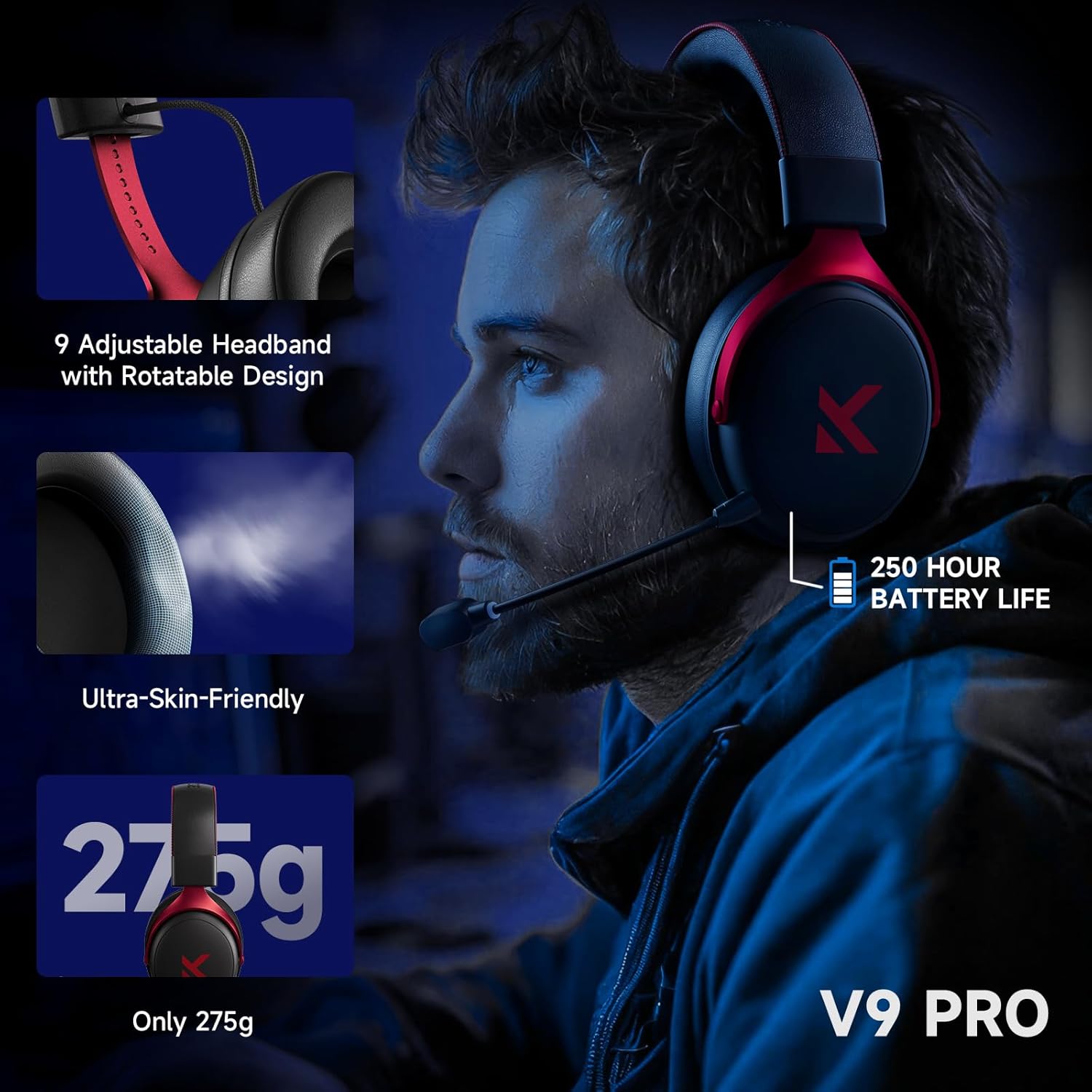
Delwedd: Manwl view of the MCHOSE V9 PRO Headset emphasizing its adjustable headband, ultra-skin-friendly earcups, lightweight design (275g), and impressive 250-hour battery life.
MCHOSE M7 Ultra Wireless Gaming Mouse
- Realtek High-Performance Processor: Ensures fast response, precise tracking, and durability with low power consumption.
- MCHOSE PRO Optical Switches: Minimizes double-click errors and provides swift response times with a crisp feel.
- 8K Polling Rate: Delivers ultra-responsive performance for competitive gaming.
- PAW 3950 Sensor: High-precision optical sensor for accurate tracking.
- Pwysau Ysgafn Ultra: Weighs approximately 53g/55g for effortless movement.
- Dyluniad ergonomig: Shaped for comfortable grip and extended use.
- Cysylltedd Tri-Modd: Offers flexible connection options.
- Batri 500mAh: Yn darparu ample power for long gaming sessions.
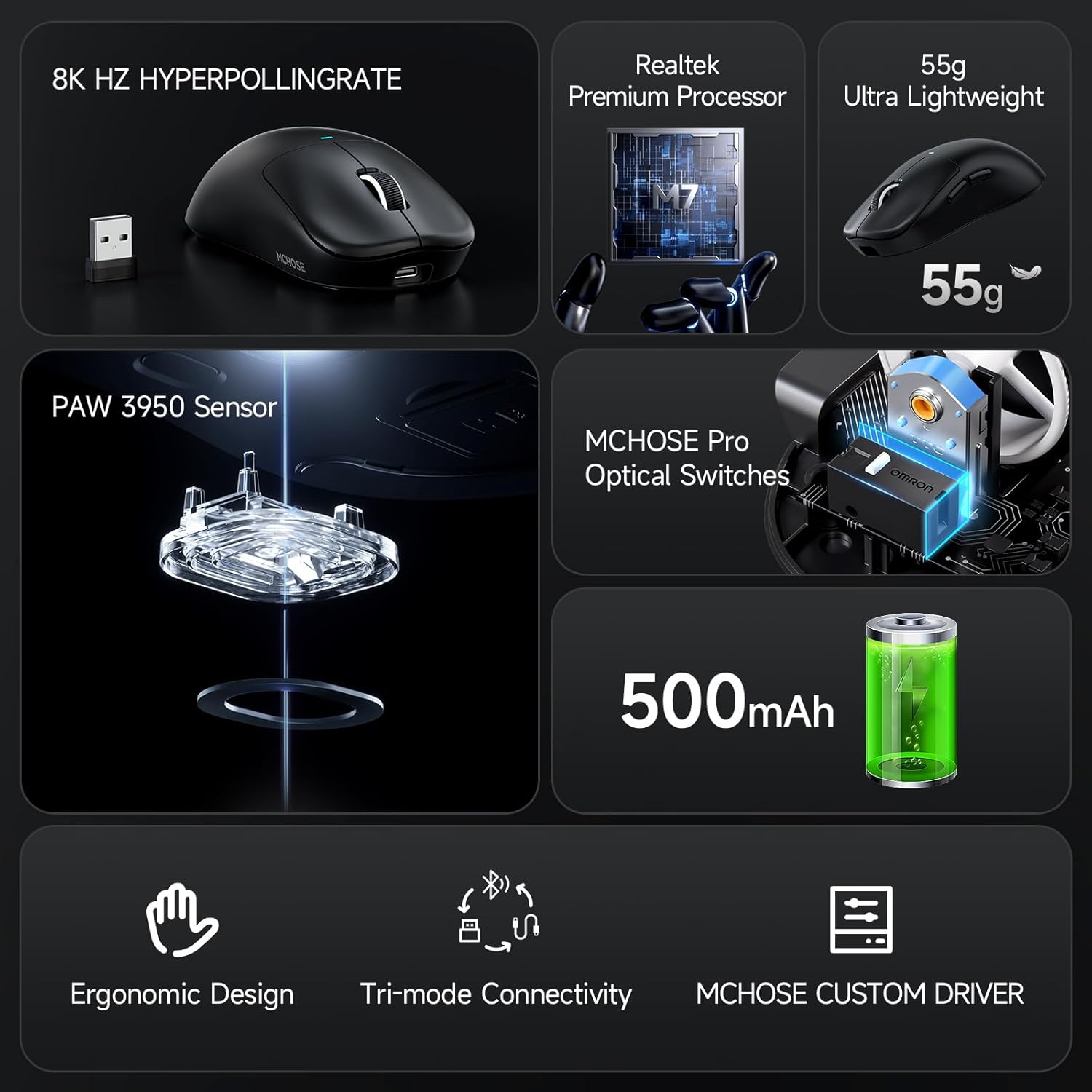
Image: An infographic detailing the MCHOSE M7 Ultra Mouse's features, such as its 8K Hz hyperpolling rate, Realtek premium processor, ultra-lightweight 55g design, PAW 3950 sensor, MCHOSE Pro optical switches, and 500mAh battery.
Canllaw Gosod
Gosod a Chodi Tâl Cychwynnol
Before first use, it is recommended to fully charge both your MCHOSE V9 PRO Headset and M7 Ultra Mouse. Use the provided USB-C charging cables. The headset has a 2000 mAh battery, and the mouse has a 500 mAh battery.
Connecting Your Devices (Tri-Mode Connectivity)
Both the V9 PRO Headset and M7 Ultra Mouse support tri-mode connectivity, offering flexibility for various setups.
MCHOSE V9 PRO Headset Connection
- 2.4GHz Wireless (Dongle):
Insert the USB wireless dongle into an available USB port on your PC or compatible device. The headset will automatically connect. This mode provides the lowest latency for gaming.
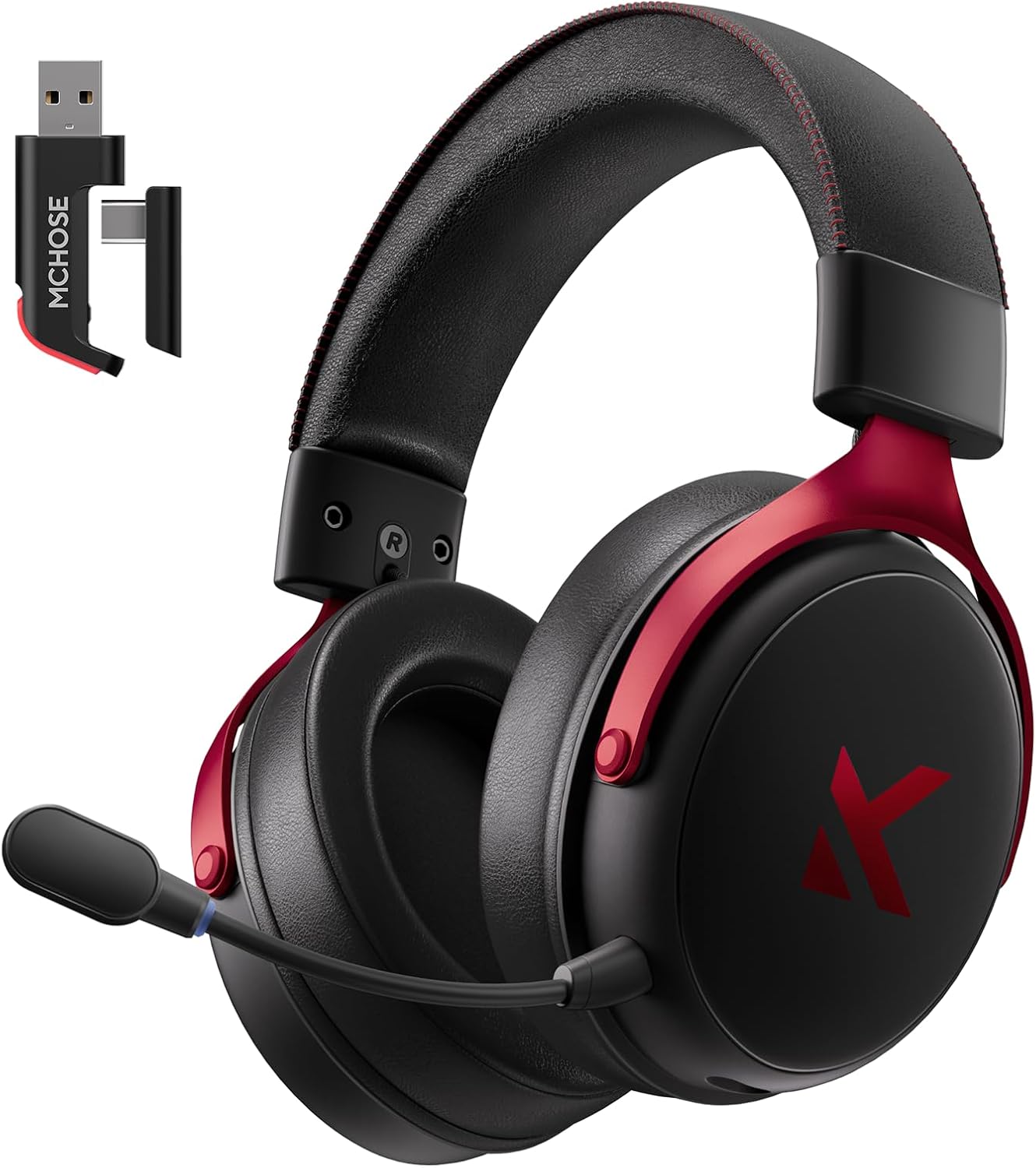
Image: The MCHOSE V9 PRO Headset shown alongside its dedicated USB wireless dongle, illustrating the 2.4GHz wireless connection method.
- Bluetooth:
Switch the headset to Bluetooth mode. On your device, search for "MCHOSE V9 PRO" in the Bluetooth settings and pair. Ideal for mobile devices or general use.
- Gwifredig (USB-C):
Connect the headset directly to your device using a USB-C cable. This mode allows for charging while in use and ensures a stable connection.
MCHOSE M7 Ultra Mouse Connection
- 2.4GHz Wireless (Dongle):
Insert the USB wireless dongle into an available USB port on your PC. The mouse will automatically connect. This mode is recommended for optimal gaming performance with 8K polling rate.

Image: The MCHOSE M7 Ultra Mouse displayed with its compact USB wireless dongle, demonstrating the 2.4GHz wireless connection setup.
- Bluetooth:
Switch the mouse to Bluetooth mode. On your device, search for "MCHOSE M7 Ultra" in the Bluetooth settings and pair. Suitable for devices without USB ports or for general productivity.
- Gwifredig (USB-C):
Connect the mouse directly to your PC using a USB-C cable. This mode allows for charging while in use and provides a stable, wired connection.
MCHOSE HUB Software Installation
For advanced customization of both your headset and mouse, download and install the MCHOSE HUB software from the official MCHOSE websafle. Mae'r feddalwedd hon yn caniatáu ichi:
- Customize audio equalizer settings for the V9 PRO Headset.
- Configure mouse buttons, macros, and DPI settings for the M7 Ultra Mouse.
- Update firmware for both devices.

Image: A screenshot of the MCHOSE CUSTOM DRIVER HUB software interface, showing options for headset audio customization and mouse button/macro management.
Cyfarwyddiadau Gweithredu
MCHOSE V9 PRO Headset Operation
- Pŵer ymlaen / i ffwrdd: Locate the power button on the headset. Press and hold to power on or off.
- Rheoli cyfaint: Use the volume wheel or buttons on the earcup to adjust audio levels.
- Tewi meicroffon: The microphone can be muted via a dedicated button or by flipping it up (if applicable). The AI Noise-Canceling feature automatically reduces background noise during calls.
- 7.1 Surround Sound Activation: This feature is typically enabled by default or can be toggled via the MCHOSE HUB software for an immersive audio experience, especially in FPS games.
- Cyfartalydd Sain: Utilize the MCHOSE HUB software to create custom equalizer profiles. This allows you to emphasize specific sounds like footsteps or gunfire for a competitive edge.

Image: The MCHOSE V9 PRO Headset with a visual representation of 7.1 Surround Sound, indicating its capability to provide spatial audio for gaming.
MCHOSE M7 Ultra Mouse Operation
- Pŵer ymlaen / i ffwrdd: Lleolwch y switsh pŵer ar ochr isaf y llygoden.
- Addasiad DPI: Use the DPI button (usually located near the scroll wheel or on the underside) to cycle through different sensitivity settings. Customize these settings via the MCHOSE HUB software.
- Addasu Botwm: All programmable buttons can be assigned functions, macros, or shortcuts using the MCHOSE HUB software.
- Cyfradd Bleidleisio: The M7 Ultra supports an 8K polling rate, ensuring extremely low latency and precise cursor movement. Ensure your system is configured to support this high polling rate for optimal performance.
- Dyluniad ergonomig: The mouse is designed for a comfortable grip, reducing strain during prolonged use.

Delwedd: Ffrwydrad view of the MCHOSE M7 Ultra Mouse, highlighting its internal components such as the MCHOSE Pro Optical Switches, Realtek Premium Processor, and PAW 3950 Sensor, which contribute to its performance.
Cynnal a chadw
- Glanhau: Use a soft, dry cloth to wipe down the surfaces of the headset and mouse. For stubborn dirt, a slightly damp cloth can be used, but ensure no moisture enters openings.
- Storio: Storiwch ddyfeisiau mewn lle oer, sych i ffwrdd o olau haul uniongyrchol a thymheredd eithafol.
- Gofal Batri: To prolong battery life, avoid fully discharging the devices frequently. Charge them regularly, but do not leave them plugged in for extended periods after reaching full charge.
- Diweddariadau Meddalwedd: Regularly check for firmware updates via the MCHOSE HUB software to ensure optimal performance and access to new features.
Datrys problemau
Materion Cyffredinol
- Dyfais Ddim yn Cysylltu:
Ensure the device is powered on and fully charged. Verify the correct connection mode (2.4GHz, Bluetooth, or Wired) is selected. For 2.4GHz, ensure the dongle is securely plugged in. For Bluetooth, ensure your device's Bluetooth is enabled and the device is in pairing mode.
- Audio/Mouse Lag or Disconnections:
Check for interference from other wireless devices. Move closer to the wireless dongle. Ensure drivers are up to date via MCHOSE HUB software. Try connecting via wired mode to rule out wireless issues.
- Meicroffon Ddim yn Gweithio:
Ensure the microphone is not muted (check physical mute button and software settings). Verify microphone input settings in your operating system. Ensure the microphone is securely connected to the headset.
- Problemau Olrhain Llygoden:
Clean the mouse sensor with a soft cloth. Ensure you are using the mouse on a suitable surface (preferably a mouse pad). Check DPI settings in MCHOSE HUB software.
MCHOSE HUB Software Issues
- Meddalwedd Ddim yn Adnabod Dyfais:
Ensure the device is connected to the PC (preferably via wired or 2.4GHz dongle for initial setup). Restart the software and/or your computer. Reinstall the MCHOSE HUB software.
- Methiant Diweddaru Cadarnwedd:
Ensure a stable internet connection and do not disconnect the device during the update process. If an update fails, try again after restarting the software and device.
Manylebau
MCHOSE V9 PRO Wireless Gaming Headset
| Gyrwyr | 53mm Neodymium with Bio-cellulose Diaphragm |
| Sain | 7.1 Sain Amgylch |
| Meicroffon | AI Sŵn-Canslo |
| Cysylltedd | Tri-Mode (2.4GHz Wireless, Bluetooth, USB-C Wired) |
| Gallu Batri | 2000 mAh |
| Bywyd Batri | Hyd at 250 awr |
| Pwysau | 275g |
| Prosesydd | C-Media Processor |
MCHOSE M7 Ultra Wireless Gaming Mouse
| Prosesydd | Realtek Premium Processor |
| Switsys | MCHOSE PRO Optical Switches |
| Cyfradd Bleidleisio | Up to 8K Hz (8000Hz) |
| Synhwyrydd | PAW 3950 Optical Sensor |
| Cysylltedd | Tri-Mode (2.4GHz Wireless, Bluetooth, USB-C Wired) |
| Gallu Batri | 500 mAh |
| Pwysau | Approx. 53g - 55g |
Gwybodaeth Cynnyrch Cyffredinol
| ASIN | B0F58ZXRX4 |
| Dyddiad Ar Gael Cyntaf | Ebrill 17, 2025 |
Gwarant a Chefnogaeth
MCHOSE products are designed for durability and performance. For specific warranty details, please refer to the warranty card included with your product or visit the official MCHOSE websafle.
Polisi Dychwelyd: This product is eligible for a 30-day refund/replacement policy from the date of purchase, subject to the retailer's terms and conditions.
For technical support, troubleshooting assistance, or further inquiries, please contact MCHOSE customer service or visit the MCHOSE store on Amazon:
Dogfennau Cysylltiedig - V9 PRO Wireless Gaming Headset, M7 Ultra Wireless Gaming Mouse
 |
Canllaw Defnyddiwr Llygoden Ddiwifr Cyfres MCHOSE G3 Canllaw defnyddiwr cynhwysfawr ar gyfer Llygoden Ddiwifr Cyfres MCHOSE G3, yn manylu ar ei nodweddion, camau gosod ar gyfer cysylltiadau gwifrau, 2.4G RF, a Bluetooth, defnydd meddalwedd, gosodiadau DPI, ac ystyron dangosyddion pŵer. |
 |
Llawlyfr Defnyddiwr Llygoden Di-wifr MCHOSE A5 User manual for the MCHOSE A5 Wireless Mouse, detailing dual-mode connection (2.4G and Bluetooth), wired connection, DPI settings, charging instructions, and specifications. |
 |
MCHOSE L7 Series Gaming Mouse User Guide User guide for the MCHOSE L7 Series Gaming Mouse, detailing installation, connectivity (wired, 2.4G RF, Bluetooth), software features, DPI settings, and power indicators for optimal gaming performance. |
 |
Llygoden MCHOSE L7: Canllaw Cyfleus ar gyfer Cysylltiadau â Gwifrau, 2.4G, a Di-wifr Canllaw cryno ar gyfer sefydlu a chysylltu'r llygoden MCHOSE L7 gan ddefnyddio moddau gwifrau, diwifr 2.4G, a diwifr Bluetooth. Dysgwch am ei nodweddion a'i opsiynau cysylltu. |
 |
MCHOSE K7 Ultra Mouse Handy Guide A concise guide to the MCHOSE K7 Ultra Mouse, covering wired, 2.4G, and wireless connection methods, as well as charging instructions. |
 |
MCHOSE A5 Kablosuz Mouse Kullanım Kılavuzu ve Özellikleri MCHOSE A5 kablosuz mouse için detaylı kullanım kılavuzu. 2.4G, Bluetooth ve kablolu bağlantı, DPI ayarları, şarj talimatları ve teknik özellikler hakkında bilgi edinin. |
Ask a question about this manual
Ask about setup, troubleshooting, compatibility, parts, safety, or missing instructions. Manuals+ will review the question and use this page’s manual context to help answer it.