
1. Rhagymadrodd
This manual provides essential information for the safe and efficient use of your BOOX Go 7 ePaper Tablet. Please read it thoroughly before operating the device and retain it for future reference.

Figure 1.1: BOOX Go 7 ePaper Tablet
2. Gwybodaeth Diogelwch
- Peidiwch ag amlygu'r ddyfais i dymheredd eithafol, golau haul uniongyrchol, na lleithder uchel.
- Osgoi gollwng neu orfodi'r ddyfais i effeithiau cryf.
- Defnyddiwch y cebl USB a ddarperir yn unig ar gyfer codi tâl.
- Keep the device away from water and liquids, despite its water-repellent features.
- Peidiwch â cheisio dadosod na thrwsio'r ddyfais eich hun. Cysylltwch â phersonél gwasanaeth awdurdodedig.
3. Cynnwys Pecyn
Gwiriwch fod yr holl eitemau yn bresennol yn y pecyn:
- BOOX Go 7 ePaper Tablet
- Cebl USB
- Canllaw Cychwyn Cyflym (gall amrywio yn ôl rhanbarth)

Figure 3.1: BOOX Go 7 Package Contents
4. Dyfais Drosoddview
4.1 Cydrannau Ffisegol
Familiarize yourself with the main components of your BOOX Go 7 tablet:
- E Ink Screen: 7-inch monochrome display with 300 ppi resolution.
- Golau blaen: Adjustable illumination for reading in various lighting conditions.
- Page-Turn Buttons: Ergonomically designed buttons for easy navigation.
- Porthladd USB-C: Ar gyfer codi tâl a throsglwyddo data.
- Botwm Pŵer: Wedi'i leoli ar yr ymyl uchaf.
- Meicroffon adeiledig: Ar gyfer mewnbwn sain.
- Built-in Dual Speakers: Ar gyfer allbwn sain.

Figure 4.1: Page-Turn Buttons and Water-Repellent Protection
5. Gosod
5.1 Codi Tâl Cychwynnol
Before first use, fully charge your BOOX Go 7 tablet. Connect the provided USB-C cable to the device and a compatible power adapter (not included) or a computer's USB port. The charging indicator will show the charging status.
5.2 Pŵer Ymlaen/Diffodd
- I Bweru Ymlaen: Press and hold the Power button until the BOOX logo appears.
- I Bweru i ffwrdd: Press and hold the Power button, then select "Power Off" from the options on the screen.
- To Sleep/Wake: Pwyswch y botwm Power yn fyr.
5.3 Cysylltiad Rhwydwaith (Wi-Fi)
- From the home screen, swipe down from the top to access the Quick Settings panel.
- Tap the Wi-Fi icon to enable Wi-Fi.
- Tap and hold the Wi-Fi icon to open Wi-Fi settings.
- Dewiswch eich rhwydwaith dymunol o'r rhestr a nodwch y cyfrinair os gofynnir amdano.
- Ar ôl cysylltu, bydd yr eicon Wi-Fi yn dynodi cysylltiad llwyddiannus.
6. Cyfarwyddiadau Gweithredu
6.1 Mordwyo Sylfaenol
- Sgrin gyffwrdd: Tap, swipe, and pinch to navigate menus, open applications, and interact with content.
- Page-Turn Buttons: Use the physical buttons on the side to turn pages in documents and books.
6.2 Reading Documents and Books
The BOOX Go 7 supports various document formats. Open your desired file from the library. Use the page-turn buttons or swipe gestures to navigate through pages. Adjust font size, contrast, and frontlight settings for optimal reading comfort.
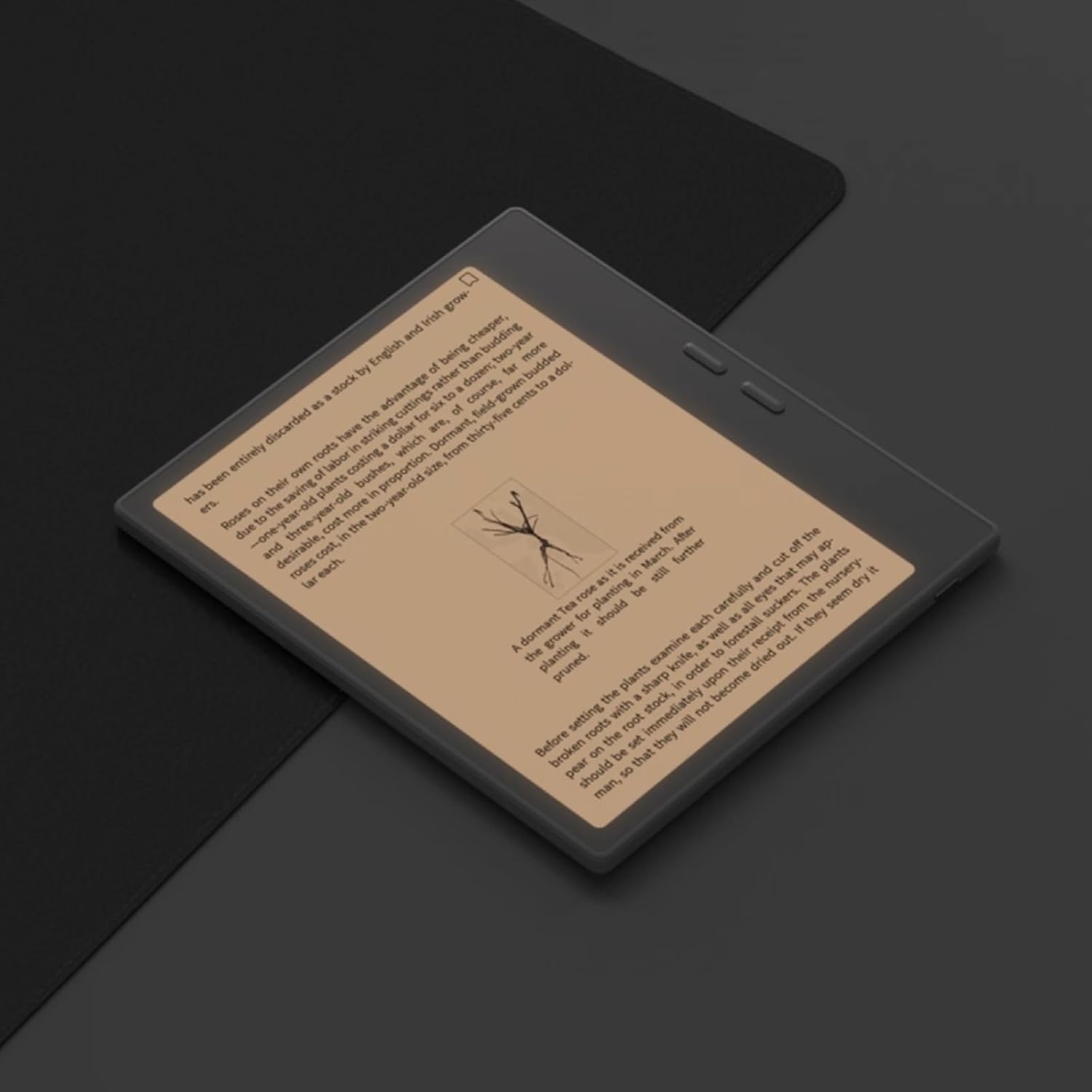
Figure 6.1: Reading with Frontlight
6.3 Using Android Applications
As an Android 13 device, the BOOX Go 7 allows installation of various applications from the Google Play Store. Navigate to the App Store, search for your desired application, and install it. Note that some applications may not be fully optimized for ePaper displays.

Figure 6.2: Various Android Applications on BOOX Go 7
6.4 Note-Taking and Drawing
Utilize the stylus (if included or purchased separately) for note-taking, sketching, and annotating documents. The device offers various templates and tools for creative and organizational tasks.

Figure 6.3: Stylus Use for Note-Taking

Figure 6.4: Handwriting to Text Conversion
7. cynnal
7.1 Glanhau'r Dyfais
Use a soft, lint-free cloth to gently wipe the screen and body of the device. Do not use harsh chemicals, abrasive cleaners, or excessive moisture.
7.2 Diweddariadau Meddalwedd
Regularly check for and install software updates to ensure optimal performance and access to new features. Connect to Wi-Fi and navigate to Gosodiadau > System > Diweddariad System i wirio am ddiweddariadau sydd ar gael.
8. Datrys Problemau
- Dyfais ddim yn troi ymlaen: Ensure the device is charged. Connect it to a power source and try again.
- Sgrin ddim yn ymateb: Perform a soft reset by holding the Power button for 10-15 seconds.
- Problemau cysylltiad Wi-Fi: Verify your Wi-Fi password and router settings. Try restarting your router and the device.
- Cymwysiadau'n chwalu: Ensure applications are updated to their latest versions. Clear the app's cache or reinstall if issues persist.
9. manylebau
| Brand | BLWCH |
| Enw Model | Ewch 7 |
| Cynhwysedd Storio | 64 GB |
| Maint Sgrin | 7 modfedd |
| Datrysiad Arddangos Uchaf | 300 Pixels per inch |
| System Weithredu | Android 13 |
| Lliw | Noir (Black) |
| Maint RAM wedi'i Gosod | 4 GB |
| Nodweddion Arbennig | USB OTG support, Expandable storage, Stylus support |
| Blwyddyn Model | 2025 |
| Math Batri | Lithiwm-ion |
| Cynnwys Ynni Batri | 8.8 Watt-awr |
| Brand prosesydd | Qualcomm |
| Disgrifiad o'r Prosesydd | Qualcomm Snapdragon |
| Camera | Dim camera |
| Math Synhwyrydd | Gyrosgop |
| Item Dimensions (LxWxT) | 15.6L x 0.6W x 13.7T centimeters |
| Dull Mewnbwn | Touchscreen with stylus |
| Disgrifiad o'r Cerdyn Graffeg | Integredig |
| Dyfeisiau Cydnaws | Stylus |
| Math Arddangos | Inc Electronig |
| Cydraniad Sgrin | 1280 x 800 picsel |
| Cymhareb Agwedd | 16:10 |
| Cysylltedd Caledwedd | USB |
| Technoleg Di-wifr | Bluetooth, Wi-Fi (802.11ax) |
| Cyfanswm Porthladdoedd USB | 1 |

Figure 9.1: BOOX Go 7 Energy Label (Cyswllt EPREL)
10. Gwybodaeth Gwarant
The BOOX Go 7 ePaper Tablet comes with a Gwarant cyfyngedig 2 mlynedd. This warranty covers manufacturing defects under normal use. For specific terms and conditions, please refer to the warranty card included in your package or contact customer support.
The standard return policy allows for returns within 30 days of purchase for refund or replacement.
11. Cefnogaeth
For technical assistance, troubleshooting, or warranty claims, please contact BOOX customer service. You can find support resources and submit inquiries through the official BOOX help center.
- Diweddariadau Cadarnwedd: BOOX commits to at least 3 years of firmware updates for each product.
- Storio Cwmwl: 10 GB of free cloud storage is provided for each user.
- Amser ymateb: Customer inquiries are typically responded to within 24 hours.
Am ragor o wybodaeth, ewch i'r BOOX Brand Store on Amazon.