
1. Rhagymadrodd
This manual provides essential information for setting up, operating, maintaining, and troubleshooting your NIMO 15.6-inch FHD Business Laptop. Please read this guide thoroughly to ensure optimal performance and longevity of your device. Keep this manual for future reference.
2. Beth sydd yn y Bocs
Gwiriwch fod yr holl eitemau yn bresennol yn y pecynnu:
- 1 x Nimo N154 Laptop
- 1 x Type-C 65W PD Fast Charger
- 1 x Llawlyfr Defnyddiwr (y ddogfen hon)
- Windows 11 Home (wedi'i osod ymlaen llaw)
3. Cynnyrch Drosview
Familiarize yourself with the components and ports of your NIMO laptop.
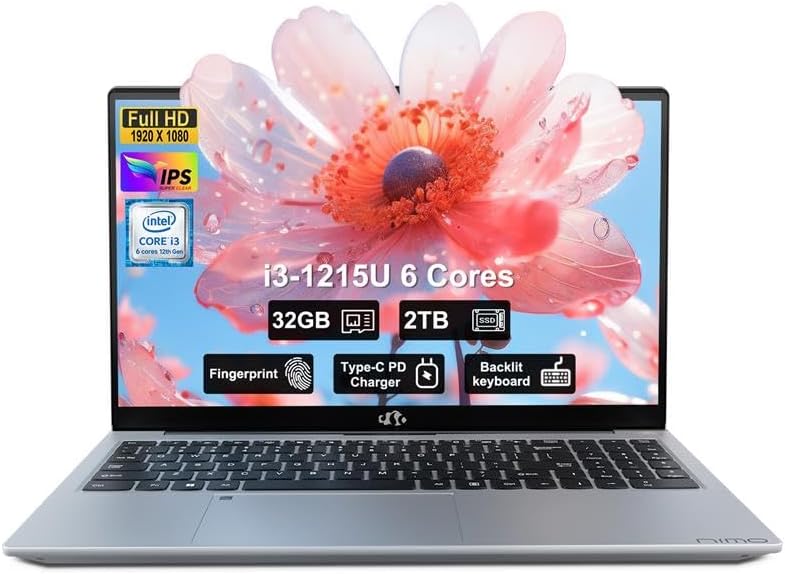
Delwedd: Blaen view of the NIMO 15.6-inch FHD Business Laptop, showcasing yr arddangosfa a'r bysellfwrdd.
3.1. Porthladdoedd a Chysylltwyr
The NIMO N154 laptop features a variety of ports for connecting peripherals and external devices.

Image: Diagram illustrating the various ports on the left and right sides of the NIMO laptop, including USB, HDMI, Type-C, and audio jack.
- Ochr Chwith:
- Kensington Lock: For securing your laptop.
- Headphone Combo Jack: For audio output and microphone input.
- USB 3.0 Port (x2): For high-speed data transfer.
- USB 2.0 Port (x1): For connecting standard USB devices.
- Micro SD Card Reader: For expanding storage or transferring files o gardiau cof.
- Ochr Dde:
- Type-C Port (Charge Only): For connecting the 65W PD charger.
- USB 3.0 Port (x1): For high-speed data transfer.
- HDMI Port: For connecting to external displays.
- Type-C Port (Multifunction): Supports data transfer and display output.
- Charge LED Indicator: Shows charging status.
4. Gosod
4.1. Troi ymlaen a gwefru cychwynnol
- Dadbacio: Tynnwch y gliniadur a'r holl ategolion o'r pecynnu yn ofalus.
- Pwer Cysylltu: Plug the 65W Type-C PD Fast Charger into a power outlet and then connect the Type-C connector to the designated "Charge Only" Type-C port on the laptop.
- Batri gwefr: Allow the laptop to charge for at least 30 minutes before initial use, or until the charge LED indicates a full charge.
- Pŵer Ymlaen: Open the laptop lid and press the power button, typically located on the top right of the keyboard or side.

Image: The 65W Type-C PD Fast Charger, illustrating its compact design and universal compatibility.
4.2. Windows 11 Setup
Follow the on-screen instructions to complete the Windows 11 initial setup:
- Dewiswch eich rhanbarth a chynllun eich bysellfwrdd.
- Cysylltwch â rhwydwaith Wi-Fi.
- Sign in with your Microsoft account or create a new one.
- Set up a PIN for quick login.
- Review and accept privacy settings.
5. Cyfarwyddiadau Gweithredu
5.1. Darllenydd Olion Bysedd
The integrated fingerprint sensor allows for secure and quick login without passwords.
- Gosod: Navigate to Windows Settings > Accounts > Sign-in options > Fingerprint recognition (Windows Hello).
- Enroll Fingerprint: Follow the on-screen prompts to register your fingerprint. You may need to scan your finger multiple times from different angles.
- Defnydd: To log in, simply place your registered finger on the fingerprint sensor when prompted.

Image: Close-up of the laptop's touchpad area showing the fingerprint reader, and a separate image of the webcam with a privacy shield.
5.2. Backlit Keyboard
The backlit keyboard enhances visibility in low-light conditions.
- Togglo Goleuadau Cefn: Use the dedicated function key (often Fn + Fx, where Fx is a key with a keyboard backlight icon) to cycle through backlight brightness levels or turn it off. Refer to your keyboard for the specific key combination.
5.3. Webcam Privacy Shield
The laptop includes a physical webcam privacy shield for enhanced security.
- Ysgogi / Analluogi: Slide the physical switch located next to the webcam to cover or uncover the camera lens.
5.4. Connecting External Displays
You can extend your workspace by connecting an external monitor or projector.
- Cebl Cysylltu: Use an HDMI cable to connect your external display to the laptop's HDMI port, or a compatible Type-C to DisplayPort/HDMI adapter for the multifunction Type-C port.
- Configure Display: Gwasgwch Allwedd Windows + P to open the Project menu. Select your preferred display mode (e.g., Duplicate, Extend, Second screen only).
6. cynnal
6.1. Glanhau Eich Gliniadur
- Sgrin: Defnyddiwch frethyn meddal, di-lint yn ysgafn dampwedi'i olchi â dŵr neu lanhawr sgrin. Peidiwch â chwistrellu hylif yn uniongyrchol ar y sgrin.
- Bysellfwrdd a Siasi: Defnyddiwch frethyn meddal, sych. Ar gyfer baw ystyfnig, defnyddiwch frethyn ychydig yn sych.amp gellir defnyddio lliain gyda thoddiant sebon ysgafn, gan sicrhau nad oes hylif yn mynd i mewn i agoriadau.
- Porthladdoedd: Defnyddiwch aer cywasgedig i glirio llwch yn ysgafn o borthladdoedd.
6.2. Gofal Batri
- Osgowch ollwng y batri'n llwyr yn aml.
- Storiwch y gliniadur mewn lle oer, sych os na chaiff ei ddefnyddio am gyfnodau hir.
- Do not expose the laptop to extreme temperatures.
6.3. Diweddariadau Meddalwedd
- Chwiliwch am ddiweddariadau Windows yn rheolaidd a'u gosod i sicrhau sefydlogrwydd a diogelwch y system. Ewch i Gosodiadau > Diweddariad Windows.
- Keep device drivers updated for optimal performance.
7. Datrys Problemau
Mae'r adran hon yn mynd i'r afael â phroblemau cyffredin y gallech ddod ar eu traws.
7.1. Nid yw'r gliniadur yn troi ymlaen
- Ensure the charger is securely connected to both the laptop and a working power outlet.
- Gwiriwch fod y soced pŵer yn gweithio drwy blygio dyfais arall i mewn.
- Allow the laptop to charge for at least 30 minutes if the battery is completely drained.
- Try a hard reset by holding the power button for 15-20 seconds.
7.2. Problemau Arddangos (Dim Delwedd, Fflachio)
- If an external monitor is connected, disconnect it to see if the laptop's screen works.
- Adjust screen brightness using the function keys (e.g., Fn + F5/F6).
- Ailgychwyn y gliniadur.
- If connected to an external display, ensure the cable is properly seated and try a different cable or port.
7.3. Problemau Cysylltedd Wi-Fi
- Ensure Wi-Fi is enabled in Windows Settings > Network & Internet > Wi-Fi.
- Ailgychwynwch eich llwybrydd a'ch modem.
- Anghofiwch y rhwydwaith ac ailgysylltwch.
- Update your Wi-Fi drivers.
7.4. Perfformiad Araf
- Cau cymwysiadau diangen sy'n rhedeg yn y cefndir.
- Check Task Manager (Ctrl+Shift+Esc) for processes consuming high CPU, RAM, or disk usage.
- Sicrhewch fod digon o le gwag ar eich SSD.
- Run a disk cleanup and defragmentation (for HDD, though this is SSD).
- Sganiwch am ddrwgwedd neu firysau.
8. manylebau
Detailed technical specifications for the NIMO N154 Laptop.

Image: Diagram illustrating the Intel Core i3-1215U processor with details on cores, threads, power consumption, and Turbo Boost frequency.

Image: Visual representation of 32GB DDR4 RAM and 2TB PCIe 4.0 SSD, highlighting dual RAM channel capability.
| Nodwedd | Manyleb |
|---|---|
| Enw Model | NIMO N154 |
| Maint Sgrin | 15.6 modfedd |
| Cydraniad Sgrin | 1920 x 1080 Pixels (FHD IPS) |
| Prosesydd | Intel Core i3-1215U (6-core, 8-thread, up to 4.4GHz) |
| HWRDD | 32 GB DDR4 (3200 MHz) |
| Storio | SSD 2 TB PCIe |
| Cydbrosesydd graffeg | Graffeg Intel Integredig |
| System Weithredu | Windows 11 Cartref |
| Math Di-wifr | 802.11a/b/g/n/ac (Wi-Fi 6) |
| Porthladdoedd USB | 2x USB 3.0, 1x USB 2.0, 2x Type-C (1x Charge Only, 1x Multifunction) |
| Porthladd HDMI | 1x HDMI 2.1 |
| Nodweddion Arbennig | Backlit Keyboard, Fingerprint Reader, HD Audio, Memory Card Slot, Numeric Keypad, Webcam Privacy Shield |
| Bywyd Batri (Cyfartaledd) | 5 Awr |
| Pwysau Eitem | 3.8 pwys |
| Dimensiynau Cynnyrch (LxWxH) | 14.07 x 8.98 x 0.76 modfedd |
| Lliw | Arian |
9. Gwarant a Chefnogaeth
Nimo Direct Inc. is committed to customer satisfaction.
- Gwarant y Gwneuthurwr: Your NIMO laptop is covered by a comprehensive 2-Year Manufacturer's Warranty. This warranty covers defects in materials and workmanship under normal use.
- Polisi Dychwelyd: We offer 90-Day Hassle-Free Returns. If you are not satisfied with your purchase, you may return it within 90 days of receipt.
- Cefnogaeth i Gwsmeriaid: Our dedicated US support team is available to provide swift issue resolution or immediate replacements. For assistance, please refer to the contact information provided on the NIMO official websafle neu'ch dogfennaeth prynu.

Image: Illustration of NIMO's after-sales support, including partial US assembly, 90-day free returns, 2-year after-sales support, and 24/7 customer service.