
TABWEE T80
TABWEE T80 10-inch Android Tablet User Manual
Model: T80
1. Rhagymadrodd
Thank you for choosing the TABWEE T80 10-inch Android Tablet. This manual provides essential information for setting up, operating, and maintaining your device. Please read it thoroughly before use to ensure optimal performance and safety.
The TABWEE T80 is a versatile Wi-Fi tablet featuring the latest Android 15 operating system with integrated AI capabilities. It boasts a vibrant 10.5-inch Incell IPS display, ample storage with 12GB RAM and 64GB ROM (expandable up to 2TB), and a long-lasting 6000mAh battery. With GMS certification, dual-band Wi-Fi, Bluetooth 5.0, and GPS, it is designed for both productivity and entertainment.
2. Gwybodaeth Diogelwch
- Peidiwch ag amlygu'r ddyfais i dymheredd eithafol, golau haul uniongyrchol, na lleithder uchel.
- Osgowch ollwng y dabled neu roi’r dabled dan effeithiau cryf.
- Defnyddiwch y gwefrydd a'r ategolion a ddarperir yn unig.
- Peidiwch â cheisio dadosod neu atgyweirio'r ddyfais eich hun. Cysylltwch â chymorth cwsmeriaid am gymorth.
- Keep the tablet away from children and pets to prevent damage or injury.
3. Cynnwys Pecyn
Gwiriwch y pecyn am yr eitemau canlynol:
- TABWEE T80 Tablet
- Addasydd AC
- Cebl USB Math-C
- Llawlyfr Defnyddiwr
4. Cynnyrch Drosview
Familiarize yourself with the components of your TABWEE T80 tablet.

Ffigur 4.1: Blaen a chefn view of the TABWEE T80 tablet, highlighting its sleek design and rear camera module.
Cydrannau Corfforol:
- 10.5-inch Incell IPS Display: High-definition screen for vivid visuals.
- Camera Blaen (2MP): Located on the top bezel for video calls and selfies.
- Camera Cefn (5MP): Located on the back for capturing photos and videos.
- Botwm Pŵer: On the side, used to turn the tablet on/off or wake/sleep the screen.
- Botymau Cyfrol: On the side, to adjust audio volume.
- Porth USB Math-C: Ar gyfer codi tâl a throsglwyddo data.
- Jack clustffon 3.5mm: Ar gyfer cysylltu clustffonau â gwifrau neu siaradwyr allanol.
- Slot Cerdyn MicroSD: For storage expansion up to 2TB.
- Siaradwyr Deuol: Located on the bottom edge for enhanced audio experience.
5. Gosod
5.1 Codi Tâl Cychwynnol
Before first use, fully charge your tablet. Connect the USB Type-C cable to the tablet's charging port and the AC adapter to a power outlet. The battery indicator on the screen will show charging status.
5.2 Pŵer Ymlaen/Diffodd
- I Bweru Ymlaen: Press and hold the Power button until the TABWEE logo appears.
- I Bweru i ffwrdd: Pwyswch a daliwch y botwm Pŵer nes bod y ddewislen opsiynau pŵer yn ymddangos, yna dewiswch "Diffodd".
- To Sleep/Wake: Pwyswch y botwm Power yn fyr.
5.3 Cysylltiad Wi-Fi
I gysylltu â'r rhyngrwyd:
- Ewch i Gosodiadau > Rhwydwaith a rhyngrwyd > Wi-Fi.
- Turn on Wi-Fi. The tablet will scan for available networks.
- Dewiswch eich rhwydwaith dymunol o'r rhestr.
- Rhowch y cyfrinair os gofynnir amdano, yna tapiwch Cyswllt.
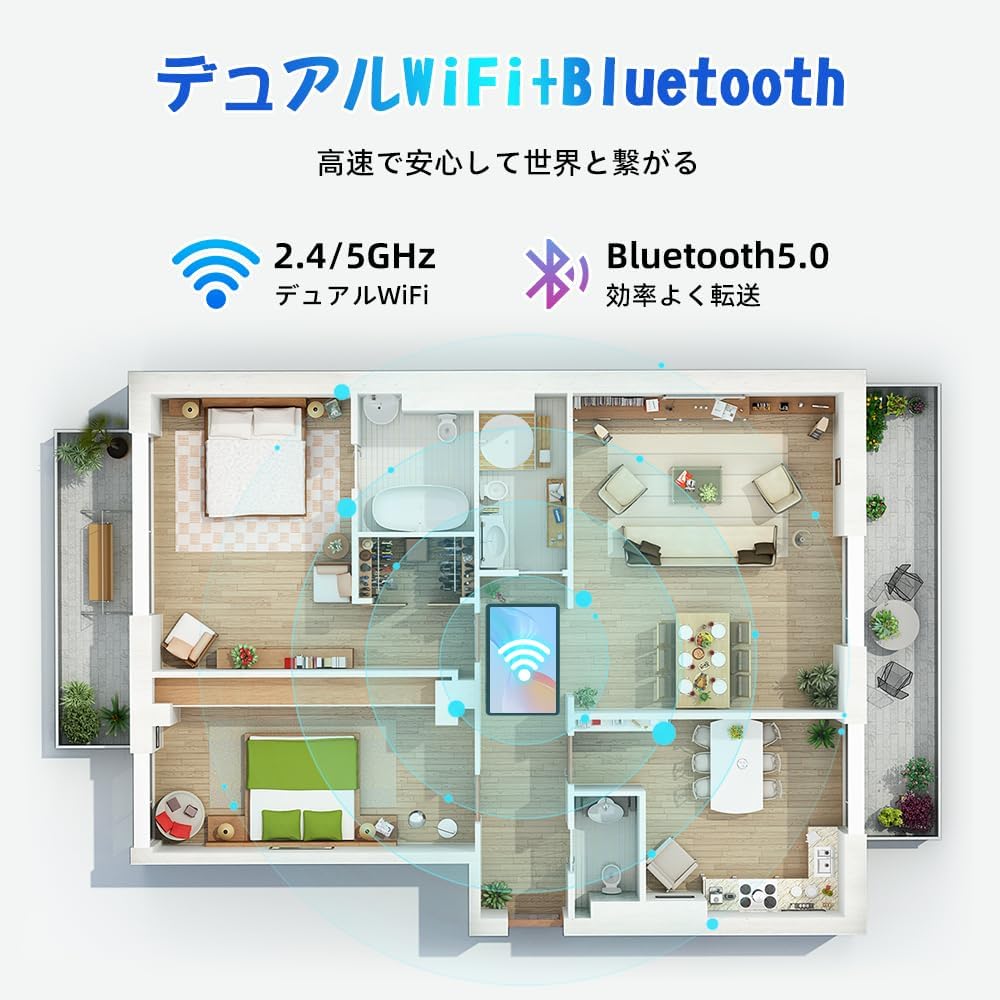
Figure 5.1: Diagram illustrating the tablet's dual-band 2.4G/5G Wi-Fi and Bluetooth 5.0 connectivity, ensuring fast and reliable connections throughout your home or office.
5.4 Gosod Cyfrif Google
As a GMS certified device, you can access Google Play Store and other Google services. During initial setup, you will be prompted to sign in with your Google account or create a new one. This is essential for downloading apps and syncing data.
5.5 Gosod Cerdyn MicroSD
To expand storage up to 2TB:
- Lleolwch y slot cerdyn MicroSD ar ochr y dabled.
- Insert the MicroSD card into the slot with the gold contacts facing down until it clicks into place.
- You may be prompted to format the card for use with the tablet.

Figure 5.2: Visual representation of the tablet's 12GB RAM and 64GB ROM, with support for up to 2TB MicroSD card expansion, allowing for vast storage of photos, videos, and music.
6. Cyfarwyddiadau Gweithredu
6.1 Nodweddion Android 15
Your tablet runs on Android 15, offering an intuitive and enhanced user experience with improved security, customization, and AI capabilities.

Ffigur 6.1: Drosoddview of Android 15 features, including enhanced security and privacy, expanded customization options, improved AI functions, and new gesture controls for a smoother operation.
6.2 Display and Viewmodau ing
The 10.5-inch Incell IPS display provides vibrant colors and wide viewing angles. Optimize your viewing experience and reduce eye strain with various display modes:

Figure 6.2: The 10.5-inch Incell IPS display offers a 1280x800 resolution and a 16:10 aspect ratio for a wide and efficient viewing profiad.

Figure 6.3: The tablet supports 1080P Full HD content, providing an immersive visual experience for movies and dramas from platforms like YouTube, Prime Video, Hulu, and HBO.

Ffigur 6.4: Eithriad gweledolamples of different screen modes: Night mode for reduced blue light, Dark mode for eye comfort in low light, and Reader mode for a black-and-white paper-like display.
- Modd Nos: Reduces blue light emissions for comfortable viewing in low light conditions. Access via Quick Settings or Display settings.
- Modd Tywyll: Changes the system UI and supported apps to a dark theme, reducing eye strain and saving battery on OLED screens. Access via Display settings.
- Modd Darllenydd: Optimizes the display for reading, often by converting to grayscale and adjusting contrast. Access via Display settings or specific reading apps.
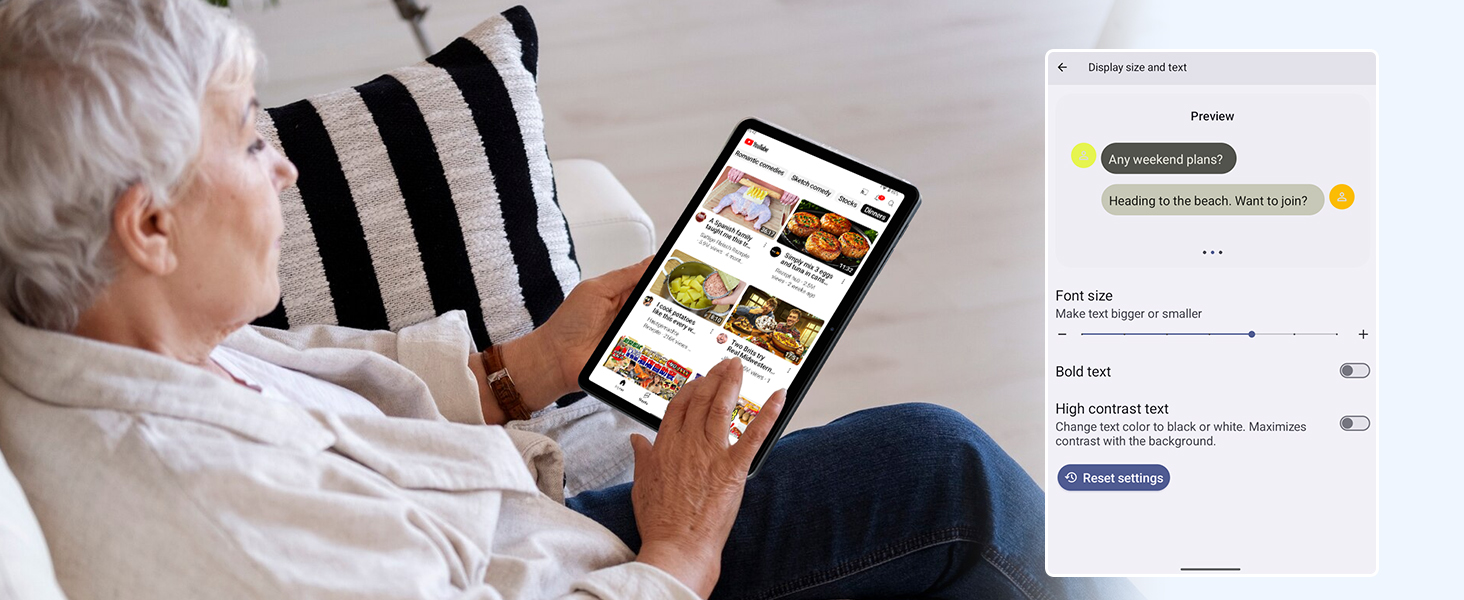
Figure 6.5: Screenshot showing display settings for adjusting text size and bold text, allowing users to customize readability.
6.3 Perfformiad
The TABWEE T80 is powered by a Unisoc T310 processor, ensuring smooth operation for daily tasks and multimedia consumption.
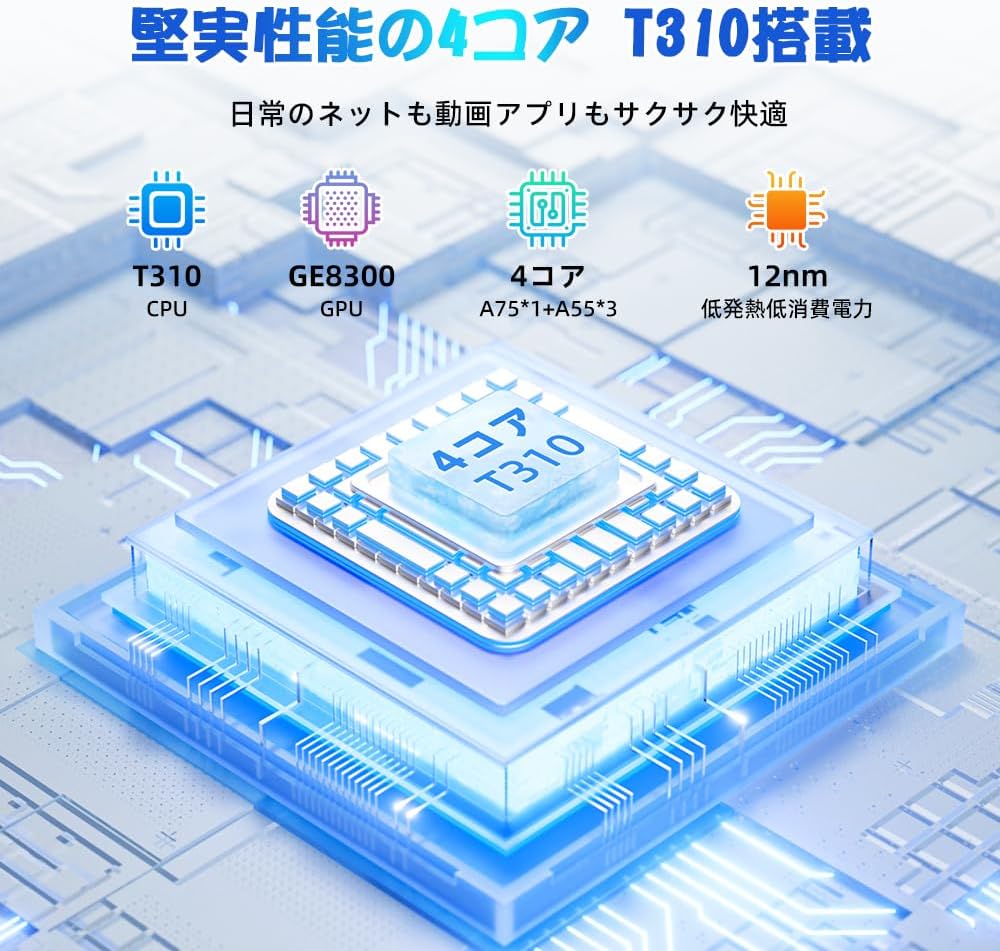
Figure 6.6: Diagram illustrating the T310 quad-core CPU architecture, featuring A75 and A55 cores, designed for efficient performance and low power consumption.

Figure 6.7: Comparison showing the Unisoc T310 processor's improved speed (up to 2.0 GHz) and lower power consumption compared to previous generation products.
6.4 Multitasking and Split Screen
For enhanced productivity, the tablet supports split-screen mode, allowing you to run two applications side-by-side.

Figure 6.8: Demonstration of the split-screen feature, allowing users to comfortably multitask by viewing two applications simultaneously, such as reading an e-book while checking messages.
- To activate split screen: Open an app, then swipe up slightly from the bottom and hold to reveal recent apps. Drag one app to the top or bottom of the screen, then select another app for the remaining space.
6.5 AI Features (Gemini AI)
Leverage the power of Gemini AI for enhanced productivity and convenience.

Figure 6.9: Visuals demonstrating Gemini AI 2.0 capabilities, including AI text-to-image generation, AI voice response, AI smart control, AI real-time conversation, and AI full-screen smart assistance.
Gemini AI can assist with real-time translation, smart text suggestions, and optimizing performance based on your usage habits. Explore AI-enhanced multi-tasking for learning, office work, and entertainment.
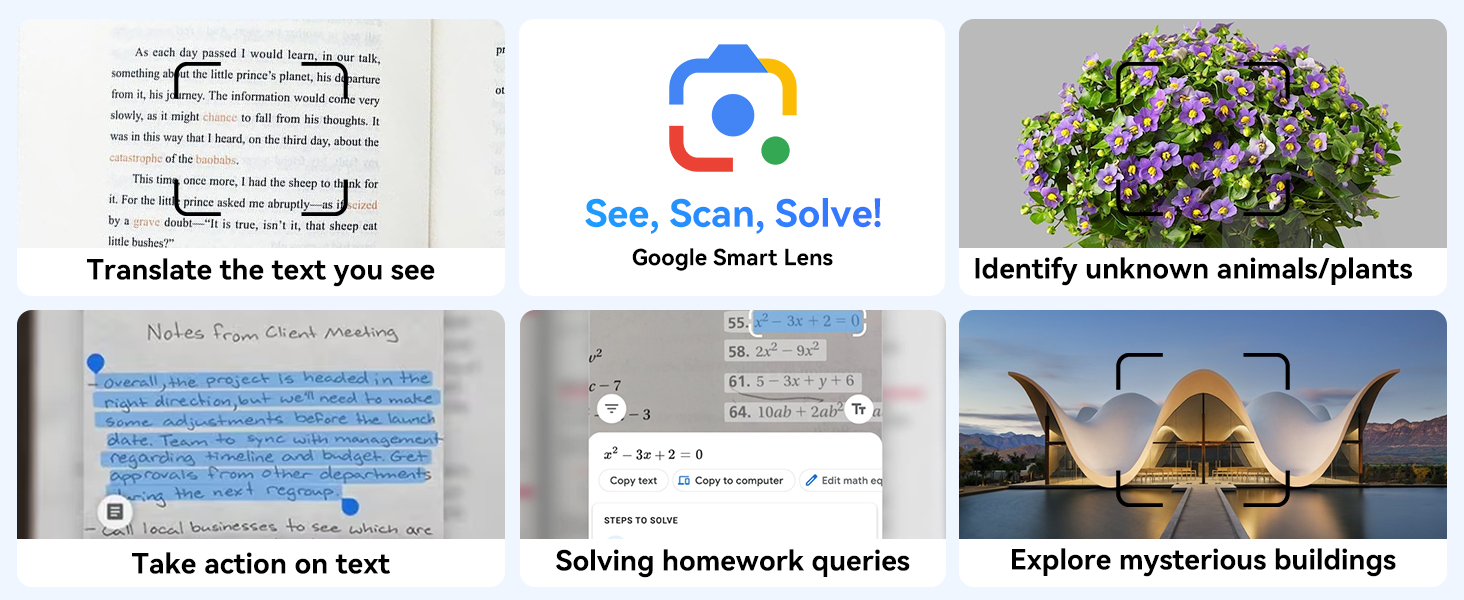
Ffigur 6.10: Examples of Google Smart Lens functions: translating text, identifying unknown objects/plants, taking action on text, solving homework queries, and exploring mysterious buildings.
6.6 Parental Controls (Kids Mode)
The tablet includes parental control features to ensure a safe environment for children.

Figure 6.11: Icons representing parental control features: usage time limits, break time settings, app usage restrictions, and content restrictions, all designed to protect children.
You can set time limits, restrict app access, and filter content. Navigate to Gosodiadau > Lles Digidol a rheolaethau rhieni to configure these features.
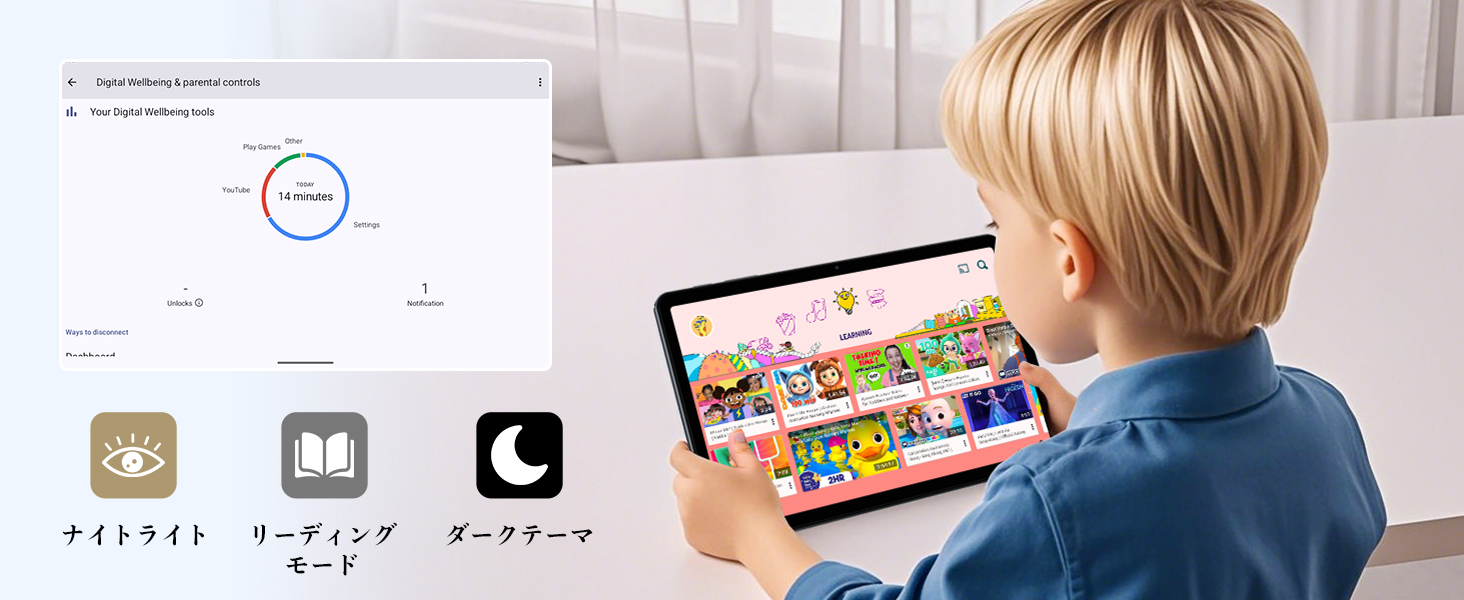
Figure 6.12: Screenshot of the Digital Wellbeing and parental controls interface, showing usage statistics and options for managing screen time and app access for children.
6.7 Tafluniad Di-wifr
Mirror your tablet's screen to a compatible TV or monitor wirelessly.
- Ensure your TV/monitor supports wireless display (e.g., Miracast, Chromecast built-in).
- On your tablet, go to Gosodiadau > Dyfeisiau cysylltiedig > Dewisiadau cysylltiad > Cast.
- Select your display device from the list to begin mirroring.
6.8 Defnyddio'r Camera
The tablet is equipped with a 2MP front camera and a 5MP rear camera.

Figure 6.13: Illustration of the tablet's 2-megapixel front camera and 5-megapixel rear camera, capable of autofocus for clear photos and video calls.
Open the Camera app to take photos or record videos. Tap the shutter button to capture an image or the record button to start/stop video recording. You can switch between front and rear cameras using the camera switch icon.
6.9 Sain
The tablet features dual speakers for an immersive audio experience and a 3.5mm headphone jack for private listening.

Figure 6.14: Diagram showing the location of the two powerful speakers on the TABWEE T80, providing a deep and immersive audio experience.
Adjust volume using the physical volume buttons on the side of the tablet or through the on-screen volume slider.
6.10 Llywio GPS
The integrated GPS system allows for accurate location tracking and navigation. Use pre-installed map applications or download your preferred navigation app from the Google Play Store.
7. cynnal
7.1 Glanhau
Use a soft, lint-free cloth to clean the screen and body of the tablet. Do not use abrasive cleaners or solvents, as they may damage the surface.
7.2 Diweddariadau Meddalwedd
Regularly check for system updates to ensure your tablet has the latest features and security patches. Go to Gosodiadau > System > Diweddariad system.
7.3 Gofal Batri
I ymestyn oes y batri:
- Osgowch ollwng y batri'n llwyr yn aml.
- Do not leave the tablet charging for extended periods after it's full.
- Store the tablet in a cool, dry place when not in use for long periods.

Figure 7.1: Battery life estimates for the 6000mAh battery: 5 hours of web browsing, 4 hours of video playback, 4 hours of gaming, 21 hours of music, and 648 hours of standby time, supported by AI power-saving algorithms.
8. Datrys Problemau
| Problem | Achos Posibl | Ateb |
|---|---|---|
| Nid yw'r tabled yn troi ymlaen. | Batri isel; damwain system. | Gwefrwch y dabled am o leiaf 30 munud. Pwyswch a daliwch y botwm Pŵer am 10-15 eiliad i orfodi ailgychwyn. |
| Methu cysylltu â Wi-Fi. | Cyfrinair anghywir; problem gyda'r llwybrydd; allan o'r ystod. | Gwiriwch gyfrinair Wi-Fi. Ailgychwynwch eich llwybrydd. Symudwch yn agosach at y llwybrydd Wi-Fi. |
| Mae apiau'n araf neu'n chwalu. | Gormod o apiau yn rhedeg; lle storio isel. | Cau apiau cefndir. Clirio storfa apiau. Rhyddhewch le storio. |
| Nid yw'r sgrin yn ymateb. | Gwall meddalwedd dros dro. | Gorfodi ailgychwyn y dabled trwy ddal y botwm Pŵer. |
9. manylebau
| Nodwedd | Manylyn |
|---|---|
| Brand | TABWEE |
| Enw Model | T80 Tablet Tabwee |
| System Weithredu | Android 15 (Ardystio GMS) |
| Maint Arddangos | 10.5 inches Incell IPS |
| Cydraniad Arddangos | 1280x800 picsel |
| Brand CPU | Unisoc |
| Cyflymder CPU | 2 GHz |
| Brand GPU | ARM Mali-G57 |
| HWRDD | 12GB (ehangu 4GB + 8GB) |
| Storio Mewnol | 64GB |
| Storfa Ehangadwy | Hyd at 2TB trwy gerdyn MicroSD |
| Gallu Batri | 6000mAh Lithium-ion Polymer |
| Camera blaen | 2 AS |
| Camera Cefn | 5 AS |
| Cysylltedd | 2.4G/5G Wi-Fi (802.11ac), Bluetooth 5.0, GPS |
| Porthladdoedd | USB Math-C, Jac Clustffonau 3.5mm |
| Dimensiynau | 32.79 x 19.9 x 4.1 cm |
| Pwysau | 910 g |
10. Gwarant a Chefnogaeth
Your TABWEE T80 tablet comes with a Gwarant gwneuthurwr 2 flynedd.
If you encounter any issues with your product, please contact us via email. We strive to respond promptly to ensure your satisfaction.
Sut i Gysylltu â Chymorth:
- Through your Amazon account: Go to Hanes Archeb > Select the relevant order > Click Cysylltwch â'r Gwerthwr.
- Through the product page: On the product page, click on the seller's name (TABWEE Official Store) below the "Add to Cart" button, then click "Ask a question" on the top right.
Support hours: 9:00 AM - 6:00 PM (excluding holidays). We will reply as soon as possible.

Figure 10.1: Image representing customer support availability for assistance.
Ask a question about this manual
Ask about setup, troubleshooting, compatibility, parts, safety, or missing instructions. Manuals+ will review the question and use this page’s manual context to help answer it.