
1. Rhagymadrodd
The MEETION DirectorD-KB is a wireless ergonomic keyboard designed for comfortable and natural typing. It features a scientific wave key design and a built-in firm wrist rest to support your hands during extended use. This keyboard offers broad compatibility with Windows and macOS devices through a 2.4GHz wireless connection.

Image: The MEETION DirectorD-KB Wireless Ergonomic Keyboard positioned on a wooden desk, showcasing its wave-curved design and integrated wrist rest.
2. Cynnwys Pecyn
Sicrhewch fod yr holl eitemau yn bresennol yn y pecyn:
- 1 x MEETION DirectorD-KB Wireless Ergonomic Keyboard
- 1 x Llawlyfr Defnyddiwr
- 1 x USB-A 2.4GHz Wireless Receiver
- 1 x Addasydd USB-C
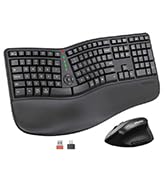
Image: Contents of the MEETION DirectorD-KB package, including the keyboard, user manual, USB-A receiver, and USB-C adapter.
3. Cyfarwyddiadau Gosod
3.1. Gosod Batri
- Lleolwch yr adran batri ar ochr isaf y bysellfwrdd.
- Agorwch y clawr adran batri.
- Insert two AAA batteries (not included) into the compartment, ensuring correct polarity.
- Caewch y clawr adran batri yn ddiogel.

Image: The underside of the keyboard showing the battery compartment for two AAA batteries and details on power saving features.
3.2. Cysylltu'r Derbynnydd
- Locate the USB-A 2.4GHz wireless receiver, typically found in the slot inside the keyboard's battery compartment or in the accessory pouch.
- For devices with a USB-A port: Plug the USB-A receiver directly into an available USB-A port on your computer.
- For devices with a USB-C port: Attach the provided USB-C adapter to the USB-A receiver, then plug the combined unit into an available USB-C port on your computer.
- The keyboard is plug-and-play and should connect automatically.
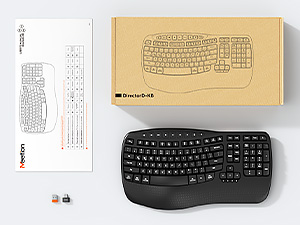
Image: Step-by-step guide on connecting the USB-A receiver with the USB-C adapter to a computer's USB-C port.
3.3. Pweru Ymlaen
After installing batteries and connecting the receiver, slide the power switch on the keyboard to the 'ON' position. The keyboard is now ready for use.
4. Cyfarwyddiadau Gweithredu
4.1. Ergonomic Design and Wrist Rest
The keyboard features a wave-shaped key layout and a firm, integrated wrist rest. This design guides your hands and wrists into a natural, relaxed typing position, reducing strain during long typing sessions.

Image: A user's hands resting comfortably on the integrated wrist rest while typing on the ergonomic keyboard.
4.2. Tilt Addasadwy
Utilize the adjustable tilt legs on the underside of the keyboard to find your preferred typing angle. Different angles can further enhance comfort and reduce wrist fatigue.

Delwedd: Pro ochrfiles of the keyboard demonstrating three different adjustable tilt angles for personalized comfort.
4.3. Dual System Layout (Windows/macOS)
The keyboard supports both Windows and macOS layouts. To switch between operating systems:
- Gwasgwch FN + Q. ar gyfer gosodiad Windows.
- Gwasgwch FN + W. for macOS layout.
4.4. Allweddi Amlgyfrwng
The keyboard includes dedicated and combined multimedia keys for quick access to functions like volume control, media playback, and more.
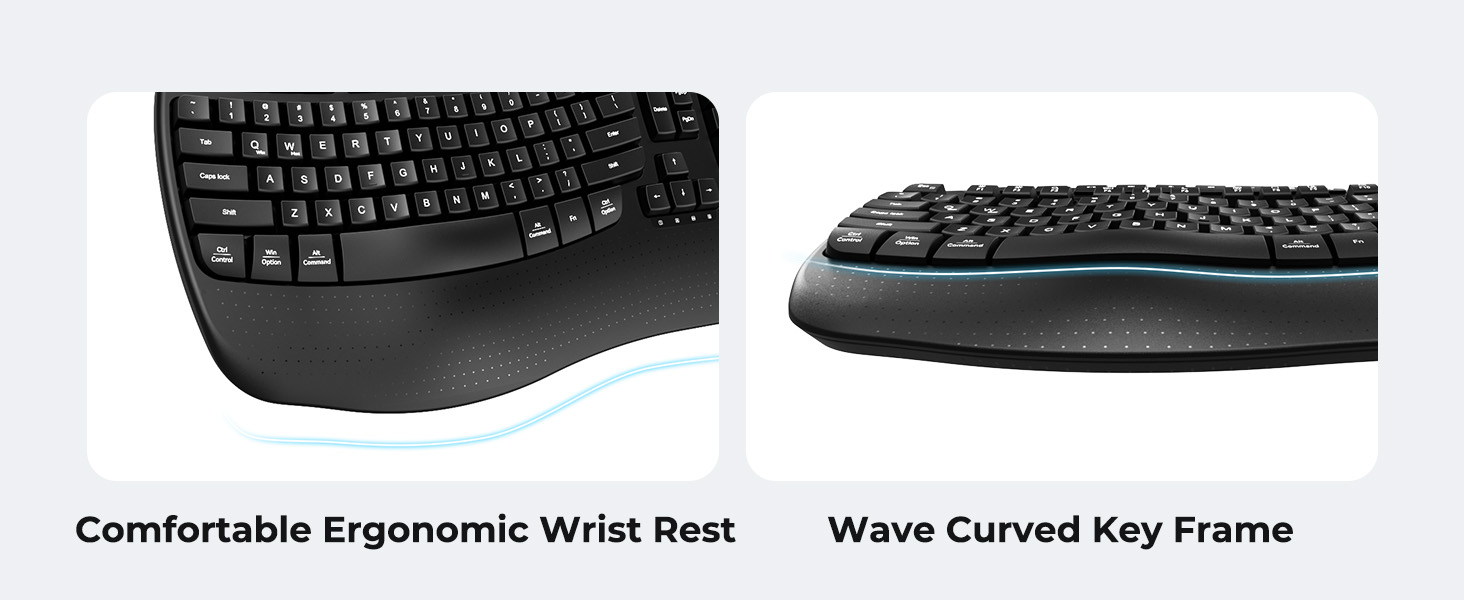
Image: A visual representation of the independent and combined multimedia keys available on the keyboard.
4.5. Intelligent Power Saving
The keyboard features an auto-sleep mode to conserve battery life. After 20 minutes of inactivity, it will enter hibernation. To wake it up, simply press any key.

Image: Close-up of the keyboard's indicator lights, showing status for Num Lock, Caps Lock, FN Lock, and low battery warning.
5. cynnal
Er mwyn sicrhau hirhoedledd a pherfformiad gorau posibl eich bysellfwrdd, dilynwch y canllawiau cynnal a chadw hyn:
- Glanhau: Use a soft, dry cloth to wipe the surface of the keyboard. For deeper cleaning, a slightly damp cloth with mild soap can be used, ensuring no liquid enters the keycaps or internal components.
- Osgoi hylifau: Do not expose the keyboard to excessive moisture or spill liquids on it.
- Storio: Storiwch y bysellfwrdd mewn lle oer, sych i ffwrdd o olau haul uniongyrchol a thymheredd eithafol.
- Amnewid Batri: Replace batteries promptly when the low battery indicator appears to maintain consistent performance.
6. Datrys Problemau
If you encounter issues with your MEETION DirectorD-KB keyboard, refer to the following common solutions:
- Bysellfwrdd ddim yn ymateb:
- Check if the keyboard is powered on.
- Ensure the batteries are correctly installed and not depleted. Replace if necessary.
- Verify that the USB receiver is securely plugged into your computer's USB port (or via the USB-C adapter).
- Rhowch gynnig ar blygio'r derbynnydd i mewn i borthladd USB gwahanol.
- Ailgychwyn eich cyfrifiadur.
- Cysylltiad oedi neu ysbeidiol:
- Gwnewch yn siŵr bod y bysellfwrdd o fewn ystod effeithiol y derbynnydd (hyd at 10 metr fel arfer).
- Minimize interference from other wireless devices by moving them further away.
- Osgowch osod y derbynnydd ger gwrthrychau metel mawr.
- Keys not functioning correctly:
- Chwiliwch am unrhyw rwystrau ffisegol o dan y capiau bysellau.
- Ensure the correct operating system layout (Windows/macOS) is selected using FN+Q or FN+W.
7. manylebau
| Nodwedd | Manylyn |
|---|---|
| Brand | CYFARFOD |
| Rhif Model | DirectorD-KB |
| Technoleg Cysylltedd | 2.4G Wireless (USB-A, USB-C Adapter) |
| Dyfeisiau Cydnaws | Laptop, PC (Windows XP/7/8/10/11 & macOS X 10.6 or later) |
| Cynllun Bysellfwrdd | QWERTY |
| Nifer yr Allweddi | 113 |
| Nodweddion Arbennig | Ergonomic, Hotkeys and Media Keys, Integrated Stand, Wave Keys, Wrist Rest |
| Dimensiynau Cynnyrch (L x W x H) | 17.39" x 9.43" x 1.81" |
| Deunydd | Plastig |
| Ffynhonnell Pwer | Battery Powered (2 x AAA, not included) |
8. Fideo Cynnyrch Swyddogol
Fideo: Sioe fideo cynnyrch swyddogolasing the features and ergonomic design of the MEETION DirectorD-KB Wave Ergonomic Wireless Keyboard. (Duration: 0:39)
9. Gwarant a Chefnogaeth
This MEETION DirectorD-KB Wireless Ergonomic Keyboard comes with a 1-year manufacturer's warranty.
For further assistance, troubleshooting, or warranty claims, please visit the official MEETION store or contact customer support.
Siop Swyddogol MEETION: MEETION Store on Amazon