
1. Rhagymadrodd
Thank you for choosing the Eyoyo EY-034 2D USB Barcode Scanner. This device is designed for efficient and accurate scanning of both 1D and 2D barcodes from various surfaces, including printed labels and digital screens. Its plug-and-play design ensures ease of use, making it an ideal solution for retail, inventory management, libraries, and other business environments.
This manual provides detailed instructions on setting up, operating, and maintaining your scanner, along with troubleshooting tips to ensure optimal performance.

Figure 1: Eyoyo EY-034 2D USB Barcode Scanner
2. Nodweddion Allweddol
- USB Plug and Play Design: Eliminates complex setup, allowing for immediate use with Windows, MacOS, and Linux systems.
- Enhanced 1D & 2D Scanning Performance: Capable of omni-directional scanning for a wide range of barcode types including UPC-A, EAN-13, Code 128, QR Code, Micro PDF 417, and Aztec.
- 24-Hour Non-stop Operation: Wired connection ensures continuous power, eliminating charging anxiety and downtime.
- Dyluniad Gwydnwch: Constructed from 100% ABS material, engineered to withstand multiple 1.5m (5 ft) drops to concrete, ensuring long-term reliability.
- Effortless Screen Code Scanning: Reads barcodes and QR codes directly from smartphone screens, supporting mobile coupons, online tickets, and digital loyalty cards.
- Custom Configuration Options: Supports over 33 international keyboards and allows for various customizations such as adding prefixes/suffixes, deleting characters, adjusting sound, and changing case.
- Efficient Business Management: Reduces data entry errors and boosts productivity in various retail and inventory settings.
3. Cynnwys Pecyn
Upon opening your Eyoyo EY-034 Barcode Scanner package, please verify that all items listed below are present and in good condition:
- 1 x Eyoyo EY-034 Barcode Scanner (Wired)
- 1 x Llawlyfr Defnyddiwr

Figure 2: Items included in the package
4. Gosod
The Eyoyo EY-034 barcode scanner is designed for simple plug-and-play operation. No drivers or complex software installations are required.
- Locate an available USB port on your computer (PC, Laptop, POS system).
- Plug the USB cable of the Eyoyo EY-034 scanner into the USB port.
- Your operating system (Windows, MacOS, Linux) will automatically detect and install the necessary generic drivers. This process usually takes a few seconds.
- Once detected, the scanner is ready for use. You can open a text editor (e.g., Notepad, Word) or any application that accepts keyboard input to test the scanner.

Figure 3: Plug and Play setup with a POS system
5. Cyfarwyddiadau Gweithredu
Using the Eyoyo EY-034 scanner is straightforward. It functions like a keyboard input device, transmitting scanned data directly to your active application.
Basic Scanning Procedure:
- Ensure the scanner is connected to your computer and the red scanning light is visible when the trigger is pressed (or in continuous/auto-sense mode).
- Open the application where you want the barcode data to appear (e.g., spreadsheet, inventory software, web browser search bar).
- Position the cursor in the desired input field within the application.
- Point the scanner's window at the barcode or QR code you wish to scan. Ensure the entire code is within the scanning area.
- Press the trigger button (if in Manual Trigger Mode) or allow the scanner to detect the code (in Auto-Sense or Continuous Mode).
- A successful scan will be indicated by an audible beep (if enabled) and the data from the barcode will appear in your application's input field.

Figure 4: Superior scanning capability for both 1D and 2D codes
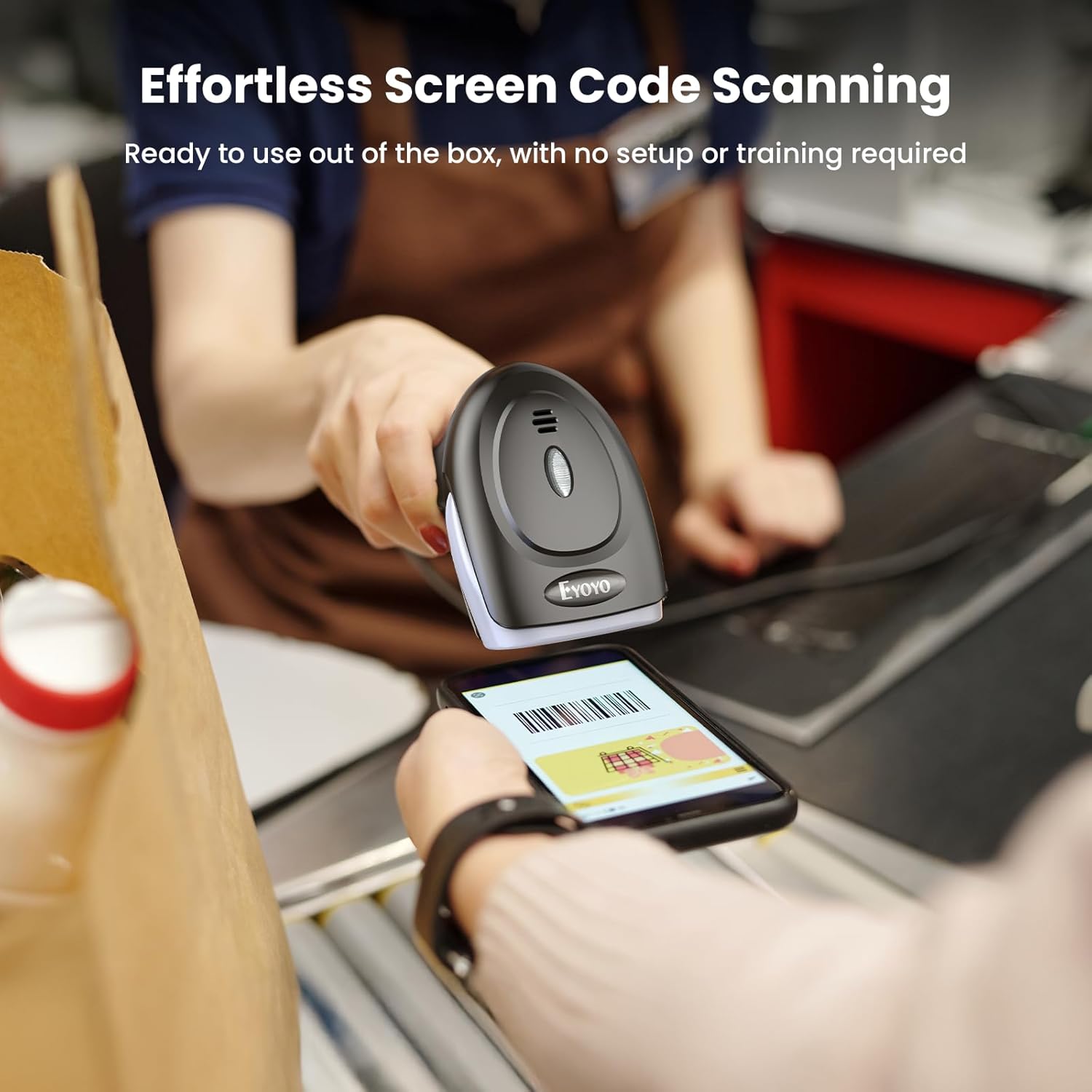
Figure 5: Effortless scanning from smartphone screens

Figure 6: 24-hour continuous use without charging
6. Moddau Sganio
The Eyoyo EY-034 offers three distinct scanning modes to suit various operational needs:
- Auto-Sense Scanning Mode: In this mode, the scanner automatically detects a barcode when it is placed within its scanning field. No trigger press is required. This is ideal for hands-free operation.
- Modd Sganio Parhaus: The scanner continuously emits its scanning light, actively searching for barcodes. This mode is suitable for high-volume scanning environments where items are rapidly presented to the scanner.
- Modd Sbarduno â Llaw: This is the default mode. The scanner will only activate its scanning light and attempt to read a barcode when the trigger button is pressed. This provides precise control over when a scan occurs.
You can switch between these modes by scanning specific configuration barcodes found in the detailed user manual provided with your scanner.

Ffigur 7: Drosoddview of the three scanning modes
7. Custom Configuration Options
The Eyoyo EY-034 scanner is highly customizable to meet specific user requirements. Configuration is performed by scanning special QR codes found in the comprehensive user manual booklet that accompanies the device.
Available Customizations Include:
- Adding Prefixes/Suffixes: Automatically add specific characters before or after scanned data.
- Deleting Characters: Remove unwanted characters from scanned data.
- Rheoli sain: Turn the scan beep on/off or adjust its volume.
- Termination Characters: Add carriage return (CR), line feed (LF), or tab (TAB) characters after each scan, simulating an 'Enter' key press.
- Barcode Type Enable/Disable: Activate or deactivate specific barcode symbologies as needed.
- Trosi Achos: Change scanned alphanumeric data to all uppercase or all lowercase.
- Iaith Bysellfwrdd: Supports over 33 international keyboard layouts, including United States, United Kingdom, Germany, Spain, France, Italy, Japan, Sweden, etc. Ensure the scanner's keyboard language matches your computer's keyboard language for correct output.

Figure 8: Multi-language compatibility for global use
8. Gwydnwch a Dyluniad
The Eyoyo EY-034 barcode scanner is built for longevity and reliable performance in demanding environments. Its robust construction ensures it can withstand the rigors of daily use.
- Deunydd: Made from 100% high-quality ABS material, providing excellent impact resistance and durability.
- Gollwng Resistance: Engineered to survive multiple drops from 1.2 meters (approximately 5 feet) onto concrete surfaces, minimizing damage from accidental falls.
- Trigger Lifespan: The trigger button has been tested for 1,000,000 clicks, ensuring a long operational life.
- Dyluniad ergonomig: Lightweight and balanced, the scanner is designed for comfortable handheld use, reducing user fatigue during extended scanning sessions.

Figure 9: Durability design for longer use
9. Cydweddoldeb
The Eyoyo EY-034 scanner offers broad compatibility with various systems and devices:
- Systemau Gweithredu: Fully compatible with Windows, MacOS, and Linux operating systems.
- Dyfeisiau: Works seamlessly with computers, laptops, desktop PCs, and Point-of-Sale (POS) systems.
Nodiadau Pwysig:
- Dyma a USB wired scanner only. It does not support Bluetooth or 2.4G wireless functions and cannot work with mobile phones or tablets directly without appropriate adapters.
- The scanner is NOT compatible with Square POS systems.
- To ensure correct output, the scanner's configured keyboard language must be consistent with your computer's keyboard language settings.
10. cynnal
Proper maintenance will extend the life and ensure the optimal performance of your Eyoyo EY-034 barcode scanner.
- Glanhau: Use a soft, clean, lint-free cloth to gently wipe the scanning window and the body of the scanner. For stubborn dirt, slightly dampen the cloth with water or a mild, non-abrasive cleaner. Avoid using harsh chemicals, solvents, or abrasive materials, as these can damage the scanner's surface or internal components.
- Storio: When not in use, store the scanner in a clean, dry environment, away from direct sunlight, extreme temperatures, and excessive dust.
- Gofal Cebl: Osgowch blygu neu droelli'r cebl USB yn ormodol, yn enwedig ger y cysylltwyr, er mwyn atal difrod mewnol i'r wifren.
11. Datrys Problemau
If you encounter issues with your Eyoyo EY-034 barcode scanner, please refer to the following common problems and solutions:
Scanner Not Recognized / Not Working:
- Gwiriwch Cysylltiad USB: Ensure the USB cable is securely plugged into both the scanner and the computer's USB port. Try a different USB port.
- Ailgychwyn Cyfrifiadur: Weithiau gall ailgychwyn syml ddatrys problemau cysylltedd.
- Prawf ar Gyfrifiadur Arall: If possible, test the scanner on a different computer to determine if the issue is with the scanner or the original computer's setup.
Incorrect Output / Garbled Characters:
- Keyboard Language Mismatch: The most common cause. Ensure the scanner's configured keyboard language (set by scanning specific barcodes in the manual) matches the keyboard language setting of your computer's operating system.
- Application Focus: Make sure the cursor is in the correct input field of your application before scanning.
Sganiwr Ddim yn Darllen Codau Bar:
- Ansawdd y Cod Bar: Ensure the barcode is clear, not smudged, torn, or excessively reflective.
- Ongl/Pellter Sganio: Adjust the angle and distance between the scanner and the barcode. Try scanning from different perspectives.
- Amodau goleuo: Sicrhewch oleuadau digonol, ond osgoi llewyrch uniongyrchol ar y cod bar.
- Enabled Symbologies: Verify that the type of barcode you are trying to scan is enabled in the scanner's configuration. Refer to the manual for enabling/disabling barcode types.
- Modd Sganio: Confirm the scanner is in the appropriate scanning mode (Manual, Auto-Sense, or Continuous) for your task.
No Beep Sound / Beep Too Loud:
- Sound Configuration: Adjust the beep volume or turn the sound on/off by scanning the relevant configuration barcodes in the manual.
12. manylebau
| Priodoledd | Gwerth |
|---|---|
| Rhif Model | EY-034 |
| Dimensiynau Cynnyrch | 7.87 x 3.15 x 4.33 modfedd |
| Pwysau Eitem | 9.1 owns |
| Dyfeisiau Cydnaws | Laptop, PC, Desktop, POS, Computer |
| Ffynhonnell Pwer | Trydan Corded |
| Technoleg Cysylltedd | Cebl USB |
| Vol Gweithredutage | 5 folt |
13. Gwarant a Chefnogaeth
Gwarant:
The Eyoyo EY-034 2D USB Barcode Scanner comes with a Gwarant 1 Flynedd o ddyddiad y pryniant. Mae'r warant hon yn cwmpasu diffygion gweithgynhyrchu ac yn sicrhau gweithrediad dibynadwy o dan ddefnydd arferol. Cadwch eich prawf prynu ar gyfer hawliadau gwarant.
Cefnogaeth i Gwsmeriaid:
For technical assistance, troubleshooting, or warranty inquiries, please contact Eyoyo customer support through the official website or the contact information provided in your product packaging. Our support team is dedicated to providing prompt and helpful solutions.