
Gwybodaeth Ddiogelwch Bwysig
Please read this manual thoroughly before using the REDTIGER F77 V2 Dash Cam. Improper use may result in product damage, property damage, or personal injury. Keep the device away from water, moisture, and extreme temperatures. Do not attempt to disassemble or repair the device yourself. Always ensure the dash cam is securely mounted and does not obstruct your view wrth yrru.
Cynnwys Pecyn
Gwiriwch fod yr holl eitemau a restrir isod wedi'u cynnwys yn eich pecyn:
- 1 x REDTIGER F77 V2 4K Front Dash Cam
- 1 x 4K Rear Dash Cam
- Cebl cyflenwad pŵer 1 x 11.5 troedfedd gyda gwefrydd car
- 1 x Data Transfer USB Cable
- Cebl Camera Cefn 1 x 21.3 troedfedd
- 1 x Llawlyfr Defnyddiwr
- 1 x Crowbar (Car Wire Trim Tool)
- 1 x Canllaw Cyflym
- 2 x Sticer Electrostatig
- 2 x Adhesive Mount
- 5 x Clipiau Cebl

Cynnyrch Drosview
The REDTIGER F77 V2 is a dual 4K dash cam system designed to record both front and rear views of your vehicle. It features a compact design with a 4-inch touchscreen for easy operation.
Front Dash Cam (Main Unit)
- Lens Camera Blaen: Records 4K video.
- Sgrin Gyffwrdd 4 modfedd: Ar gyfer byw view, chwarae yn ôl, ac addasu gosodiadau.
- Botwm Pŵer: I droi'r ddyfais ymlaen / i ffwrdd.
- Porthladdoedd USB-C: For power input and rear camera connection.
- Slot Cerdyn MicroSD: For additional storage (device has built-in eMMC).
- Modiwl GPS: Integrated into the mount for location and speed data.
Cefn Dash Cam
- Lens Camera Cefn: Records 4K video for the rear view.
- Cysylltydd USB-C: To connect to the main unit.
Gosod
1. Front Dash Cam Installation
- Clean the area on your windshield where you intend to mount the dash cam. Ensure it is free of dust and grease.
- Apply one of the electrostatic stickers to the cleaned area on the windshield. This helps protect your windshield and allows for easier removal.
- Attach an adhesive mount to the dash cam's main unit.
- Firmly press the dash cam with the attached mount onto the electrostatic sticker. Ensure a secure fit.
- Connect the 11.5ft power supply cable to the dash cam's power input (USB-C port).
- Route the power cable along the edge of the windshield and down to your vehicle's 12V power outlet (cigarette lighter) using the provided crowbar and cable clips to hide the cable neatly.
2. Gosod Camera Dangosfwrdd Cefn
- Choose a suitable location on your rear windshield for the rear dash cam, ensuring it has a clear view and does not obstruct your driving.
- Clean the chosen area and apply an electrostatic sticker, then attach the rear dash cam with an adhesive mount.
- Connect the 21.3ft rear camera cable to the rear dash cam.
- Route the rear camera cable from the rear windshield to the front dash cam, connecting it to the designated USB-C port. Use the crowbar and cable clips for a tidy installation.

3. Cysylltiad Pwer
Plug the car charger into your vehicle's 12V power outlet. The dash cam will automatically power on and begin recording when the vehicle starts.
Cyfarwyddiadau Gweithredu
Gweithrediad Sylfaenol
- Pŵer ymlaen / i ffwrdd: The dash cam powers on/off automatically with your vehicle's ignition. You can also manually power it on/off using the power button.
- Sgrin Gyffwrdd: Use the 4-inch touchscreen to navigate menus, view byw footage, and play back recordings.
- Rheoli llais: The F77 V2 supports 12 voice commands for hands-free operation. Examples include: "Lock the video," "Take picture," and "Turn on audio."
- Recordiad Dolen: The dash cam continuously records, overwriting the oldest files when the storage is full. Critical videos are locked and not overwritten.
- Synhwyrydd G: Automatically detects sudden shakes or collisions and locks the current video segment to prevent it from being overwritten.
- Monitor Parcio: With an optional hardwire kit (sold separately), the dash cam can monitor your vehicle 24/7. It supports collision sensing and time-lapse video recording when parked.
Cysylltiad Wi-Fi a App
Connect your dash cam to the REDTIGER app for easy setup, live preview, video playback, and sharing.
- Download the "REDTIGER" app from the App Store or Google Play.
- Enable Wi-Fi on your dash cam (via settings or quick toggle).
- On your smartphone, connect to the dash cam's Wi-Fi network (SSID and password displayed on the dash cam screen).
- Open the REDTIGER app and add your device. You can now access live footage, ailview recordings, and adjust settings.
Ymarferoldeb GPS
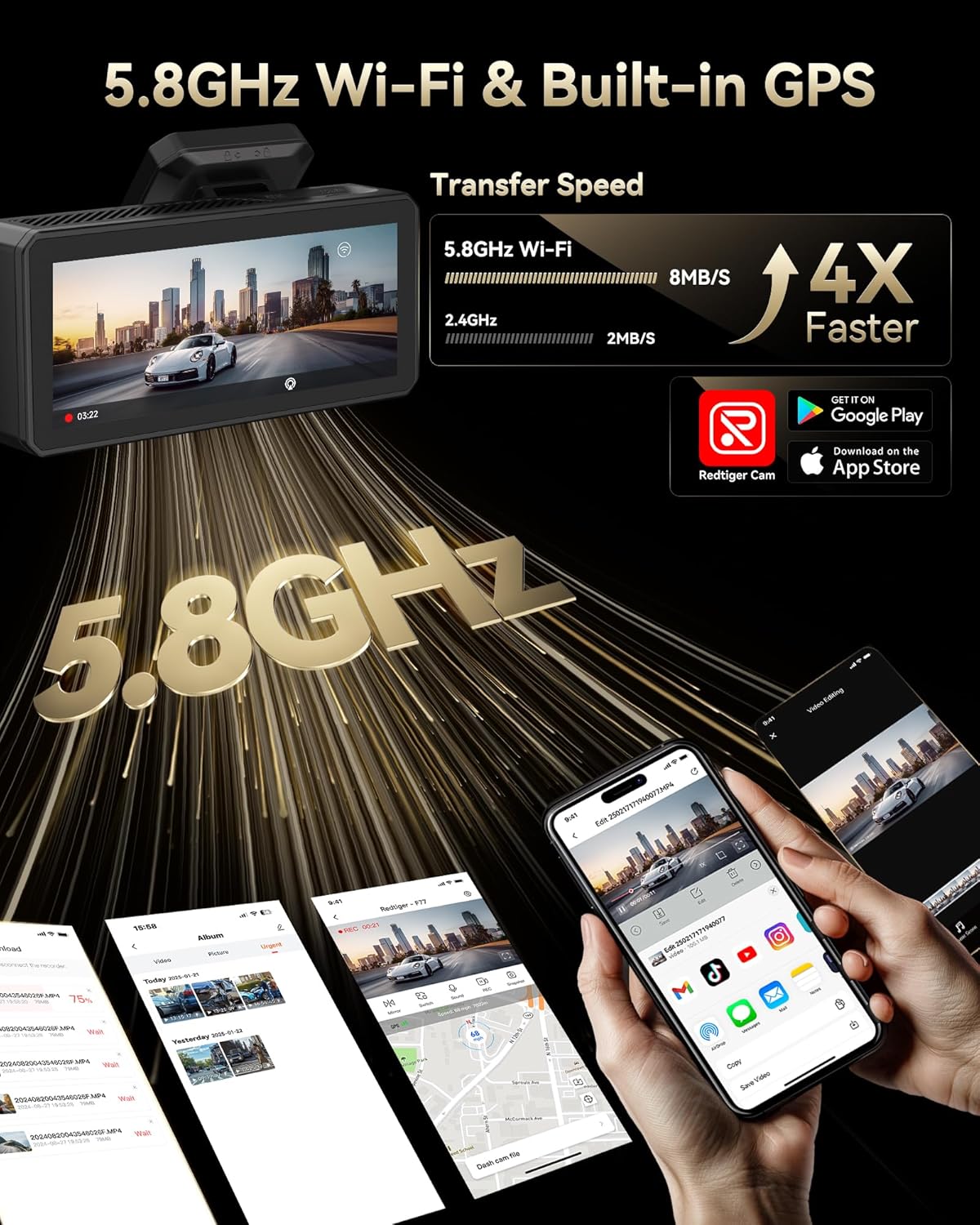
The built-in GPS module accurately records your vehicle's location, speed, and driving route. This data is embedded in your video files a gall fod viewed via the REDTIGER app or dedicated PC player.
Cynnal a chadw
- Formatting eMMC Storage: Periodically format the built-in eMMC storage (or microSD card if used) to ensure optimal performance and prevent data corruption. This can be done through the dash cam's settings menu.
- Glanhau: Regularly clean the camera lenses and touchscreen with a soft, lint-free cloth to ensure clear recordings and responsive touch functionality.
- Diweddariadau Cadarnwedd: Check the REDTIGER website or app for available firmware updates to ensure your dash cam has the latest features and bug fixes.
Datrys problemau
- Camera Dangosfwrdd Ddim yn Troi Ymlaen: Ensure the power cable is securely connected to both the dash cam and the vehicle's power outlet. Check the vehicle's 12V outlet for power.
- Materion Cysylltiad Wi-Fi: Verify that Wi-Fi is enabled on the dash cam and your phone. Ensure you are entering the correct SSID and password. Try restarting both the dash cam and your phone.
- Araf File Transfer/Playback: Ensure your phone has a stable 5.8GHz Wi-Fi connection to the dash cam. Large 4K files may take longer to transfer.
- Fideo Files Corrupted/Missing: Regularly format the eMMC storage. Ensure you are using a high-quality microSD card if external storage is utilized.
- Parking Monitor Not Working: Confirm that an optional hardwire kit is correctly installed and configured.
For more detailed troubleshooting steps, please refer to the comprehensive User Manual included in your package or visit the REDTIGER support websafle.
Manylebau
| Nodwedd | Manyleb |
|---|---|
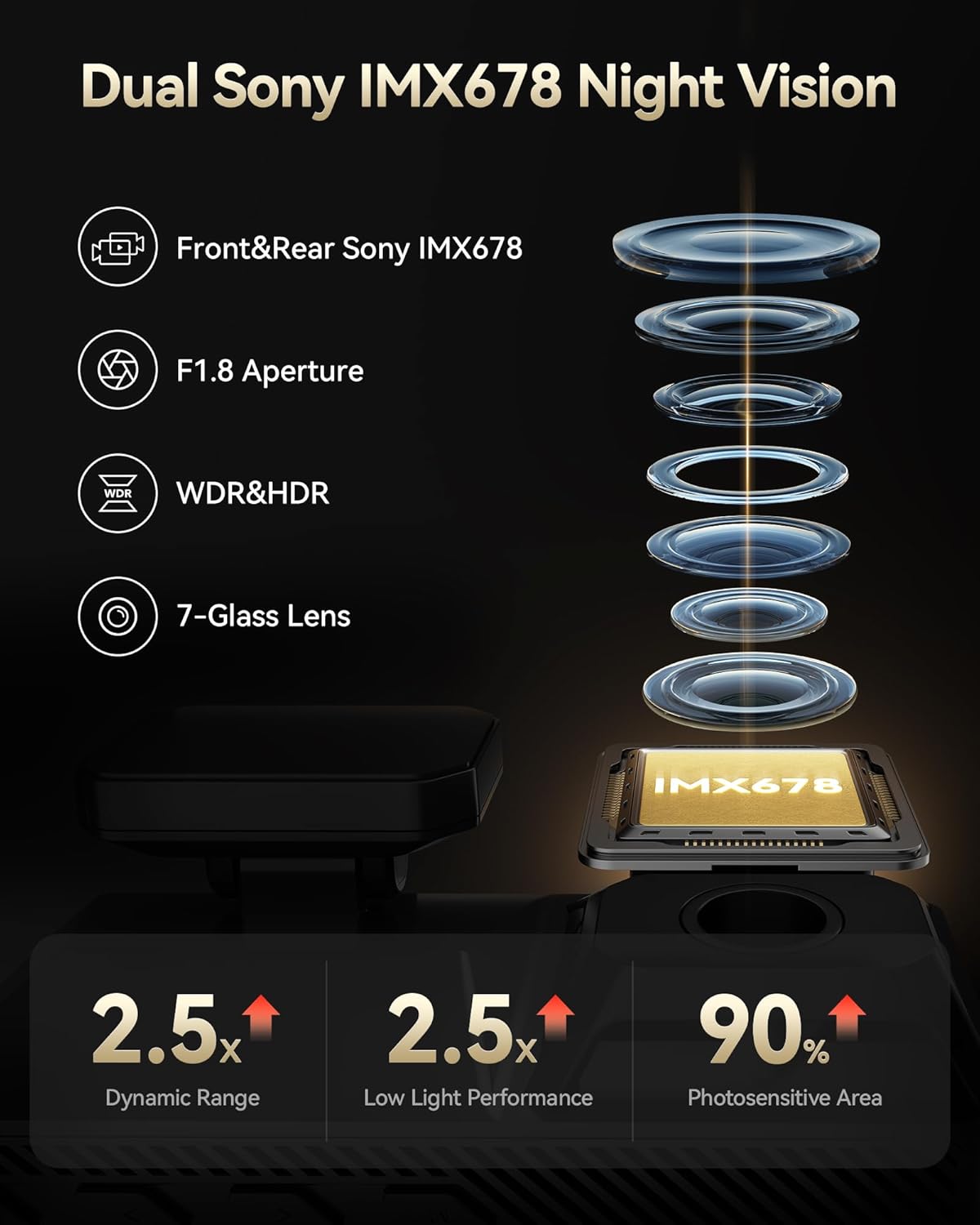
| Datrysiad Fideo Blaen | 4K@30fps (8MP) |
| Datrysiad Fideo Cefn | 4K@30fps (8MP) |
| Synhwyrydd Delwedd | Dual Sony STARVIS 2 IMX678 |
| Storio Mewnol | 256GB eMMC |
| Arddangos | Sgrin Gyffwrdd 4-modfedd |
| Wi-Fi | Built-in 5.8GHz Wi-Fi |
| GPS | GPS adeiledig |
| Nodweddion Arbennig | Dual HDR, Voice Control, G-Sensor, Parking Monitor (with optional hardwire kit) |
| Technoleg Cysylltedd | USB, Wi-Fi |
| Dimensiynau Cynnyrch | 1.88 x 1.22 x 0.27 modfedd |
| Pwysau Eitem | 1.92 pwys |
Gwarant a Chefnogaeth
- Cynllun Amddiffyn: Enjoy 18 months of protection for your device.
- Polisi Dychwelyd: A 7-day return policy is available for returns on defects.
- Cefnogaeth i Gwsmeriaid: REDTIGER offers 24-hour customer support via email and phone for any inquiries or assistance.
For further assistance, please visit the official REDTIGER websafle neu cysylltwch â chymorth cwsmeriaid yn uniongyrchol.