
Rhagymadrodd
Thank you for choosing the CRUA 27-inch 4K UHD 144Hz IPS Gaming Monitor. This monitor is designed to deliver an immersive visual experience with its high resolution, fast refresh rate, and vibrant color reproduction. This manual provides essential information for the proper installation, operation, and maintenance of your new monitor. Please read it thoroughly before use and retain it for future reference.
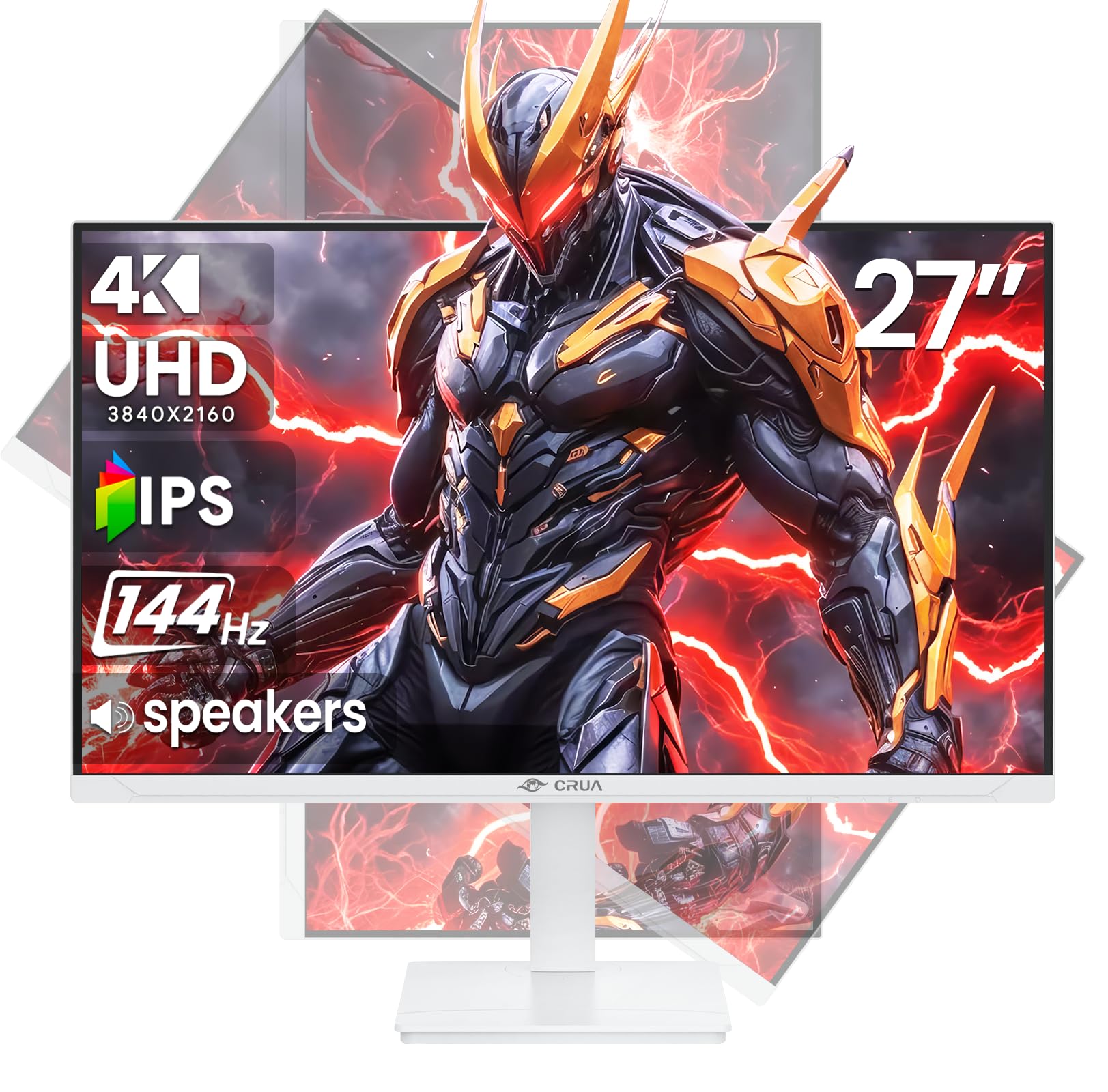
Delwedd: Blaen view of the CRUA 27-inch 4K UHD 144Hz IPS Gaming Monitor.
Beth Sydd yn y Bocs
Gwiriwch gynnwys eich pecyn. Os oes unrhyw eitemau ar goll neu wedi'u difrodi, cysylltwch â'ch manwerthwr.
- Monitor 27-modfedd
- Cebl DP
- Base and Support
- Llawlyfr Defnyddiwr
- Cyflenwad Pŵer
Nodweddion Cynnyrch
- 27" 4K Display with IPS Panel: Experience ultra-clear visuals with a 3840x2160P resolution.
- Cyfradd Adnewyddu 144Hz: Enjoy fluid and sharp motion, ideal for competitive gaming and fast-paced content.
- Cywirdeb Lliw sRGB 120%: Delivers rich and accurate tones with 350cd/m² brightness and 1000:1 high-contrast.
- Siaradwyr Adeiledig: Provides clear audio for daily use.
- Full Ergonomic Adjustment: Features height, pivot, tilt, and rotation adjustments for optimal viewing onglau.
- Opsiynau Cysylltedd Lluosog: Equipped with 2x HDMI 2.1 and 2x DP 1.4 ports.
- AMD FreeSync Support: Synchronizes the monitor's refresh rate with your GPU for tear-free gaming.
- Gosodadwy Wal: Supports VESA 75mm x 75mm wall mounts for flexible installation.
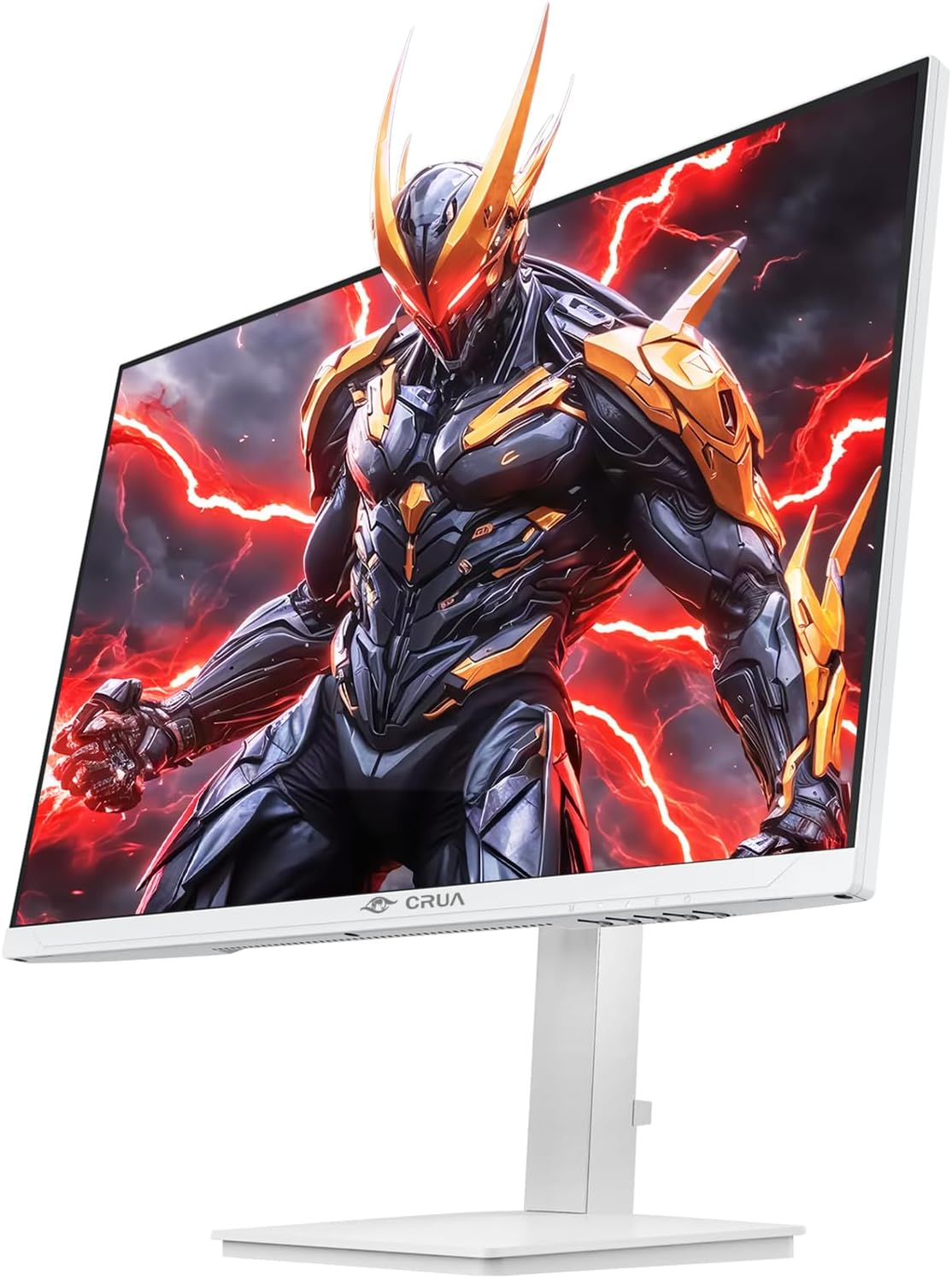
Delwedd: Blaen view of the CRUA 27-inch 4K UHD 144Hz IPS Gaming Monitor displaying a game scene.

Delwedd: Cefn view of the CRUA 27-inch 4K UHD 144Hz IPS Gaming Monitor showing the stand and RGB lighting.

Delwedd: Cefn view of the CRUA 27-inch 4K UHD 144Hz IPS Gaming Monitor highlighting the input ports (2x DP 1.4, 2x HDMI 2.1, and 3.5mm Audio Port).

Image: Diagram illustrating the adjustable height (110mm), tilt (-5° to +15°), swivel (±30°), and pivot (90°) features of the CRUA 27-inch 4K UHD 144Hz IPS Gaming Monitor.
Cyfarwyddiadau Gosod
1. Cydosod yr Eisteddle
- Tynnwch gydrannau'r monitor a'r stondin o'r pecynnu yn ofalus.
- Cysylltwch wddf y stondin â phanel y monitor. Gwnewch yn siŵr ei fod yn clicio'n ddiogel i'w le neu ei fod wedi'i glymu â sgriwiau os darperir rhai.
- Attach the base to the stand neck, securing it with the thumb screw or other fasteners.
- Rhowch y monitor wedi'i ymgynnull ar arwyneb sefydlog, gwastad.
2. Gosod Wal (Dewisol)
The monitor supports VESA 75mm x 75mm wall mounts. Remove the stand before attaching a compatible wall mount bracket (not included). Follow the instructions provided with your wall mount.
3. Cysylltu Ceblau
- Pwer: Connect the power supply to the monitor's power input and then to a power outlet.
- Mewnbwn Fideo: Connect one end of the provided DP cable (or an HDMI cable) to the corresponding port on your computer's graphics card and the other end to a DP 1.4 or HDMI 2.1 port on the monitor.
- Allbwn Sain (Dewisol): If using external speakers or headphones, connect them to the 3.5mm audio jack on the monitor.
4. Troi ymlaen yn gychwynnol
Press the power button on the monitor. The monitor should automatically detect the input signal. If not, you may need to manually select the input source using the OSD menu.
Cyfarwyddiadau Gweithredu
1. Pŵer Ymlaen / I ffwrdd
Pwyswch y botwm pŵer sydd wedi'i leoli ar y monitor i'w droi ymlaen neu i ffwrdd.
2. Llywio Dewislen OSD
The On-Screen Display (OSD) menu allows you to adjust various monitor settings. Navigate the menu using the joystick or buttons typically located on the back or bottom of the monitor.
- Pwyswch y ffon reoli/botwm i agor y ddewislen OSD.
- Move the joystick up/down or use corresponding buttons to navigate through menu options.
- Symudwch y ffon reoli i'r chwith/dde neu defnyddiwch y botymau cyfatebol i addasu gwerthoedd neu fynd i mewn i is-ddewislenni.
- Pwyswch y ffon reoli/botwm eto i gadarnhau dewisiadau neu adael is-ddewislenni.
3. Dewis Ffynhonnell Mewnbwn
If the monitor does not automatically detect the correct input, open the OSD menu, navigate to "Input Source," and select the active input (e.g., HDMI1, HDMI2, DP1, DP2).
4. Addasu Gosodiadau Arddangos
Within the OSD menu, you can customize settings such as:
- Disgleirdeb/Cyferbyniad: Addaswch y lefelau disgleirdeb a chyferbyniad cyffredinol.
- Gosodiadau lliw: Fine-tune color temperature, gamma, and individual RGB values.
- Ansawdd Lluniau: Select preset modes (e.g., Standard, Game, Movie) or customize sharpness and dynamic contrast.
- Cyfradd Datrys ac Adnewyddu: Ensure your computer's display settings match the monitor's native 4K UHD (3840x2160P) resolution and 144Hz refresh rate for optimal performance.
- AMD FreeSync: Enable FreeSync in the OSD menu and your graphics card control panel for adaptive synchronization.
5. Gosodiadau Sain
Adjust the volume of the built-in speakers or connected external audio devices through the OSD menu's audio section. You can also mute the audio if desired.
6. Addasiadau Ergonomig
Addaswch y monitor i'ch dewis viewsafle ing:
- Uchder: Gently push or pull the monitor up or down along the stand.
- Tilt: Tilt the screen forward or backward.
- troi: Trowch y monitor i'r chwith neu'r dde ar ei waelod.
- Colyn: Rotate the screen 90 degrees for vertical orientation.
Cynnal a chadw
Glanhau'r Sgrin
- Diffoddwch y monitor bob amser a datgysylltwch y llinyn pŵer cyn glanhau.
- Defnyddiwch frethyn meddal, di-lint yn ysgafn dampwedi'i lanhau â dŵr neu lanhawr sgrin arbenigol.
- Peidiwch â chwistrellu glanhawr yn uniongyrchol ar y sgrin.
- Osgowch ddefnyddio glanhawyr sgraffiniol, alcohol, neu doddiannau sy'n seiliedig ar amonia, gan y gallant niweidio wyneb y sgrin.
Gofal Cyffredinol
- Cadwch y monitor i ffwrdd o olau haul uniongyrchol, ffynonellau gwres, a gormod o lwch.
- Sicrhewch awyru digonol o amgylch y monitor i atal gorboethi.
- Peidiwch â gosod gwrthrychau trwm ar y monitor na'i geblau.
- Ceisiwch osgoi cyffwrdd â'r sgrin gyda gwrthrychau miniog.
Datrys problemau
| Problem | Ateb Posibl |
|---|---|
| Dim delwedd ar y sgrin |
|
| Dim sain gan siaradwyr |
|
| Image flickering or distortion |
|
| Botymau ddim yn ymateb |
|
For further assistance, please refer to the CRUA support websafle neu cysylltwch â gwasanaeth cwsmeriaid.
Manylebau
| Nodwedd | Manylyn |
|---|---|
| Rhif Model | CR270E |
| Maint Sgrin | 27 modfedd |
| Datrysiad | 4K UHD (3840 x 2160 Picsel) |
| Cyfradd Adnewyddu | 144Hz |
| Math o Banel | IPS |
| Cymhareb Agwedd | 16:9 |
| Lliw Gamut | 120% sRGB |
| Disgleirdeb | 350 Candela (cd/m²) |
| Cymhareb Cyferbyniad | 1000:1 |
| Cysylltedd | 2x DP 1.4, 2x HDMI 2.1, 1x 3.5mm Audio Jack |
| Cysoni Addasol | AMD FreeSync |
| Ergonomeg | Height, Pivot, Tilt, Rotate Adjustable |
| Wal Mount | VESA 75mm x 75mm |
| Siaradwyr Cynwysedig | Oes |
| Dimensiynau Cynnyrch | 2.5 x 24 x 14 modfedd |
| Pwysau Eitem | 11.38 pwys |
Gwarant a Chefnogaeth
CRUA provides high-quality computer monitors and premium services. For warranty information, technical support, or any questions regarding your monitor, please visit the official CRUA website or contact their customer service team. Details can typically be found on the product packaging or the CRUA brand store on Amazon.
Gwybodaeth Gyswllt: Refer to your purchase documentation or the CRUA official websafle am y manylion cyswllt cymorth mwyaf cyfredol.