
1. Rhagymadrodd
This manual provides essential instructions for the setup, operation, and maintenance of your TMY Projector. Please read this manual thoroughly before using the product to ensure proper functionality and to maximize your viewing profiad. Cadwch y llawlyfr hwn er mwyn cyfeirio ato yn y dyfodol.
2. Cynnyrch Drosview
2.1 Cynnwys Pecyn
Gwiriwch fod yr holl eitemau yn bresennol yn y pecyn:
- TMY Projector Unit
- Rheolaeth Anghysbell
- Cebl HDMI
- Cord Pŵer
- Cerdyn Gwarant
2.2 Nodweddion Allweddol
- Netflix Officially Licensed: Access streaming services directly without external devices.
- Datrysiad 1080P: Delivers clear and detailed images.
- Electric Focus & Auto Keystone: Automatic image adjustment for optimal clarity and shape.
- Stand Cylchdroadwy 270°: Flexible projection angles, including ceiling projection.
- Upgraded WiFi 6 Connectivity: Ensures stable and fast wireless streaming.
- Dual-Mode Bluetooth 5.2: Connects to external speakers or functions as a standalone Bluetooth speaker.
- Opsiynau Cysylltedd Lluosog: HDMI, USB, Phone/PC mirroring.
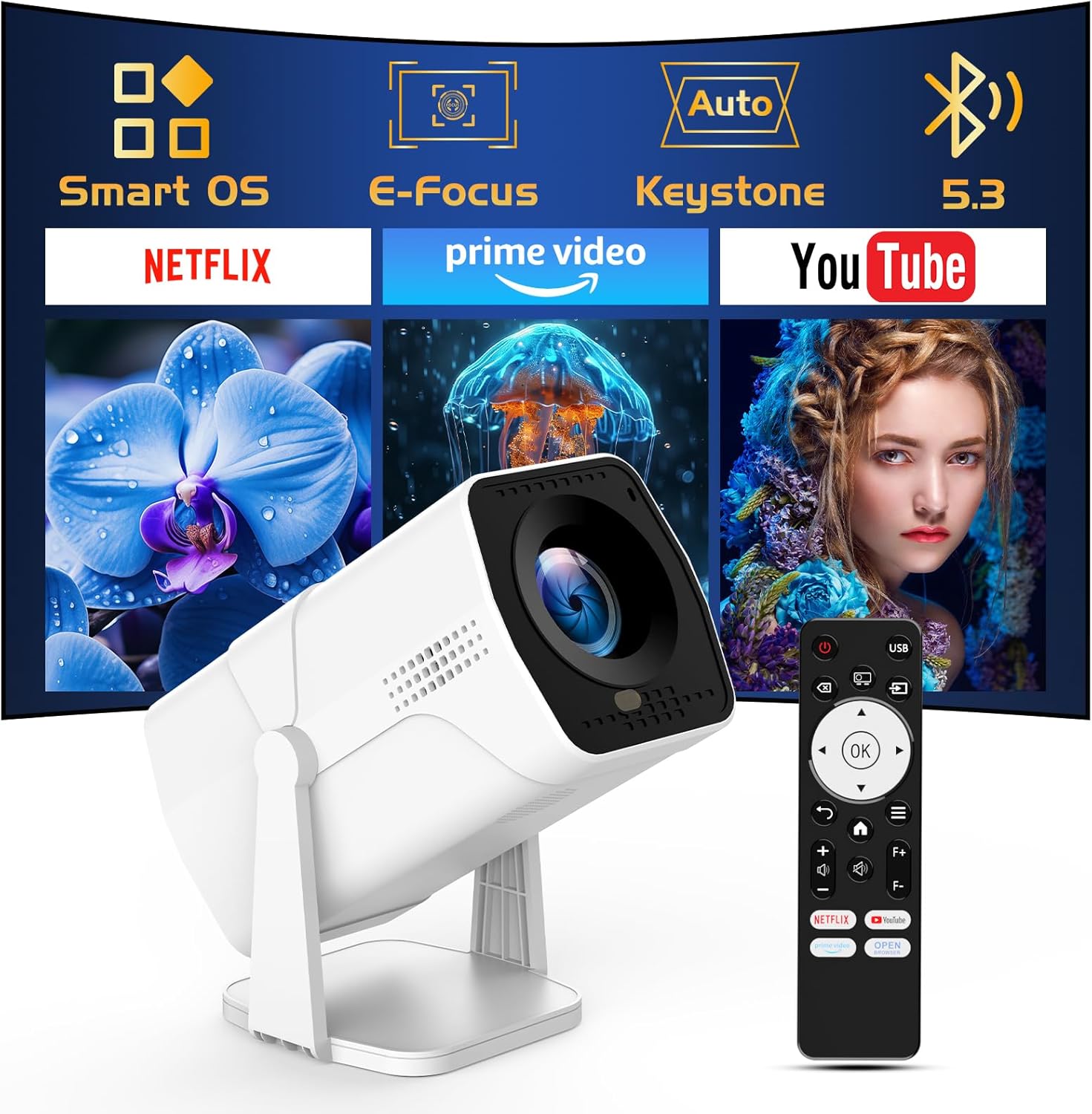
Image: The TMY Projector unit, its remote control, and a projected screen displaying logos for Smart OS, E-Focus, Auto Keystone, Bluetooth 5.3, Netflix, Prime Video, and YouTube.
3. Gosod
3.1 Lleoliad
Position the projector on a stable, flat surface. The 270° rotatable stand allows for versatile placement, including projecting onto walls or ceilings. Ensure adequate ventilation around the projector.

Image: A TMY Projector positioned on a bedside table, projecting an image onto the ceiling, demonstrating its 270° rotatable stand for multi-angle viewing.
3.2 Cysylltiad Pwer
- Cysylltwch y llinyn pŵer â phorthladd mewnbwn pŵer y taflunydd.
- Plygiwch ben arall y llinyn pŵer i mewn i soced drydanol safonol.
3.3 Addasu Pŵer Cychwynnol ac Addasu Ffocws
- Pwyswch y botwm pŵer ar y taflunydd neu'r teclyn rheoli o bell i droi'r ddyfais ymlaen.
- Mae'r taflunydd yn nodweddion Ffocws Trydan a Auto Keystone correction. The image will automatically adjust for clarity and a rectangular shape within approximately 2 seconds.
- If further adjustment is needed, use the remote control to fine-tune the focus.

Image: A TMY Projector projecting a vibrant image onto a screen, with an overlay illustrating the 'FOCUS' function and icons for Auto Keystone and 50%-100% Zoom.
3.4 Cysylltiad Rhwydwaith (WiFi)
The projector supports WiFi 6 for a fast and stable internet connection.
- Navigate to the 'Settings' menu using the remote control.
- Select 'Network' or 'WiFi Settings'.
- Choose your desired WiFi network from the list and enter the password.
- Cadarnhewch y cysylltiad.

Image: A TMY Projector wirelessly connected to a tablet, smartphone, and laptop, illustrating its WiFi 6 connectivity for faster streaming with no lagging.
3.5 Cysylltiad Bluetooth
The projector features Dual-Mode Bluetooth 5.2 for audio connectivity.
- Projector Mode (Output): To connect to external Bluetooth speakers or soundbars: Navigate to 'Bluetooth Settings', enable Bluetooth, and pair with your audio device.
- Speaker Mode (Input): To use the projector's built-in speakers as a standalone Bluetooth speaker: Select 'Speaker Mode' in the Bluetooth settings. Your phone or other device can then connect to the projector to play audio.

Image: A TMY Projector illustrating its two-way Bluetooth 5.2 functionality, showing connections to a soundbar (Projector Mode) and a smartphone (Speaker Mode).
4. Gweithrediad
4.1 Navigating the Smart OS
The projector runs on a smart TV operating system. Use the provided remote control to navigate menus, select applications, and control playback.

Image: The TMY Projector unit with a projected screen showing a grid of built-in smart OS applications, including Netflix, YouTube, Prime Video, TikTok, and others.
4.2 Accessing Built-in Apps
The projector comes with pre-installed and officially licensed applications such as Netflix, Prime Video, and YouTube. Access these directly from the home screen or through the 'App Store' for additional content.

Image: A TMY Projector projecting a screen filled with content from officially licensed apps like Netflix, Prime Video, and YouTube, with the remote control in the foreground.
4.3 Cysylltu Dyfeisiau Allanol
The projector offers multiple ports for connecting external devices:
- HDMI: Connect TV sticks, TV boxes, PCs/Laptops, or gaming consoles (e.g., PS).
- USB: Cyfryngau chwarae files directly from USB drives or connect other USB accessories.
- Phone/PC Mirroring: Wirelessly mirror content from your smartphone or PC (refer to the on-screen instructions for specific mirroring protocols).
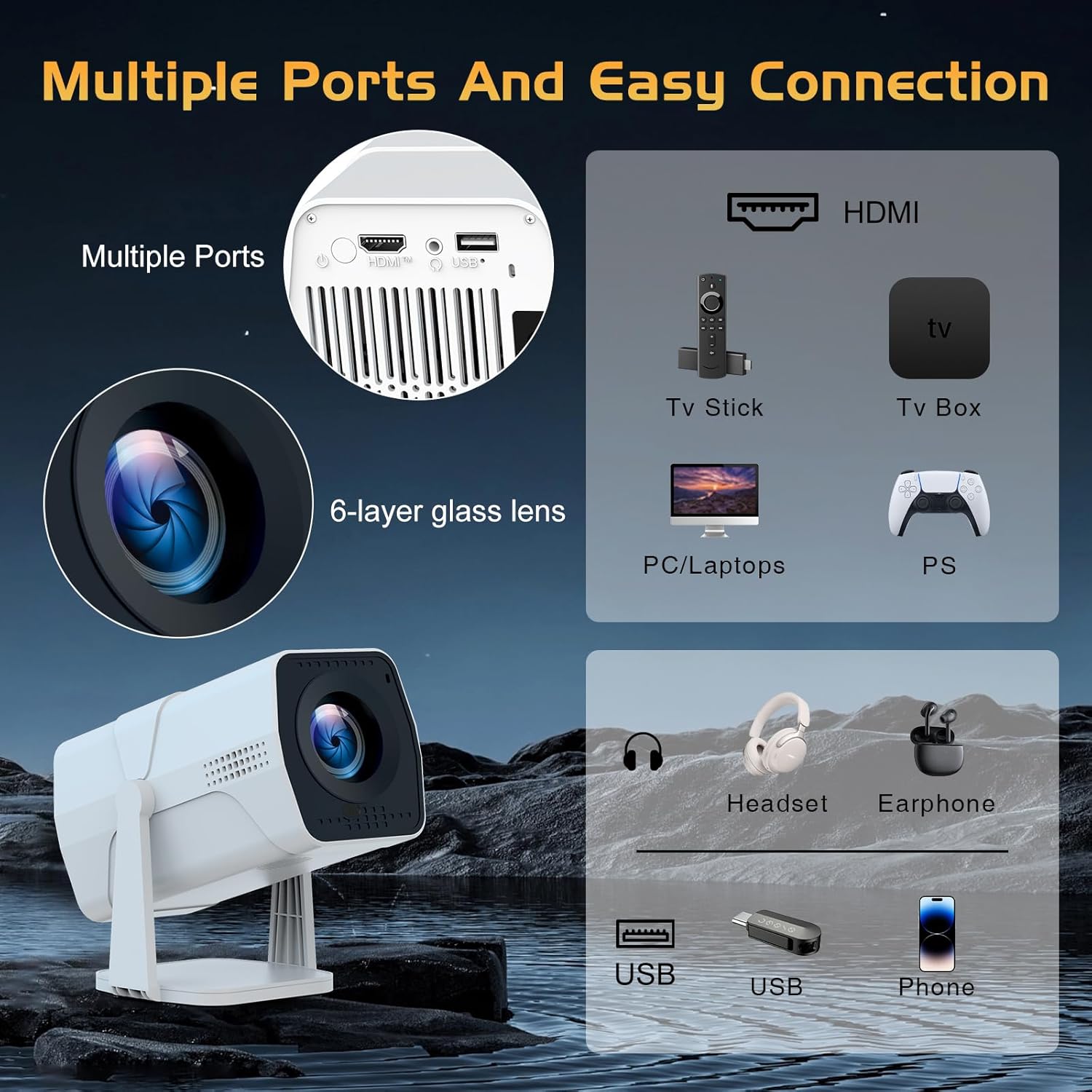
Image: A detailed diagram showing the multiple ports on the TMY Projector (HDMI, USB) and various connection possibilities, including TV sticks, PCs, gaming consoles, headsets, and phones.
4.4 Screen Zoom Function
The projector includes a 50%-100% zoom function, allowing you to adjust the screen size without moving the projector. This feature can be accessed via the remote control or settings menu.
5. cynnal
To ensure the longevity and optimal performance of your TMY Projector, follow these maintenance guidelines:
- Glanhau'r Lens: Defnyddiwch frethyn meddal, di-flwff, sydd wedi'i gynllunio'n benodol ar gyfer lensys optegol. Osgowch ddeunyddiau sgraffiniol neu gemegau llym.
- Glanhau'r tu allan: Sychwch ochr allanol y taflunydd gyda lliain meddal, sych. Peidiwch â defnyddio glanhawyr hylif yn uniongyrchol ar y ddyfais.
- Awyru: Sicrhewch nad yw'r agoriadau awyru wedi'u rhwystro i atal gorboethi.
- Storio: When not in use for extended periods, store the projector in a cool, dry place, away from direct sunlight and dust.
6. Datrys Problemau
If you encounter issues with your TMY Projector, refer to the following common problems and solutions:
- Dim pŵer:
- Ensure the power cord is securely connected to both the projector and a working electrical outlet.
- Gwiriwch a yw'r allfa bŵer yn weithredol.
- No Image / Blurry Image:
- Verify the projector is powered on and the lens cap is removed.
- Allow the automatic focus and keystone correction to complete. If still blurry, manually adjust focus using the remote.
- Ensure the projection surface is suitable and the projector is within the recommended distance.
- If using an external source (HDMI), ensure the correct input source is selected.
- Dim Sain:
- Gwiriwch lefel y sain ar y taflunydd ac unrhyw ddyfeisiau sain allanol sydd wedi'u cysylltu.
- If using Bluetooth speakers, ensure they are properly paired and connected.
- If using internal speakers, ensure external Bluetooth output is not selected.
- Rheolaeth Anghysbell Ddim yn Ymateb:
- Ensure the batteries are correctly inserted and not depleted.
- Pwyntiwch y teclyn rheoli o bell yn uniongyrchol at dderbynnydd IR y taflunydd.
- Problemau Cysylltiad WiFi:
- Gwnewch yn siŵr bod eich rhwydwaith WiFi yn weithredol ac o fewn cyrraedd.
- Gwiriwch y cyfrinair WiFi ddwywaith.
- Restart the projector and your WiFi router.
- If the connection times out, try moving the projector closer to the router or reducing interference.
7. manylebau
| Nodwedd | Manyleb |
|---|---|
| Brand | TMY |
| Model | B0DRFF5KMF |
| Pwysau Eitem | 2.79 pwys |
| Dimensiynau Cynnyrch | 5.35 x 4.84 x 7.09 modfedd |
| Lliw | Gwyn |
| Nodweddion Arbennig | Speakers, Electric Focus, Auto Keystone, 270° Rotatable Stand |
| Technoleg Cysylltedd | HDMI, USB, WiFi 6, Bluetooth 5.2 |
| Cydraniad Arddangos | 1920 x 1080 (1080P Full HD) |
| Defnyddiau a Argymhellir | Dan do |

Image: A visual comparison showing the TMY Projector's 1080P Full HD image quality, emphasizing that it is recommended for use in dark environments for optimal viewing, contrasted with daytime or light-on conditions.
8. Gwarant a Chefnogaeth
TMY is committed to providing excellent customer service and product support.
- Gwarant: Daw'r cynnyrch hwn gyda gwarant 3 blynedd.
- Polisi Dychwelyd: Enjoy a 30-day return period.
- Cymorth Technegol: Lifetime after-sale service and technical support are available.
- Amser ymateb: Expect a quick reply within 24 hours for support inquiries.
Am gymorth pellach, ewch i'r wefan swyddogol TMY Store on Amazon or contact customer support through the provided channels in your warranty card.