
1. Rhagymadrodd
Thank you for choosing the KOORUI N07 27-inch 4K UHD Monitor. This monitor is designed to provide a superior visual experience with its 3840x2160 resolution, IPS panel, 60Hz refresh rate, HDR10 support, and Adaptive Sync technology. This manual provides essential information for setting up, operating, and maintaining your monitor to ensure optimal performance and longevity. Please read this manual thoroughly before using the product.
2. Gwybodaeth Diogelwch
- Rhowch y monitor ar arwyneb sefydlog, gwastad bob amser.
- Peidiwch â rhwystro agoriadau awyru.
- Defnyddiwch yr addasydd pŵer a ddarperir gan y gwneuthurwr yn unig.
- Cadwch y monitor i ffwrdd o ddŵr a lleithder gormodol.
- Avoid exposing the monitor to direct sunlight or high temperatures.
- Datgysylltwch y cebl pŵer yn ystod stormydd mellt a phan na chaiff ei ddefnyddio am gyfnodau hir.
3. Cynnwys Pecyn
Gwiriwch gynnwys y pecyn wrth ei agor. Os oes unrhyw eitemau ar goll neu wedi'u difrodi, cysylltwch â'ch manwerthwr.
- KOORUI N07 27-inch 4K UHD Monitor
- Stand Monitor (Sylfaen a Gwddf)
- Addasydd Pŵer a Chebl Pŵer
- Cebl HDMI
- Cebl DisplayPort
- Llawlyfr Defnyddiwr
4. Monitor Assembly and Setup
4.1 Atodi'r Stondin
- Rhowch y monitor wyneb i lawr yn ofalus ar frethyn meddal, glân i atal crafiadau.
- Attach the stand neck to the back of the monitor, aligning the mounting points.
- Secure the stand neck with the provided screws.
- Attach the stand base to the stand neck and tighten the thumb screw.

Ffigur 4.1: Cefn view of the monitor showing VESA mount and tilt adjustment.
4.2 Cysylltu Ceblau
The KOORUI N07 monitor offers versatile connectivity options. Ensure your computer is turned off before making any connections.
- Cysylltiad Pwer: Connect the power adapter to the monitor's DC input port, then plug the power cable into a power outlet.
- Cysylltiad Fideo: Connect one end of the HDMI or DisplayPort cable to the corresponding port on your computer's graphics card and the other end to an HDMI (HDMI1 or HDMI2) or DisplayPort (DP) input on the monitor.
- Allbwn sain: If desired, connect external speakers or headphones to the 3.5mm audio output port on the monitor.

Figure 4.2: Connectivity options for the KOORUI N07 monitor.
4.3 Pweru Ymlaen
After connecting all necessary cables, press the power button on the monitor to turn it on. The monitor will automatically detect the active input source.
5. Cyfarwyddiadau Gweithredu
5.1 Dewislen Arddangos Ar y Sgrin (OSD)
The OSD menu allows you to adjust various monitor settings. Use the buttons located on the bottom right of the monitor to navigate and select options.
- Botwm Pŵer: Yn troi'r monitor ymlaen / i ffwrdd.
- Botwm Dewislen: Yn agor y ddewislen OSD.
- Botymau Llywio: Fe'i defnyddir i symud trwy opsiynau'r ddewislen ac addasu gwerthoedd.
- Botwm Ymadael: Allanfa'r ddewislen OSD.
5.2 Gosodiadau OSD Allweddol
- Gosodiadau Llun: Addaswch ddisgleirdeb, cyferbyniad, miniogrwydd a thymheredd lliw.
- Dulliau lliw: Select from various preset modes like Standard, Movie, Game, and Eye Care.
- Ffynhonnell Mewnbwn: Manually select between HDMI1, HDMI2, or DisplayPort inputs.
- Cysoni Addasol: Enable or disable Adaptive Sync for smoother gameplay.
- HDR10: Activate HDR10 for enhanced dynamic range with compatible content.
6. Nodweddion Drosview
6.1 4K UHD Resolution (3840x2160)
Experience incredible detail and clarity with a resolution four times higher than Full HD. This monitor provides 8.3 million pixels for a sharper and more colorful image.

Figure 6.1: 4K UHD resolution detail comparison.
6.2 IPS Panel Technology
The IPS panel offers a wide 178° viewing angle and vibrant color reproduction (90% DCI-P3, 99% sRGB), ensuring consistent image quality from almost any perspective. This is ideal for graphic designers, gamers, and movie enthusiasts.

Figure 6.2: IPS panel with 99% sRGB color accuracy.
6.3 Cymorth HDR10
Enjoy content with enhanced dynamic range. HDR10 provides brighter whites, deeper blacks, and more vivid colors, bringing your favorite movies and games to life with greater realism.

Figure 6.3: HDR10 technology for improved image quality.
6.4 Adaptive Sync Technology
Adaptive Sync eliminates screen tearing and stuttering, providing a smoother and more fluid visual experience, especially during fast-paced gaming or video playback.

Ffigur 6.4: Sync Addasol ar waith, yn atal rhwygo'r sgrin.
6.5 Technoleg Gofal Llygaid
The monitor features a Blue Light Filter and Flicker-Free technology to reduce eye strain during prolonged use. The Eye Care mode optimizes settings to minimize blue light emission, promoting visual comfort.
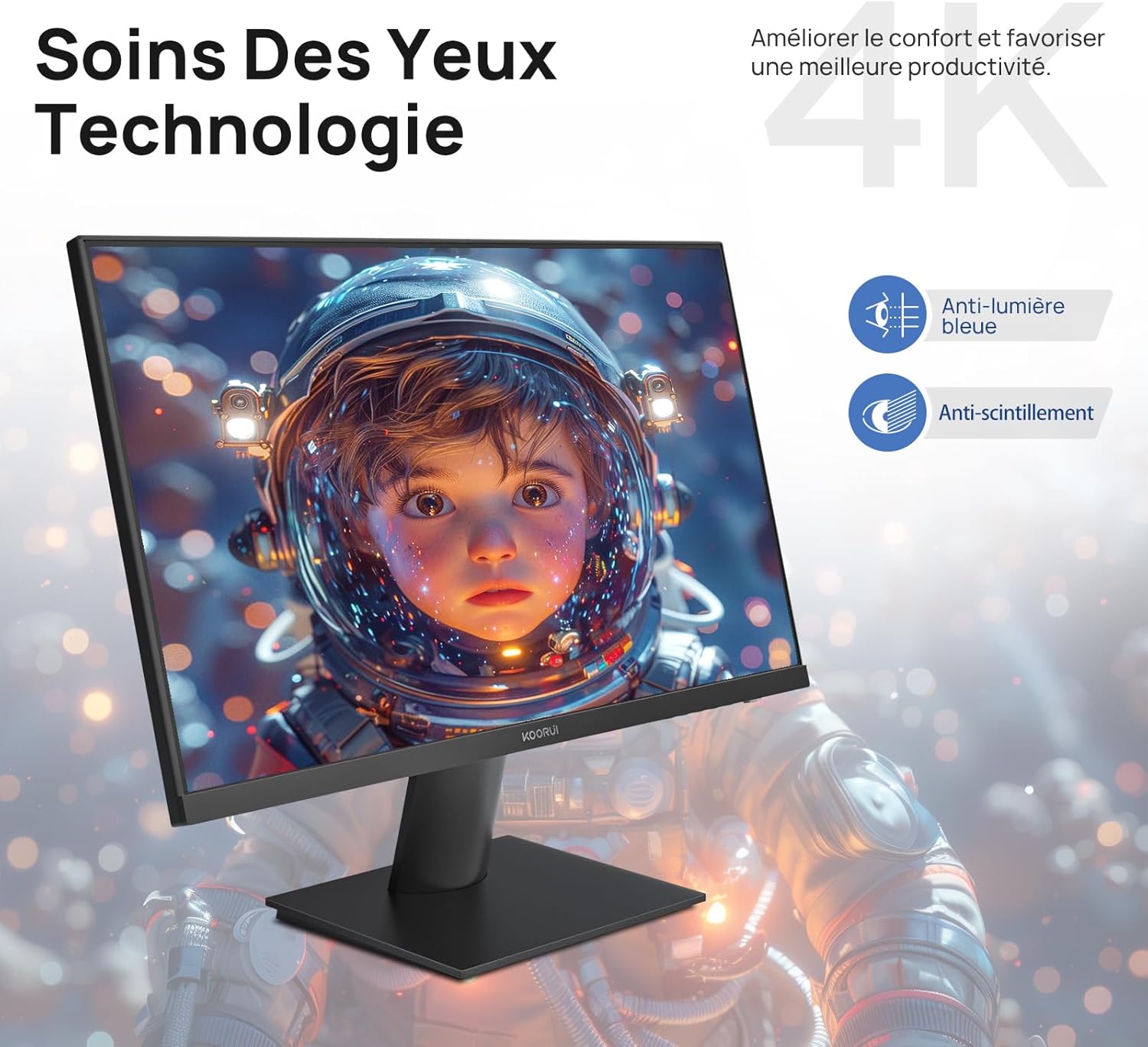
Figure 6.5: Eye Care technology for reduced eye strain.
6.6 Dylunio Ergonomig
The monitor stand allows for tilt adjustment from -5° to 20°, enabling you to find the most comfortable viewing angle for your posture.
6.7 Cydnawsedd Mownt VESA
The KOORUI N07 supports 100x100mm VESA mounting, allowing you to easily attach it to a wall mount or an articulated monitor arm for a flexible and clutter-free workspace.

Figure 6.6: VESA mount compatibility for flexible setup.
7. Fideo Cynnyrch Drosoddview
Fideo 7.1: Dros benview of the KOORUI N07 27-inch 4K UHD monitor, highlighting its key features such as 4K resolution, DCI-P3 color gamut, HDR10 support, versatile usage for creation, viewing, and gaming, adjustable tilt, and VESA mounting capabilities.
8. Datrys Problemau
Os byddwch chi'n dod ar draws problemau gyda'ch monitor, cyfeiriwch at y problemau a'r atebion cyffredin canlynol:
| Problem | Ateb Posibl |
|---|---|
| Dim delwedd ar y sgrin | Ensure power cable is securely connected. Check video cable connection (HDMI/DP) to both monitor and computer. Verify correct input source is selected in OSD. |
| Mae'r ddelwedd yn aneglur neu wedi'i gwyrdroi | Check display resolution settings on your computer. Ensure it is set to 3840x2160. Adjust sharpness in the OSD menu. |
| Mae lliwiau'n ymddangos yn anghywir | Adjust color temperature and color settings in the OSD menu. Try resetting picture settings to factory defaults. |
| Fflachio sgrin | Ensure the video cable is securely connected. Disable Adaptive Sync if enabled, or update your graphics card drivers. |
9. manylebau
| Nodwedd | Manylyn |
|---|---|
| Brand | KOORUI |
| Rhif Model | N07 |
| Maint Sgrin | 27 modfedd |
| Datrysiad | 4K UHD (3840 x 2160 Picsel) |
| Math o Banel | IPS |
| Cyfradd Adnewyddu | 60 Hz |
| Amser Ymateb | 4 milieiliad |
| Cymhareb Agwedd | 16:9 |
| Cymhareb Cyferbyniad | 1000:1 |
| Disgleirdeb | 300 cd/m² |
| Viewongl ing | 178 Gradd |
| Cysylltedd | 2x HDMI 2.0, 1x DisplayPort 1.4, 1x Allbwn Sain |
| Cydnawsedd VESA | 100x100mm |
| Nodweddion Arbennig | Blue Light Filter, Tilt Adjustment, Frameless, Flicker-Free, Adaptive Sync, HDR10 |
| Dimensiynau (D x W x H) | 20.5P x 61lx 45H centimetrau |
| Pwysau | 3 Cilogram |
10. cynnal
To ensure the longevity and optimal performance of your KOORUI N07 monitor, follow these maintenance guidelines:
- Glanhau'r sgrin: Sychwch y sgrin yn ysgafn gyda lliain meddal, di-flwff. Ar gyfer marciau ystyfnig,ampgolchwch y lliain yn ysgafn gyda dŵr neu lanhawr sgrin arbenigol. Peidiwch byth â chwistrellu hylif yn uniongyrchol ar y sgrin.
- Glanhau'r Casing: Defnyddiwch frethyn meddal, sych i lanhau'r monitor casing. Osgowch lanhawyr neu doddyddion sgraffiniol.
- Awyru: Gwnewch yn siŵr nad yw agoriadau awyru'r monitor wedi'u blocio i atal gorboethi.
- Pwer i ffwrdd: Turn off the monitor when not in use for extended periods.
11. Gwarant a Chefnogaeth
The KOORUI N07 monitor comes with a Gwarant gwneuthurwr 2 flynedd. This warranty covers defects in materials and workmanship under normal use. For warranty claims or technical support, please contact KOORUI customer service or your retailer with your proof of purchase.
For additional support, troubleshooting guides, and driver downloads, please visit the official KOORUI websafle.