
Rhagymadrodd
This manual provides detailed instructions for the setup, operation, maintenance, and troubleshooting of your KOORUI S2721XO 27-inch QD-OLED Gaming Monitor. Please read this manual thoroughly before using the product to ensure proper functionality and to prevent damage.

Image: KOORUI S2721XO 27-inch QD-OLED Gaming Monitor showcasing its main features like 240Hz refresh rate, 0.03ms response time, QHD resolution, QD-OLED panel, VESA compatibility, 99% DCI-P3 color gamut, Eye Care, and Adaptive Sync.
Cynnwys Pecyn
Gwiriwch fod yr holl gydrannau yn bresennol yn y pecyn:
- KOORUI S2721XO 27-inch QD-OLED Gaming Monitor
- Stand Monitor (Sylfaen a Gwddf)
- Cebl Pŵer
- Cebl HDMI
- Cebl DisplayPort
- Llawlyfr Defnyddiwr (y ddogfen hon)
- Cerdyn Gwarant (os yw'n berthnasol)
Cyfarwyddiadau Gosod
1. Cydosod yr Eisteddle
- Tynnwch gydrannau'r monitor a'r stondin o'r pecynnu yn ofalus.
- Attach the stand neck to the monitor panel. Ensure it clicks securely into place or is fastened with screws as indicated in the quick start guide.
- Atodwch waelod y stondin i wddf y stondin, gan ei sicrhau gyda'r sgriw a ddarperir.
- Rhowch y monitor wedi'i ymgynnull ar arwyneb sefydlog, gwastad.
Alternatively, the monitor supports VESA 75mm x 75mm mounting for wall mounts or monitor arms. Ensure the VESA mount is rated for the monitor's weight (3 kg).

Image: Illustrations showing the monitor's ergonomic adjustments including height adjustment (110mm), tilt (-20° to 20°), 90° pivot for vertical viewing, and swivel (-5° to 20°).
2. Cysylltu Ceblau
Identify the ports on the back of your monitor and connect the necessary cables.

Delwedd: Cefn view of the KOORUI S2721XO monitor showing the connectivity ports: 1. Power cable input, 2. HDMI 2.1, 3. HDMI 2.1, 4. DisplayPort 1.4, 5. Audio output interface. Also shows VESA 100x100mm mounting points.
- Cebl Pwer: Cysylltwch un pen y cebl pŵer â mewnbwn pŵer y monitor a'r pen arall ag allfa bŵer.
- Mewnbwn Fideo:
- For HDMI connection, use the provided HDMI cable to connect your computer's HDMI output to one of the monitor's HDMI 2.1 ports.
- For DisplayPort connection, use the provided DisplayPort cable to connect your computer's DisplayPort output to the monitor's DisplayPort 1.4 port.
- Allbwn sain: If desired, connect external speakers or headphones to the audio output jack.
3. Troi ymlaen yn gychwynnol
- Pwyswch y botwm pŵer ar y monitor.
- Turn on your computer. The monitor should automatically detect the input signal. If not, you may need to manually select the input source using the OSD menu.
Cyfarwyddiadau Gweithredu
Dewislen Arddangos Ar y Sgrin (OSD)
The OSD menu allows you to adjust various monitor settings. Typically, a joystick or a set of buttons located on the back or bottom of the monitor is used to navigate the OSD.
- Press the OSD button/joystick to open the menu.
- Use the navigation controls to move through options.
- Press the select button to confirm a selection.
- Pwyswch y botwm ymadael i gau'r ddewislen OSD.
Gosodiadau Llun
- Disgleirdeb/Cyferbyniad: Addaswch y gosodiadau hyn i gyd-fynd â'ch viewing amgylchedd.
- Tymheredd Lliw: Select from preset modes (e.g., Warm, Cool, User) or customize RGB values.
- HDR (Amrediad Dynamig Uchel): The monitor supports HDR 400. Enable HDR in your operating system and monitor settings for enhanced contrast and color detail.
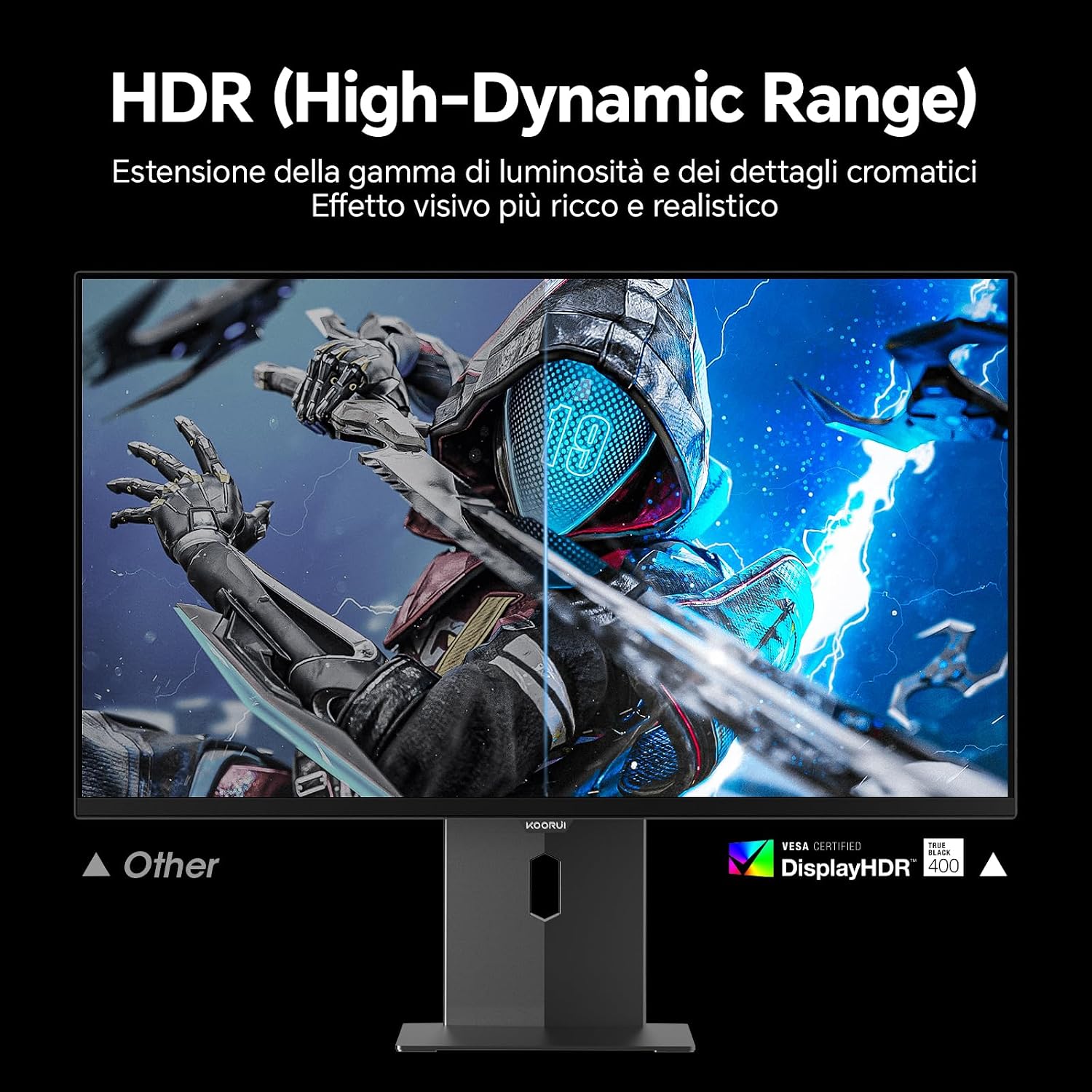
Image: Comparison of a standard display versus the KOORUI S2721XO monitor with HDR (High-Dynamic Range) enabled, showing richer visual effects and realistic details.
Nodweddion Hapchwarae
- Cyfradd Adnewyddu: The monitor supports up to 240Hz. Ensure your graphics card and system settings are configured to utilize this refresh rate for smooth gameplay.
- Amser ymateb: With a 0.03ms response time, motion blur is significantly reduced.
- Cysoni Addasol: This technology synchronizes the monitor's refresh rate with your GPU's frame rate, eliminating screen tearing and stuttering. Enable Adaptive Sync in the OSD menu and your graphics card control panel.
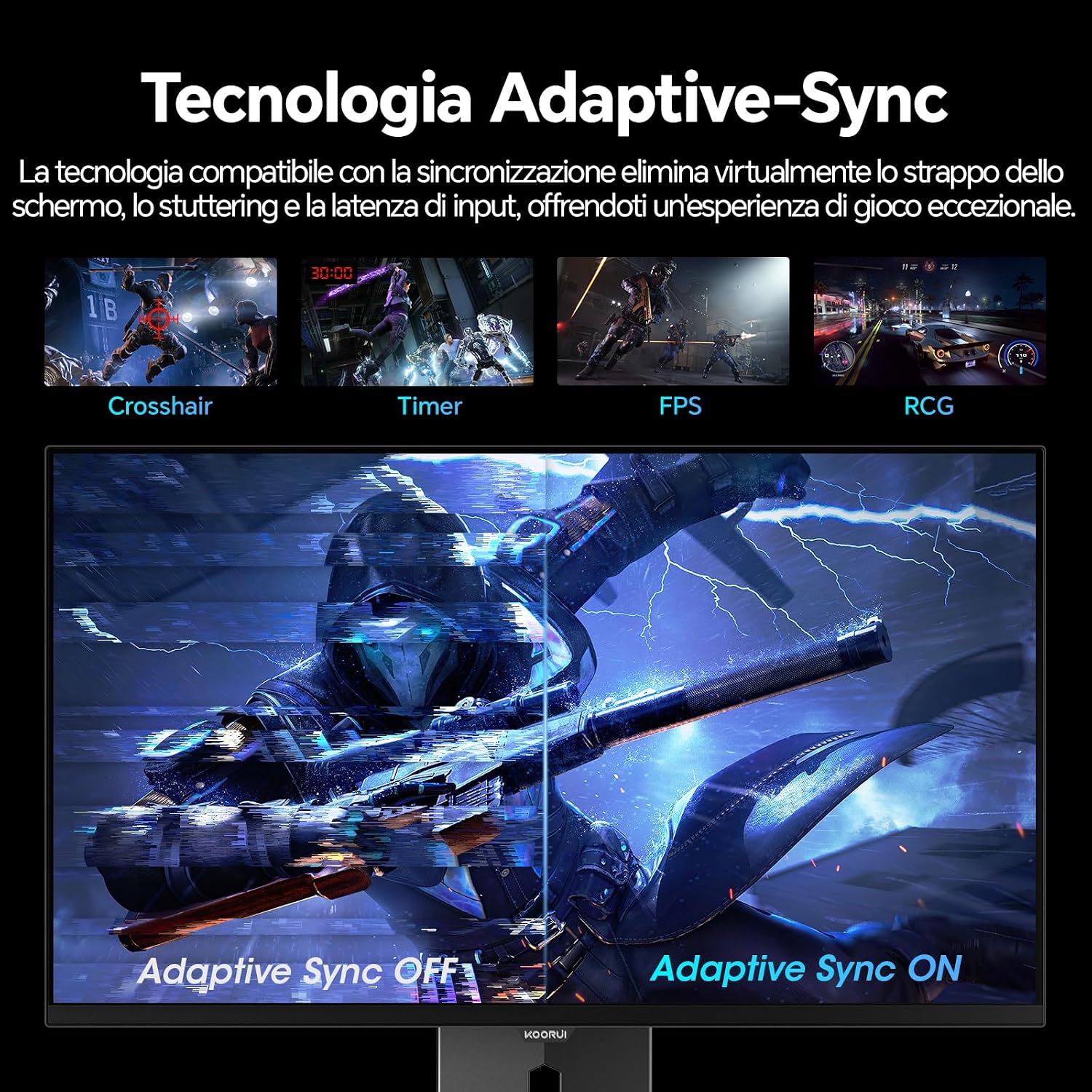
Image: A visual demonstration of Adaptive Sync technology, showing the difference between Adaptive Sync OFF (with screen tearing and stuttering) and Adaptive Sync ON (with smooth, tear-free visuals).

Image: A visual comparison illustrating the ultra-high refresh rate of 240Hz and 0.03ms response time, contrasting it with a 100Hz 5ms display to show the improved fluidity and reduced ghosting.
Modd Gofal Llygaid
The monitor includes features designed to reduce eye strain during extended use. Access the Eye Care settings in the OSD menu to enable modes that reduce blue light emission or adjust flicker-free settings.
Cynnal a chadw
Glanhau'r Monitor
- Diffoddwch y monitor bob amser a datgysylltwch y cebl pŵer cyn glanhau.
- Defnyddiwch frethyn meddal, di-lint ychydig dampwedi'i lanhau â dŵr neu lanhawr sgrin arbenigol.
- Peidiwch â chwistrellu glanhawr yn uniongyrchol ar y sgrin.
- Osgowch ddefnyddio glanhawyr sgraffiniol, cwyrau neu doddyddion gan y gallant niweidio wyneb y sgrin.
- Sychwch y monitor casing gyda lliain meddal, sych.
Storio
When storing the monitor for an extended period, ensure it is powered off, unplugged, and stored in a cool, dry place away from direct sunlight and extreme temperatures. Use original packaging if available for best protection.
Datrys problemau
| Problem | Achos Posibl | Ateb |
|---|---|---|
| Dim pŵer | Cebl pŵer heb ei gysylltu; Allfa bŵer ddim yn gweithio; Botwm pŵer y monitor i ffwrdd. | Ensure power cable is securely connected. Test power outlet with another device. Press the monitor's power button. |
| Dim signal | Video cable not connected; Incorrect input source selected; Computer not powered on. | Check video cable connections (HDMI/DisplayPort). Select the correct input source via the OSD menu. Ensure your computer is powered on and outputting a signal. |
| Sgrin sy'n fflachio | Incorrect refresh rate; Faulty cable; Graphics card driver issues. | Adjust refresh rate in display settings. Try a different video cable. Update graphics card drivers. |
| Ansawdd delwedd wael | Incorrect resolution; Picture settings misconfigured; Dirty screen. | Set display resolution to 2560x1440. Adjust brightness, contrast, and color settings in the OSD. Clean the screen as per maintenance instructions. |
Manylebau
| Brand | KOORUI |
| Rhif Model | S2721XO |
| Maint Sgrin | 27 modfedd |
| Math o Banel | QD-OLED |
| Datrysiad | QHD Eang 1440p (2560 x 1440) |
| Cymhareb Agwedd | 16:9 |
| Cyfradd Adnewyddu | 240 Hz |
| Amser Ymateb | 0.03 ms |
| Cymhareb Cyferbyniad | 1,500,000:1 |
| Disgleirdeb | 280 cd/m² |
| Viewongl ing | 178 Gradd |
| Gwerth Gamut Lliw | 99% DCI-P3 (100% sRGB) |
| Cysylltedd | 2x HDMI 2.1, 1x DisplayPort 1.4, Allbwn Sain |
| Cysoni Addasol | FreeSync compatible |
| Nodweddion Arbennig | HDR 400, Eye Care, Height Adjustment, Tilt Adjustment, Swivel Adjustment, Pivot Adjustment |
| Cydnawsedd VESA | 75mm x 75mm |
| Dimensiynau (W x H x D) | 610.11 mm x 521.84 mm x 215.82 mm (24.02 in x 20.54 in x 8.50 in) |
| Pwysau | 3 Cilogram |
Gwybodaeth Gwarant
The KOORUI S2721XO monitor comes with a Gwarant 2 mlynedd from the date of purchase. This warranty covers manufacturing defects and malfunctions under normal use. Please retain your proof of purchase for warranty claims. For detailed terms and conditions, refer to the warranty card included in your package or visit the official KOORUI websafle.
Cefnogaeth a Chysylltiad
For further assistance, technical support, or customer service inquiries, please visit the official KOORUI website or contact their customer support team. You can also refer to the official PDF instructions for use: