
Cynnyrch Drosview
The Insta360 Connect is an advanced AI conference room system designed to enhance virtual meetings. It integrates dual 4K cameras, a 14-microphone array, and intelligent AI features to provide a seamless and engaging conferencing experience. Certified for Zoom Rooms and compatible with various platforms, it is ideal for small to medium-sized meeting spaces.

Image: The Insta360 Connect AI Conference Room System, highlighting its dual 4K cameras and sleek design.
Beth Sydd yn y Bocs
- 1x Insta360 Connect Unit
- 1x Rheolaeth Anghysbell
- 1x Desk Stand
- 2x 1.8 Meter HDMI Cables
- 1x 1.8 Meter USB-C Cable
- Addasydd Pŵer 1x
Gosod a Chysylltiad
Gosodiad Corfforol
Place the Insta360 Connect unit on its included desk stand or mount it securely in your conference room. Ensure it has a clear line of sight to all participants and any whiteboards you intend to use.
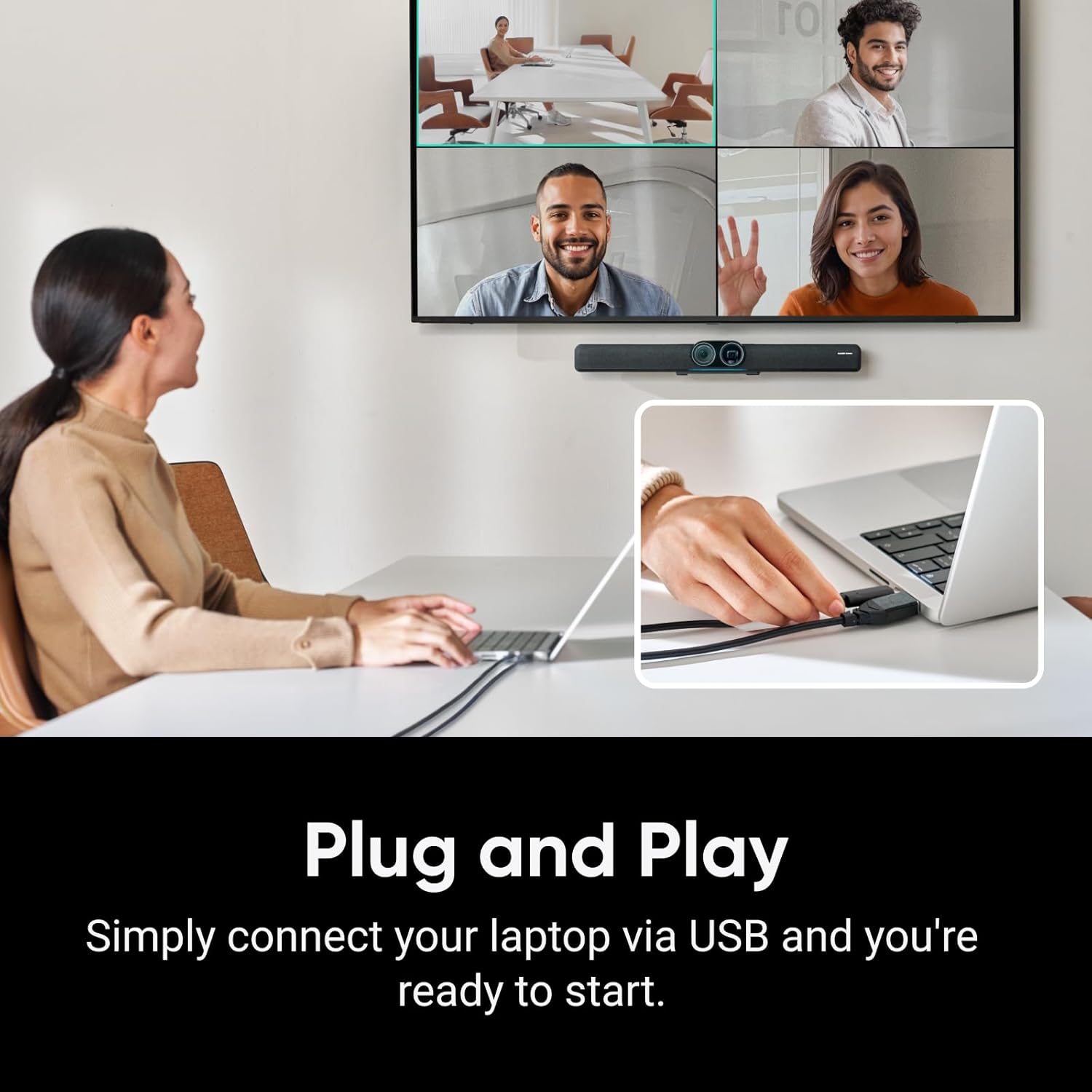
Image: The Insta360 Connect connected to a laptop via USB, illustrating the plug-and-play setup.
Dulliau Cysylltiad
The Insta360 Connect offers two primary connection methods:
- HDMI Direct Connection: Connect the Insta360 Connect via HDMI to your TV. Use the included remote control to initiate or join meetings directly. For this method, the device requires an internet connection via Ethernet or Wi-Fi (Ethernet recommended).
- BYOD (Bring Your Own Device) Mode: Connect the HDMI-OUT port on the Insta360 Connect to an HDMI input on your TV. Then, connect an HDMI cable and a USB-C cable from your PC/laptop to the HDMI-IN and USB-C-IN ports on the Insta360 Connect. In BYOD mode, the device does not require an internet connection. The PC/laptop's HDMI signal passes through the Connect, which can overlay its interface or informational messages on the TV. The webcam, speaker, and microphone functions are recognized by your operating system via the USB-C cable.
Cyfarwyddiadau Gweithredu
Dual 4K Cameras
The Insta360 Connect features a dual-camera system with a 1/1.3" CMOS sensor wide-angle camera and a telephoto gimbal camera. These cameras work in tandem to deliver high-quality 4K visuals, capturing both wide group views and individual close-ups.
Image: Close-up of the Insta360 Connect's dual 4K cameras, emphasizing its Zoom certification.
Fframio AI
The advanced AI framing technology ensures all participants are clearly visible. You can choose between:
- Group Framing: Automatically detects and frames all individuals in the room, adjusting zoom to keep everyone in view.
- Modd Oriel: Provides individual windows for each participant, making online meetings more engaging.

Image: A conference room setup demonstrating the Intelligent AI Framing feature, displaying multiple participants in individual windows on a large screen.
Olrhain Llefarydd
Utilizing voice, facial, and body recognition, the AI technology precisely tracks the active speaker, keeping them centered in the frame. This feature ensures the focus remains on the person speaking, enhancing meeting dynamics.

Image: A person speaking in a conference room, with a highlighted close-up frame demonstrating the Speaker Tracking functionality.
Modd Bwrdd Gwyn
The dedicated Whiteboard Mode enhances presentations by automatically squaring off and optimizing the view of a whiteboard. It can even make presenters semi-transparent when they block the camera, ensuring the whiteboard content remains visible.

Image: A person presenting at a whiteboard, with the Whiteboard Mode feature ensuring the content is clear and visible, even when partially obscured.
Nodweddion Sain
- Arae 14-Meicroffon: Captures crystal-clear audio with voice pickup up to 33 feet away.
- Sain Addasol: Intelligent noise reduction technology eliminates unwanted sounds and echoes, ensuring interruption-free meetings.
- Modd Ffôn Siaradwr: Provides professional audio for conference calls with easy Bluetooth connectivity.
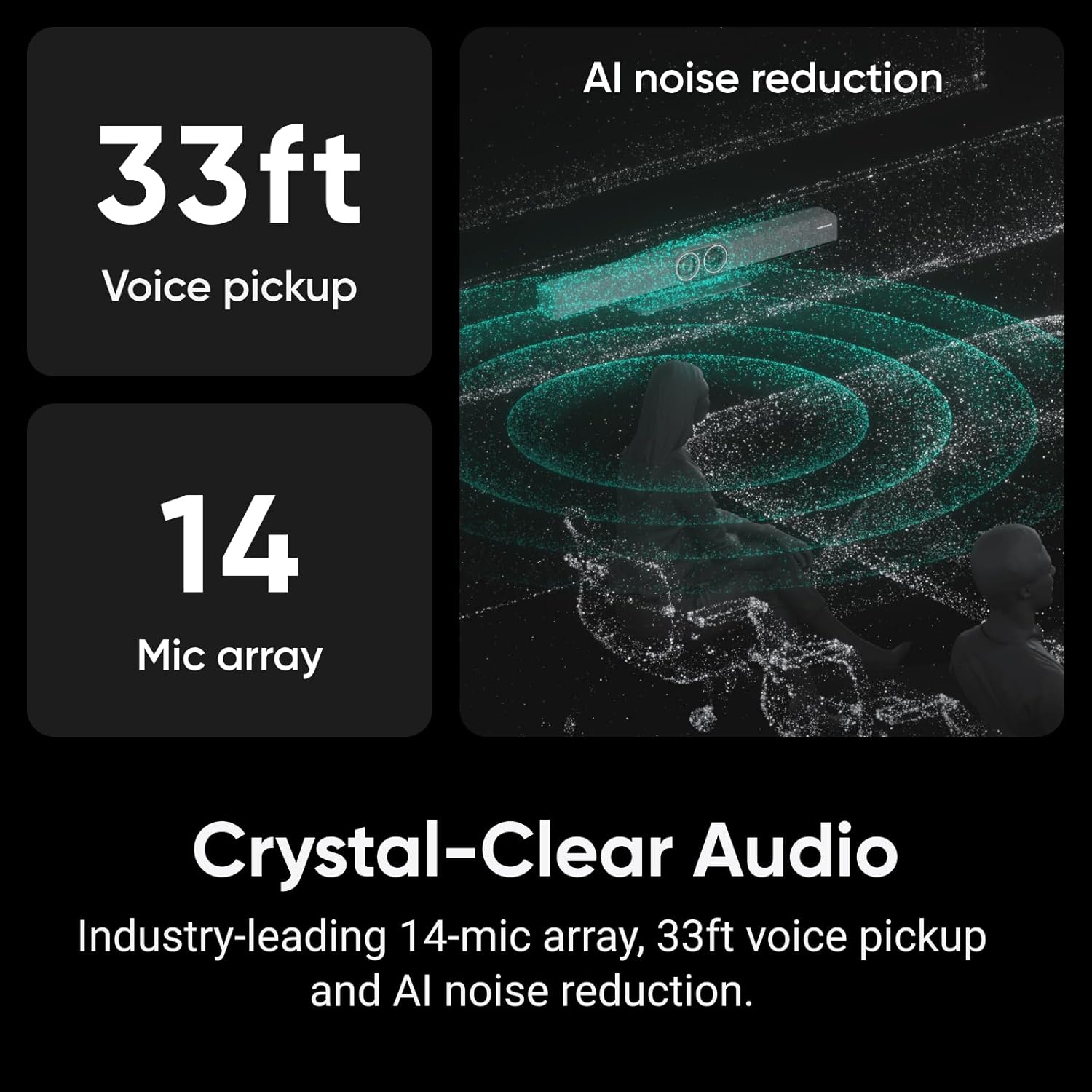
Image: Infographic detailing the Crystal-Clear Audio capabilities of the Insta360 Connect, including 33ft voice pickup, a 14-microphone array, and AI noise reduction.
Modd Preifatrwydd
Protect your privacy with a single slide that conceals the lens and mutes the microphone, ensuring confidentiality when needed.
Fideo Cynnyrch Swyddogol
Fideo: Cynnyrch swyddogol drosoddview of the Insta360 Connect Dual-camera AI video bar, showcasinei nodweddion a'i ymarferoldeb.
Manylebau
| Nodwedd | Manylyn |
|---|---|
| Brand | Insta360 |
| Rhif Model | CINSAABA |
| Datrysiad Dal Fideo | 4K |
| Technoleg Synhwyrydd Ffotograffau | CMOS |
| Maint Synhwyrydd Llun | 1/2.8" |
| Math Lens | Telephoto, Wide Angle |
| Chwyddo Optegol | 3x |
| Nodweddion Arbennig | AI Framing, Speaker Tracking, Whiteboard Mode, Advanced Audio Capabilities |
| Technoleg Cysylltedd | HDMI, USB |
| System Weithredu | Android |
| Nifer y Siaradwyr | 1 |
| Dyfeisiau Cydnaws | Laptop, Microphone, Personal Computer, Tablet |
| Lliw | Du |
| GTIN / UPC | 842126111273 |
Datrys problemau
If you encounter any issues with your Insta360 Connect, please refer to the following common troubleshooting steps:
- Dim Allbwn Fideo/Sain: Ensure all cables (HDMI, USB-C) are securely connected. Verify that the correct input source is selected on your display. Check your computer's sound and camera settings to ensure Insta360 Connect is selected as the default device.
- Nodweddion AI Ddim yn Gweithio: Confirm that the device firmware is up to date. Ensure the room is adequately lit and there are no obstructions blocking the camera's view.
- Ansawdd Sain Gwael: Check for excessive background noise. Ensure participants are within the 33ft voice pickup range. Verify that Adaptive Audio (noise reduction) is enabled.
- Dyfais heb ei hadnabod: Try connecting the USB-C cable to a different port on your computer. Restart your computer and the Insta360 Connect unit.
Cynnal a chadw
To ensure the longevity and optimal performance of your Insta360 Connect, follow these maintenance guidelines:
- Glanhau: Use a soft, dry cloth to clean the camera lenses and the device's exterior. Avoid using harsh chemicals or abrasive materials.
- Storio: Pan na chaiff ei ddefnyddio, storiwch y ddyfais mewn lle oer, sych i ffwrdd o olau haul uniongyrchol a thymheredd eithafol.
- Diweddariadau Cadarnwedd: Regularly check for and install firmware updates to ensure you have the latest features and performance improvements.
Gwarant a Chefnogaeth
The Insta360 Connect comes with a Gwarant 2 Flynedd. For technical support, warranty claims, or additional assistance, please visit the official Insta360 support websafle neu cysylltwch â'u gwasanaeth cwsmeriaid.