
1. Gwybodaeth Bwysig am Ddiogelwch
Darllenwch yr holl gyfarwyddiadau yn ofalus cyn defnyddio'r cynnyrch hwn. Cadwch y llawlyfr hwn i gyfeirio ato yn y dyfodol.
- Peidiwch â rhwystro agoriadau awyru. Sicrhewch fod digon o lif aer o amgylch y taflunydd.
- Peidiwch â gwneud y taflunydd yn agored i law neu leithder i atal tân neu sioc drydanol.
- Defnyddiwch atodiadau/ategolion a nodir gan y gwneuthurwr yn unig.
- Datgysylltwch y taflunydd yn ystod stormydd mellt a phan na chaiff ei ddefnyddio am gyfnodau hir.
- Cyfeirio pob gwasanaeth i bersonél gwasanaeth cymwys.
2. Cynnwys Pecyn
Gwiriwch fod yr holl eitemau yn bresennol yn eich pecyn:
- WEWATCH S3 4K Portable Projector
- Rheolaeth Anghysbell
- Cebl Pŵer
- Cebl HDMI
- Llawlyfr Defnyddiwr
3. Cynnyrch Drosview
Familiarize yourself with the components and ports of your WEWATCH S3 projector.

Delwedd: Ochr flaen view of the WEWATCH S3 4K Portable Projector, showcasing its sleek design and lens.
3.1. Porthladdoedd a Chysylltiadau
The projector features various ports for versatile connectivity:

Delwedd: Cefn view of the WEWATCH S3 projector, highlighting its various input and output ports including LAN, USB, HDMI, and audio jacks.
- LAN (x1): Ar gyfer cysylltiad rhwydwaith gwifrau.
- USB (x2): Ar gyfer cysylltu gyriannau USB neu ddyfeisiau USB eraill.
- HDMI (x2): For connecting external devices like laptops, gaming consoles, or streaming sticks.
- AU (Audio Out x1): Ar gyfer cysylltu dyfeisiau sain allanol.
- AX (Audio In x1): Ar gyfer mewnbwn sain.
4. Gosod
Follow these steps to set up your projector for the first time:
- Lleoliad: Place the projector on a stable, flat surface or mount it securely. Ensure it is positioned to project onto a suitable screen or wall.
- Cysylltiad Pwer: Connect the power cable to the projector's power input and then to a power outlet.
- Pŵer Ymlaen: Pwyswch y botwm pŵer ar y taflunydd neu'r teclyn rheoli o bell i droi'r ddyfais ymlaen.

Image: The WEWATCH S3 projector set up in a living room environment, projecting an image onto a screen, demonstrating typical home usage.
5. Cyfarwyddiadau Gweithredu
5.1. Android TV Operating System
The WEWATCH S3 features an integrated Android TV system, providing direct access to popular streaming applications.

Image: A person using the remote control to navigate the Android TV interface projected onto a large screen, showing various streaming app icons like Prime Video, YouTube, and Netflix.
- Llywio: Use the remote control's directional buttons and OK button to navigate the Android TV interface.
- Defnydd Ap: For optimal experience with certain applications (e.g., Netflix, YouTube), it is recommended to switch the remote control to mouse mode. After using the application, switch back to normal mode.
6. Cysylltedd
6.1. Wi-Fi Connection (2.4G + 5G)
Connect your projector to a wireless network for internet access and screen mirroring.
- Navigate to the Wi-Fi settings in the Android TV menu.
- Dewiswch eich rhwydwaith dymunol a nodwch y cyfrinair.
- The projector supports both 2.4G and 5G Wi-Fi bands for fast and stable connections.
6.2. Cysylltiad Bluetooth
Connect external Bluetooth speakers or headphones for enhanced audio, or use the projector as a Bluetooth speaker.

Image: A smartphone wirelessly connected to the WEWATCH S3 projector, demonstrating the 2.4G/5G Wi-Fi and Bluetooth dual-channel capabilities for seamless content streaming.
- Ewch i osodiadau Bluetooth.
- Pâr gyda'ch dyfais Bluetooth.
- The projector can also function as a standalone Bluetooth speaker when connected to a phone.
6.3. HDMI and USB Connections
Cysylltwch ddyfeisiau allanol trwy borthladdoedd HDMI neu USB.
- Insert the HDMI cable into one of the projector's HDMI ports and the other end into your device (e.g., laptop, game console).
- Mewnosodwch yriant USB i borthladd USB i gael mynediad at gyfryngau files.
7. Nodweddion Allweddol
7.1. Electronic Focus
Adjust the image clarity easily using the remote control.

Image: A hand holding the projector's remote control, pointing to the F+/F- buttons used for electronic focus adjustment, with a clear projected image of a tiger cub.
- Defnyddiwch y F+ a F- buttons on the remote control to fine-tune the focus until the image is sharp.
7.2. 4-Point Keystone Correction
Correct distorted images to achieve a perfectly rectangular projection, regardless of the projector's angle.
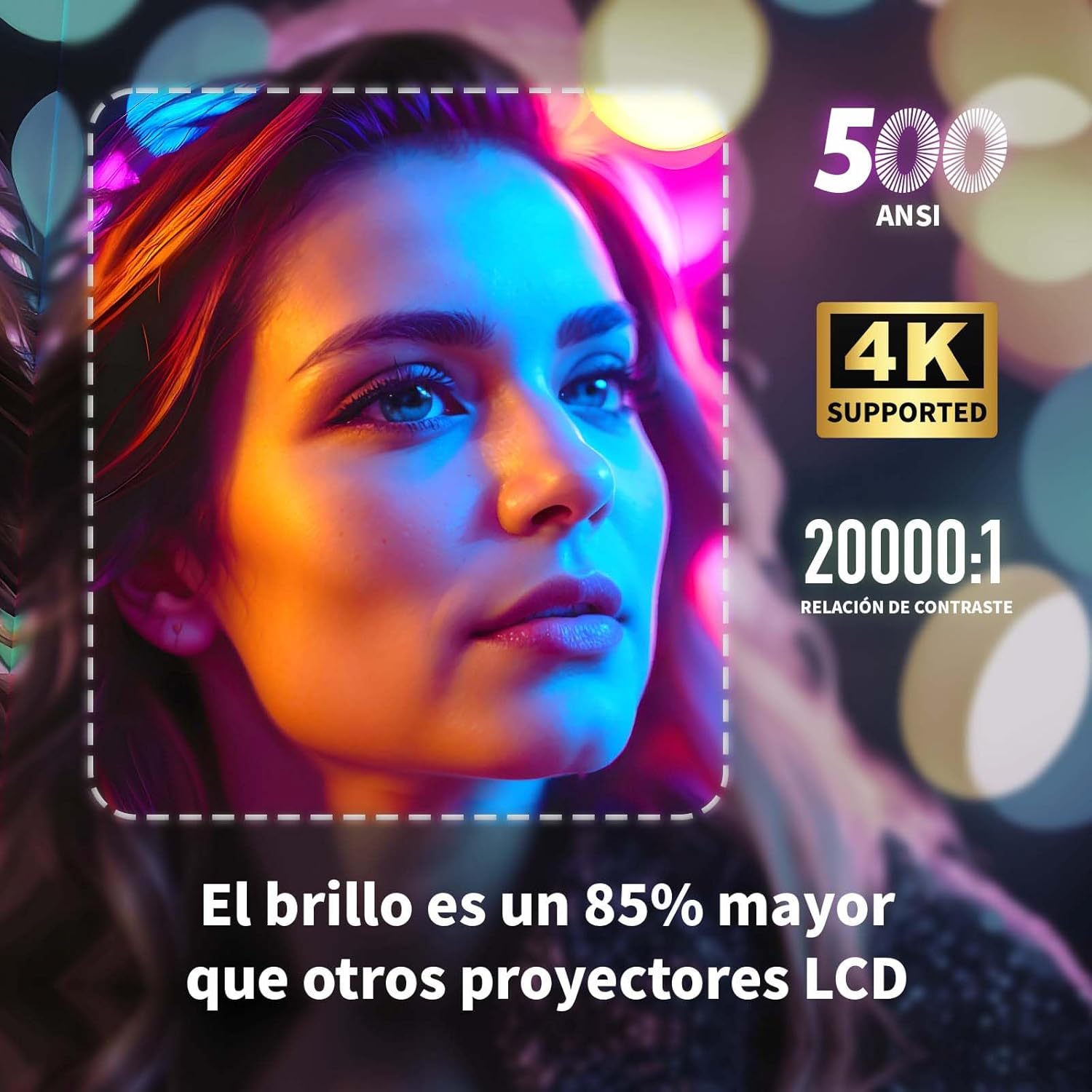
Image: A projected image of a woman's face with a dotted outline demonstrating how 4-point keystone correction adjusts the image to be perfectly rectangular, even when projected at an angle.
- Access the keystone correction settings in the menu to adjust each corner of the image independently.
- The projector also supports automatic vertical keystone correction.
7.3. Swyddogaeth Chwyddo
Adjust the image size without moving the projector.

Image: A visual representation of the projector's zoom function, showing how the image size can be reduced from 100% to 50% without physically moving the projector.
- The zoom function allows you to reduce the image size from 100% to 80%.
7.4. Large Screen Projection
Profiad trochi viewing with a large adjustable screen size.

Image: A large projected image of an astronaut on a snowboard, illustrating the 300-inch screen capability of the projector in a home cinema setting.
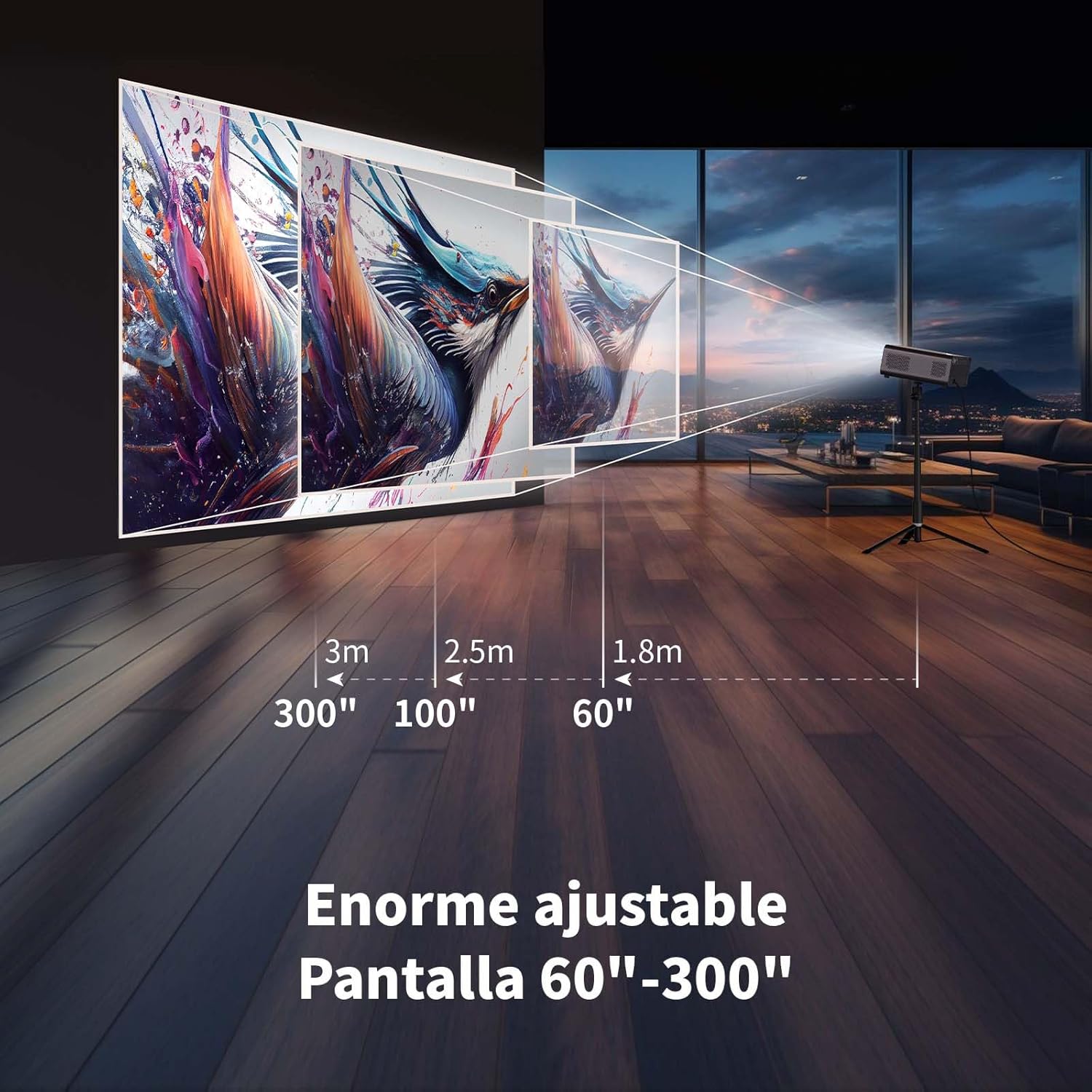
- The projector can produce an adjustable screen size from 60 inches to 300 inches, suitable for various viewing amgylcheddau.
8. cynnal
8.1. Dust-Proof Design and Cleaning
The projector features a dust-proof design with a hidden dust box to prevent dust accumulation.
Delwedd: Llun agos view of the projector's hidden dust box, showing the filter inside, and an illustration of airflow, emphasizing the importance of regular cleaning to prevent dust from entering the device.
- Regularly clean the dust box to maintain optimal performance and prevent dust from affecting the image quality.
- Defnyddiwch frethyn meddal, sych i lanhau tu allan y taflunydd.
- Peidiwch â defnyddio glanhawyr hylif na aerosolau.
9. Datrys Problemau
Os byddwch chi'n dod ar draws problemau gyda'ch taflunydd, cyfeiriwch at y problemau a'r atebion cyffredin canlynol:
| Problem | Ateb Posibl |
|---|---|
| Dim delwedd wedi'i thaflunio | Check power connection. Ensure input source is correctly selected (HDMI, USB, etc.). Verify lens cap is removed. |
| Mae'r ddelwedd yn aneglur | Adjust electronic focus using the F+/F- buttons on the remote. Ensure the projection surface is flat. |
| Mae'r ddelwedd wedi'i hystumio (siâp trapesoid) | Use 4-point keystone correction in the settings menu to adjust the image corners. Check for automatic vertical correction. |
| Dim sain | Check volume settings on the projector and connected device. Ensure external speakers are properly connected or Bluetooth is paired. |
| Materion cysylltiad Wi-Fi | Ensure Wi-Fi is enabled. Re-enter Wi-Fi password. Restart the projector and router. Try connecting to a different Wi-Fi band (2.4G or 5G). |
10. manylebau
Key technical specifications for the WEWATCH S3 Projector:
- Brand: GWEFAN
- Rhif Model: S3
- Lliw: Llwyd mwg
- Math o Gynnyrch: Taflunydd Cludadwy
- Disgleirdeb: 500 ANSI Lumens
- Datrysiad Arddangos Brodorol: 1920 x 1080 (HD Llawn)
- Cydraniad Arddangos Uchaf: 3840 x 2160 (4K Supported)
- Cymhareb cyferbyniad: 20000:1
- Math Arddangos: LED
- Technoleg Cysylltedd: Bluetooth, Ethernet, HDMI, USB, Wi-Fi (2.4G/5G)
- Nodweddion arbennig: Wi-Fi Compatible, Digital Keystone Correction, Built-in Speaker, Auto Focus, Portable
- Dyfeisiau Cydnaws: Speaker, Laptop, Smartphone, Tablet
- Dimensiynau Cynnyrch: 24.3L x 24.9W x 10.5H centimetr
- Defnyddiau a Argymhellir: Home Cinema, Video Games, Professional, Education
11. Gwarant a Chefnogaeth
The WEWATCH S3 Projector comes with a manufacturer's warranty to ensure your peace of mind.
- Gwarant y Gwneuthurwr: 2 mlynedd
- For technical support or warranty claims, please refer to the contact information provided with your purchase documentation or visit the official WEWATCH websafle.