
Ducky Ducky AI Switch Linear 100% White
Ducky One X Wireless Inductive Keyboard User Manual
Model: Ducky AI Switch Linear 100% White
1. Rhagymadrodd
Welcome to the user manual for your Ducky One X Wireless Inductive Keyboard. This manual provides comprehensive instructions for setting up, operating, maintaining, and troubleshooting your new keyboard. Please read this manual thoroughly to ensure optimal performance and longevity of your device.
2. Cynnyrch Drosview
The Ducky One X is a cutting-edge wireless inductive keyboard designed for enhanced typing and gaming precision. It features Ducky's innovative inductive switches, offering superior accuracy and consistency. The keyboard incorporates QUACK Mechanics+ with a 7-layer dampening system and gasket-mount structure for a sublime typing experience. It supports tri-mode connectivity (USB wired, 2.4 GHz RF wireless, and Bluetooth) and comes with high-purity PBT doubleshot keycaps for durability. Configuration is managed through intuitive webmeddalwedd wedi'i seilio ar.

Figure 2.1: Ducky One X Wireless Inductive Keyboard (White)
3. Nodweddion Allweddol
3.1 Next-Gen Analog Switches
The Ducky One X utilizes Ducky inductive switches, providing greater accuracy, consistency, and power efficiency compared to traditional analog switches. These switches allow for adjustable actuation, rapid trigger, and multi-point trigger functionalities.

Figure 3.1: Ducky Inductive Switch Mechanism
3.2 Sublime Typing Experience
Experience unparalleled typing comfort and acoustics with Ducky QUACK Mechanics+. This design incorporates a seven-layer dampening system and a gasket-mount structure, significantly reducing noise and enhancing the feel of each keystroke.

Figure 3.2: QUACK Mechanics+ Gasket-Mount and Dampening Layers
3.3 Versatile Tri-Mode Connection
The Ducky One X offers flexible connectivity options: USB wired, 2.4 GHz RF wireless, and Bluetooth. This allows for seamless switching between devices and ensures low-latency performance for gaming or reliable connection for productivity.
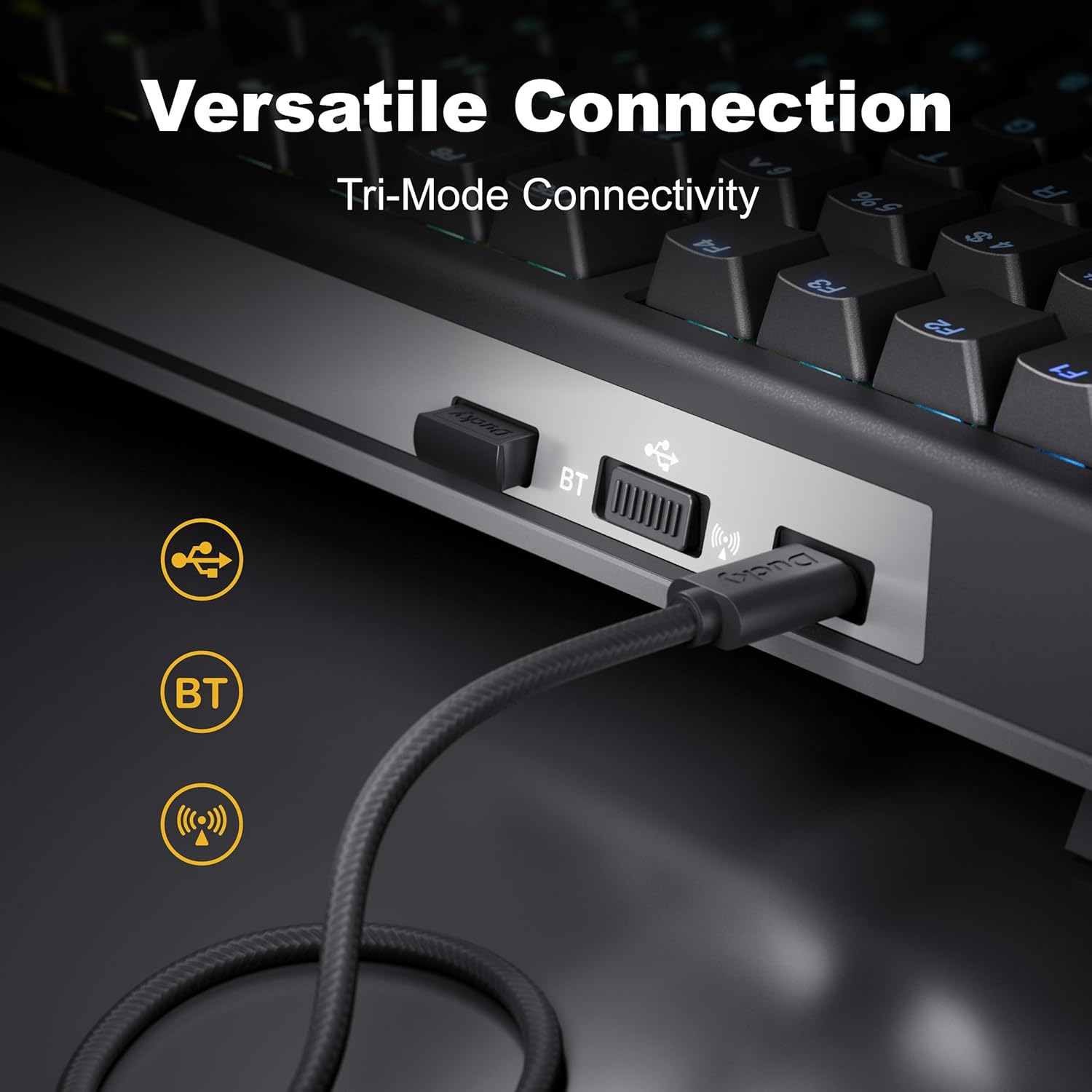
Figure 3.3: Tri-Mode Connectivity Ports
3.4 High Shine-Resistance PBT Doubleshot Keycaps
Equipped with high-purity 85% PBT doubleshot keycaps, the Ducky One X provides exceptional durability and resistance to shine, ensuring the legends remain clear and the keycaps maintain their texture over extended use.

Figure 3.4: High-Purity PBT Doubleshot Keycaps
3.5 Greddfol Web-Based Software
Customize your keyboard settings effortlessly with the web-based software. This platform requires no installation, saving computer resources, and allows for easy adjustments across various operating systems.

Ffigur 3.5: Web-Based Software Interface for Customization
3.6 Smooth & Stable Ducky Stabilizers
The keyboard features Ducky stabilizers, designed to provide a smooth and stable keystroke experience, particularly for larger keys like the spacebar, ensuring consistent feel across the entire keyboard.

Figure 3.6: Ducky Stabilizer Design
Fideo Cynnyrch Swyddogol
Video 3.1: Ducky One X Wireless Keyboard - Redefining Analog Keyboard. This video provides a visual overview of the keyboard's features and design.
4. Gosod
4.1 Cysylltiad Cychwynnol
The Ducky One X supports three connection modes: wired USB, 2.4 GHz wireless, and Bluetooth. Select your preferred mode using the switch located on the keyboard.
- Cysylltiad â gwifrau: Connect the provided USB-C cable to the keyboard and the other end to your computer's USB port. The keyboard will be recognized automatically.
- 2.4 GHz Wireless Connection: Insert the 2.4 GHz USB dongle into an available USB port on your computer. Switch the keyboard to 2.4 GHz mode. The keyboard should pair automatically.
- Cysylltiad Bluetooth: Switch the keyboard to Bluetooth mode. On your computer or device, search for Bluetooth devices and select "Ducky One X" to pair. Refer to your device's operating system instructions for specific Bluetooth pairing steps.
4.2 Web-Based Software Access
To access the intuitive web-based software for customization, ensure your keyboard is connected to a computer with internet access. Open a web browser and navigate to the official Ducky support page or the URL provided in the quick start guide. The software will detect your keyboard and allow for configuration.
5. Cyfarwyddiadau Gweithredu
5.1 Defnydd Sylfaenol
Once connected, the Ducky One X functions as a standard keyboard. All keys perform their labeled functions. The inductive switches provide precise and responsive input.
5.2 Customizing Settings (Web-Based Software)
Mae'r web-based software is the primary tool for advanced customization. Through this interface, you can:
- Adjust Actuation Point: Fine-tune the distance at which a keypress registers, from a light touch to a deeper press.
- Configure Rapid Trigger: Set the sensitivity for rapid key presses and releases, ideal for competitive gaming.
- Set Multi-Point Trigger: Assign multiple actions to a single keypress based on the depth of the press.
- Program Macros: Create and assign complex key sequences to individual keys.
- Customize RGB Backlighting: Adjust lighting effects, colors, and brightness.
Always save your changes within the web-based software after making adjustments.
5.3 Newid Moddau Cysylltu
Use the physical switch on the keyboard to toggle between wired, 2.4 GHz, and Bluetooth modes. Ensure the correct mode is selected for your desired connection type.
6. cynnal
6.1 Glanhau'r Bysellfwrdd
To maintain the cleanliness and performance of your Ducky One X keyboard:
- Glanhau cyffredinol: Defnyddiwch frethyn meddal, di-lint ychydig dampened with water or a mild cleaning solution to wipe down the keycaps and keyboard frame. Avoid excessive moisture.
- Glanhau Dwfn (Capiau Allweddi): The PBT doubleshot keycaps can be easily removed without special tools. Gently pull keycaps straight up to detach. Clean the keycaps with mild soap and water, then dry thoroughly before reattaching. Use compressed air to clear debris from under the keycaps.
- PEIDIWCH immerse the keyboard in any liquid.
6.2 Gofal Batri
The keyboard contains a Lithium Polymer battery. To prolong battery life:
- Ceisiwch osgoi amlygu'r bysellfwrdd i dymheredd eithafol.
- Charge the battery regularly, but avoid constantly keeping it at 100% or letting it fully deplete for extended periods.
- Defnyddiwch y cebl USB-C a ddarperir ar gyfer gwefru.
7. Datrys Problemau
If you encounter issues with your Ducky One X keyboard, please refer to the following common solutions:
| Problem | Ateb Posibl |
|---|---|
| Bysellfwrdd ddim yn ymateb (Gwifrog) | Ensure the USB-C cable is securely connected to both the keyboard and the computer. Try a different USB port or cable. Verify the keyboard is switched to wired mode. |
| Keyboard not connecting (Wireless/Bluetooth) | Ensure the keyboard is switched to the correct wireless mode (2.4 GHz or BT). For 2.4 GHz, ensure the dongle is properly inserted. For Bluetooth, ensure Bluetooth is enabled on your device and the keyboard is in pairing mode. Try re-pairing the device. Check battery level. |
| Keys typing multiple characters or not registering | This can sometimes occur with highly sensitive switches. Access the web-based software to adjust the actuation point and rapid trigger settings. A higher actuation point may reduce unintended double inputs. Ensure no debris is under the keycap. |
| Goleuadau cefn ddim yn gweithio neu'n pylu | Check RGB settings via the web-based software. Ensure the brightness is turned up. If in wireless mode, low battery can affect backlight intensity. |
| Web-based software not detecting keyboard | Ensure the keyboard is connected via USB and your computer has an active internet connection. Try a different browser or clear browser cache. |
For further assistance, please visit the official Ducky support websafle.
8. manylebau
| Priodoledd | Manylyn |
|---|---|
| Model | Ducky AI Switch Linear 100% White |
| Dimensiynau Cynnyrch | 17.8"H x 5.9"L x 1.6"U (45.2cm x 15cm x 4.1cm) |
| Pwysau Eitem | 3.49 pwys (1.58 kg) |
| Gwneuthurwr | Hwyaden |
| Gwlad Tarddiad | Tsieina |
| Batris | 1 batri Lithiwm Polymer (wedi'i gynnwys) |
| Nifer yr Allweddi | 108 |
| Technoleg Cysylltedd | USB, 2.4 GHz RF, Bluetooth (Tri-Mode) |
| Defnyddiau a Argymhellir | Hapchwarae |
| Nodweddion Arbennig | Quack Mechanics+, 7-Layer Dampening, High-Density PBT Doubleshot Keycaps, RGB Backlight, N-Key Rollover, Inductive Switches (Adjustable Actuation, Rapid Trigger, Multi-Point Trigger) |
9. Gwarant a Chefnogaeth
Ducky products are manufactured to high-quality standards. For information regarding warranty coverage, technical support, and service, please refer to the official Ducky websafle neu cysylltwch â'ch dosbarthwr lleol. Cadwch eich prawf prynu ar gyfer hawliadau gwarant.
Official Ducky Websafle: www.duckychannel.com.tw
Dogfennau Cysylltiedig - Ducky AI Switch Linear 100% White
 |
Llawlyfr Defnyddiwr Ducky One X: Ailddiffinio Bysellfwrdd Analog Llawlyfr defnyddiwr ar gyfer bysellfwrdd Ducky One X, yn manylu ar ei nodweddion, manylebau, swyddogaethau Fn, dulliau cysylltu (Gwifrau, 2.4GHz, Bluetooth), a chydymffurfiaeth â'r FCC. Dysgwch am ei dechnoleg switsh anwythol a'i gapiau allweddi PBT. |
 |
Llawlyfr Defnyddiwr Ducky One 3 SF: Nodweddion, Ffurfweddiad, a Chanllaw Macro Llawlyfr defnyddiwr cynhwysfawr ar gyfer bysellfwrdd mecanyddol Ducky One 3 SF. Darganfyddwch ei fanylebau, goleuadau RGB, ymarferoldeb cyfnewid poeth, rhaglennu macro, a nodweddion amlgyfrwng. |
 |
Ducky One X Mini Wireless User Manual User manual for the Ducky One X Mini Wireless keyboard, covering specifications, layout, functions, connection, and software. |
 |
Ducky One X Mini User Manual: World's First Inductive Keyboard User manual for the Ducky One X Mini, a 60% mechanical keyboard featuring AI inductive switches. Learn about its specifications, connection methods (2.4GHz, Bluetooth), and Fn key functions. |
 |
Llawlyfr Defnyddiwr Bysellfwrdd Mecanyddol Ducky One 3 Pro Llawlyfr defnyddiwr cynhwysfawr ar gyfer bysellfwrdd mecanyddol Ducky One 3 Pro, yn manylu ar nodweddion fel addasu goleuadau RGB, rhaglennu macro, swyddogaethau switsh DIP, galluoedd cyfnewid poeth, a gweithrediad cyffredinol. |
 |
Llawlyfr Defnyddiwr Bysellfwrdd Mecanyddol Ducky One 3 SF: Nodweddion, Gosod, a Macros Llawlyfr defnyddiwr cynhwysfawr ar gyfer bysellfwrdd mecanyddol Ducky One 3 SF, yn manylu ar ei fanylebau, nodweddion y gellir eu cyfnewid yn boeth, addasu goleuadau RGB, rhaglennu macro, swyddogaethau switsh DIP, a rheolyddion amlgyfrwng. |
Ask a question about this manual
Ask about setup, troubleshooting, compatibility, parts, safety, or missing instructions. Manuals+ will review the question and use this page’s manual context to help answer it.