
Hagibis UHC10
Hagibis USB3.0 Video Capture Card with 100W PD Instruction Manual
Model: UHC10
1. Drosview
The Hagibis USB3.0 Video Capture Card is a versatile device designed for capturing video and audio signals from various sources and transmitting them to computers or smartphones for preview, recording, and live streaming. It features a dual USB-A/USB-C interface for broad compatibility and supports 100W Power Delivery (PD) for simultaneous charging.

Figure 1: Hagibis USB3.0 Video Capture Card
This capture card is ideal for HD acquisition, teaching recording, game capture, live streaming, medical imaging, and online meetings. Its plug-and-play design requires no drivers or external power supply, making it highly portable and easy to use.
2. Cydrannau Cynnyrch
Mae'r pecyn yn cynnwys yr eitemau canlynol:
- Video Capture Cable (1)
- Cebl gwefru (1)

Figure 2: Items included in the package
3. Gosod
3.1 Connecting to a Tablet or VR Headset
To connect your game console (e.g., Nintendo Switch, PS4/PS5, Xbox) to a tablet or VR headset for portable gaming or viewing, dilynwch y camau hyn:
- Connect the HDMI end of the capture cable to the HDMI output port of your game console's dock or the console itself.
- Connect the USB-C end of the capture cable to the USB-C port on your tablet or VR headset.
- If your tablet or VR headset supports Power Delivery (PD), connect a 100W PD charger to the PD port on the capture cable to simultaneously charge your device while in use.
- On your tablet or VR headset, open the appropriate application (e.g., HDMI Link app for Meta Quest) to display the captured video feed.

Figure 3: Connecting a game console to a tablet for portable screen functionality.
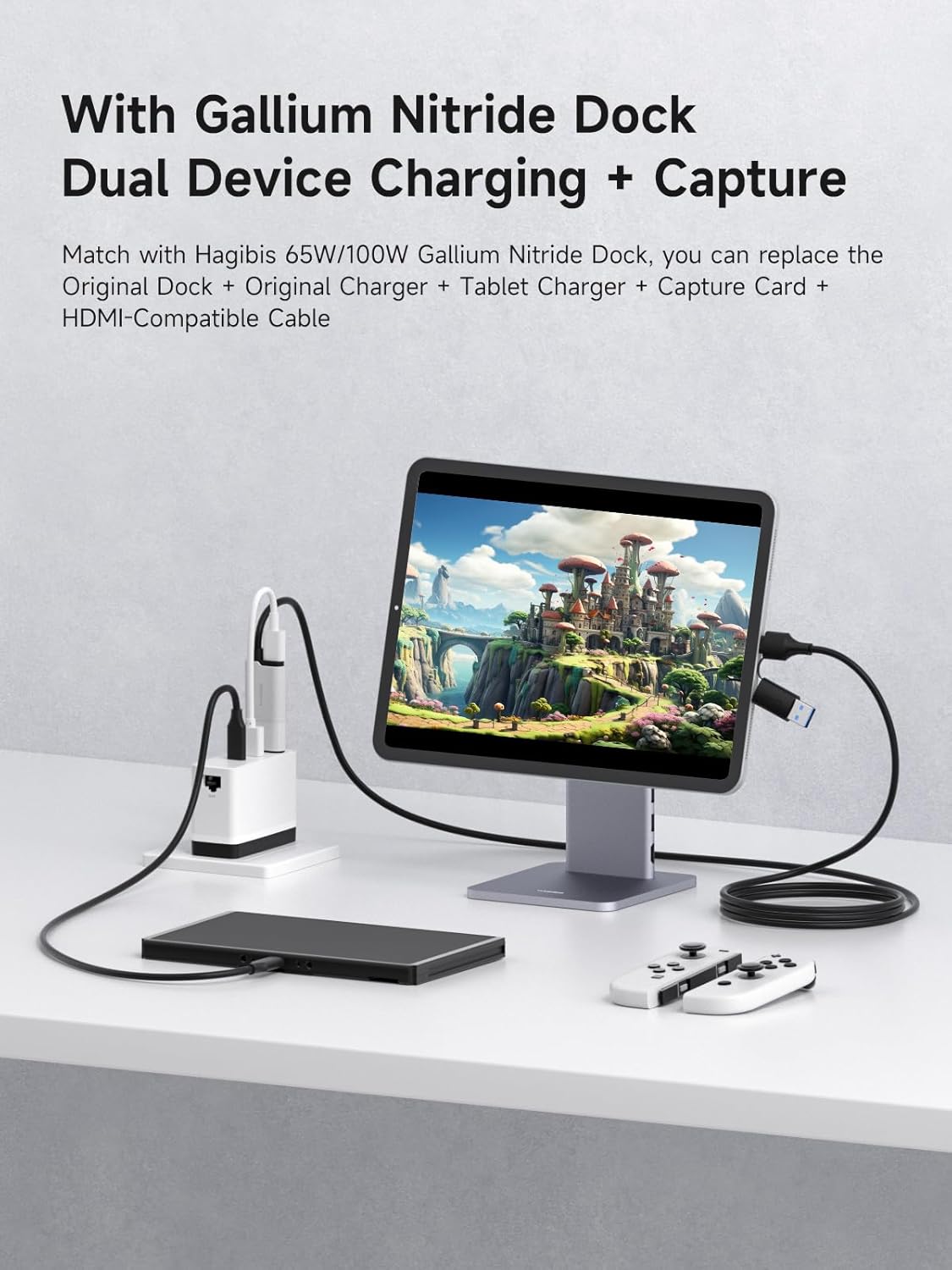
Figure 4: Enhanced setup with a Gallium Nitride Dock for dual device charging and capture.
Video 1: Official demonstration of connecting the Hagibis USB3.0 Video Capture Cable with 100W Power Delivery to a Nintendo Switch and iPad, showcasing its functionality and compatibility with a GaN dock.
3.2 Connecting to a Laptop for Capture/Streaming
To capture or stream content from your game console to a laptop, use the following connection method:
- Connect the HDMI end of the capture cable to the HDMI output of your game console (e.g., PS5, Xbox).
- Connect the USB-A or USB-C end of the capture cable to an available USB 3.0 port on your laptop.
- Ensure your laptop has compatible video capture software installed (e.g., OBS Studio, Potplayer).

Figure 5: Setup for playing and recording console games simultaneously on a laptop.

Figure 6: Configuration for recording or live streaming computer games using the capture card.
4. Cyfarwyddiadau Gweithredu
4.1 Gweithrediad Sylfaenol
The Hagibis capture card is designed for plug-and-play functionality. Once connected correctly, your device (laptop, tablet, VR headset) should recognize it as a video input source without requiring additional drivers.
4.2 Cydnawsedd Meddalwedd
The capture card is compatible with a wide range of video capture and streaming software, including:
- Potplayer (For Windows)
- OBS (For Mac OS, Windows)
- USB Camera (For Android)
- USB Camera Pro (For iPadOS 17)
- MoniCon (For iPadOS 17)
- CamX (For iPadOS 17)
- CapView (For iPadOS 17)
- Noir (For iPadOS 17)

Ffigur 7: Drosoddview of compatible software applications.
4.3 OBS Software Operation Instructions
To set up the capture card with OBS Studio:
- Connect the device. Open OBS.
- Click on the "Source" interface at the bottom and find "Video Capture Device".
- Pop up the "Create or select source" window, click "OK" to create a successful video capture device.
- Select "Hagibis" or "USB video" as the device, and check "Use custom audio device" below.
- Find the mixer interface, click the three-dot icon / gear icon, pop-up the Advanced Audio Properties window, select "Listen and Output" for audio monitoring.

Figure 8: Step-by-step guide for configuring the capture card in OBS Studio.
4.4 Potplayer Software Operation Instructions
To set up the capture card with Potplayer:
- Open Potplayer, right click the mouse, open - device settings, debug parameters according to the above chart, open the device. potplayer software operating instructions.
- Single right mouse button, video-video recording-record video-start.

Figure 9: Step-by-step guide for configuring the capture card in Potplayer.
5. manylebau
| Nodwedd | Manyleb |
|---|---|
| Rhif Model | UHC10 |
| Brand | Hagibis |
| Lliw | Gwyn |
| Math o Gysylltydd | USB Math C, HDMI |
| Dyfeisiau Cydnaws | Gaming Console, Personal Computer, Tablet, Quest 3 2 Pro, Smartphone |
| Defnydd Penodol Ar Gyfer Cynnyrch | VR Glass, Gaming Console, Live Broadcasting, Streaming |
| Datrysiad Mewnbwn Max | 4K@60Hz |
| Datrysiad Allbwn Uchaf | 1920x1080@60Hz |
| Cyflenwi Pŵer | 100W PD (compatible with PD 3.0, QC 5.0) |
| Pwysau Eitem | 3.7 owns |
| Dimensiynau Pecyn | 5.08 x 4.61 x 1.3 modfedd |

Ffigur 10: Paramedrau a dimensiynau manwl y cynnyrch.
6. Datrys Problemau
- Dim Arwydd Fideo:
- Ensure all cables are securely connected to the correct ports.
- Verify that the input source (e.g., game console) is powered on and outputting a signal.
- For PS5, ensure HDCP is disabled in the console's system settings (System > HDMI > Disable HDCP).
- Try using a different HDMI cable or USB port on your receiving device.
- If using an HDMI splitter, ensure it is HDCP compliant and functioning correctly.
- Power Delivery Issues (100W PD):
- Ensure you are using a compatible 100W PD charger and cable.
- Some devices may be sensitive to the orientation of the USB-C plug; try flipping the connector and reinserting it.
- Verify that the receiving device (tablet, VR headset) supports PD charging through its USB-C port.
- Intermittent Connection or Signal Drop:
- Gwiriwch am unrhyw ddifrod corfforol i'r cebl neu'r cysylltwyr.
- Ensure the USB port on your computer/tablet is USB 3.0 compatible for stable data transfer.
- Minimize cable length if possible, as longer cables can sometimes lead to signal degradation, especially with less powerful ports.
- Meddalwedd Ddim yn Adnabod Dyfais:
- Restart the software application (e.g., OBS Studio, Potplayer).
- Restart your computer or tablet.
- Gwnewch yn siŵr bod eich system weithredu yn gyfredol.
- Check the software's device selection settings to ensure the Hagibis capture card is chosen as the input source.
7. cynnal
To ensure the longevity and optimal performance of your Hagibis USB3.0 Video Capture Card, follow these maintenance guidelines:
- Glanhau: Defnyddiwch frethyn meddal, sych i lanhau'r ddyfais. Osgowch ddefnyddio glanhawyr hylifol neu ddeunyddiau sgraffiniol.
- Storio: Storiwch y cerdyn dal mewn lle oer, sych i ffwrdd o olau haul uniongyrchol a thymheredd eithafol.
- Trin: Avoid bending or twisting the cable excessively, especially near the connectors, to prevent internal wire damage. Do not drop the device.
- Cysylltiad: Always insert and remove connectors gently to avoid damaging the ports on the capture card or your devices.
8. Gwarant a Chefnogaeth
Hagibis products are manufactured with high-quality standards. For warranty information and technical support, please refer to the official Hagibis website or contact your point of purchase. Keep your purchase receipt as proof of purchase for warranty claims.
Am gymorth pellach, gallwch ymweld â'r Hagibis Store on Amazon or contact Amazon Customer Service for product-related inquiries.
Dogfennau Cysylltiedig - UHC10
 |
Hagibis MS2131 4K HDMI Video Capture Card User Manual Llawlyfr defnyddiwr a throsoddview for the Hagibis MS2131 4K HDMI-Compatible Video Capture Card, designed for game recording and live streaming with PS4/5 and Nintendo Switch. |
 |
HAGIBIS USB-C Hub with Capture Card User Manual User manual for the HAGIBIS USB-C Hub with Capture Card, detailing product specifications, connection guides for Nintendo Switch and vehicles, OBS setup, package contents, and warranty information. |
 |
Hagibis Gaming Capture Dock PD Version User Manual User manual for the Hagibis Gaming Capture Dock PD Version, detailing connection methods for Switch, PCs, and vehicles, OBS setup, and product warranty information. |
 |
Llawlyfr Defnyddiwr Dongl Arddangos Diwifr HAGIBIS WFD0745G | Gosod, Adlewyrchu, Gwarant Llawlyfr defnyddiwr cynhwysfawr ar gyfer y Dongl Arddangos Diwifr HAGIBIS WFD0745G. Dysgwch sut i gysylltu ac adlewyrchu eich dyfeisiau (iOS, Android, Windows, macOS) gan ddefnyddio Wi-Fi neu gysylltiad uniongyrchol. Yn cynnwys manylebau cynnyrch, canllaw gosod, gwybodaeth am warant, a chysylltiadau cymorth technegol. |
 |
HAGIBIS Wireless Display Dongle User Manual - G11W Comprehensive user manual for the HAGIBIS G11W Wireless Display Dongle, covering hardware setup, software installation, pairing, troubleshooting, and warranty information. |
 |
Hagibis CMC10 Magnetic Stand USB-C Hub with M.2 NVMe SSD Enclosure - User Manual Comprehensive user manual for the Hagibis CMC10 USB-C Hub, featuring a magnetic stand, M.2 NVMe SSD enclosure, SD/TF 4.0 card reader, 4K@60Hz HDMI, and Gigabit Ethernet. Learn about installation, features, and warranty. |