
1. Rhagymadrodd
Welcome to the user manual for your new Lenovo IdeaCentre 27IRH9 F0HM000RUS All-in-One PC. This document provides comprehensive instructions to help you set up, operate, maintain, and troubleshoot your device. Please read this manual thoroughly before using your computer to ensure optimal performance and longevity.
The Lenovo IdeaCentre 27IRH9 F0HM000RUS is a powerful and elegantly designed all-in-one desktop computer, featuring a 27-inch Full HD touchscreen display, an Intel Core i7 13th Gen i7-13620H processor, 16GB of RAM, and a 512GB SSD. It comes pre-installed with Windows 11 Home, offering a stable, intuitive, and responsive computing environment for both productivity and creative tasks.
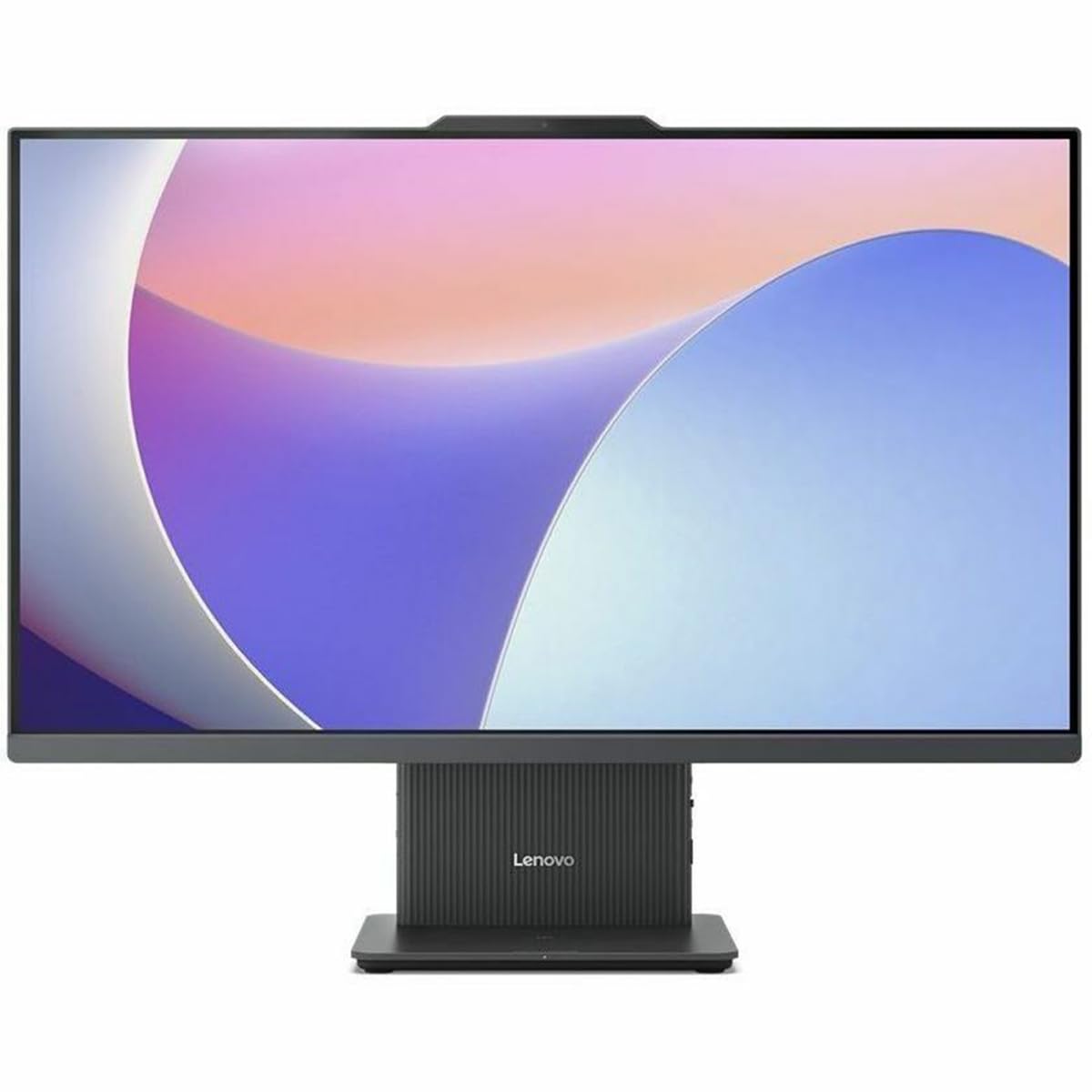
Ffigur 1: Blaen view of the Lenovo IdeaCentre 27IRH9 F0HM000RUS All-in-One PC.
2. Canllaw Gosod
2.1 Dadbacio a Lleoli
- Carefully remove all components from the packaging. Ensure all items listed in the packing slip are present.
- Place the IdeaCentre All-in-One PC on a stable, flat surface, such as a desk or table. Ensure there is adequate ventilation around the device.
- Avoid placing the computer in direct sunlight or near heat sources.
2.2 Cysylltu Perifferolion
Connect the included wireless keyboard and mouse. The USB receiver for these devices is typically found in the mouse or keyboard packaging. Insert the USB receiver into an available USB port on the back of the computer.
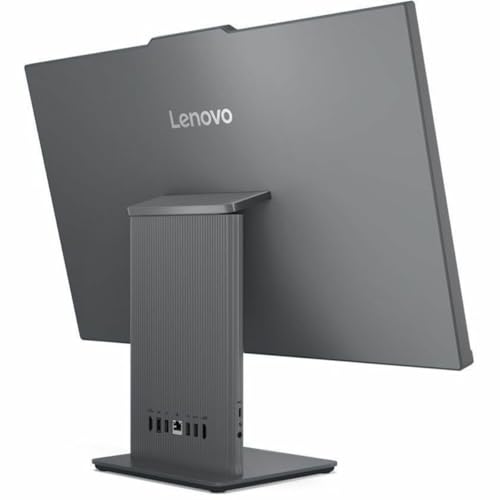
Ffigur 2: Cefn view of the IdeaCentre, highlighting available ports for peripheral connections.
2.3 Cysylltiad Pwer
- Connect the power adapter cable to the power input port on the back of the IdeaCentre PC.
- Plygiwch yr addasydd pŵer i mewn i allfa drydan wedi'i seilio.
2.4 Cychwyn Cychwynnol
- Press the power button, usually located on the side or bottom bezel of the display.
- Dilynwch y cyfarwyddiadau ar y sgrin i gwblhau'r broses sefydlu Windows 11 Home, gan gynnwys dewis iaith, cysylltiad rhwydwaith, a chreu cyfrif defnyddiwr.
3. Cyfarwyddiadau Gweithredu
3.1 Windows 11 Home Basics
Your IdeaCentre PC runs on Windows 11 Home, offering a user-friendly interface. Familiarize yourself with the Start Menu, Taskbar, and File Explorer for efficient navigation and application management.
3.2 Touchscreen Functionality
The 27-inch Full HD display supports multi-touch gestures. Use gestures such as tap, swipe, pinch-to-zoom, and two-finger scroll for intuitive interaction with applications and content.
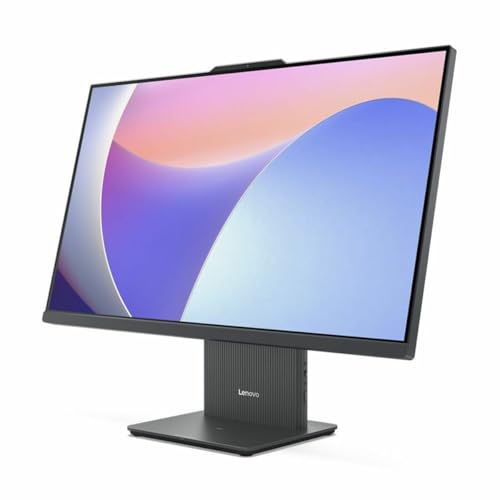
Figure 3: User interacting with the touchscreen display of the IdeaCentre.
3.3 Cysylltedd Rhwydwaith
- Wi-Fi: To connect to a wireless network, click the Wi-Fi icon in the taskbar, select your network, and enter the password. The device supports 802.11ax for stable and efficient online operations.
- Ethernet: For a wired connection, plug an Ethernet cable into the RJ-45 port on the back of the computer.
3.4 Bluetooth Devices
To pair Bluetooth devices (e.g., headphones, speakers), go to Settings > Bluetooth & devices, turn on Bluetooth, and select your device from the list to pair. Bluetooth ensures stable wireless communication with minimal interference from nearby devices.
3.5 USB Type-C Port Usage
The USB Type-C port supports high-speed data transfer and power delivery, allowing for streamlined connectivity and efficient integration with various peripherals.
4. cynnal
4.1 Glanhau'r Dyfais
- Sgrin: Defnyddiwch frethyn meddal, di-lint ychydig dampwedi'i olchi â dŵr neu lanhawr sgrin. Osgowch gemegau llym.
- Siasi: Wipe the exterior with a soft, dry cloth. Do not use abrasive cleaners.
- Sicrhewch fod y ddyfais wedi'i phweru i ffwrdd a'i dad-blygio cyn ei glanhau.
4.2 Diweddariadau Meddalwedd
Regularly check for and install Windows updates and driver updates to ensure system stability, security, and optimal performance. Go to Gosodiadau > Diweddariad Windows to manage updates.
4.3 Gwneud copi wrth gefn o ddata
Periodically back up your important files to an external drive or cloud storage to prevent data loss. Windows 11 offers built-in backup solutions.
5. Datrys Problemau
This section addresses common issues you might encounter with your IdeaCentre PC.
| Problem | Ateb Posibl |
|---|---|
| Nid yw'r cyfrifiadur yn troi ymlaen | Ensure the power cable is securely connected to both the computer and the electrical outlet. Test the outlet with another device. |
| Dim arddangosfa ar y sgrin | Check if the computer is powered on. If connected to an external monitor, ensure the correct input source is selected on the monitor. |
| Materion cysylltiad Wi-Fi | Restart your router and modem. Ensure Wi-Fi is enabled on your computer. Check network settings in Windows. |
| Bysellfwrdd na llygoden ddim yn ymateb | Check battery levels for wireless devices. Ensure the USB receiver is properly inserted. Try a different USB port. |
| Mae'r system yn araf neu'n anymatebol | Close unnecessary applications. Check for background processes using Task Manager. Ensure sufficient free space on the SSD. Run a system scan for malware. |
If problems persist, refer to the Lenovo support websafle neu cysylltwch â gwasanaeth cwsmeriaid i gael rhagor o gymorth.
6. manylebau
Detailed technical specifications for the Lenovo IdeaCentre 27IRH9 F0HM000RUS:
| Nodwedd | Manylyn |
|---|---|
| Brand | Lenovo |
| Rhif Model | F0HM000RUS |
| System Weithredu | Windows 11 Cartref |
| Model CPU | Intel Core i7-13620H (13th Gen) |
| Cyflymder CPU | 4.9 GHz |
| Prosesydd graffeg | Graffeg Intel UHD (Integredig) |
| Cof RAM | 16 GB DDR5 |
| Storio | 512 GB SSD |
| Maint Sgrin | 27 modfedd |
| Cydraniad Arddangos | 1920 x 1080 (HD Llawn) |
| Math Arddangos | IPS, Touchscreen |
| Cymhareb Agwedd | 16:9 |
| Cysylltedd Di-wifr | Wi-Fi (802.11ax), Bluetooth |
| Porthladdoedd USB | 4 (including USB-C) |
| Porthladdoedd HDMI | 1 |
| Defnydd Pŵer | 135 Wat |
| Dimensiynau Cynnyrch | 22.1 x 56.1 x 75.9 cm |
| Pwysau Cynnyrch | 24.25 Bunt |
| Cydrannau wedi'u Cynnwys | AIO Stand, Wireless Keyboard, Wireless Mouse, USB Receiver, Power Adapter |
| UPC | 197531855381 |
7. Gwarant a Chefnogaeth
7.1 Gwarant Cynnyrch
Your Lenovo IdeaCentre 27IRH9 F0HM000RUS comes with a standard manufacturer's warranty. Please refer to the warranty card included in your product packaging or visit the official Lenovo websafle am delerau ac amodau manwl ynghylch cwmpas y warant, hyd y warant, a gweithdrefnau gwasanaeth.
7.2 Cefnogaeth Dechnegol
For technical assistance, troubleshooting beyond this manual, or service inquiries, please contact Lenovo customer support. You can find contact information, FAQs, and additional resources on the official Lenovo support websafle: cefnogaeth.lenovo.com. When contacting support, please have your product model number (F0HM000RUS) and serial number ready.