
Rhagymadrodd
This manual provides essential instructions for setting up, operating, and maintaining your Plimpton PlimPad Kids20 tablet. This device is designed for children, featuring Android 14, an Octa-core processor, 8GB RAM (expandable), 64GB ROM (expandable to 1TB), and a durable EVA shockproof case. It includes pre-installed Google Kids Space and parental control features to ensure a safe and educational experience.
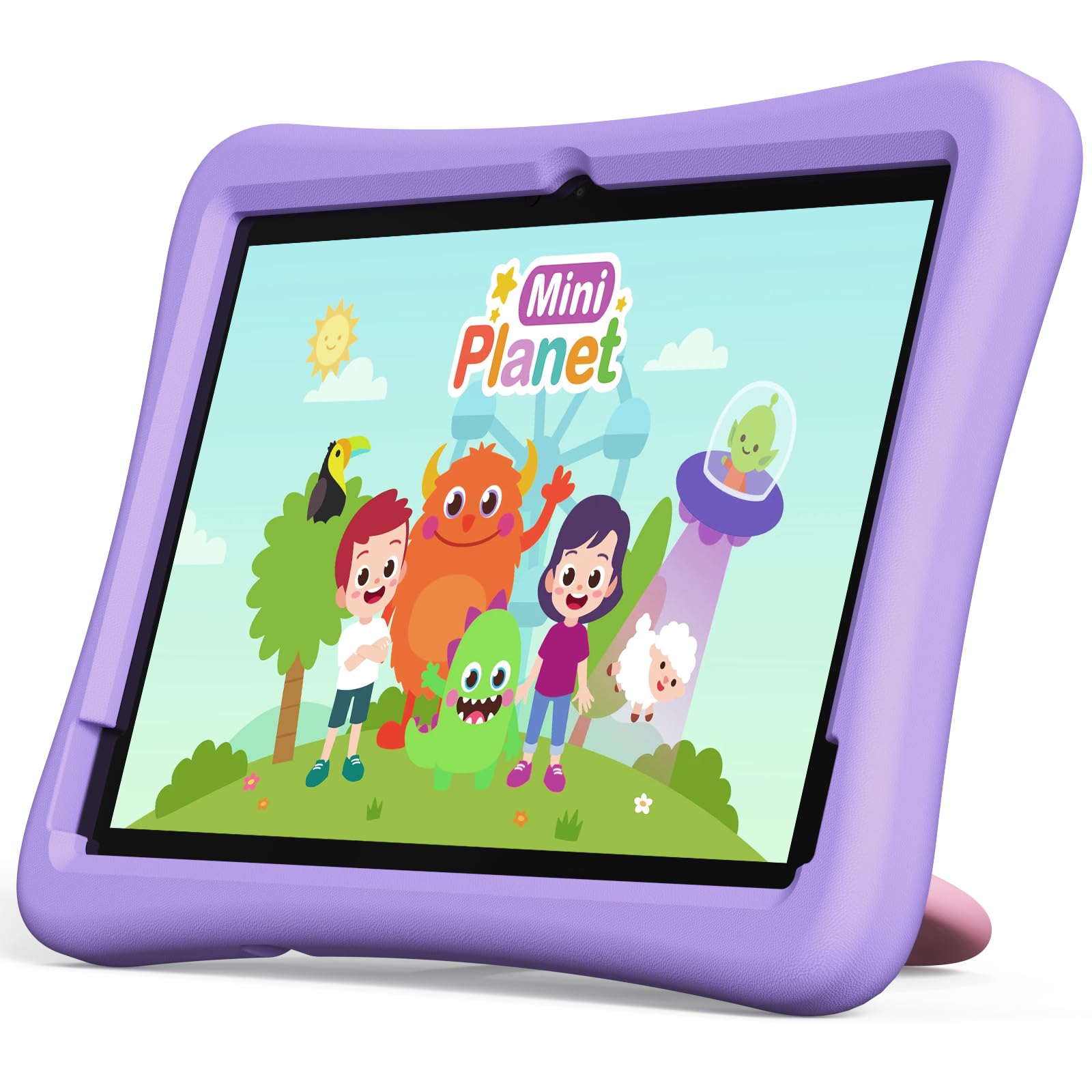
Image: The Plimpton PlimPad Kids20 tablet in its violet shockproof EVA case.
Beth Sydd yn y Bocs
Gwiriwch fod yr holl eitemau yn bresennol yn y pecyn cyn bwrw ymlaen â'r gosodiad.
- 1x Plimpton PlimPad Kids20 Tablet
- 1x USB Adapter
- 1x 1.8m Charging Cable
- Llawlyfr Defnyddiwr 1x
Gosod
1. Codi Tâl y Dabled
Cyn ei ddefnyddio gyntaf, gwefrwch y dabled yn llawn.
- Connect the USB charging cable to the tablet's USB Type-C port.
- Plygiwch yr addasydd USB i mewn i allfa bŵer.
- The charging indicator will illuminate. Allow several hours for a full charge.
2. Pweru Ymlaen / I ffwrdd
- I Bweru Ymlaen: Pwyswch a dal y botwm Power nes bod y sgrin yn goleuo.
- I Bweru i ffwrdd: Pwyswch a daliwch y botwm Pŵer, yna dewiswch "Diffoddwch" o'r opsiynau ar y sgrin.
- I ailgychwyn: Pwyswch a daliwch y botwm Pŵer, yna dewiswch "Ailgychwyn" o'r opsiynau.
3. Gosodiad Cychwynnol
Upon first power-on, follow the on-screen prompts to configure your tablet. This typically includes:
- Yn dewis eich iaith.
- Connecting to a Wi-Fi network (supports Wi-Fi 6, 2.4GHz + 5.0GHz).
- Setting up a Google account. This is crucial for accessing Google Kids Space and downloading apps.
- Configuring date and time.
4. Mewnosod Cerdyn Micro SD
The tablet supports Micro SD cards up to 1TB for expanded storage.
- Locate the Micro SD card slot on the side of the tablet.
- Carefully insert the Micro SD card into the slot until it clicks into place.
- The tablet will detect the new storage. You may be prompted to format it for use as portable or internal storage.
Gweithredu'r Dabled
1. Mordwyo Sylfaenol
The PlimPad Kids20 uses a capacitive touchscreen for interaction.
- Tap: Dewiswch eitem neu agorwch raglen.
- Tap a Dal: Mynediad i ddewislenni cyd-destunol neu symud eiconau.
- Swipe: Navigate through screens or scroll within applications.
- Pinsio-i-Chwyddo: Enlarge or reduce content (e.g., photos, web tudalennau).
2. Google Kids Space
The tablet comes with Google Kids Space pre-installed, offering a curated selection of educational and entertaining content.

Image: A child and adult interacting with the tablet, showing the Google Kids Space interface.
- Access Kids Space from the home screen or app drawer.
- Content includes interactive educational apps, books, games, and videos.
- Content is teacher-approved and designed to promote learning and creativity.
3. Parental Controls (Google Family Link)
Manage your child's tablet usage and ensure a safe online environment using Google Family Link.

Image: A child using the tablet, with an overlay indicating Google Family Link for parental control.
- Download the Google Family Link app on your own device.
- Link your child's Google account on the tablet to your Family Link account.
- Through Family Link, you can:
- Set screen time limits.
- Approve or block app downloads.
- Rheoli webmynediad i'r safle.
- Track device location.
4. Cysylltedd
- Wi-Fi: Connect to wireless networks via Settings > Network & internet > Wi-Fi. The tablet supports dual-band Wi-Fi (2.4/5 GHz) for fast and stable connections.
- Bluetooth 5.3: Parwch â dyfeisiau Bluetooth fel clustffonau neu siaradwyr drwy Gosodiadau > Dyfeisiau cysylltiedig > Bluetooth.
5. Defnydd Camera
Mae'r tabled yn cynnwys camera cefn 5MP a chamera blaen 2MP.
- Agorwch yr ap Camera o'r sgrin gartref neu'r drôr apiau.
- Switch between front and rear cameras as needed.
- Tapiwch y botwm caead i dynnu lluniau neu recordio fideos.
Cynnal a chadw
1. Glanhau'r Tabled
- Defnyddiwch frethyn meddal, di-lint i lanhau'r sgrin a'r corff.
- Ar gyfer smwtshis ystyfnig, ychydig yn dampgolchwch y lliain gyda dŵr neu lanhawr sgrin.
- Osgowch gemegau llym neu ddeunyddiau sgraffiniol.
2. Diweddariadau Meddalwedd
Chwiliwch am ddiweddariadau meddalwedd a'u gosod yn rheolaidd i sicrhau perfformiad a diogelwch gorau posibl.
- Ewch i Gosodiadau> System> Diweddariad System.
- Dilynwch y cyfarwyddiadau ar y sgrin i lawrlwytho a gosod unrhyw ddiweddariadau sydd ar gael.
3. Rheoli Storio
To maintain performance, periodically manage the tablet's storage.
- Ewch i Gosodiadau > Storio i view defnydd storio.
- Uninstall unused apps.
- Dileu diangen files, photos, or videos.
- Symud yn fawr files to an inserted Micro SD card.
Datrys problemau
Os byddwch chi'n dod ar draws problemau, rhowch gynnig ar yr atebion canlynol cyn cysylltu â chymorth.
| Problem | Ateb |
|---|---|
| Nid yw'r tabled yn troi ymlaen. | Ensure the tablet is fully charged. Connect it to the charger for at least 30 minutes, then try powering on again. |
| Problemau cysylltiad Wi-Fi. | Restart the tablet and your Wi-Fi router. Check Wi-Fi settings to ensure the correct network is selected and the password is entered correctly. |
| Mae apiau'n chwalu neu'n rhewi. | Close and reopen the app. Clear the app's cache (Settings > Apps > [App Name] > Storage & cache > Clear cache). If the problem persists, uninstall and reinstall the app. |
| Perfformiad araf. | Cau apiau nas defnyddir. Clirio'r storfa a'r apiau dros dro files. Consider uninstalling large, unused applications or moving data to an SD card. Restart the tablet. |
| Nid yw'r sgrin yn ymateb. | Perform a forced restart by holding the Power button for approximately 10-15 seconds until the tablet restarts. |
Manylebau
Key technical specifications for the Plimpton PlimPad Kids20 tablet.
| Nodwedd | Manylyn |
|---|---|
| Enw Model | Plimpad Kids20 |
| System Weithredu | Android 14 |
| Prosesydd | Allwinner A523 Octa-core (up to 2.0 GHz) |
| HWRDD | 8 GB (4 GB + 4 GB extended virtual memory) |
| Storio Mewnol (ROM) | 64 GB |
| Storfa Ehangadwy | Up to 1 TB via Micro SD card |
| Maint Sgrin | 10.1 modfedd |
| Cydraniad Arddangos | 1280 x 800 Picsel (HD IPS) |
| Math Arddangos | LCD, G+G wear-resistant glass |
| Gallu Batri | 6000 mAh Lithium-ion (22.8 Wh) |
| Camera Cefn | 5 Megapicsel |
| Camera blaen | 2 Megapicsel |
| Wi-Fi | Wi-Fi 6 (802.11ax), Dual-band (2.4 GHz + 5.0 GHz) |
| Bluetooth | Bluetooth 5.3 |
| Porthladdoedd | USB Type-C, 3.5mm Headphone Jack, Micro SD slot |
| Nodweddion Arbennig | Stereo Speakers, USB OTG support, Eye-care screen, EVA shockproof case with 360-degree rotating handle |
| Dimensiynau | 24L x 16.1W x 0.9H cm |
Gwarant a Chefnogaeth
The Plimpton PlimPad Kids20 tablet comes with a Gwarant amnewid 2 flwyddyn am ddim.
For any issues, including screen damage or operational problems, please contact our professional after-sales customer service. Refer to the contact information provided with your purchase or on the official Plimpton websafle.
Pwysig: Do not attempt to repair the device yourself, as this may void your warranty.