
Teamgee S6
Teamgee 15.6” Laptop Screen Extender User Manual
Model: S6
Rhagymadrodd
The Teamgee 15.6-inch Laptop Screen Extender is designed to enhance your productivity by providing a triple display setup for your laptop. Featuring a 120% sRGB FHD 1080P IPS display, it offers vibrant colors and clear visuals. Its versatile design includes 235° rotation and a built-in kickstand, allowing for comfortable viewing angles in various scenarios. This manual provides detailed instructions for setup, operation, maintenance, and troubleshooting to ensure optimal use of your new portable monitor.
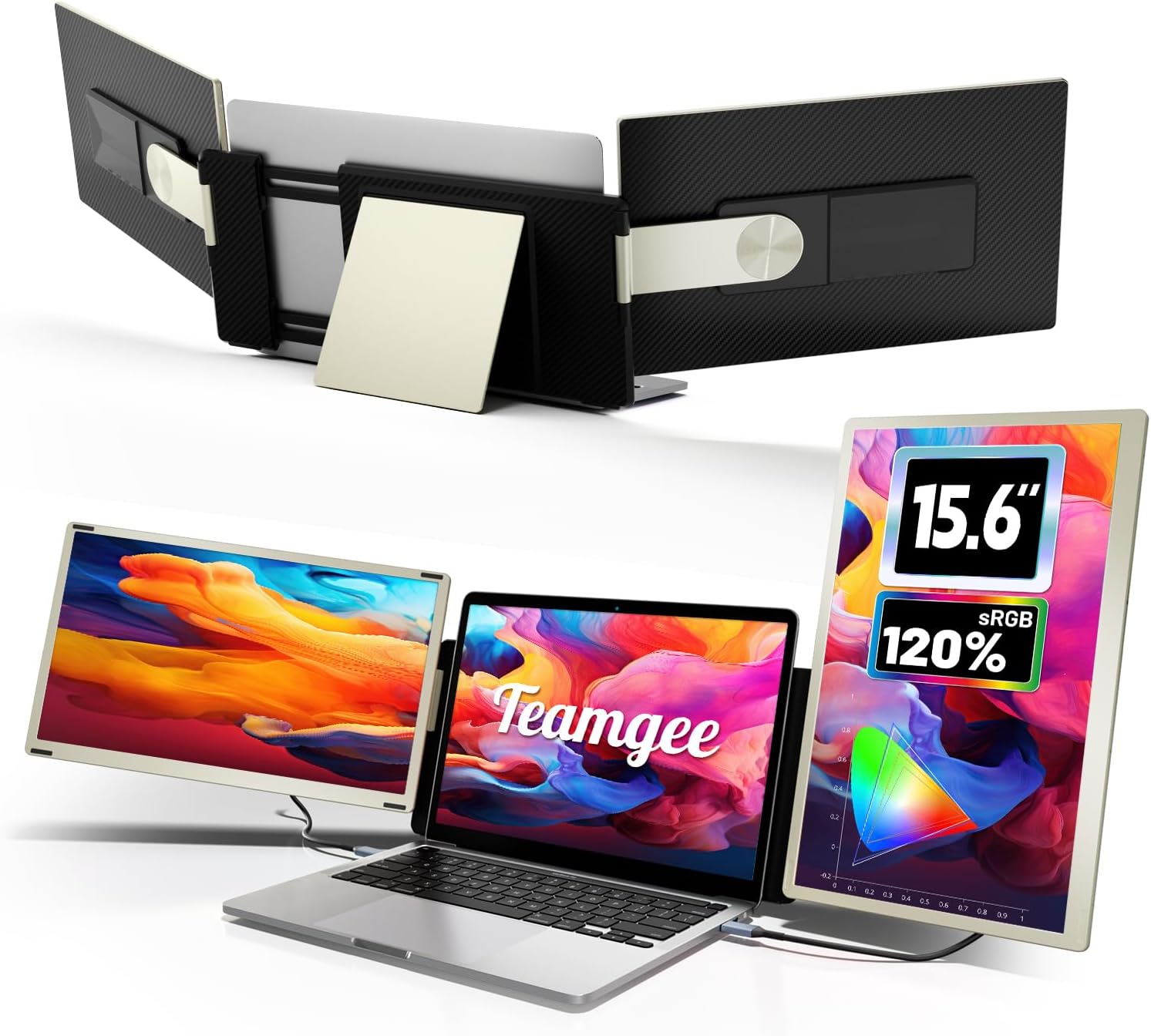
Image: The Teamgee 15.6-inch Laptop Screen Extender in a triple display configuration, showing its compact folded form and expanded use with a laptop.
Nodweddion Allweddol
- 120% sRGB FHD 1080P IPS Display: Enjoy a large 15.6-inch screen with Full HD resolution and accurate color reproduction for work and entertainment.
- 235° Rotation & Upgraded Alloy Stand: Yn darparu hyblyg viewing angles and stable support.
- Dyluniad Aml-swyddogaethol: Supports extension and mirroring modes, with detachable screens for individual use.
- Dyluniad Symudol: New structural design with magnetic adsorption for compact storage and easy transport in the included carrying bag.
- Cydnawsedd Eang: Seamlessly pairs with Mac (M1/M2/M3), Windows, and other devices via included H5 universal conversion cable (HDMI, USB-A/C).

Delwedd: Drosoddview of the Teamgee portable monitor, emphasizing its 15.6-inch Full HD display and multiple modes.
Cynnwys Pecyn
Gwiriwch fod yr holl eitemau yn bresennol yn y pecyn:
- Teamgee 15.6" Laptop Screen Extender (Main Unit with two detachable screens)
- Bag Cario
- USB-A to USB-C Cable (x2)
- USB-C to USB-C Cable (x2)
- HDMI to Type-C Cable (x2)
- Sleeve Stand
- Stondin Sgrin Sengl
- Llawlyfr Defnyddiwr

Image: A visual representation of all components included in the Teamgee screen extender package.
Canllaw Gosod
Connecting to your Laptop
The Teamgee screen extender offers flexible connection options depending on your laptop's available ports.
Type-C Connection (for laptops with two full-featured Type-C ports)
- Connect two full-featured Type-C cables from your laptop to the C1 and C2 ports on the back of the screen extender.
- This connection supports both power and video transfer.
Type-C & HDMI & USB-A Connection (for laptops with varied ports)
- To connect one screen: Use a USB-C to USB-C cable to connect to a full-featured Type-C port on your laptop.
- To connect the other screen: First, connect the USB-A to USB-C cable to a USB-A port on your laptop and the C1 or C2 port on the screen. Then, connect the HDMI to Type-C cable to an HDMI port on your laptop and the DP port on the screen.
- Nodyn Pwysig: If using an HDMI and USB-A connection, connect the USB-A cable first, then the HDMI cable. If the screen displays "No Signal", disconnect and reconnect the HDMI cable. For Macbooks with M1/M2/M3 chips, use an H5 cable to connect to the "DP" port of the second screen, and a USB cable to the "Type C" port for power.

Image: Detailed connection diagrams for Type-C only and mixed Type-C/USB-A/HDMI setups.
Gosodiad Corfforol
- Unfold the screen extender and position it behind your laptop.
- Adjust the screens using the 235° rotation feature to achieve your desired viewongl ing.
- Utilize the integrated kickstand for additional stability or when using screens individually.
- The screens are detachable and can be used independently with the included single screen stand.

Image: Demonstrates the 235-degree rotation and 90-degree kickstand adjustment for flexible positioning.
Video: An official product video demonstrating the setup and use of the Teamgee 15.6 Laptop Screen Extender Triple Portable Monitor.
Cyfarwyddiadau Gweithredu
Dulliau Arddangos
The Teamgee screen extender supports various display modes to suit your workflow:
- Modd Estyniad: Extends your laptop's display across the two additional screens, providing a larger workspace for multitasking.
- Mirroring Mode: Duplicates your laptop's display onto the external screens, useful for presentations or sharing content.
- Modd ar wahân: Each screen can be detached and used independently with its own stand, offering maximum flexibility.
- Modd Portread: Screens can be rotated to a vertical orientation for viewing documents or code.

Image: Illustrates the different display configurations including mirror, extend, detached, and portrait modes.
Addasu Gosodiadau
Each screen features multi-function buttons and rotary dials for adjusting settings:
- Rheoli disgleirdeb: Use the rotary dial to adjust the screen brightness to your preference.
- Rheoli cyfaint: Adjust the volume of the built-in speakers using the dedicated controls.
- Llywio Dewislen: Access the on-screen display (OSD) menu for advanced settings like color temperature, contrast, and input source selection.

Delwedd: Manwl view of the monitor's ports and control buttons, including Type-C, USB-C (video only), and multi-function button.
Cydweddoldeb
The Teamgee Expander is designed for broad compatibility with a variety of devices:
- Gliniaduron: Compatible with most laptops running Windows, macOS (including M1/M2/M3 chips), and Android.
- MacBooks: For Macbooks with M1/M2/M3 chips, ensure you use the H5 cable to connect to the "DP" port of the second screen and a USB cable to the "Type C" port for power.
- Dyfeisiau Eraill: Can be connected to iPads, Nintendo Switch, smartphones, PCs, PS4/5, and Xbox using the appropriate cables.
- Universal Conversion Cable: The included H5 universal conversion cable provides plug-and-play convenience for HDMI, USB-A, and USB-C ports.

Image: Illustrates the wide range of devices compatible with the Teamgee screen extender, including laptops, gaming consoles, and mobile devices.
Cynnal a Chadw a Gofal
To ensure the longevity and optimal performance of your Teamgee Laptop Screen Extender, follow these maintenance guidelines:
- Cleaning the Screens: Defnyddiwch frethyn meddal, di-lint ychydig dampened with water or a screen-cleaning solution. Avoid harsh chemicals, abrasive materials, or direct spraying onto the screen.
- Glanhau'r Corff: Sychwch yr arwynebau allanol gyda lliain meddal, sych.
- Storio: When not in use, fold the screens compactly and store them in the provided carrying bag to protect them from dust and scratches. The magnetic adsorption feature helps keep the screens securely closed.
- Trin: Avoid dropping the device or subjecting it to strong impacts. Do not place heavy objects on top of the screens.
- Tymheredd a Lleithder: Operate and store the device in a dry environment within recommended temperature ranges. Avoid extreme heat, cold, or high humidity.
Datrys problemau
If you encounter issues with your Teamgee Laptop Screen Extender, please refer to the following common problems and solutions:
| Problem | Achos / Ateb Posibl |
|---|---|
| Screen displays "No Signal" |
|
| One side of the screen does not light up |
|
| Screen flickering or unstable display |
|
| No audio from built-in speakers |
|
If the problem persists after trying these solutions, please contact Teamgee customer support for further assistance.
Manylebau Technegol
| Nodwedd | Manyleb |
|---|---|
| Maint Arddangos Sgrin Sefydlog | 15.6 modfedd |
| Cydraniad Sgrin | 1920x1080 (FHD 1080p) |
| Cydraniad Sgrin Max | 1920 x 1080 picsel |
| Cymhareb Agwedd | 16:9 |
| Disgrifiad o Arwyneb y Sgrin | Sglein |
| Rhif Model yr Eitem | S6 |
| Pwysau Eitem | 5.26 pwys |
| Dimensiynau Cynnyrch (LxWxH) | 14.2 x 8.53 x 1.77 modfedd |
| Lliw | Silver-Gold |
| Gwneuthurwr | Shenzhen Baijiayoupu Technology Co., Ltd. |
| Gwlad Tarddiad | Tsieina |
Gwarant a Chefnogaeth
Gwarant: All Teamgee products come with a one-year warranty from the date of purchase. This warranty covers manufacturing defects and issues arising from normal use. Please retain your proof of purchase for warranty claims.
Cefnogaeth Ôl-werthu: Our professional after-sales team is available to assist you with any questions, concerns, or technical issues you may encounter. We offer 24/7/365 support and are committed to providing solutions within 24 hours.
Cysylltwch â Ni:
- If you find an accessory missing.
- For questions regarding compatibility or connection.
- If one side of the screen cannot light up.
- For any other product-related inquiries.
Please refer to the contact information provided on the product packaging or the official Teamgee website for direct support channels.
Dogfennau Cysylltiedig - S6
 |
Teamgee S2 Laptop Tri-Screen Extender User Guide User guide for the Teamgee S2 Laptop Tri-Screen Extender, covering product introduction, installation, connection, audio/display settings for Windows and macOS, and safety information. Enhances laptop productivity with a portable, foldable dual-screen setup. |
 |
Canllaw Defnyddiwr Gorsaf Waith Gliniadur Triphlyg Sgrin Gludadwy A guide to setting up and using the portable triple screen laptop workstation, including connection types, operation steps, and troubleshooting tips. |
 |
Canllaw Defnyddiwr Extender Sgrin Gliniadur Teamgee S1 Canllaw defnyddiwr cynhwysfawr ar gyfer Estynnydd Sgrin Gliniadur Teamgee S1, yn manylu ar gyflwyniad y cynnyrch, nodweddion, dulliau cysylltu ar gyfer gliniaduron a dyfeisiau symudol, gosodiadau sain ac arddangos ar gyfer Windows a macOS, a gwybodaeth diogelwch. |
 |
Portable Dual Screen Laptop Workstation User Guide User guide for the Teamgee Portable Dual Screen Laptop Workstation, detailing setup, connections, operation, and troubleshooting for dual-screen laptop expansion. |
 |
TeamGee Electric Skateboard Operation Manual Comprehensive operation manual for the TeamGee H20 mini electric skateboard, covering safety warnings, product features, operation instructions, charging guide, riding skills, and warranty information. |
 |
Teamgee H8 Electric Skateboard User Manual Comprehensive user manual for the Teamgee H8 electric skateboard, detailing setup, safe operation, maintenance, and specifications. |
Ask a question about this manual
Ask about setup, troubleshooting, compatibility, parts, safety, or missing instructions. Manuals+ will review the question and use this page’s manual context to help answer it.