
podofo PODOFO-10.1-AND13-DD
Podofo 10.1 Inch Android 13 Double Din Car Stereo User Manual
Model: PODOFO-10.1-AND13-DD
Rhagymadrodd
This manual provides comprehensive instructions for the installation, operation, and maintenance of your Podofo 10.1 Inch Android 13 Double Din Car Stereo. This advanced car stereo system features a 10.1-inch 1280x720P IPS touch screen, an 8-core processor with 4GB RAM and 64GB ROM, wireless CarPlay and Android Auto, built-in GPS and WiFi, 32-band DSP audio, and includes an HD backup camera and external microphone.
Please read this manual thoroughly before using the product to ensure proper operation and to maximize your user experience. Keep this manual for future reference.

Image: The Podofo 10.1 Inch Android 13 Double Din Car Stereo unit, accompanied by its included accessories: a wireless CarPlay/Android Auto module, an external microphone, and an HD backup camera.
Gwybodaeth Diogelwch
Always prioritize safety when operating your vehicle. Improper installation or use of this device can lead to accidents or injury. Adhere to the following safety guidelines:
- Do not attempt to operate the unit or view videos while driving. Distracted driving is dangerous and illegal.
- Gwnewch yn siŵr bod yr holl wifrau wedi'u cysylltu a'u hinswleiddio'n gywir i atal cylchedau byr a pheryglon trydanol.
- Ymgynghorwch â gweithiwr proffesiynol ar gyfer gosod os ydych chi'n ansicr ynghylch unrhyw gamau.
- Cadwch yr uned i ffwrdd o ddŵr a lleithder gormodol.
- Peidiwch â dadosod na newid yr uned. Gall hyn ddirymu'r warant ac achosi difrod.
- Defnyddiwch ffynonellau pŵer ac ategolion penodedig yn unig.
Cynnwys Pecyn
Gwiriwch fod yr holl eitemau yn bresennol yn y pecyn cyn dechrau'r gosodiad:
- Podofo 10.1 Inch Android 13 Double Din Car Stereo Unit
- Cebl Pŵer
- Ceblau Mewnbwn/Allbwn RCA
- USB Cables (Dual USB ports)
- Antena GPS
- Antena Radio
- Meicroffon Allanol
- Camera wrth gefn HD
- Mowntio cromfachau
- Llawlyfr Defnyddiwr (y ddogfen hon)

Image: A visual representation of the package contents, including the main unit, power cable, RCA cables, USB cables, GPS antenna, radio antenna, external microphone, HD backup camera, mounting brackets, and user manual.
Gosod a Gosod
1. Gwiriad Cyn-Gosod
- Datgysylltwch derfynell batri negyddol y cerbyd cyn dechrau unrhyw waith trydanol.
- Ensure you have the correct dash kit for your vehicle model if required.
2. Gwifrau Cysylltiadau
Cyfeiriwch at y diagram gwifrau a ddarperir gyda'ch uned am gysylltiadau penodol. Mae cysylltiadau cyffredinol yn cynnwys:
- Cebl Pwer: Connect ACC, B+, and GND wires to the vehicle's corresponding power sources.
- Gwifrau Llefarydd: Connect to your vehicle's speaker outputs (ensure correct polarity).
- Ceblau RCA: Ar gyfer allanol amplifiers, subwoofers, or video output.
- Ceblau USB: Route to a convenient location for connecting USB devices.
- Antena GPS: Gosodwch mewn lleoliad clir view yr awyr (e.e., dangosfwrdd).
- Antena Radio: Cysylltu ag antena radio presennol y cerbyd.
- Meicroffon Allanol: Connect for improved call quality.
- Camera wrth gefn: Connect the video signal and power wires. The reverse trigger wire should be connected to the vehicle's reverse light positive.
Image: A detailed diagram illustrating the wiring connections for the Podofo car stereo, including the reverse camera wiring. This image is part of the "Package List" image, but also contains the wiring diagram.
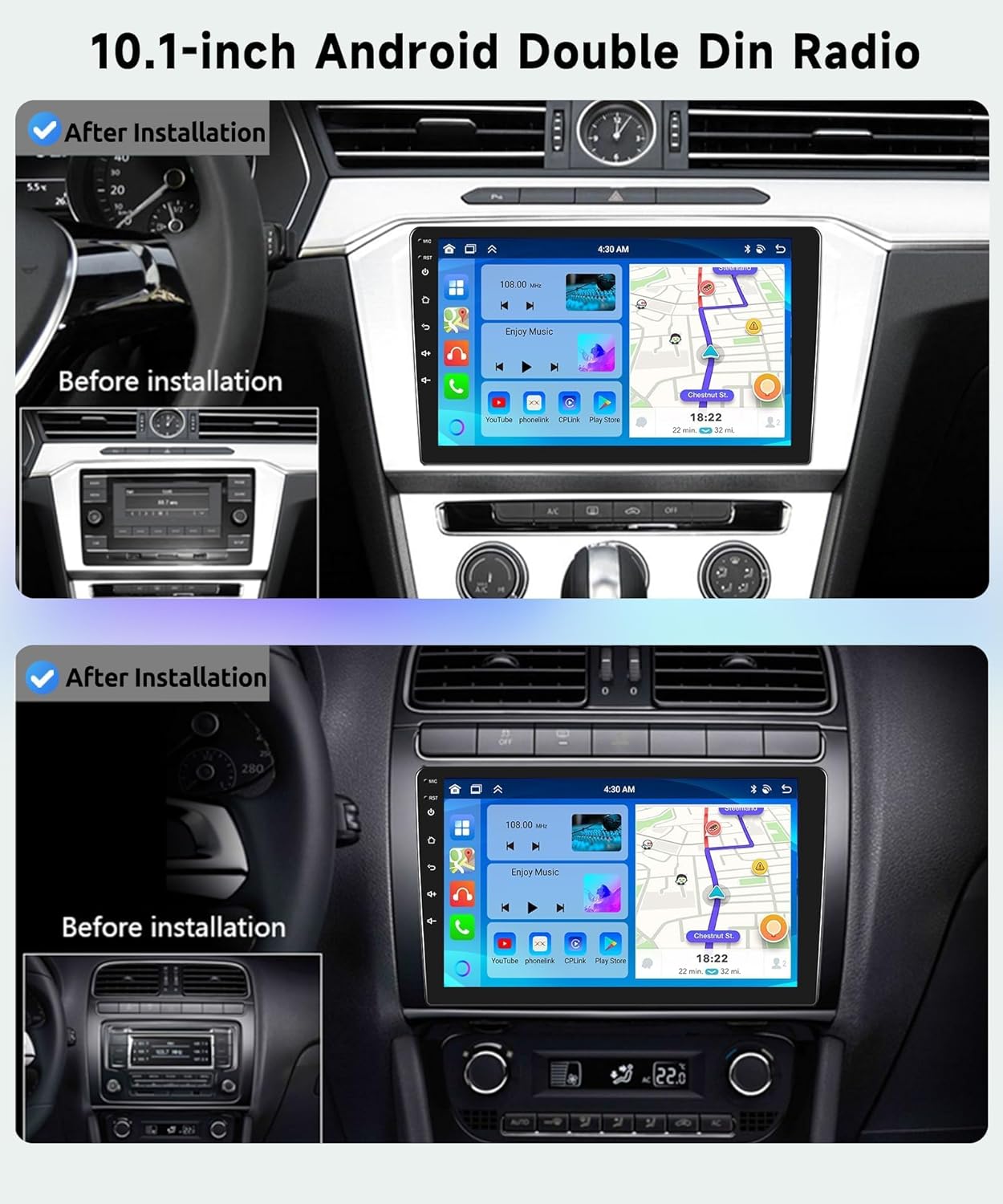
Image: A visual comparison showing the car dashboard before and after the installation of the Podofo 10.1-inch Android Double Din Radio, highlighting the integrated appearance.
3. Troi ymlaen yn gychwynnol
After all connections are secure, reconnect the vehicle's battery. The unit should power on automatically when the ignition is turned on. Follow the on-screen prompts for initial setup.
4. Network Connection (WiFi)
To access online features, connect the unit to a WiFi hotspot (e.g., from your smartphone):
- Ewch i Gosodiadau > Rhwydwaith a Rhyngrwyd > Wi-Fi.
- Turn Wi-Fi on and select your desired network.
- Rhowch y cyfrinair os gofynnir i chi.

Image: The car stereo display showing active GPS navigation and a WiFi connection, indicating successful network setup.
5. GPS Setup
The unit comes with built-in GPS. For offline navigation, ensure map data is downloaded. For real-time navigation, connect to WiFi.
- Gwnewch yn siŵr bod yr antena GPS wedi'i osod yn iawn a bod ganddi olwg glir view o'r awyr.
- Open the pre-installed navigation app or download your preferred app from the app store.
Cyfarwyddiadau Gweithredu
1. Touch Screen and User Interface
The 10.1-inch IPS touch screen provides intuitive control. Swipe gestures and taps are used for navigation. The unit supports multiple wallpaper and UI options for personalization.

Image: A visual breakdown of the IPS HD screen technology, highlighting its 1280x720 resolution, 2.5D curved glass, touch functionality, and the ability to use split-screen mode.

Image: A collage displaying 59 different user interface themes available for customization on the car stereo, allowing users to personalize the look and feel.
2. CarPlay Di-wifr / Android Auto
Connect your smartphone wirelessly for seamless integration of navigation, music, calls, and messaging.
- Gwnewch yn siŵr bod Bluetooth a Wi-Fi wedi'u galluogi ar eich ffôn a stereo'r car.
- Ar stereo'r car, agorwch yr ap CarPlay neu Android Auto.
- Dilynwch y cyfarwyddiadau ar y sgrin i baru'ch ffôn.

Image: An illustration detailing the various connectivity methods for CarPlay (Android System), Android Auto (iOS System), and Mirror Link (Android/iOS System), indicating support for both Bluetooth and USB cable connections.

Image: Displays the user interfaces for both Wireless CarPlay and Android Auto as they appear on the car stereo screen, showcasing app integration and functionality.
3. Cysylltedd Bluetooth
For hands-free calling and audio streaming:
- Ewch i Bluetooth settings on the stereo.
- Galluogi Bluetooth a chwilio am ddyfeisiau.
- Select your phone from the list and pair.

Image: The car stereo display showing the Bluetooth interface for hands-free calling and music streaming, alongside the FM/RDS radio tuner with frequency selection.
4. Radio FM/RDS
Access the radio function to listen to FM stations. RDS (Radio Data System) provides station information where available.
- Dewiswch y Radio cais o'r brif ddewislen.
- Defnyddiwch y swyddogaeth sganio i ddod o hyd i orsafoedd sydd ar gael neu diwnio â llaw i amledd.

Delwedd: Cyfuniad view of the car stereo's Bluetooth interface for hands-free calls and music, and the FM/RDS radio interface for tuning into stations.
5. DSP Audio Adjustment
The 32-band DSP (Digital Sound Processor) allows for precise audio customization.
- Llywiwch i'r DSP or Cyfartaledd gosodiadau.
- Adjust frequency bands, balance, fader, and sound field settings to optimize audio output.

Image: The car stereo display showing the 32-band DSP (Digital Sound Processor) adjustment interface, allowing users to fine-tune audio settings for an enhanced listening experience.
6. Rheolydd yr Olwyn Lywio (SWC)
Program your vehicle's steering wheel buttons to control the stereo functions.
- Ewch i Gosodiadau > Rheoli Olwyn Llywio.
- Follow the on-screen instructions to map each button to its desired function (e.g., volume up/down, track skip, answer call).

Image: A visual guide demonstrating how to set up and utilize the Steering Wheel Control feature on the car stereo, showing the on-screen mapping interface and a steering wheel with highlighted control buttons.
7. Cyswllt Drych
Mirror your smartphone's screen directly onto the car stereo display.
- Agorwch y Dolen Drych application on the stereo.
- Follow the instructions to connect your Android or iOS device via Bluetooth or USB cable.

Image: An illustration demonstrating the Mirror Link feature, where a smartphone screen (Android or iOS) is duplicated onto the car stereo display, allowing for content sharing.
8. Rheoli Llais
Utilize voice commands for hands-free operation of various functions.
- Activate the voice assistant (e.g., "Hey Podofo" or "Hey Google").
- Issue commands for navigation, music playback, calls, and app control.

Image: Displays the voice control interfaces for both Siri Assistant and Google Assistant on the car stereo, illustrating how users can interact with the system using voice commands.

Image: A visual representation of the voice control feature, showing examples of commands like "Play Michael Jackson's Love Yourself," "Call 911," "Open Google," and "Close Play Store," with a friendly robot icon.
9. Swyddogaeth Sgrin Hollti
Rhedeg dau gymhwysiad ar yr un pryd ar y sgrin.
- Long-press the home button or use the split-screen icon (if available) to activate.
- Select the two applications you wish to display.

Image: An illustration of the screen partitioning feature, showing the car stereo display split into two sections, for example, displaying FM radio and music on one side and GPS navigation on the other, along with a selection of commonly used apps.
10. Backup Camera Operation
When the vehicle is shifted into reverse, the display will automatically switch to the backup camera view.
- Ensure the backup camera is correctly wired to the reverse trigger.
- The HD night vision camera provides a 170-degree ultra-wide viewongl ing.
Image: The car stereo display showing the AHD 1080P reverse camera view, complete with parking guidelines, demonstrating its functionality for safe backing up.
11. USB Ports Usage
The unit features dual USB ports for various functions:
- Chwarae Cyfryngau: Connect USB drives for music, video, or photo playback.
- Codi tâl: Charge compatible devices.
- Trosglwyddo Data: For certain applications or system updates.
Cynnal a chadw
To ensure the longevity and optimal performance of your Podofo car stereo, follow these maintenance guidelines:
- Glanhau'r sgrin: Defnyddiwch frethyn meddal, di-flwff i sychu'r sgrin gyffwrdd yn ysgafn. Ar gyfer staeniau ystyfnig, sychwch ychydigampgolchwch y lliain gyda dŵr neu lanhawr sy'n ddiogel i sgriniau. Osgowch ddeunyddiau sgraffiniol neu gemegau llym.
- Glanhau cyffredinol: Keep the unit and surrounding dashboard area free from dust and debris. Use a soft brush or compressed air for vents and crevices.
- Diweddariadau Meddalwedd: Gwiriwch yn rheolaidd am ddiweddariadau meddalwedd gan y gwneuthurwr i sicrhau bod y system yn rhedeg yn effeithlon a bod ganddi'r nodweddion a'r clytiau diogelwch diweddaraf.
- Rheoli tymheredd: Avoid exposing the unit to extreme temperatures for prolonged periods. High heat or extreme cold can affect performance and lifespan.
- Rheoli Ceblau: Ensure all cables are securely connected and not pinched or exposed to excessive wear.
Datrys problemau
If you encounter issues with your Podofo car stereo, refer to the following common problems and solutions:
| Problem | Achos Posibl | Ateb |
|---|---|---|
| Nid yw'r uned yn pweru ymlaen. | Cysylltiad pŵer llac, ffiws wedi chwythu, problem â batri cerbyd. | Check power cable connections (ACC, B+, GND). Inspect vehicle fuses. Ensure battery is charged. |
| Dim sain gan siaradwyr. | Incorrect speaker wiring, volume too low, mute activated, DSP settings. | Verify speaker connections and polarity. Increase volume. Check if mute is on. Adjust DSP settings. |
| Mae signal GPS yn wan neu'n anghywir. | Antena GPS wedi'i gosod yn amhriodol neu wedi'i rhwystro. | Ensure GPS antenna is mounted in a clear, unobstructed location (e.g., dashboard). |
| Nid yw CarPlay/Android Auto yn cysylltu. | Bluetooth/Wi-Fi off, phone compatibility, incorrect pairing steps. | Ensure Bluetooth and Wi-Fi are on for both devices. Re-attempt pairing. Check phone compatibility. |
| Nid yw'r camera wrth gefn yn dangos. | Incorrect wiring of video signal or reverse trigger. | Verify backup camera video input and reverse trigger wire connection. |
| Sgrin gyffwrdd yn anymatebol. | Rhewi system, nam meddalwedd dros dro. | Perform a soft reset (refer to manual for specific reset button location, usually a small pinhole). If persistent, contact support. |
If the problem persists after trying these solutions, please contact Podofo technical support.
Manylebau
| Nodwedd | Manylyn |
|---|---|
| Maint Arddangos | 10.1 modfedd |
| Datrysiad | 1280 x 720P IPS |
| System Weithredu | Android 13 |
| Prosesydd | 8-Craidd |
| HWRDD | 4GB |
| ROM (Storio Mewnol) | 64GB |
| Cysylltedd | Wireless CarPlay, Wireless Android Auto, Bluetooth 5.0, Wi-Fi, USB |
| Nodweddion Sain | 32-Band DSP, Subwoofer Output |
| Cydrannau wedi'u Cynnwys | External Microphone, HD Backup Camera |
| Math Mowntio | Dashboard Mount (Double Din) |
| Pwysau Eitem | 3.09 pwys |
| Dimensiynau Pecyn | 11.8 x 7 x 3.3 modfedd |

Image: A graphic illustrating the high-performance processor and large memory configuration of the Podofo unit, comparing its 8-core, 4GB RAM, and 64GB ROM specifications against a typical 4-core, 1GB RAM, and 16GB ROM setup.
Gwarant a Chefnogaeth
Gwybodaeth Gwarant
Your Podofo 10.1 Inch Android 13 Double Din Car Stereo comes with a Gwarant 2 Flynedd from the date of purchase. This warranty covers manufacturing defects and ensures the product meets its specified performance standards. Please retain your proof of purchase for warranty claims.
Cymorth Technegol
Podofo specializes in car electronics and provides professional technical support. If you have any questions regarding compatibility, installation, operation, or troubleshooting that are not covered in this manual, please contact our customer support team.
You can typically find support contact information through the seller's page on the platform where you purchased the product. Look for options like "Ask a question" or "Contact Seller."

Image: Instructions on how to access 24/7 technical support by navigating to the seller's page and clicking "Ask a question."

Image: A graphic emphasizing Podofo's global presence (available in over 100 countries), the 2-year warranty, and the availability of 24/7 expert customer support.