
1. Rhagymadrodd
Thank you for choosing the PNI Voyager S2600 WiFi 4K Ultra HD Car DVR Camera. This device is designed to record high-quality video footage of your journeys, providing security and evidence in case of incidents. It features 4K Ultra HD recording, Wi-Fi connectivity for smartphone control, parking monitoring, and a G-sensor for automatic incident detection.

Image 1.1: PNI Voyager S2600 Dash Cam installed in a vehicle, showcasing its key features: 4K Ultra HD recording, Wi-Fi connectivity, and Parking Monitoring.
2. Gwybodaeth Diogelwch
Please read and follow these safety guidelines to ensure proper operation and prevent damage to the device or injury.
- Peidiwch ag amlygu'r ddyfais i dymheredd eithafol, golau haul uniongyrchol am gyfnodau hir, na lleithder uchel.
- Ensure the device is securely mounted and does not obstruct the driver's view neu ymyrryd â rheolaethau cerbydau.
- Use only the provided power cable and accessories. Using unauthorized accessories may damage the device and void the warranty.
- Peidiwch â cheisio dadosod na thrwsio'r ddyfais eich hun. Cysylltwch â phersonél gwasanaeth awdurdodedig i gael cymorth.
- Keep the lens clean to ensure clear video recording.
- Always format the microSD card regularly to maintain optimal recording performance.
3. Cynnwys Pecyn
Gwiriwch fod yr holl eitemau yn bresennol yn y pecyn:
- PNI Voyager S2600 Car DVR Camera
- Power cord with cigarette lighter plug (12V/24V compatible)
- Mownt windshield
- Llawlyfr Defnyddiwr

Image 3.1: The PNI Voyager S2600 dash cam, its magnetic mount, and the power cable with a cigarette lighter adapter.
4. Cynnyrch Drosview
Familiarize yourself with the components of your PNI Voyager S2600 dash cam.
4.1. Cynllun Dyfais
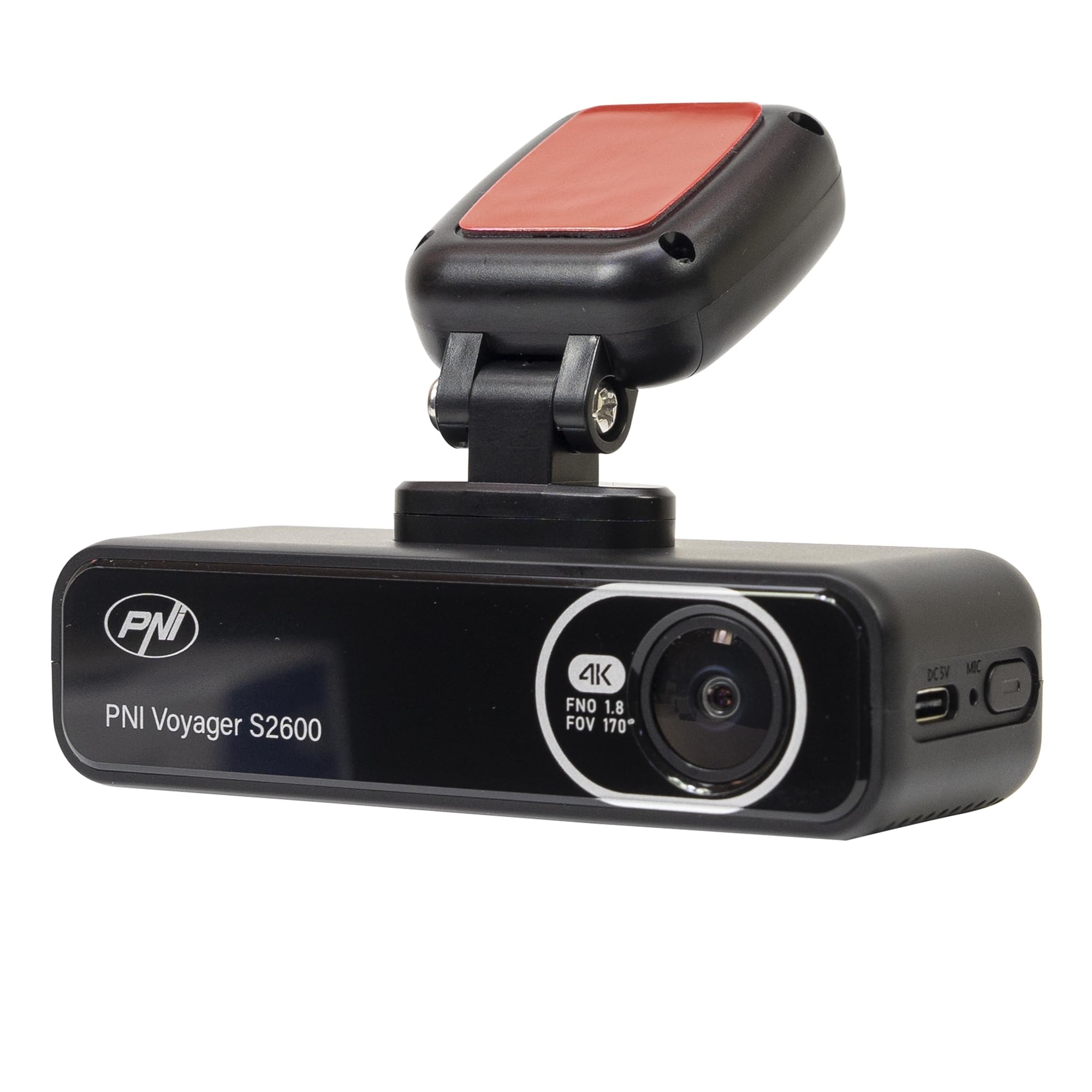
Delwedd 4.1: Blaen view of the PNI Voyager S2600, displaying the camera lens with 4K FNO 1.8 FOV 170° markings, the PNI brand logo, and the model name.

Delwedd 4.2: Manwl view of the side of the dash cam, highlighting the USB-C power input (DC 5V) and the microphone opening.
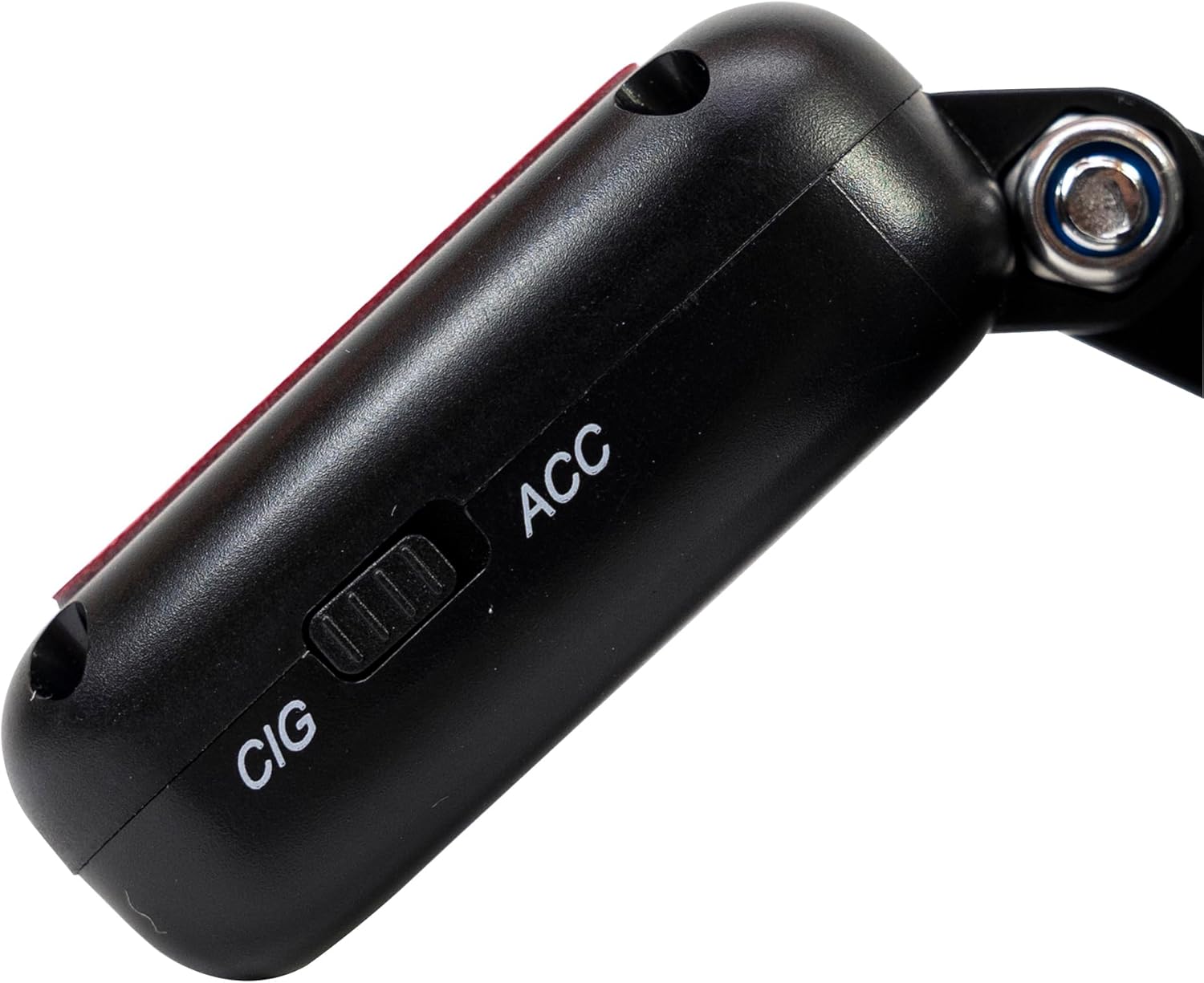
Delwedd 4.3: Ochr view of the magnetic mount, featuring a switch to select between 'CIG' (cigarette lighter power) and 'ACC' (accessory power) modes.
4.2. Nodweddion Allweddol
- 4K Ultra HD Video Recording: Captures video at 3840x2160 resolution at 30FPS, or 2560x1440 at 30FPS, and 1920x1080 at 60FPS/30FPS.
- Cysylltedd Wi-Fi: Connects to your smartphone via the Viidure-Dashcam Viewer app for live view, lawrlwytho fideo, ac addasu gosodiadau.
- Monitro Parcio: Activates the camera to record when vibration or movement is detected while the vehicle is parked.
- Synhwyrydd G: Automatically locks the current video file in case of a collision to prevent overwriting.
- Lens Ongl Eang: 170-gradd viewing angle to capture a broad perspective of the road.
- Recordiad Dolen: Yn trosysgrifennu'r bwyd hynaftage pan fydd y cerdyn cof yn llawn, gan sicrhau recordio parhaus.
- GPS integredig: Records speed and coordinates, which can be displayed on recorded videos.
5. Gosod
5.1. Mewnosod Cerdyn MicroSD
- Gwnewch yn siŵr bod y camera dangosfwrdd wedi'i ddiffodd.
- Lleolwch y slot cerdyn microSD ar y ddyfais.
- Insert a high-speed (Class 10 or higher) microSD card (up to 512GB) into the slot until it clicks into place.
- I'w dynnu allan, gwthiwch y cerdyn yn ysgafn i mewn nes ei fod yn clicio, yna rhyddhewch. Bydd y cerdyn yn cael ei daflu allan.
Pwysig: Format the microSD card within the app or on a computer before first use and periodically thereafter to ensure stable recording.
5.2. Installation and Power Connection
- Glanhewch yr ardal ar eich ffenestr flaen lle rydych chi'n bwriadu gosod y camera dangosfwrdd. Gwnewch yn siŵr nad yw'n rhwystro'ch view.
- Attach the windshield mount to the dash cam. The mount is magnetic for easy attachment.
- Peel off the protective film from the adhesive pad on the mount and firmly press it onto the chosen spot on your windshield for at least 30 seconds.
- Connect the power cable to the USB-C port on the mount.
- Route the power cable neatly along the windshield and dashboard to the vehicle's cigarette lighter socket.
- Plug the cigarette lighter adapter into the vehicle's 12V/24V power outlet.
- Select the appropriate power mode on the mount's switch: 'CIG' for continuous power from the cigarette lighter, or 'ACC' for power only when the vehicle's ignition is on.

Image 5.1: The PNI Voyager S2600 dash cam detached from its magnetic mount, illustrating the contact points for secure attachment.
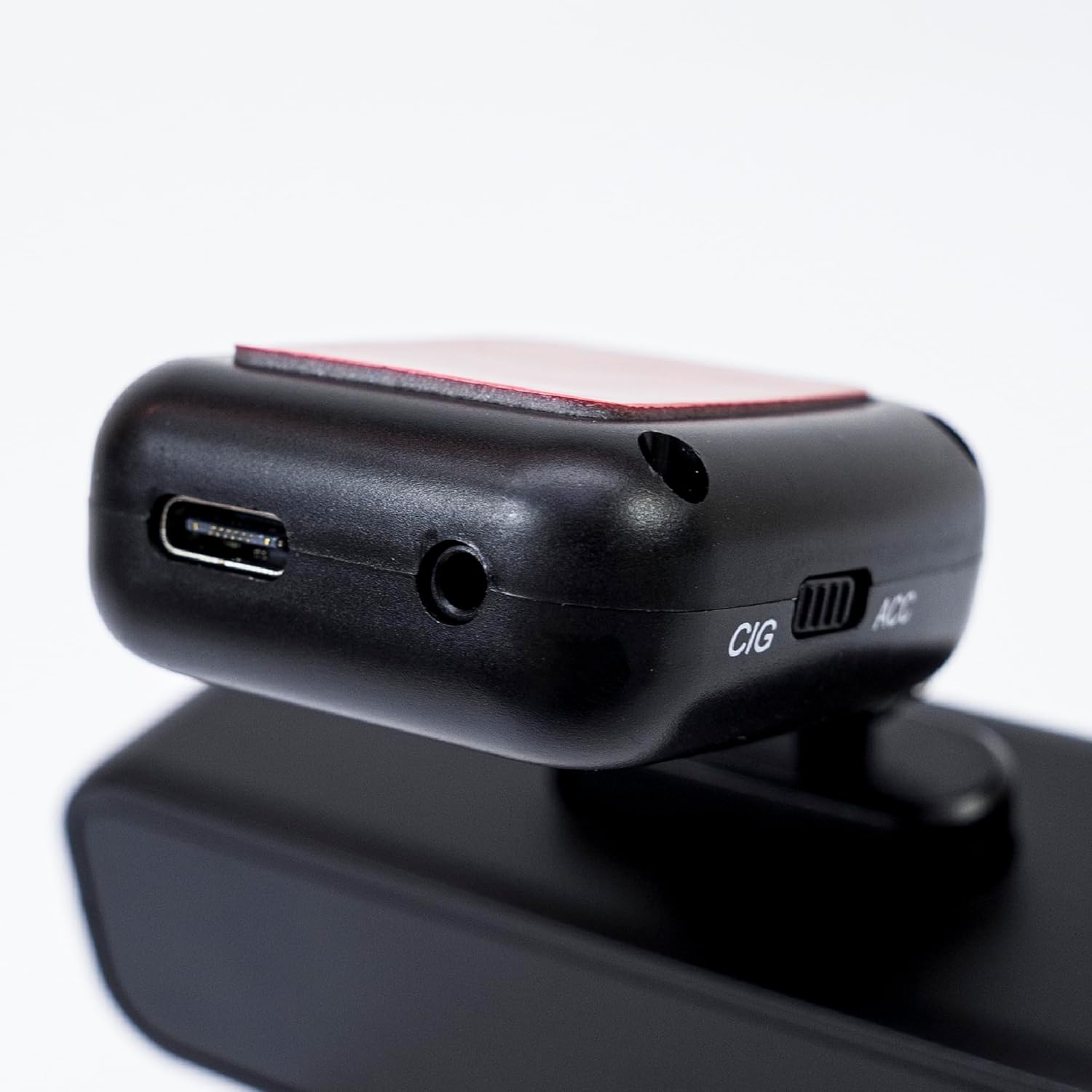
Image 5.2: The top of the dash cam mount, featuring the USB-C port for power input and the CIG/ACC switch for power mode selection.
5.3. Gosod Ap a Chysylltiad Wi-Fi
- Lawrlwythwch y Viidure-Dashcam Viewer ap o'r App Store (iOS) neu Google Play Store (Android).
- Power on the dash cam.
- On your smartphone, go to Wi-Fi settings and connect to the dash cam's Wi-Fi network. The network name (SSID) and password can usually be found in the dash cam's settings (if it has a screen) or in the manual.
- Open the Viidure-Dashcam Viewer app. The app should automatically detect and connect to the dash cam.
- Trwy'r app, gallwch chi view byw footage, adjust settings, download recorded videos, and format the microSD card.

Image 5.3: A smartphone showing the Viidure-Dashcam Viewer application, demonstrating the wireless connection and control over the PNI Voyager S2600 dash cam.
6. Cyfarwyddiadau Gweithredu
6.1. Recordio Awtomatig
Once powered on and with a valid microSD card inserted, the PNI Voyager S2600 will automatically begin loop recording. Video files are saved in segments (e.g., 1, 3, or 5 minutes) to the microSD card.
6.2. G-Sensor (Emergency Recording)
The built-in G-sensor detects sudden impacts or rapid acceleration/deceleration. When triggered, it automatically locks the current video segment, preventing it from being overwritten by loop recording. These emergency files are stored in a separate folder on the microSD card.
6.3. Monitro Parcio
When the vehicle is parked and the dash cam is powered (either continuously via CIG mode or with a hardwire kit), the parking monitor function activates. If the G-sensor detects a collision or motion detection is enabled and detects movement, the dash cam will automatically power on and record a short video segment. This feature helps protect your vehicle when unattended.

Image 6.1: Visual representation of the Parking Monitor feature, showing the dash cam detecting an impact while the car is parked.
6.4. Wi-Fi and App Usage
The Viidure-Dashcam Viewer app allows you to:
- Byw View: See what the camera is recording in real-time on your smartphone.
- Chwarae Fideo: Review recorded videos directly from the microSD card.
- Download Videos: Transfer important video files from the dash cam to your smartphone.
- Addasiad Gosodiadau: Configure various dash cam settings, such as video resolution, G-sensor sensitivity, loop recording duration, and parking monitor options.
- Cerdyn SD fformat: Erase all data on the microSD card.
6.5. Ymarferoldeb GPS
The integrated GPS receiver records your vehicle's speed and location data. This information can be overlaid on the video footage during playback via the app or compatible desktop software, providing additional context for your recordings.
7. cynnal
7.1. Glanhau'r Dyfais
Use a soft, dry cloth to clean the dash cam body. For the lens, use a specialized lens cleaning cloth to avoid scratches. Do not use chemical cleaners or abrasive materials.
7.2. MicroSD Card Formatting
It is recommended to format the microSD card every 2-4 weeks to prevent data corruption and ensure optimal recording performance. This can be done through the Viidure-Dashcam Viewer app.
7.3. Diweddariadau Firmware
Periodically check the PNI website or the Viidure-Dashcam Viewer app for available firmware updates. Firmware updates can improve performance, add new features, or fix bugs. Follow the instructions provided with the update carefully.
8. Datrys Problemau
If you encounter issues with your PNI Voyager S2600, refer to the following common problems and solutions:
| Problem | Achos Posibl | Ateb |
|---|---|---|
| Nid yw'r camera dangosfwrdd yn troi ymlaen. | No power supply; faulty cable; incorrect power mode. | Check power cable connection; ensure cigarette lighter socket is active; verify CIG/ACC switch setting. |
| Mae'r recordiad yn stopio neu'n rhewi. | MicroSD card error; card full; low-speed card. | Format microSD card; replace with a high-speed (Class 10 U3) card; ensure sufficient storage. |
| Wi-Fi connection unstable or fails. | Interference; incorrect password; app issue. | Ensure dash cam Wi-Fi is enabled; re-enter password; restart app and dash cam; try connecting in a different location. |
| Ansawdd fideo gwael. | Dirty lens; incorrect resolution setting. | Clean the camera lens; check video resolution settings in the app. |
| Nid yw'r monitor parcio yn gweithio. | Incorrect power mode; feature disabled. | Ensure dash cam is receiving continuous power (CIG mode or hardwire kit); enable parking monitor in app settings. |
If the problem persists, please contact PNI customer support.
9. manylebau
Detailed technical specifications for the PNI Voyager S2600 Car DVR Camera:
| Nodwedd | Disgrifiad |
|---|---|
| Rhif Model | PNI-S2600 |
| Datrysiad Fideo | 4K (3840x2160@30FPS), 2K (2560x1440@30FPS), FHD (1920x1080@60FPS/30FPS) |
| Synhwyrydd Delwedd | SONY335 (5MP, 2592x1944px) |
| Viewongl ing | 170 Gradd |
| Fformat Fideo | MP4, H.264 |
| Fformat Llun | JPEG |
| Datrysiad Llun Max | 8MP (3264x2448) |
| Storio | MicroSD card slot, up to 512GB (Class 10 or higher recommended) |
| Cysylltedd | Wi-Fi, GPS (integrated) |
| Nodweddion Arbennig | G-Sensor, Parking Monitoring, Motion Detection, Loop Recording |
| Cyflenwad Pŵer | 5V/2A (via 12V/24V car adapter) |
| Batri | Super capacitor 1.5 UF |
| Tymheredd Gweithredu | -26 ° C ~ +80 ° C |
| Dimensiynau (L x W x H) | 105mm x 35mm x 27mm |
| Pwysau | 88 gram |
| Math USB | Math C |
10. Gwarant a Chefnogaeth
10.1. Gwybodaeth Gwarant
The PNI Voyager S2600 Car DVR Camera comes with a Gwarant 24 mis from the date of purchase. This warranty covers manufacturing defects under normal use. It does not cover damage caused by misuse, accidents, unauthorized modifications, or improper installation. Please retain your proof of purchase for warranty claims.
10.2. Cefnogaeth i Gwsmeriaid
For technical assistance, troubleshooting, or warranty inquiries, please contact PNI customer support. You can find more information and support resources on the official PNI websafle:
Gwneuthurwr: ONLINESHOP SRL
Address: Olteniei 26A, Piatra Neamt, Neamt, 610206, Romania