
1. Rhagymadrodd
This manual provides detailed instructions for the setup, operation, and maintenance of your HUNSN RJ47 Micro Firewall Appliance. The RJ47 is a compact, fanless mini PC designed for network security applications, supporting various open-source firewall solutions like OPNsense and pfSense, as well as Linux distributions and Windows operating systems.
Equipped with an Intel 12th Gen Alder Lake-N N200 processor and multiple 2.5GbE network interfaces, this appliance offers robust performance for network routing and security tasks.
2. Nodweddion Cynnyrch
- Prosesydd: Intel 12th Gen Alder Lake-N N200 with AES-NI support.
- Cof: 1 x SO-DIMM DDR5 4800 MT/s slot, supporting up to 32GB RAM.
- Storio: 2 x M.2 2280 NVMe x1 SSD slots and 1 x 2.5-inch SATA SSD/HDD bay.
- Rhyngwynebau Rhwydwaith: 6 x Intel 2.5GbE I226-V LAN ports.
- Allbwn Fideo: 2 x HDMI 2.1 ports and 1 x Type-C port for display.
- Porthladdoedd USB: 1 x USB 3.2, 4 x USB 2.0, and 1 x Type-C (data/display).
- Additional I/O: TF slot for data storage/system boot, Power ON/OFF button, RST button, DC_IN.
- Oeri: Fanless design for silent operation.
- Cydnawsedd System: Supports 5.10.x and above core-based FreeBSD router systems, Linux distributions, and Windows OS. UEFI support only.
- Rheoli Pwer: Supports hardware auto power-on (enabled by default), network wake-up, and system power management.
3. Canllaw Gosod
3.1 Cynnwys Pecyn
Cyn bwrw ymlaen, gwnewch yn siŵr bod yr holl eitemau yn bresennol yn y pecyn:
- HUNSN RJ47 Firewall Appliance
- Power Supply (12V3A)
- Cord Pŵer
- Cerdyn Gwarant
3.2 Caledwedd Drosoddview

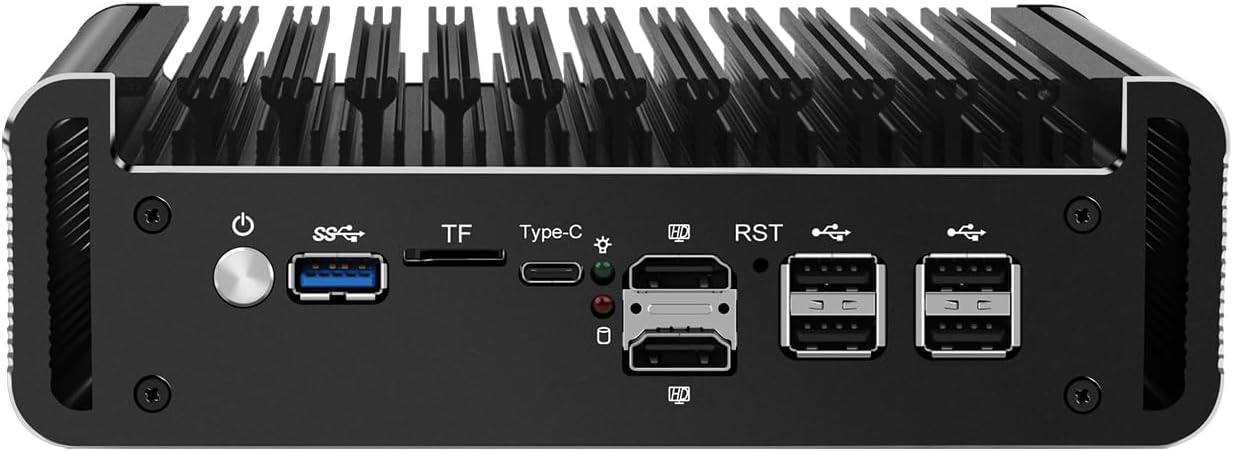
Ffigur 1: Panel Blaen Drosoddview
This image displays the front panel of the HUNSN RJ47, featuring the power button, USB 3.2 port, TF card slot, Type-C port, two HDMI 2.1 ports, RST button, and four USB 2.0 ports.
Ffigur 2: Panel Cefn Drosoddview
This image illustrates the rear panel of the HUNSN RJ47, showing the DC 12V power input and six 2.5 Gigabit Ethernet (LAN) ports labeled ETH0 to ETH5.
3.3 Cysylltiad Cychwynnol
- Cysylltu'r Arddangosfa: Connect a monitor to one of the HDMI 2.1 ports or the Type-C port using an appropriate cable.
- Cysylltu Perifferolion: Connect a USB keyboard and mouse to the available USB ports.
- Rhwydwaith Cyswllt: Connect your network cables to the 2.5GbE LAN ports as required for your network configuration.
- Pwer Cysylltu: Connect the power supply to the DC_IN port on the appliance and then plug the power cord into an electrical outlet.
- Pŵer Ymlaen: Press the power button on the front panel to turn on the appliance.
3.4 Gosod System Weithredu
The HUNSN RJ47 supports various operating systems, including FreeBSD-based router systems (e.g., OPNsense, pfSense), Linux distributions, and Windows OS. It supports UEFI boot only.
- Prepare a bootable USB drive with your chosen operating system.
- Insert the bootable USB drive into a USB port on the appliance.
- Power on the appliance and access the BIOS/UEFI settings (usually by pressing DEL or F2 during startup) to set the boot order or select the USB drive as the boot device.
- Dilynwch y cyfarwyddiadau ar y sgrin i osod y system weithredu.
4. Cyfarwyddiadau Gweithredu
4.1 Pŵer Ymlaen/Diffodd
- Pŵer Ymlaen: Press the power button on the front panel. The system will automatically power on if configured in BIOS.
- Cau i lawr arferol: Initiate a shutdown through your installed operating system.
- Diffodd yr Heddlu: Press and hold the power button for approximately 5 seconds. Use this only when a normal shutdown is not possible.
4.2 Ffurfweddiad Rhwydwaith
The RJ47 features six 2.5GbE LAN ports. After installing your operating system, configure the network interfaces according to your specific network topology and firewall requirements. Refer to the documentation of your chosen operating system (e.g., OPNsense, pfSense) for detailed network setup instructions.
4.3 Gosodiadau BIOS/UEFI
To access the BIOS/UEFI settings, power on the appliance and repeatedly press the DEL or F2 key. Here you can configure boot options, enable/disable features, and manage power settings such as "Auto Power On" and "Network Wake-up".
5. cynnal
5.1 Glanhau
Due to its fanless design, the RJ47 requires minimal cleaning. Periodically wipe the exterior with a soft, dry cloth to remove dust. Ensure the ventilation fins are clear of obstructions to maintain optimal passive cooling.
- Peidiwch â defnyddio glanhawyr hylif na chwistrellau aerosol yn uniongyrchol ar y ddyfais.
- Sicrhewch fod y ddyfais wedi'i phweru i ffwrdd a'i dad-blygio cyn ei glanhau.
5.2 Amodau Amgylcheddol
To ensure longevity and stable operation, operate the appliance within the specified environmental conditions:
- Tymheredd Gweithredu: -10 ° C i 70 ° C
- Tymheredd Storio: 0°C i 70°C
- Lleithder Cymharol: 5% i 85% (ddim yn cyddwyso)
6. Datrys Problemau
- Dim pŵer:
- Ensure the power adapter is securely connected to the appliance and the electrical outlet.
- Gwiriwch a yw'r allfa bŵer yn weithredol.
- Check if the power button is pressed correctly.
- Dim Allbwn Arddangos:
- Confirm the monitor is powered on and connected to the correct HDMI or Type-C port.
- Rhowch gynnig ar gebl arddangos neu fonitor gwahanol.
- Gwnewch yn siŵr bod y ffynhonnell fewnbwn gywir wedi'i dewis ar eich monitor.
- Problemau Cysylltedd Rhwydwaith:
- Check all Ethernet cable connections to the LAN ports.
- Verify network settings within your installed operating system.
- Gwnewch yn siŵr bod eich llwybrydd/switsh yn gweithio'n gywir.
- Operating System Installation Failure:
- Confirm your bootable USB drive is created correctly and is recognized in BIOS/UEFI.
- Remember that the appliance supports UEFI boot only. Ensure your OS installer is configured for UEFI.
- Check the integrity of your OS image.
7. Manylebau Technegol
| Nodwedd | Manyleb |
|---|---|
| Rhif Model | RJ47 |
| CPU | Intel Processor N200 (12th Gen Alder Lake-N), 6M Cache, up to 3.70 GHz |
| AES-NI Support | Oes |
| Cof | 1 x SO-DIMM DDR5 4800 MT/s, up to 32GB |
| Storio | 2 x M.2 2280 NVMe x1 SSD, 1 x 2.5 Inch SATA SSD/HDD |
| Cerdyn Rhwydwaith | 6 x Intel 2.5GbE I226-V |
| Rhyngwyneb I/O | Power ON/OFF, USB 3.2, TF slot, Type-C (display/data), 2 x HDMI 2.1, RST, 4 x USB 2.0, DC_IN, 6 x LAN |
| Ehangu | Built-in reserved TPM header, 1 x COM pin, 1 x GPIO pin |
| Mewnbwn Pwer | DC 100-240V AC/50-60Hz, 12V3A |
| Tymheredd Gweithredu | -10 ° C i 70 ° C |
| Tymheredd Storio | 0°C i 70°C |
| Lleithder Cymharol | 5% ~ 85% heb gyddwyso |
| TDP | 6W |
| System Oeri | Fanless |
| Dimensiynau | 178.3 x 126.5 x 55mm |
| Pwysau | 1.3 kgs (Appliance), 2 kg (Shipping Weight) |
| Cydweddoldeb System | FreeBSD router systems (5.10.x+), Linux distros, Windows OS (UEFI support only) |
| Batris | 1 batri CR2032 (wedi'i gynnwys) |
8. Gwybodaeth Gwarant
The HUNSN RJ47 Firewall Appliance includes a warranty card in its packaging. Please refer to this card for specific details regarding warranty coverage, terms, and conditions. Retain your proof of purchase for warranty claims.
9. Cefnogaeth
For technical assistance, product inquiries, or support, please contact HUNSN directly.
- Gwneuthurwr: Shenzhen Shi Han Song Ke Ji You Xian Gong Si
- Ffôn: (86) 13613019665
- Ffacs: (86) 0755-23057094
- Siop Ar-lein: Ymweld â'r swyddog HUNSN Store on Amazon am fwy o gynhyrchion a gwybodaeth.