
Rhagymadrodd
Welcome to the user manual for your new iTech Jr Kids Smartwatch with On-Ear Bluetooth Headphones. This device is designed to provide children with a fun and interactive experience, featuring a camera, games, music, and more, all while being paired with comfortable, fuzzy headphones for an immersive audio experience. This manual provides essential information on how to set up, operate, and maintain your product.
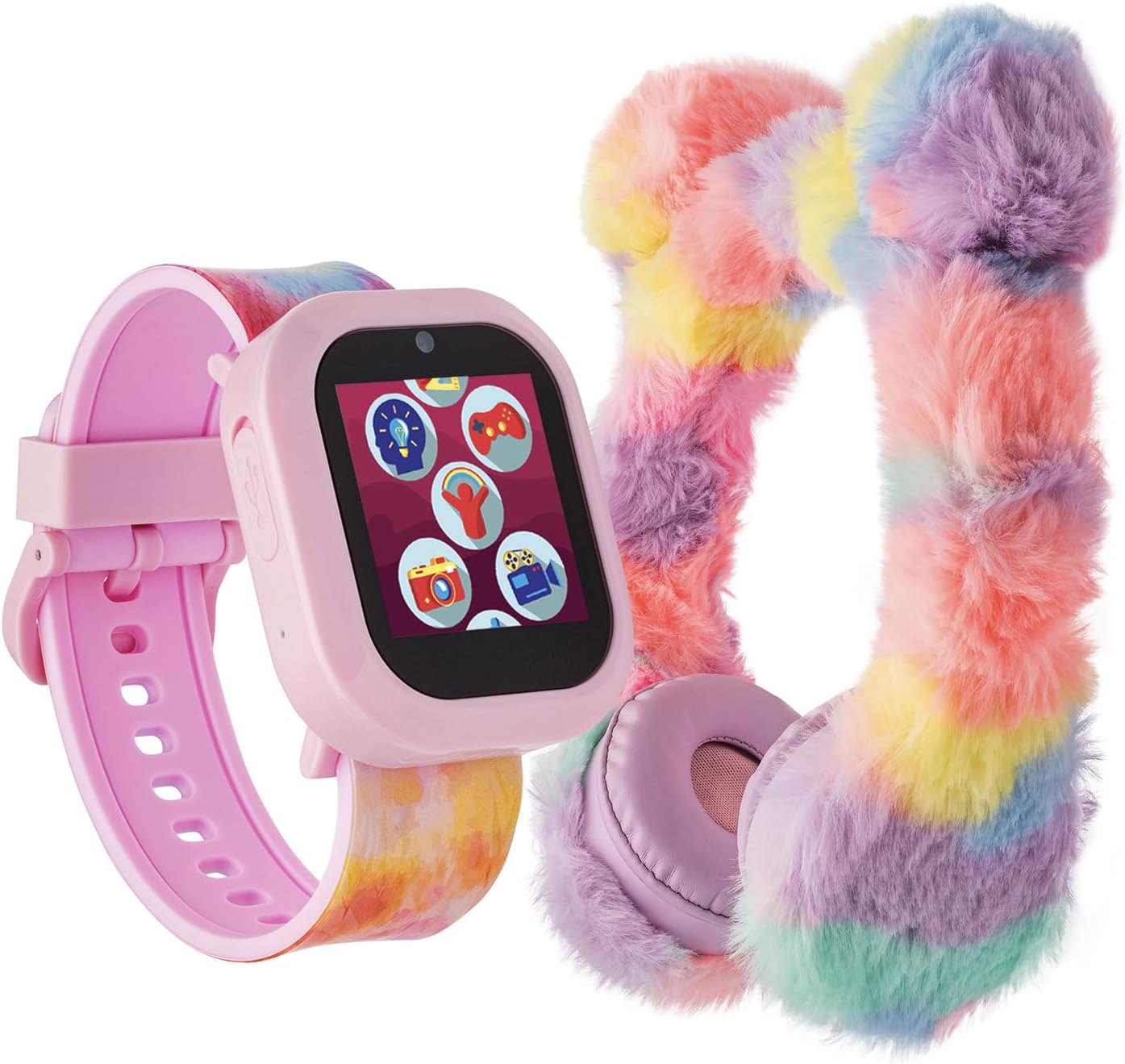
Image: The iTech Jr Kids Smartwatch, featuring a pink casing and a colorful tie-dye strap, displayed alongside the matching fuzzy pastel on-ear Bluetooth headphones. This image illustrates the complete product package.
Beth Sydd yn y Bocs
- iTech Jr Kids Smartwatch
- Clustffonau Bluetooth Ar y Clust
- Cebl Gwefru USB (ar gyfer smart phone)
- Llawlyfr Defnyddiwr (y ddogfen hon)
Cynnyrch Drosview
Familiarize yourself with the key components of your iTech Jr Smartwatch.

Delwedd: Llun agos view of the iTech Jr Smartwatch, highlighting its key features. Labels point to the LED Flashlight, Micro USB Port (for charging and data transfer), Camera Button (for capturing photos and videos), and the Home/Power Button.
- Flashlight LED: Located on the side of the watch, provides illumination.
- Porthladd Micro USB: Used for charging the smartwatch, downloading photos, and uploading music.
- Botwm Camera: Activates the camera function to capture photos and videos.
- Home / Power Button: Used to power the watch on/off and return to the home screen.
- Arddangosfa Sgrin Gyffwrdd: The primary interface for interacting with the watch's features.
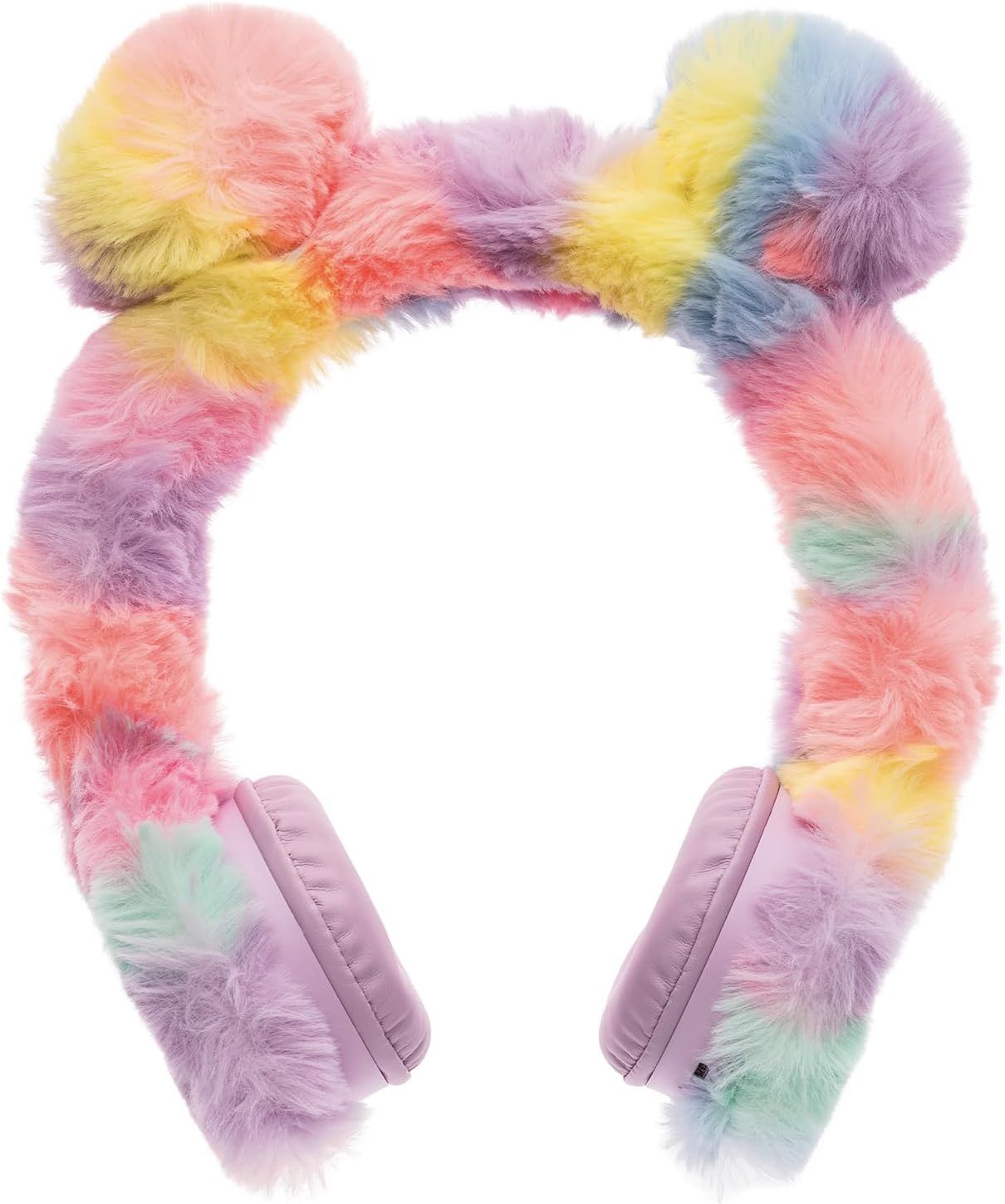
Image: A pair of fuzzy pastel on-ear Bluetooth headphones, featuring a rainbow-colored headband and soft earcups. These headphones are designed for comfortable listening and wireless connectivity.
- Band pen addasadwy: Am ffit cyfforddus.
- Clustffonau Meddal: Wedi'i gynllunio ar gyfer cysur yn ystod defnydd estynedig.
- Botwm Pŵer/Paru: Located on one earcup for turning on/off and initiating Bluetooth pairing.
- Rheolaethau Cyfrol: Buttons on the earcup to adjust audio volume.
Gosod
1. Gwefru'r Smartwatch
- Locate the Micro USB port on the side of the smartwatch.
- Connect the provided USB charging cable to the smartwatch and a compatible USB power source (e.g., computer USB port, wall adapter).
- The watch display will indicate charging status. Allow approximately 2-3 hours for a full charge before first use.
2. Pweru Ymlaen / I ffwrdd
- I Bweru Ymlaen: Press and hold the Home/Power button until the screen illuminates.
- I Bweru i ffwrdd: Press and hold the Home/Power button until a power-off option appears on the screen, then confirm.
3. Connecting Bluetooth Headphones
- Ensure the smartwatch is powered on.
- Power on the Bluetooth headphones by pressing and holding their Power/Pairing button until an indicator light flashes, signaling pairing mode.
- On the smartwatch, navigate to the Bluetooth settings (usually found in the settings menu).
- Dewiswch 'Chwiliwch am Devices' or 'Pair New Device'.
- Once the headphones appear in the list (e.g., 'iTech Jr Headphones'), tap to connect. A confirmation message will appear on both devices upon successful pairing.
Gweithredu'r Oriawr Clyfar
1. Touch Screen Navigation
Swipe left or right on the screen to browse through different applications and features. Tap an icon to open an application. Tap the Home/Power button to return to the watch face.

Image: The iTech Jr Smartwatch display showing a grid of application icons. These include Camera & Gallery, Fun Activities & Games, Calculator & Measurements, Audio Books & Stories, Time, Alarm & Stopwatch, Voice Recordings, ICE (In Case of Emergency), and Music & Sing-A-Longs.
2. Camera & Video Functions
The smartwatch features a built-in camera for capturing photos and videos.
- Tynnu Lluniau: Tap the Camera icon on the home screen. Press the Camera Button on the side of the watch or tap the on-screen shutter button to take a picture.
- Recordio Fideos: Within the camera app, switch to video mode. Press the Camera Button or tap the record icon to start/stop recording.
- Oriel: Access your captured photos and videos through the Gallery app.
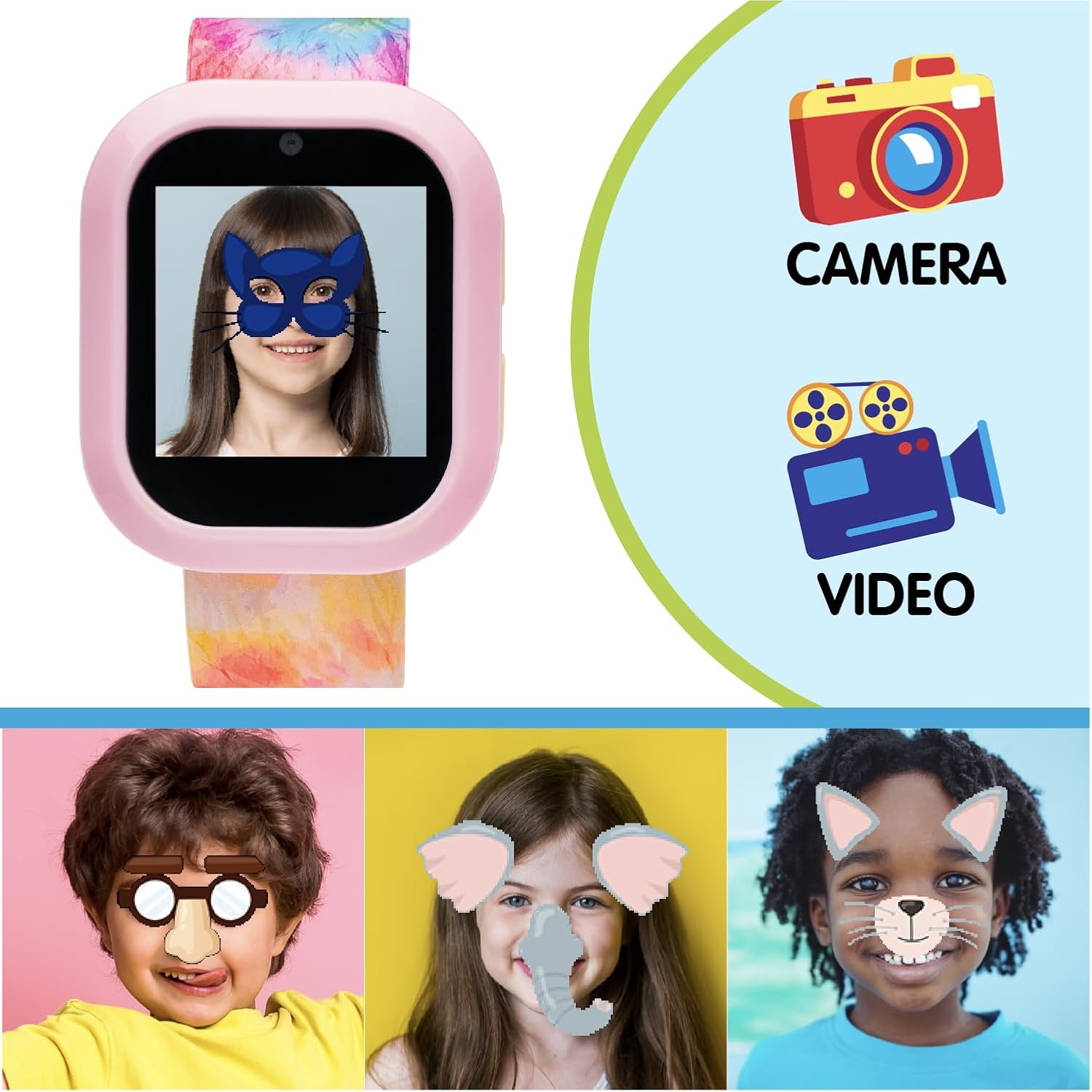
Image: The iTech Jr Smartwatch displaying a child's face with a digital mask, illustrating the camera's fun filter capabilities. Adjacent to the watch are icons for 'Camera' and 'Video', emphasizing these functions. Below, three children's faces are shown with various digital filters applied, demonstrating the interactive photo features.
3. Games & Activities
Engage with a variety of pre-loaded educational and fun games.
- Tap the 'Fun Activities & Games' icon to browse and select games.
- Games include S.T.E.M. challenges, puzzles, and more.
4. Music & Audiobooks
Enjoy pre-loaded audio content or upload your own music.
- Cerddoriaeth: Tap the 'Music & Sing-A-Longs' icon to play songs. Connect the Bluetooth headphones for a private listening experience.
- Llyfrau sain: Access stories and audiobooks via the 'Audio Books & Stories' icon.
- Uploading Music: Connect the smartwatch to a computer using the USB cable. The watch will appear as a removable drive. Drag and drop compatible audio files into the designated music folder.
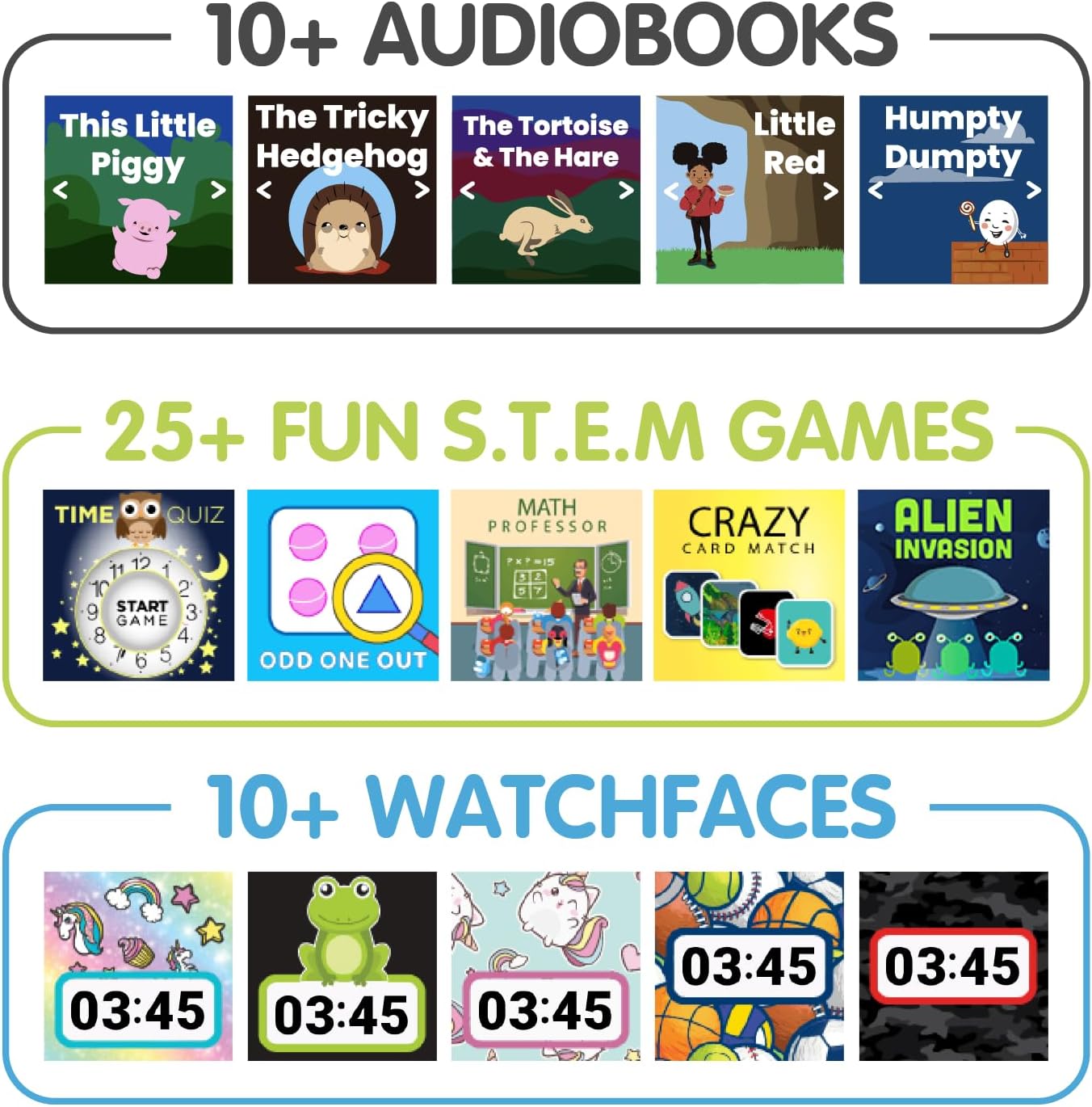
Delwedd: Delwedd gyfansawdd yn cael ei dangosasing various features of the iTech Jr Smartwatch. The top section displays '10+ Audiobooks' with covers of popular children's stories. The middle section highlights '25+ Fun S.T.E.M. Games' with examples like 'Time Quiz' and 'Odd One Out'. The bottom section shows '10+ Watchfaces' with different digital clock designs.
5. Time, Alarm & Stopwatch
- Gosod Amser: The time can be set manually through the 'Settings' menu.
- Larwm: Tap the 'Time, Alarm & Stopwatch' icon to set multiple alarms.
- Stopwats: Defnyddiwch y swyddogaeth stopwats ar gyfer gweithgareddau amseru.
6. Voice Recordings
Record and play back short voice messages using the 'Voice Recordings' app.
7. Flashlight LED
Activate the LED flashlight from the quick settings menu or a dedicated app icon for a convenient light source.
8. ICE (In Case of Emergency)
Set up emergency contact information in the 'ICE' app. This feature allows quick access to important details in an emergency situation.
9. Wynebau Oriawr
Customize the appearance of your smartwatch by changing the watch face. Access this option through the 'Settings' menu or by long-pressing the watch face.
Cynnal a chadw
1. Glanhau
- Smartwatch: Sychwch y sgrin a casing with a soft, dry, lint-free cloth. Avoid using harsh chemicals or abrasive materials.
- Clustffonau: Gently brush the fuzzy exterior to remove dust. Use a slightly damp cloth for the earcups if necessary, ensuring no moisture enters the speaker grilles.
2. Storio
Store the smartwatch and headphones in a cool, dry place away from direct sunlight and extreme temperatures when not in use.
3. Gofal Batri
- Charge the smartwatch regularly to maintain battery health.
- Osgowch ddraenio'r batri'n llwyr yn aml.
- Os ydych chi'n ei storio am gyfnod hir, gwefrwch y batri i tua 50% cyn ei storio.
Datrys problemau
- Oriawr ddim yn troi ymlaen: Ensure the watch is fully charged. Connect it to a charger for at least 30 minutes, then try powering on again.
- Oriawr ddim yn gwefru: Check the USB cable and power source. Ensure the cable is securely connected to both the watch and the power adapter. Try a different USB port or adapter.
- Clustffonau ddim yn paru: Ensure both the watch and headphones are in pairing mode. Make sure they are within close proximity. Turn both devices off and on again, then retry the pairing process.
- Materion sain: Check the volume levels on both the smartwatch and the headphones. Ensure the headphones are properly connected via Bluetooth.
- Sgrin yn anymatebol: Try restarting the smartwatch by holding down the Home/Power button. If the issue persists, ensure the screen is clean and dry.
Manylebau
| Nodwedd | Manylyn |
|---|---|
| Dimensiynau Cynnyrch | 9 x 1.06 x 0.47 modfedd |
| Pwysau Eitem | 1.23 pwys |
| Rhif Model | IJ302B-N01 |
| Maint Arddangos Sgrin Sefydlog | 1.06 modfedd |
| Nodwedd Arbennig | Camera |
| Technoleg Cysylltedd | Bluetooth |
| Safon Cyfathrebu Di-wifr | Bluetooth |
| GPS | Dim GPS |
| Siâp | hirsgwar |
| Math Arddangos | Digidol |
| Dyfeisiau Cydnaws | Smartphone (for data transfer/syncing) |
| Gwneuthurwr | iTech |
Gwarant a Chefnogaeth
This iTech Jr product comes with a manufacturer's warranty. Please refer to the warranty card included in your product packaging for specific terms and conditions, including warranty period and coverage details.
For technical support, troubleshooting assistance, or warranty claims, please contact iTech customer service. Contact information can typically be found on the manufacturer's official websafle neu ar becynnu'r cynnyrch.