
YNF B0D6ZDR4KD
Llawlyfr Cyfarwyddiadau Plyg Clyfar YNF
Model: B0D6ZDR4KD
Cynnyrch Drosview
The YNF Smart Plug is a versatile smart home device that allows you to control your home appliances from anywhere using the Smart Life App, voice commands via Alexa or Google Home, and set up automated schedules. Its compact design and robust features make it an essential addition to any modern smart home setup.

Figure 1: YNF Smart Plug

Figure 2: Key Features of YNF Smart Plug
Canllaw Gosod
Follow these steps to set up your YNF Smart Plug and connect it to your Smart Life App:
- Step 1: Open the Smart Life App. Ensure you have downloaded and installed the Smart Life App on your smartphone (available for Android and iOS).
- Step 2: Tap on the "+" icon. In the Smart Life App, tap the "+" icon located on the top right corner of the screen to add a new device.
- Step 3: Select Plug (BLE + Wi-Fi). From the list of device types, navigate to the 'Electrical' section and select 'Plug (BLE + Wi-Fi)'.
- Step 4: Power on the device and confirm indicator blinking. Plug in your YNF Smart Plug. If the indicator light is not blinking rapidly, hold the power button on the plug for 5 seconds until it starts blinking. Confirm this in the app and tap 'Next'.
- Step 5: Select your 2.4GHz Wi-Fi network and enter its correct password. The smart plug requires a 2.4GHz Wi-Fi network. Select your home Wi-Fi network from the list and enter the password. Tap 'Next'.
- Step 6: Wait for successful pairing. The app will now attempt to connect to the smart plug. Once connected, a success message will appear. You can then tap the pencil icon to rename your device for easier identification. Tap 'Done' to complete the setup.

Figure 3: Smart Plug Setup Steps
Video: How to connect Wi-Fi Smart Plug, Smart Life App. This video demonstrates the step-by-step process of connecting your YNF Smart Plug to the Smart Life application, including opening the app, adding the device, and confirming successful pairing.
Cyfarwyddiadau Gweithredu
Rheolaeth Anghysbell
Once connected, you can control your smart plug from anywhere using the Smart Life App. Simply open the app, select your device, and tap the power icon to turn it on or off.

Ffigur 4: Rheolaeth o Bell drwy Ap Smart Life
Rheoli Llais
The YNF Smart Plug is compatible with Amazon Alexa and Google Home. Link your Smart Life account to your voice assistant app to enable voice commands. You can then use phrases like "Alexa, turn on the living room light" or "Hey Google, turn off the fan."
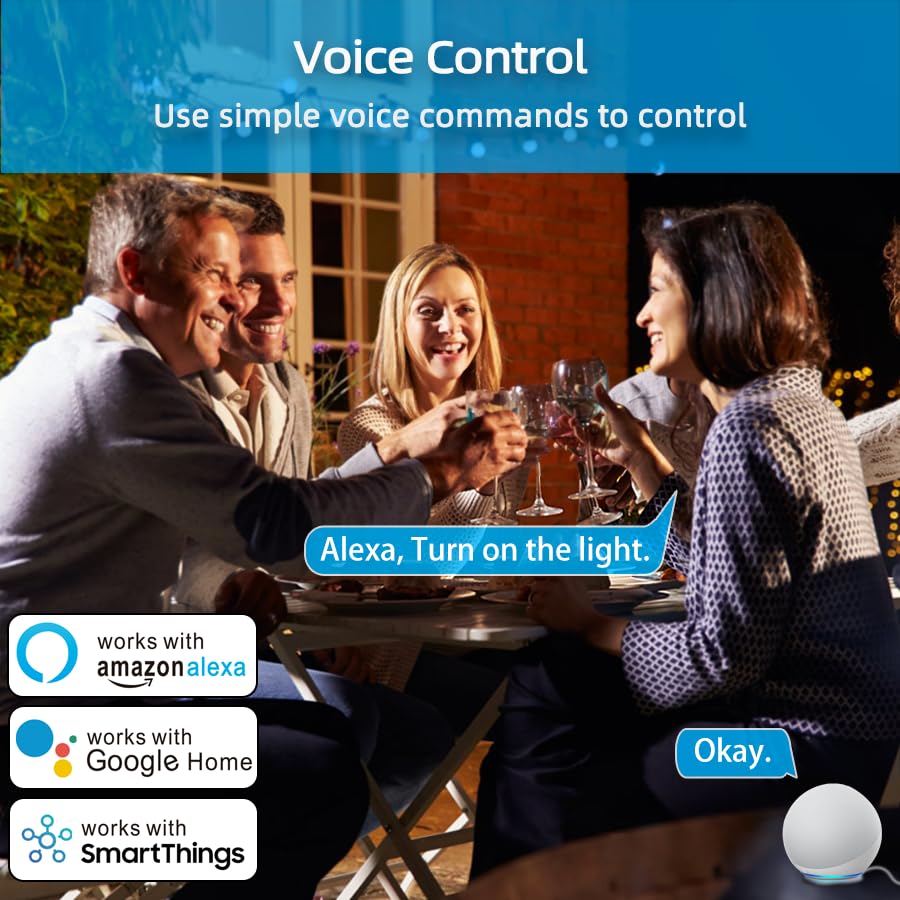
Ffigur 5: Rheoli Llais gyda Chynorthwywyr Clyfar
Timer and Scheduling
Set countdown timers or create schedules for your appliances to turn on or off automatically. This feature is ideal for managing lights, coffee makers, or other devices to fit your daily routine or save energy.

Figure 6: Setting Schedules for Automation
Modd y Tywydd
Utilize the weather mode feature to automate your smart plug based on local temperature, humidity, or weather conditions. For example, you can set lights to turn on when it gets cloudy.

Figure 7: Automation with Weather Mode
Group Control and Device Sharing
Organize multiple smart plugs into groups for simultaneous control. You can also share control of your devices with family members through the Smart Life App.

Figure 8: Group Control and Bluetooth Connectivity
Cynnal a chadw
- Keep the smart plug clean and dry. Use a soft, dry cloth for cleaning.
- Osgoi amlygu'r ddyfais i dymereddau eithafol, lleithder neu olau haul uniongyrchol.
- Ensure the plug is used within its specified electrical ratings to prevent damage.
- Ar gyfer defnydd dan do yn unig. Peidiwch â defnyddio mewn gwlyb neu damp lleoliadau.

Figure 9: Child Safety Reminder
Datrys problemau
- Dyfais ddim yn cysylltu â Wi-Fi: Ensure your Wi-Fi network is 2.4GHz. The smart plug does not support 5GHz networks. Check your router settings.
- Golau dangosydd ddim yn fflachio: If the indicator light is not blinking rapidly during setup, hold the power button on the smart plug for 5 seconds to reset it and enter pairing mode.
- Rheolaeth bell ddim yn gweithio: Check your internet connection and ensure the Smart Life App is updated to the latest version.
- Problemau rheoli llais: Verify that your Smart Life account is correctly linked to your Alexa or Google Home app. Ensure the device name is recognized by the voice assistant.
- Pwer OutagCof e: The smart plug is designed to remember its last state (on/off) after a power outage, restoring it once power is back.

Figure 10: 2.4GHz Wi-Fi Requirement

Figure 11: Power Outage Memory Feature
Manylebau
| Nodwedd | Manylyn |
|---|---|
| Brand | YNF |
| Model | B0D6ZDR4KD |
| Lliw | Gwyn |
| Deunydd | Styren Biwtadïen Acrylonitrile (ABS) |
| Math o Gysylltydd | Plug-in |
| No. of Wires | 3 |
| Dimensiynau Pecyn | 2.52 x 2.52 x 2.44 modfedd |
| Pwysau Eitem | 2.08 owns |
| Gwneuthurwr | YNF |
| Dyddiad Ar Gael Cyntaf | Ionawr 26, 2024 |

Figure 12: ETL and FCC Certifications
Gwarant a Chefnogaeth
For warranty information and technical support, please refer to the contact details provided on the product packaging or visit the official YNF Smart Home websafle. Cadwch eich derbynneb prynu ar gyfer hawliadau gwarant.
Ask a question about this manual
Ask about setup, troubleshooting, compatibility, parts, safety, or missing instructions. Manuals+ will review the question and use this page’s manual context to help answer it.